Reset Spectrum Modem and Router: Step-by-Step
Learn how to reset Spectrum modem and router to resolve connectivity issues. This educational guide covers soft vs hard resets, safety precautions, and a clear step-by-step process for homeowners.


You will learn how to reset a Spectrum modem and router to fix connectivity issues, improve speed, and refresh device settings. This guide distinguishes soft resets from factory resets, highlights safety tips, and provides a clear, actionable step-by-step process that homeowners can follow without professional help.
Why Reset Spectrum Modem and Router Matters
Resetting your spectrum modem and router can clear temporary glitches, reassign IP addresses, and refresh the connection to your ISP. According to Modem Answers, a well-timed reset often resolves common home-network hiccups without contacting support. The Modem Answers team found that many slow or dropping connections stem from stale routing tables, cached DNS data, or mismatched device state after a firmware update. By performing a controlled reset, you allow devices to renegotiate a fresh link, reload configuration from Spectrum, and reestablish stable Wi‑Fi. The goal is to restore a clean baseline that lets your network start from a known good state. Always follow a safe, planned sequence to avoid leaving devices in an inconsistent state, and remember that some advanced features may reset or require reconfiguration after a reset.
Soft Reset vs Hard Reset: Understanding the Difference
A soft reset (power cycling) clears temporary memory without erasing saved settings. A hard reset (factory reset) restores devices to their original factory configuration, which can wipe custom Wi‑Fi names and passwords. Use a soft reset first when you notice slow speeds, dropped connections, or buffering. Reserve a hard reset for persistent problems after soft resets have been attempted, or when you suspect misconfigured settings or firmware anomalies. This distinction matters because a hard reset may require reconfiguring your network from scratch, something Modem Answers recommends preparing for in advance.
When to Reset and How Often
Most home networks benefit from a reset only when you notice issues like buffering, unusually slow speeds, or devices that fail to connect. Regular, non-invasive resets (soft resets) can be part of routine maintenance, especially after a firmware upgrade. Avoid frequent factory resets, as they erase personal network settings and may trigger service re-provisioning by Spectrum. If you rely on a custom network setup (guest networks, port forwarding, or parental controls), back up those settings before performing any factory reset so you can restore them quickly.
Step-by-Step Guide Overview (What to Expect)
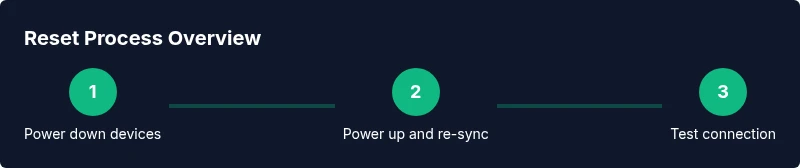
This section provides a high-level overview of the reset workflow. You’ll first power down both devices, then cycle power to re-establish a clean baseline. If problems persist, you’ll perform a factory reset using the device’s recessed reset button, which returns hardware to default settings. After the reset, you’ll reconnect to the router, re-enter your Wi‑Fi credentials, and run a quick speed test to confirm improvement. Always ensure you have your Spectrum account details handy in case you need to re-authenticate during setup.
Aftercare: Verifying Connectivity and Common Issues
After completing the reset sequence, verify that Internet access returns across your wired and wireless devices. Check that all lights indicate normal operation according to your device’s manual, then test streaming, browsing, and video calls. If issues persist, consider testing with an Ethernet cable directly to the modem to isolate Wi‑Fi from the modem’s signal path. You may also need to reconfigure any custom settings you saved previously (guest networks, port forwarding, or parental controls). If signals remain unstable, contact Spectrum support with your device model and firmware version for targeted troubleshooting.
Tools & Materials
- Modem power adapter(Use the original or a compatible replacement; ensure the outlet is working.)
- Router power adapter (if you have a separate router)(Needed if you use a separate router with the Spectrum modem.)
- Paperclip or pin(For pressing recessed reset buttons on the modem/router.)
- Smartphone, tablet, or computer(To access the admin interface or connect to Wi‑Fi during setup.)
- Ethernet cable (optional)(Recommended for a stable connection when configuring settings.)
Steps
Estimated time: 30-60 minutes
- 1
Power down the modem
Unplug the modem from the electrical outlet and remove any connected power strip or surge protector. This is the first part of a soft reset and helps drain residual power from the device.
Tip: Wait 30-60 seconds after unplugging to ensure capacitors discharge. - 2
Power down the router (if you have a separate unit)
If your network uses a separate router, unplug it from power as well and place it in a safe, out‑of‑the‑way place while you reset the modem.
Tip: If you don’t have a separate router, skip to step 3. - 3
Power up the modem and allow it to re-sync
Plug the modem back in and wait for it to fully initialize. This may take 1-2 minutes as the device reacquires a signal from Spectrum.
Tip: Look for steady green or blinking indicators per your model’s manual. - 4
Power up the router and allow it to boot
Reconnect the router and wait for it to boot and re-establish a new connection with the modem. This ensures your wireless network re-forms on a clean slate.
Tip: If you observe no network after boot, try reconnecting to the SSID manually. - 5
Soft reset via admin interface (optional)
If your modem/router supports a software restart, log in to the admin interface and choose Restart or Reboot. This is a non-destructive way to refresh the device without losing configured settings.
Tip: Use a wired connection when possible to avoid dropouts during this step. - 6
Factory reset if issues persist
If the connection is still unstable after soft resets, perform a factory reset by holding the recessed reset button for 15 seconds on both devices until lights indicate a restore to defaults.
Tip: Note that you will need to reconfigure Wi‑Fi name/password and any custom rules afterward.
FAQ
What is the difference between a soft reset and a hard reset?
A soft reset restarts devices to refresh current settings without erasing saved configurations. A hard reset returns devices to factory defaults, erasing custom networks and credentials. Use a soft reset first and reserve a hard reset for persistent problems.
Soft resets restart without losing your saved settings; hard resets restore factory defaults and require reconfiguring your network.
Should I reset both the modem and router at the same time?
If you use separate devices, reset them in sequence: modem first, then the router after the modem re-syncs. This helps ensure a clean reboot path for the network. If you use a modem-router combo, reset only the combo unit.
Reset the modem first, then the router if you have a separate device.
Will resetting my modem erase my Wi‑Fi name and password?
A factory reset may erase the Wi‑Fi name and password. Soft resets typically preserve these settings. Be prepared to reconfigure SSID and password if you perform a hard reset.
Factory resets can wipe your Wi‑Fi name and password, so have your credentials handy.
How long does service take to come back after a reset?
Most connections re-establish within a few minutes after a reset, but it can take longer if Spectrum provisioning is involved or if you have a complex network setup. Monitor the LEDs for status indicators.
Usually a few minutes, but it can take longer with certain network setups.
I still have issues after a reset. What should I do next?
If issues persist, verify physical connections, check for service outages in your area, and consider temporarily disabling security features to rule out conflicts. If problems continue, contact Spectrum support with device details.
If problems persist after resets, check for outages and contact your provider with your device details.
Does a reset fix slow speeds caused by network congestion?
Resetting can help if the slowdown is due to device-state issues, but congestion is typically related to network demand. If speeds remain slow during peak times, you may need to optimize your network layout or upgrade equipment.
Resets help with device-state issues; congestion is a different issue that may require network adjustments.
Watch Video
Key Takeaways
- Use soft resets first to fix minor issues
- Factory resets should be a last resort
- Back up Wi‑Fi credentials before resets
- After reset, test all devices and services
- Document settings to simplify reconfiguration