How to Reset a Spectrum Modem: Troubleshooting Guide
Learn how to reset a Spectrum modem safely, with clear steps for soft and hard resets, post-reset checks, and best practices. Includes authoritative sources and a concise video query to help homeowners quickly restore service.


Wondering how to reset spectrum modem? This guide shows soft reboots, factory resets, and how to verify your connection after reset. According to Modem Answers Team, a controlled reset often resolves transient network hiccups by refreshing the device state. We'll include safety tips and what to expect on your lights, and provide a step-by-step plan anyone can follow.
What resetting a Spectrum modem does
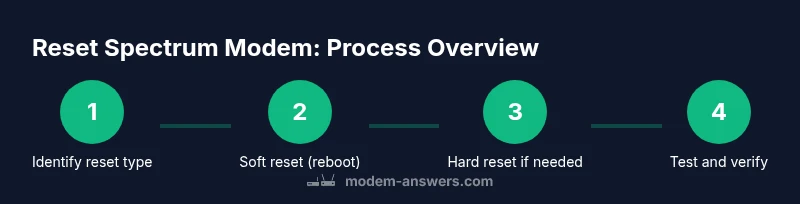
Resetting a Spectrum modem returns the device to a known, clean state by clearing temporary data, refreshing network sessions, and triggering a fresh connection to Spectrum's network. A soft reset (reboot) restarts the modem without erasing your Wi‑Fi network name or password; it’s the safest first step for most issues. A hard reset, or factory reset, restores the modem to its original factory settings and clears any custom configurations. Understanding these differences helps you choose the right action and avoids unnecessary reconfiguration later. In practice, most home-network problems—like slow speeds, dropped connections, or devices not obtaining an IP address—are resolved by a simple reset. If the problem persists after a soft reset, a deeper check of your home network setup may be required.
According to Modem Answers, resets are a common first troubleshooting step and can resolve many issues without professional support. This is especially true when the problem is isolated to the modem or local network rather than the service itself.
Soft reset vs hard reset: when to use each
Soft reset reboots the modem by cycling power or issuing a software restart. It takes a minute or two and preserves your Wi-Fi SSID and passwords, custom port forwarding rules, and most settings. This makes it the recommended first step for transient issues such as brief outages, slow page loads, or devices failing to connect momentarily.
A hard reset erases all custom settings and returns the modem to its factory defaults. This is useful when you suspect a misconfiguration, forgotten admin password, or persistent firmware-related problems. After a hard reset you’ll need to re-enter your Wi-Fi name, password, and any other personalized settings. Keep in mind that you may need to re-run any specific network tweaks you had before.
If you rely on a separate router, a soft reset is typically sufficient, but a hard reset may be necessary if the router is not behaving as expected after the modem reboots. Always check the ISP’s status page if you suspect a service-wide issue before diving into resets.
Preparation: what you’ll need before resetting
Before resetting, gather a few basic items and confirm you have temporary access to your network. You’ll need the Spectrum modem and its power adapter, plus something to press the reset button (a small paperclip or pin). Have a pen and paper handy to record your Wi-Fi name and password if you perform a factory reset. If you use a separate router, note the router’s configuration details and be prepared to reconfigure it after the modem reset. If possible, connect a computer directly to the modem via Ethernet to monitor status during the reset. This preparation reduces friction and speeds up the recovery. Finally, ensure you’re aware of any ongoing firmware activity; interrupting a firmware update during reset can cause issues.
Soft reset: step-by-step light reboot (preserves settings)
- Locate the reset button: Find the recessed reset button on the back or bottom of the modem. A soft reset can be done by simply rebooting the device via the web interface if available. Pro tip: if you cannot access the interface, the physical power cycle is a reliable alternative.
- Power cycle the modem: Unplug the power cord, wait 15–30 seconds, then plug it back in. This refreshes the device’s memory and renews the connection to Spectrum. You should see the lights start to reinitialize within a couple of minutes.
- Wait for full reinitialization: Allow 2–4 minutes for boot and sync with the ISP. Confirm the online indicator is steady or blinking per your model’s manual. This ensures the device is fully reconnected to Spectrum and your local network.
- Check devices and connectivity: After the modem comes back online, reconnect your devices and test basic internet access. If devices fail to connect, you may need to re-enter Wi-Fi credentials on each device.
- Optional remote restart: If you cannot access the device locally, you can sometimes restart from your online account or app provided by Spectrum. This method is convenient when you’re away from the modem.
Hard reset: factory reset (erases custom settings)
- Prepare for reset: A factory reset will erase all custom settings, including Wi-Fi network name, password, firewall rules, and port-forwarding configurations. Before proceeding, write down the current Wi-Fi name and password if you recall them, or be prepared to reconfigure from scratch. If you have a separate router, note its settings to reapply after reconfiguration.
- Initiate the reset: With the modem powered on, press and hold the recessed reset button for 10–15 seconds using a paperclip or similar tool. Release and allow the device to reboot. The lights may flash in a pattern indicating it is restoring factory defaults.
- Reconfigure from scratch: Once the modem finishes rebooting, you’ll need to set up your network again. This includes naming your Wi-Fi network, setting a new password, and reapplying any required security features. If you have a separate router, you can choose to keep the modem in bridge mode or reintroduce the router to the network.
- Verify firmware status: After reset, check for any firmware updates through the modem’s admin interface and apply them if available. Keeping firmware current helps avoid future issues.
- Test and verify: Reconnect devices and confirm internet access works across wired and wireless connections. If you rely on a custom DNS or other advanced features, set them up again during this step.
Post-reset troubleshooting and verification
- Confirm basic connectivity: After a reset, ensure you can browse the web, stream, and perform speed tests if possible. If some devices still fail, try forgetting and reconnecting the Wi-Fi network on those devices or reconnecting via Ethernet. Remember that device-specific settings may need adjustment after a reset.
- Optimize Wi-Fi performance: After a reset, consider adjusting channel selection, security type, or enabling 2.4 GHz and 5 GHz settings. If you have a dual-band router, ensure both bands are broadcasting as expected.
- Check for overlapping networks: If you have other devices that create a guest network or mesh system, double-check that your devices aren’t connecting to an incorrect network. Update the mesh or booster settings if necessary.
- Consider time-of-day variability: If issues appear during peak hours, you may be experiencing congestion or line issues that a reset cannot fix. Contact Spectrum support if the problem persists across multiple devices.
- When to contact support: If problems persist after multiple resets, or if you see unusual modem lights (e.g., a constant blinking error or red light), reach out to Spectrum for professional assistance. Document the lights you observe to help speed up the support call.
Best practices and maintenance after reset
Regularly check for firmware updates and review configuration settings to maintain a stable connection. Use a wired connection to configure the modem when possible to avoid wireless interference during setup. Create a documented recovery plan with your network credentials and device list to simplify future resets. If you’re using a third-party router, review its compatibility and consider a dedicated unit if you need advanced features such as guest networking or better parental controls. Finally, remember that resets don’t fix all issues; persistent problems may indicate line faults or service outages that require ISP intervention. Keeping a simple lab manual of your network settings can speed future troubleshooting significantly.
Authoritative sources
- FCC – Routers and Modems: https://www.fcc.gov/consumers/guides/routers-and-modems
- FTC – Internet Service Providers and Modems: https://www.ftc.gov
- NIST – Guidelines for Home Networks: https://www.nist.gov
Tools & Materials
- Spectrum modem and power adapter(Essential for any reset; ensure the adapter is the original if possible)
- Paperclip or pin for reset button(Used to press recessed reset button during hard reset)
- A device to test connectivity (computer, tablet, or smartphone)(Helps verify you can reach the internet after reset)
- Pen and paper or digital note tool(Record your Wi-Fi name/password and any custom settings if you plan to reconfigure after a factory reset)
Steps
Estimated time: 15-25 minutes
- 1
Power down and unplug the modem
Shut off the modem and unplug the power cord from the wall outlet. This ensures the device is completely powered down before you begin a reset. Do not unplug during an active firmware update to avoid leaving the device in an unstable state.
Tip: If you use surge protection, unplug from the power strip to ensure a clean reset. - 2
Plug the modem back in to reset
Reconnect the power cord to the modem and wait for it to begin its reboot sequence. Power cycling the device clears volatile memory and initiates a soft reset without altering your saved Wi-Fi settings.
Tip: Observe the status lights; a steady, specific pattern usually indicates a successful reboot per the model’s manual. - 3
Optional hard reset: press and hold the recessed reset button
If you need a factory reset, press and hold the recessed reset button with a paperclip for 10–15 seconds. Release and allow the modem to reboot to its default settings.
Tip: Factory reset erases Wi-Fi name and password; be prepared to reconfigure network settings afterward. - 4
Reconfigure your network
After a hard reset, set a new Wi-Fi name and password. Reapply any security features and port-forwarding rules if needed. If you have a separate router, decide whether to place the modem in bridge mode or reintroduce the router to the network.
Tip: Write down your new credentials as you configure to avoid future lockouts. - 5
Test connectivity on multiple devices
Reconnect devices via Wi-Fi or Ethernet and verify that internet access is working. Run a quick speed test and check for consistent performance across wired and wireless connections.
Tip: Test both 2.4 GHz and 5 GHz bands if you have a dual-band router for optimal coverage.
FAQ
How do I reset my Spectrum modem without losing Wi‑Fi settings?
Use a soft reset (reboot) first; this restarts the device while preserving SSID and password. If the issue persists, consider a factory reset only after backing up your settings.
Try a soft reset first; it restarts the modem and keeps your Wi‑Fi name and password intact. If problems persist, you may need to reset to factory defaults after saving your settings.
What is the difference between soft reset and hard reset?
A soft reset reboots the modem and preserves most settings, while a hard reset restores factory defaults and erases custom configurations. Use hard reset only if issues persist after a soft reset.
A soft reset reboots and keeps your settings; a hard reset resets everything to factory defaults. Use hard reset only if needed.
How long does a reset take?
Soft resets typically complete within a few minutes. A hard reset may take longer as the modem reinitializes and you reconfigure settings.
Most soft resets finish in a few minutes; a factory reset can take a bit longer because you have to reconfigure your network.
Will resetting affect my router or other devices?
If you have a separate router, resetting the modem may require you to reconfigure the router as well. Bridging the modem can simplify network management.
Your router might need reconfiguration after the modem reset. If you use bridging, you may need to set that up again.
When should I contact Spectrum support?
If issues persist after multiple resets or if you observe unusual modem lights, contact Spectrum support with details of the lights and steps you’ve taken.
If problems keep happening after resets or you see odd lights, reach out to Spectrum with what you did and what you’re seeing.
Watch Video
Key Takeaways
- Start with a soft reset to avoid losing settings
- Hard reset erases all custom configurations—prepare to reconfigure
- Power cycling refreshes device state and often fixes minor glitches
- Test connectivity on multiple devices after reset
- Consult authoritative sources if issues persist