How to Know If Your Spectrum Modem Is Working Correctly
Clear, step-by-step troubleshooting to confirm Spectrum modem health. Learn power checks, cable seating, status lights, outages, and when to contact support to restore your internet fast.


If your Spectrum modem isn’t showing online, start with the basics: power cycle the modem, check the coax connection, and verify the wall outlet. Then look at the status lights and check for an outage in your area. Most issues are resolved by a simple reset, tight cables, or a temporary Spectrum outage.
how to know if spectrum modem is working
Understanding what it means for a Spectrum modem to be working is the first step in troubleshooting. A healthy modem typically powers on, shows a steady online indicator, and maintains a stable link to your home network. The Modem Answers team emphasizes that many issues aren’t hardware failures but simple, solvable problems like loose cables, power interruptions, or an outage in your area. When you ask how to know if spectrum modem is working, you’re really checking three things: (1) power and cable integrity, (2) the status lights on the device, and (3) local service status. By validating these, you can quickly separate a local hardware issue from a network-wide outage and take faster action.
Quick checks before you dive deeper
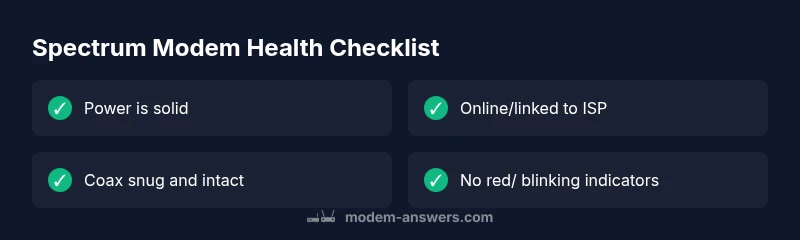
In most cases, you can gauge modem health with a few fast checks. Look for power and online indicators, confirm the coax cable is firmly connected, and ensure the modem is plugged into a live outlet. If the power light is off, testing another outlet or a different power strip is essential. If the power light is on but online isn’t solid, you may be dealing with a line problem or service outage. These quick checks form the backbone of determining whether you truly have a modem problem or a broader service disruption.
Physical checks: power, coax, and placement
Physical connections often cause the most confusion. Start by unplugging the modem, inspecting the power brick for any damage, and plugging it into a known-good outlet. Next, verify the coax connection is snug at both ends and that the wall outlet has a signal. If your coax cable is old or cracked, replacement is worth trying. Also consider placement: keep the modem in a ventilated area away from heat sources and electromagnetic noise, and avoid power strips with other high-draw devices. A simple re-seat can restore a stable signal and illuminate the path to internet access.
How to interpret Spectrum modem lights
Lights on a Spectrum modem are your quickest guide to status. A solid power light usually means the device is powered; a solid online light confirms a link to the ISP network; blinking lights or red indicators point to an issue. If you see a blinking online light, it could indicate an authentication problem, a hardware fault, or a temporary outage. If both power and online lights are off, the modem is not getting power or is in a reset loop. Understanding these patterns helps you decide whether to proceed with resets, cable checks, or service inquiries.
Step-by-step flow you can follow at home
A structured diagnostic flow helps you isolate the cause. Start with a clean reboot, then verify the coax and power. If issues persist, check for a local outage via Spectrum’s status tools. If you’re still offline after outages are ruled out, test with a wired device, confirm bridge mode status, and reach out to support with your model and firmware version. Following this flow reduces unnecessary service calls and speeds up resolution.
Troubleshooting steps for the most common issue: no internet
When there’s no internet despite the modem appearing active, re-verify the path from line to modem to router. Begin with a power cycle, reseat the coax, and try a direct modem connection to a single computer to rule out router issues. If you still have no internet, use the Spectrum outage checker and your account’s outage history to confirm local conditions. If outages are present, wait for restoration; if not, contact support with the exact lights observed and the time of the last successful connection.
If your modem shows online but you still have no pages
Sometimes the modem is online but there’s no actual internet traffic. Check DNS settings, try a different DNS server, and run a speed test on a wired device to determine baseline throughput. If speeds are severely reduced or inconsistent, reboot again, switch cables, and ensure your router’s firmware is up to date. Persistent issues after these steps warrant professional assistance from Spectrum.
Prevention: keep your Spectrum modem healthy long-term
Regular power cycling and cable checks are simple habits that prevent many issues. Keep the modem away from heat, dust, and moisture, and replace aging cables proactively. Periodically verify service status and firmware updates from Spectrum. Document any outages or changes in your home layout that could affect signal quality, such as new devices, stressed outlets, or added network extenders. Small, consistent checks prevent larger outages and maintain smoother performance.
Steps
Estimated time: 45-60 minutes
- 1
Power cycle the modem
Unplug the modem, wait 60 seconds, plug it back in, and let it boot completely (2–3 minutes). This resets internal hardware and can restore connectivity.
Tip: Use a stable outlet away from surge protectors. - 2
Inspect and reseat the coax cable
Carefully tighten both ends of the coax cable at the modem and the wall outlet. Look for cracks or bent connectors and replace if damaged.
Tip: Replace a worn cable to avoid intermittent outages. - 3
Check the lights and status
Confirm power is solid and the online light is steady. Note any blinking or red indicators which signal specific faults.
Tip: Document light patterns for support calls. - 4
Test with a wired device
Connect a computer directly to the modem using an ethernet cable to determine if the issue is wireless or modem-related.
Tip: If wired works but wireless doesn’t, troubleshoot the router/Wi-Fi. - 5
Check for outages in your area
Log into your Spectrum account or use the outage map to see if a service interruption affects your neighborhood.
Tip: Outages can be regional and temporary. - 6
Re-test and cross-check firmware
After confirming connectivity, verify the modem firmware version and update if prompted by Spectrum.
Tip: Firmware updates can fix known bugs and improve stability. - 7
Escalate if needed
If none of the above resolve the issue, contact Spectrum support with the exact light patterns, steps you've taken, and model details.
Tip: Have your account and device information ready to speed up service.
Diagnosis: Modem shows no online status or no internet connection
Possible Causes
- highPower issue or outage at outlet
- highLoose or damaged coax cable
- mediumSpectrum service outage in area
- lowInternal modem hardware fault
Fixes
- easyCheck power adapter and outlet; plug into a known-good outlet and verify the power light is solid
- easyTighten or replace coax connection at the modem and wall outlet; inspect for visible damage
- easyUnplug the modem for 60 seconds, then plug back in and allow 2 minutes to boot
- easyCheck Spectrum outage status for your area and wait if an outage is reported
- mediumIf problems persist after power/cable checks and outages are ruled out, contact Spectrum support with device details
FAQ
Why won't my Spectrum modem connect to the internet?
Start with power cycling, reseat coax, and check for outages. If the issue persists, verify signal integrity and consult Spectrum status tools. Your path to resolution is a structured flow, not guessing.
If your Spectrum modem won’t connect, begin with a power cycle, reseat the coax, and check for outages. If it still doesn’t work, follow the diagnostic flow to locate the fault.
What do the power and online lights mean on a Spectrum modem?
A solid power light usually means the device is powered. A solid online light confirms network authentication. Blinking or red indicators point to faults. Use the pattern to decide whether to reboot, reseat cables, or contact support.
Power and online lights tell you if the device is on and connected. Blinking or red lights mean you should troubleshoot further.
How can I check if there’s a Spectrum outage in my area?
Sign in to your Spectrum account and view the service status, or use Spectrum’s outage map for real-time updates. Outages can affect many homes, so check back periodically.
Use Spectrum’s outage map or your account page to verify if a service disruption is happening near you.
Is it safe to unplug my modem during an outage?
Yes, unplugging during a confirmed outage isn’t dangerous, but avoid unnecessary power cycling during an outage. Wait for service restoration before testing again.
If there’s an outage, it’s fine to unplug and wait for service to come back before testing.
What should I do if rebooting doesn’t solve the problem?
Proceed with checking cables, test wiring to a direct device, rule out router issues, and verify there’s no installed Bridged mode interfering with your setup. If unresolved, contact Spectrum.
If rebooting doesn’t help, check cables and test directly with a computer. If still stuck, contact Spectrum.
Should I replace my Spectrum modem if hardware fails?
If the modem is under warranty or failed after diagnostics, Spectrum support can arrange a replacement or repair. Your best move is to confirm failure with steps above and then request service.
If you’ve confirmed hardware failure, reach out to Spectrum for a replacement or repair.
Watch Video
Key Takeaways
- Start with power, cables, and outages
- Interpret lights to guide fixes
- Outages are common, verify before calling
- Document steps and results for faster support