Spectrum Modem Online Light White Troubleshooting
Urgent, practical steps to diagnose a Spectrum modem showing a white online light. Learn quick checks, diagnostic flow, and when to contact Spectrum support for fast recovery.


If you see a Spectrum modem online light that’s white, your device is likely online but not actively routing traffic. Start with basic checks: confirm coax connections, power cycle the modem, and verify service status. If the light stays white after reboot, follow the steps below for deeper diagnostics.
What the spectrum modem online light white means in practice
According to Modem Answers, the spectrum modem online light white color signals that the device has established a connection to the provider's network, but traffic may not be flowing yet. Color semantics vary by model and installation, so rely on behavior (lights, ports, and the status page) rather than color alone. If you see a white light with no devices able to browse, this guide will help you diagnose quickly. When diagnosing, keep in mind that the modem is a gateway between the provider and your home network, and the emphasis is on local configuration and service status. The Modem Answers team emphasizes a structured approach to avoid guessing about the cause.
This section sets the groundwork for understanding what the white light means and how it relates to the rest of your home network. You’ll learn how to distinguish an actual service outage from a simple misconfiguration. By treating the white light as a signal that requires specific checks, you’ll be able to restore connectivity faster. Spectrum modems can vary, but the core idea remains: verify, reboot, then isolate.
Immediate checks you can perform now
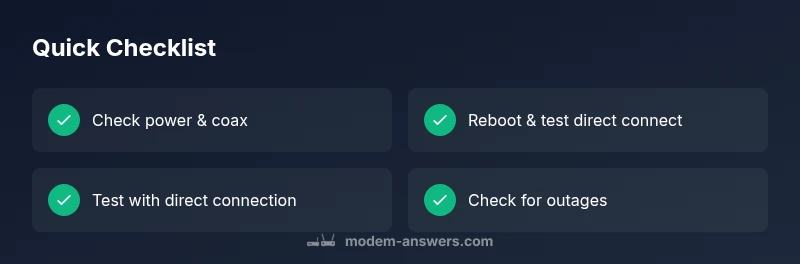
Before diving into deeper diagnostics, perform these quick checks to rule out obvious issues. Start with the simplest actions first, then move to more involved steps if needed. If any step feels unfamiliar or requires equipment you don’t have, skip ahead to the related step in the STEP-BY-STEP section.
- Inspect the coax cable and power adapter for damage or loose connections. A loose coax can prevent the modem from passing traffic even when the online light is solid.
- Power-cycle the modem: unplug, wait 60 seconds, then plug back in. This resets the device’s internal state and can clear minor firmware hiccups.
- Check for a known Spectrum outage in your area. Service interruptions can produce a white online light or no internet even when the modem reports online.
- If you have a separate router, confirm it’s properly connected to the modem and powered on. A misconfigured router can block traffic even while the modem is online.
These quick checks are designed to catch the most common, user-fixable causes and are the fastest way to regain service if your spectrum modem online light white is the only symptom. The goal is to determine whether the issue is local (your equipment) or provider-related (outage).
Common culprits behind a spectrum modem online light white
Several factors can produce a white online light while internet traffic remains unavailable. Understanding these causes helps guide the diagnostic flow and prevents wasted time.
- Loose or damaged coax/ethernet connections: If the signal path isn’t continuous, devices won’t obtain an IP address or route traffic despite the modem reporting online.
- Service outages in your area: A provider-side issue can keep traffic from flowing even though the modem reports an online state.
- Bridge mode or router misconfiguration: When a separate router is in control, the modem may appear online while no traffic passes because NAT/DHCP is handled elsewhere.
- DHCP lease or IP address issues: If the modem can’t assign an IP to your device, you’ll experience connectivity issues even with a white light.
- Firmware updates or boot loops: A stuck update can show a steady light but block traffic until the update completes or fails over.
- Overheating or power supply problems: Thermal throttling or a fluctuating power supply can cause unreliable packet forwarding and a non-functional network path.
Recognize patterns: a steady white light with no traffic often points to local configuration or outage, while a blinking pattern usually indicates boot or update activity. The goal is to map the symptom to a likely cause before moving to fixes.
Diagnostic flow overview
To efficiently diagnose a spectrum modem online light white scenario, follow a clear symptom-to-diagnosis path. Start with the most likely, least invasive fixes, then escalate to configuration checks and service verification. Use a simple decision tree: if the light is still white after a reboot, check outages; if outages are absent, verify your router and DHCP; if these fail, prepare for a factory reset as a last resort. This approach minimizes downtime and helps you know when professional support is needed.
- Symptom: White online light, no internet.
- Diagnosis: Local issue, outage, or router misconfiguration.
- Solution: Clear cables, reboot, check outage, test with a direct PC connection, then adjust router settings if needed.
Step-by-step fixes for the most likely causes
Below is a practical, actionable guide to fix the most common causes of a spectrum modem online light white issue. Follow these steps in order and only proceed to the next if the previous one fails.
- Verify physical connections: Ensure the coax is firmly seated, the power adapter is secure, and the Ethernet cable (if used) is intact. Tip: Use a different Ethernet cable to rule out a faulty one.
- Reboot the modem: Unplug for 60 seconds, then plug back in. Allow 3–5 minutes for the device to reinitialize.
- Check for outages: Visit Spectrum’s outage page or your service status app to confirm there’s no area-wide problem.
- Test with a direct device: Connect a laptop directly to the modem with an Ethernet cable to see if you can access the web. If you succeed, the router is likely the issue.
- Check router configuration: Ensure DHCP is enabled on the router, and verify that NAT is active if you’re using a separate router behind the modem.
- Release/renew IP: On a PC, run ipconfig /release then ipconfig /renew; on macOS, use Network Preferences to renew DHCP lease.
- Update firmware: If your modem hasn’t updated recently, trigger a manual check via the admin page or perform a scheduled restart to complete updates.
- Factory reset (last resort): If all else fails, a full reset can restore default settings. Note this erases custom configurations, hostname, and Wi-Fi passwords. Tip: Back up settings if possible before resetting.
- If unresolved, contact Spectrum: Have your account number, outage status, modem model, and serial number ready. This speeds up diagnostics and service restoration.
Estimated total time: 30–45 minutes, depending on the complexity and whether outages are involved.
Tips & warnings to keep you safe and effective
- Safety first: Unplug devices during weather-related power surges or when investigating damaged cables.
- Document steps: Keep notes of any outages or changes so you can reproduce fixes if needed.
- Don’t rush factory resets: Use them only after you’ve exhausted all basic troubleshooting options.
- Use wired connections for testing: Wi-Fi behavior can mask issues; a direct PC test provides clarity.
- Keep firmware up to date: Regular firmware updates improve reliability and security.
- If you smell burning or hear buzzing: Stop and unplug; contact Spectrum support immediately.
- Protect sensitive data: Do not share account details on public networks while troubleshooting.
These tips help prevent recurrence and reduce risk during troubleshooting, especially when dealing with a persistent spectrum modem online light white condition.
Key takeaways and prevention tips
- Start with power and coax checks before anything else to isolate basic connectivity problems.
- A white online light often signals a connection is established, but traffic may be blocked by router, IP, or outage issues.
- Use the diagnostic flow to determine whether the problem is local or provider-related, then act accordingly.
- Proactively monitor outages and keep firmware updated to minimize white-light problems in the future.
The Modem Answers team recommends a structured, device-led approach to troubleshooting—and to escalate to Spectrum support if outages are confirmed or if you cannot restore service after following the diagnostic steps.
Steps
Estimated time: 30-45 minutes
- 1
Check physical connections
Inspect coax, power, and Ethernet connections. Reseat cables firmly and look for signs of wear. A loose connection can cause a white online light with no traffic.
Tip: Use a different coax connector or shielded Ethernet cable to rule out a faulty cable. - 2
Power cycle the modem
Unplug the modem, wait 60 seconds, plug back in, and allow 3–5 minutes to re-sync with the network.
Tip: Perform this step with the least disruption to other devices on the network. - 3
Check for outages
Visit Spectrum’s outage check page or app to confirm there’s no service interruption in your area.
Tip: If an outage is reported, note the time and expected resolution window. - 4
Test with a direct connection
Connect a computer directly to the modem with an Ethernet cable to determine if the issue lies with the router.
Tip: If you can browse via direct connection, the router is likely the bottleneck. - 5
Review router settings
Ensure DHCP is enabled on the router and that NAT is properly configured if using a separate router.
Tip: Disable any VPNs temporarily to test basic connectivity. - 6
Renew IP lease
On Windows, run ipconfig /release followed by ipconfig /renew. On macOS, renew DHCP lease in System Preferences.
Tip: Test after each lease renewal. - 7
Firmware update check
Log into the modem’s admin page and check for firmware updates; apply if available and reboot.
Tip: Only update when you have a stable internet connection or via local download if supported. - 8
Factory reset (last resort)
If all else fails and you’re comfortable, perform a factory reset to restore default settings. Reconfigure after reset.
Tip: Back up current settings if possible before resetting. - 9
Contact Spectrum if unresolved
Provide your account number, modem model, serial number, and outage check results when contacting support.
Tip: Document the steps you’ve taken to speed up diagnostics.
Diagnosis: Modem shows online light white, but no internet connectivity on any device
Possible Causes
- highCoax or Ethernet connection loose/damaged
- mediumPower issue or unstable power supply
- lowSpectrum service outage in your area
- lowRouter in bridge mode or misconfigured
- mediumDHCP/IP address assignment problems
Fixes
- easyCheck that all coaxial cables are firmly connected and undamaged; reseat if needed; verify the Ethernet to your router is secure.
- easyPower cycle the modem and any connected router; wait 2–3 minutes for a full restart.
- easyCheck Spectrum outage status for your area; if outage exists, wait for service restoration.
- mediumIf you use a separate router, confirm it’s not in bridge mode and that NAT/DHCP are configured properly.
- easyRenew the IP lease on a connected device or reboot the router to re-acquire an IP address.
FAQ
What does a white online light on a Spectrum modem mean?
A white online light typically indicates the modem is connected to Spectrum's network, but traffic may not be flowing yet. Check router configuration and outages to determine the root cause.
A white light usually means the modem is online, but there might be a router or service issue keeping traffic from flowing.
Why is my internet not working if the modem shows online?
The issue could be your router, DHCP settings, or a local outage. Test with a direct wired connection to isolate the problem.
If the modem is online but you can't browse, there’s likely a router or IP issue or a service outage.
Should I reset the modem if the light is white?
Start with a soft power cycle. Only perform a factory reset if you’ve exhausted other fixes and have backed up settings.
Try rebooting first; a factory reset should be a last resort.
Can outages cause a white online light?
Yes. An outage can leave the modem online while traffic is blocked. Check Spectrum outage reports for your area.
An outage can cause the light to stay white even when there’s no internet.
What should I do before calling Spectrum support?
Check cables, power, and outages; test with a direct device; collect your account info and modem data to speed up help.
Make sure you’ve checked the basics and have your device details ready when you call.
What does bridge mode mean for the light color?
Bridge mode can change how lights indicate activity. If you’re using a separate router, verify bridge vs router configuration in the modem settings.
Bridge mode can affect how the lights behave, so check your router settings.
Watch Video
Key Takeaways
- Start with physical checks before configurations
- A white online light often points to a local issue or outage
- Use the diagnostic flow to isolate provider vs. local causes
- Escalate to Spectrum with outage data and device details