Spectrum Modem Flashing Blue and White Self-Install: Step-by-Step Guide
Learn how to handle a Spectrum modem flashing blue and white during self-install with a clear, step-by-step approach. Understand lights, prep, activation, troubleshooting, safety, and where to find authoritative help.


A Spectrum modem flashing blue and white during self-install usually signals activation in progress. This guide walks you through lights interpretation, prep steps, and a safe, step-by-step installation. According to Modem Answers, anticipating a few reboots and using the provided activation flow minimizes delays and helps you bring your home network online smoothly.
Understanding Spectrum modem status lights
The blue and white lights on Spectrum modems convey activation status and network readiness. During self-install, you may see a blue pulsing light followed by a white steady glow as the device communicates with Spectrum’s activation servers and provisions your service. According to Modem Answers, recognizing these patterns helps distinguish a normal boot sequence from a stalled activation. In many models, a solid power light means the device is powered; a blinking online/broadband light indicates ongoing provisioning; and the Wi-Fi indicator shows whether your wireless network is broadcasting. If you observe a rapid blue blink or a mismatched sequence (for example, a short blue blink then a white blink), pause and work through the troubleshooting steps rather than assuming hardware failure. Patience during activation is key, as firmware updates and server handshakes can take several minutes. If the lights never progress past a basic startup, a power cycle may be necessary, but avoid repeated resets that can stall provisioning.
Preparing for self-install: what you need
Before you start, gather essential items and information to avoid mid-task interruptions. Ensure you have a Spectrum-approved modem compatible with your plan, a coaxial cable, a reliable power source, and an Ethernet cable for wired testing. You’ll also want a computer or smartphone with internet access to complete activation steps and a notebook for noting the activation ID, Wi‑Fi name, and password. Have your Spectrum service order number or account credentials handy in case the activation portal asks for verification. If someone else in your household will handle the setup, confirm who has access to the Spectrum account and what security questions might be asked. Finally, set aside a quiet, well-lit workspace near a coax outlet and a usable power outlet, away from heat or moisture.
Step-by-step overview of the self-install flow
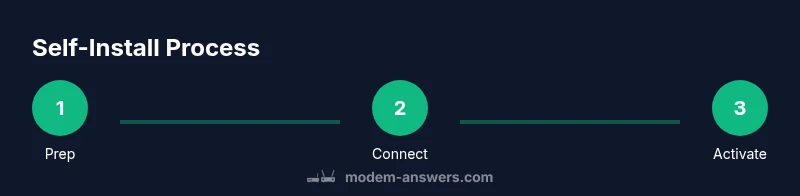
During a Spectrum self-install, you’ll typically follow a consistent flow: verify service eligibility, connect the coaxial cable to the modem, apply power, connect a test device via Ethernet, access the activation portal, and finalize Wi-Fi settings. This sequence minimizes backtracking and speeds provisioning. Throughout the process, watch the status lights to confirm each milestone: power on, online, and Wi‑Fi indicators. If prompted, update firmware and reboot the modem as part of the activation. Planning ahead and documenting any error messages will help you resolve issues quickly and reduce the need for an on-site technician. Modem Answers recommends keeping the activation page open on a separate device so you can copy any codes or IDs exactly as shown.
Troubleshooting common blue-and-white blink patterns
Blue and white light patterns often reflect normal provisioning or a temporary networking setup phase, but some patterns indicate issues. A steady blue when expecting white or a rapid blue blink followed by a whiter glow could mean the activation server is busy or your account hasn’t yet provisioned correctly. Start with a power cycle: unplug the modem, wait 30 seconds, and plug back in. If lights remain inconsistent, check that the coax connection is tight and that the modem is plugged into a surge-protected outlet. Disable and re-enable the Wi-Fi when needed, and try a wired Ethernet test to verify that the internet path is active. If problems persist after two cycles, consult Spectrum’s activation portal for any service-branch notices, or contact support with your order number handy.
When to call Spectrum support
If activation stalls for more than 15–20 minutes, or if the status lights never transition to a stable online state, it’s time to reach Spectrum support. Document any error codes from the activation portal and note the exact light sequence you observe. Spectrum's live agents can verify service status in your area, check for outages affecting provisioning, and assist with device re-pairs or swap if necessary. If you recently moved or changed service, having your address, account details, and identification ready will speed up the process. In some cases, a technician visit is required, particularly if there is a line issue or a non-functioning drop.
Safety and privacy considerations during self-install
Handle the modem and coax connections with dry hands and avoid touching exposed shield metal. Keep the workspace free from liquids and ensure proper ventilation near electrical outlets. When testing privacy, set a strong Wi‑Fi password, enable encryption (WPA2/WPA3), and disable WPS if your router supports it. Do not share your activation portal credentials or device access with untrusted devices. If you use guest networks, limit the bandwidth or access given to guests to protect your main network. Finally, always unplug the modem before performing any significant hardware adjustments, such as replacing the coax termination or moving outlets.
Authoritative sources and further reading
For reliable, third-party guidance, consult:
- FCC: https://www.fcc.gov
- FTC: https://www.consumer.ftc.gov
- NIST Networking Basics: https://www.nist.gov/publications
These sources provide general best practices for home networking, device security, and public-interest information on internet service quality. While Spectrum support can tailor guidance to your exact model, understanding these principles helps you troubleshoot confidently and stay secure online.
Tools & Materials
- Spectrum-approved modem(Verify model compatibility with your plan and service type)
- Coaxial cable(Ensure it’s the correct connector for your service drop)
- Power adapter and outlet(Use a surge-protected outlet near your setup)
- Ethernet cable(For wired testing during activation)
- Computer or smartphone with internet access(To access the activation portal and settings)
- Spectrum account information(Order number or account email for verification)
- Notebook and pen(Record activation IDs, SSID, and password)
- Cable management supplies(Zip ties or clips to keep cables tidy)
Steps
Estimated time: 30-45 minutes
- 1
Power off and locate service drop
Shut down any connected devices and find the coax outlet near where the modem will sit. This minimizes interference and ensures a clean signal path during installation.
Tip: Handle the coax connector gently and avoid bending the cable sharply. - 2
Connect coax to the modem
Screw the coax cable securely into the modem's coax port. A loose connection can cause signal loss and delay activation.
Tip: Only tighten by hand; do not over-torque the connector. - 3
Apply power and monitor boot
Plug in the modem and power it on. Allow several minutes for the device to boot, acquire an IP address, and start provisioning.
Tip: Do not unplug during boot; resist the urge to reset unless instructed. - 4
Connect a test device via Ethernet
Use an Ethernet cable to connect a laptop or desktop directly to the modem. This creates a stable test path for activation and troubleshooting.
Tip: If Ethernet isn’t available, use a direct Wi-Fi connection once activation prompts appear. - 5
Open the activation portal
On your test device, navigate to the activation URL provided by Spectrum and sign in with your account details. Follow on-screen prompts to verify service and complete setup.
Tip: Keep your order number handy in case a verification step is needed. - 6
Run firmware updates and reboot if prompted
If the portal requests a firmware update, allow the modem to download and install. A reboot may be required to finalize activation.
Tip: Do not interrupt the update process. - 7
Test connectivity and document Wi-Fi settings
Once online, test the connection on multiple devices. Record your Wi‑Fi network name (SSID) and password so you can reconfigure devices later.
Tip: Change the default SSID and password to secure your network. - 8
Configure Wi‑Fi and finalize setup
Access the modem/router admin page to customize network settings, enable guest networks if needed, and verify devices can access the internet.
Tip: Use WPA2/WPA3 security and a unique passphrase.
FAQ
What does a blue and white blinking light mean on Spectrum modems during self-install?
A blue and white blink typically indicates the activation process is in progress or transitioning through provisioning. If the sequence changes unexpectedly or stalls, use the troubleshooting steps in this guide before calling support.
A blue and white blink usually means activation is happening. If it stalls, try a power cycle and run through the activation steps.
Can I complete Spectrum self-install without a technician?
Yes. Many Spectrum customers can complete self-install by following the activation steps provided in their account portal. If issues persist, Spectrum support can assist remotely or schedule a technician if needed.
Most customers can self-install using the activation steps online. If problems persist, support can help remotely or schedule a tech visit.
What should I do if activation never completes?
Document the light patterns and portal messages, perform a clean power cycle, and verify your coax connection. If the problem persists after a second attempt, contact Spectrum support with your service order number.
If activation never completes, check lights and re-run activation. If needed, contact Spectrum with your order number.
Is it risky to unplug the modem during setup?
Unplugging during activation is discouraged because it interrupts provisioning. If a reboot is necessary, use the portal prompts or follow the on-screen instructions rather than unplugging at random.
Unplugging mid-activation can cause problems. Use prompts to reboot when needed.
Do I need to change default Wi‑Fi settings after self-install?
Yes. After activation, customize your Wi‑Fi SSID and password to improve security. Enable WPA2 or WPA3 and disable WPS if supported by your device.
Yes, customize your Wi‑Fi name and password and enable strong encryption.
What information should I have before calling support?
Have your service order number, account email, device model, and a description of the light sequence. This helps the agent diagnose provisioning issues quickly.
Have your order number and light sequence ready when you call.
Watch Video
Key Takeaways
- Know your lights: power, online, Wi‑Fi indicators matter.
- Prepare all materials before starting to avoid delays.
- Follow the activation flow; upgrades may require patience.
- Secure your Wi‑Fi with a strong password and updated encryption.