Spectrum Set Up New Modem: A Clear Step-by-Step Guide
Learn how to set up a Spectrum modem from activation to securing your home network. This guide covers required tools, step-by-step actions, and troubleshooting tips to help homeowners and renters get online quickly.


By following this guide, you can spectrum set up new modem with confidence and ease. You will learn what tools you need, how to connect coax and power, how to activate your service with Spectrum, and how to verify that your Wi-Fi is up and performing at expected speeds. The quick answers here prepare you for a smooth activation.
Why Spectrum Setup Matters
According to Modem Answers, spectrum set up new modem correctly ensures activation goes smoothly and that you receive the speeds you pay for. An improper setup can lead to activation delays, intermittent Wi‑Fi, or device connection failures. This matters whether you are moving to Spectrum, upgrading hardware, or expanding a home network with additional access points. A clear, repeatable process reduces troubleshooting time and helps minimize service interruptions during peak hours.
Before you start, verify that your plan and modem are compatible. Spectrum maintains a list of approved modems; using an unsupported device can delay activation or limit speeds. Next, consider placement: central, elevated, and away from thick walls or electronics; this improves signal coverage throughout the home. Finally, plan to test from multiple rooms to identify dead zones and confirm your Wi‑Fi network meets your needs.
What You Need Before You Start
Before you pick up the tools, confirm a few basics. Ensure your Spectrum plan supports the modem you intend to use and that you have the activation credentials at hand. If you rent a modem from Spectrum, activation may occur automatically after you connect; with a personal modem, you’ll typically register it online or by phone. Gather your equipment and a quiet space to work; a central location helps signal reach. Also assemble the essentials: a coaxial cable from the wall outlet, the modem’s power supply, a device to configure the modem (computer or smartphone), and a paper for notes. If you plan to use a separate router for Wi‑Fi, have an Ethernet cable ready for a wired link during setup.
Activation Timeline and Spectrum Portal
Activation can take a few minutes to complete once the modem is connected and powered. If you are using a self‑install, you’ll typically visit Spectrum’s activation portal or call the activation line to register the device. Modem Answers analysis shows that most activation issues stem from a loose coax connection or an unregistered device, so double‑check connections and account status first. Keep the equipment plugged in and avoid power cycling during activation unless prompted by the portal. If activation is slow, try a basic browser refresh or switch to a different device on the same network to rule out device‑specific issues.
Cabling, Placement, and Setup Sequence
A high‑quality coax connection matters more than you might think. Use the shortest practical coax run from the wall outlet to the modem, and avoid kinks or overly long extensions. Place the modem in a central, elevated spot away from metal objects, cordless phones, and large appliances to minimize interference. If you’re adding a router, plan to connect it with an Ethernet cable and decide whether you’ll use bridge mode or standard NAT. Keep power cables tidy to avoid accidental unplugging during cleaning or movement. Finally, check that the modem’s indicator lights show normal operation: power, receive, send, and online.
Common Issues and Quick Fixes
If you run into trouble, start with the simplest checks: verify the coax is snug, the power adapter is connected, and the modem is powered on. Reboot the modem and any connected router if you’re using one, then reattempt activation. For devices that won’t connect, forget the network on your phone or PC and reconnect using the new network name and password. If you see a steady offline status, contact Spectrum to confirm your account is active and the device is authorized. For persistent issues, a factory reset can help, but only after you’ve attempted activation.
After Setup: Testing and Security
With activation complete, run a quick suite of tests to verify performance. Use a wired connection to check speeds against your plan, then test wirelessly from several rooms to confirm coverage. Change the default network name (SSID) and password to something unique, enable WPA3 if available, and update firmware when prompted. If you have guests, enable a guest network isolate from devices you own for better security. Finally, document the setup steps and keep your activation details in a safe place so you can reproduce the setup if you ever move or reset your equipment.
Tools & Materials
- Coaxial cable(From wall outlet to modem.)
- Modem (Spectrum‑provided or own)(Ensure it is compatible with Spectrum.)
- Power adapter(Included with most modems.)
- Computer or smartphone(For activation and configuration.)
- Ethernet cable(Useful for wired connections during setup.)
- Notepad and pen(For noting activation codes and settings.)
Steps
Estimated time: 30-60 minutes
- 1
Verify compatibility
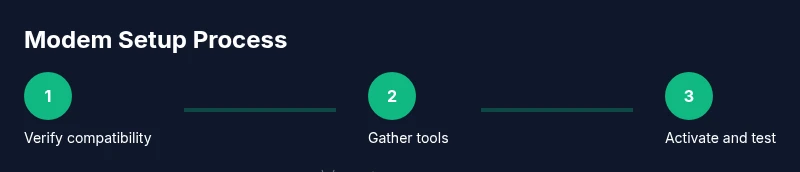
Check your Spectrum plan and confirm the modem is on Spectrum’s approved list or is compatible with your service. This prevents activation delays due to unsupported hardware.
Tip: Cross‑check model number and firmware version against Spectrum’s compatibility list. - 2
Gather essential tools
Collect coax, power, a device to configure the modem, and any router you plan to use. Having everything ready avoids mid‑process interruptions.
Tip: Prepare a clean workspace near a power outlet and cable outlet. - 3
Power down and unplug old devices
If you’re replacing an old modem, unplug it and remove any existing network gear you’ll replace or bridge. This reduces electrical and configuration conflicts.
Tip: Label cables to prevent mix‑ups later. - 4
Attach coax to the modem
Connect the coaxial cable firmly from the wall outlet to the modem’s coax port. A loose connection is the most common activation blocker.
Tip: Firmly push the connector straight in—avoid twisting. - 5
Connect power and boot
Plug in the modem’s power supply and wait for it to boot. Indicator lights should transition from blinking to steady; this shows the device is powering correctly.
Tip: If lights don’t come on, inspect the power cord and outlet. - 6
Link a testing device to activate
Connect a computer or phone to the modem’s network (or to a connected router) to begin the activation flow via the Spectrum portal or app.
Tip: Disable any VPNs that could interfere with activation. - 7
Activate with Spectrum
Follow the on‑screen instructions to register the device. If using your own modem, you may need to enter the MAC address or device ID.
Tip: Have your account details handy in case you’re prompted to verify ownership. - 8
Test speeds and stability
Run a basic speed test from a wired device first, then test wireless performance from several rooms. Compare results to your plan’s advertised speeds.
Tip: If speeds are far below expectations, check cabling and router placement. - 9
Secure Wi‑Fi and finalize setup
Rename your network, set a strong password, enable WPA3 if available, and record your network details for future reference.
Tip: Disable WPS if your router supports it for better security.
FAQ
Do I need Spectrum to install the modem, or can I do it myself?
Most Spectrum setups can be completed by the customer via self‑activation online or over the phone. A technician visit is not typically required for standard home modem activation.
Most setups are self‑install; a technician visit is usually unnecessary.
Can I use my own router with a Spectrum modem?
Yes. You can connect your own router after activation. If you want to use your router as the main router, consider bridging the Spectrum device or configuring NAT settings accordingly.
Yes, you can use your own router after activation.
What cables do I need for activation?
A coaxial cable from the wall and the modem’s power adapter are essential. Ethernet cable is optional but helpful for wired testing during setup.
Coax from wall and power adapter are essential.
Why might activation fail after I connect everything?
Common causes include a loose coax connection or an unregistered modem. Double‑check all connections and confirm your device is activated on Spectrum’s account first.
Check the coax connection and activation status.
How should I test speed after setup?
Run a speed test on a wired device, then repeat over Wi‑Fi from multiple rooms. Compare results to your plan and adjust if needed.
Test speeds on wired and wireless connections.
What if the modem lights show offline?
Ensure the power is on, coax is connected, and recheck for any outages with Spectrum. If the issue persists, contact Spectrum support.
Check power and coax; contact Spectrum if needed.
Watch Video
Key Takeaways
- Verify compatibility before starting
- Gather all tools to avoid interruptions
- Activate via Spectrum’s portal and test speeds
- Secure your Wi‑Fi with a strong password and updated firmware