How to Install Spectrum Modem and Router: A Step-by-Step Guide
Learn how to install Spectrum modem and router with a clear, step-by-step process. This guide covers prep, activation, secure setup, and troubleshooting for a reliable home network.


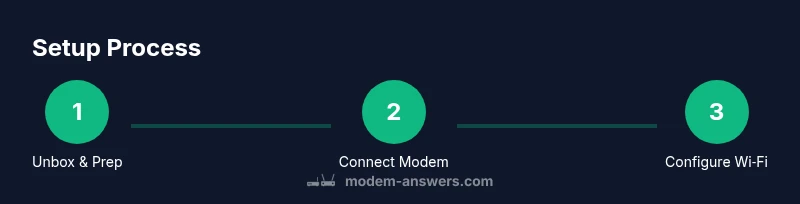
By following this guide, you will install a Spectrum modem and router, complete activation with Spectrum, configure secure Wi-Fi, and verify your network coverage. You’ll learn how to organize cables, test speeds, and address common issues like no internet or weak signal. This quick answer outlines the steps and points you to detailed instructions below.
Why proper installation matters
According to Modem Answers, getting the setup right from the start saves time and reduces future headaches. If you're wondering how to install modem and router spectrum, this guide provides a clear, action-oriented path. Begin with a quick plan: confirm your Spectrum service is active, locate the coax outlet, and have the modem, router, power adapters, and Ethernet cable ready. A clean workspace helps you avoid tangled cables and accidental unplugging later. Activation is typically performed through Spectrum's online portal or phone line, and having a spare device to complete setup can speed things along. Keep your account information handy and be prepared to follow on-screen prompts during activation. This article is designed for homeowners and renters who value practical, step-by-step instructions and want a reliable home network without surprises.
The steps in this guide align with common installer best practices and are suitable for typical Spectrum setups. You’ll learn how to verify service availability, connect devices in the correct order, and secure your network before you start using the internet. The goal is a smooth, dependable experience from the first power-on to a fully functional home network.
Spectrum equipment roles
Your home network relies on two core devices: a modem and a router. The modem communicates with Spectrum to bring the internet into your home; the router creates the local wireless network and manages your devices’ connections. Some Spectrum packages include a gateway device that combines both functions, while others leave you with separate devices. If you plan to use your own router or a higher-performance model, you may opt to enable bridge mode on the Spectrum gateway. This keeps the modem in control of the internet connection while your router handles local networking, which can improve performance in busy households. Understanding these roles helps you decide whether to use a provided gateway or an independent modem-router setup.
Prepare your workspace and plan
Before touching any cables, set up a clean, stable workspace near a coax outlet and your primary power source. Gather the essential components: the Spectrum modem, your router, the power adapters, an Ethernet cable, and a device to complete activation. Write down your preferred network name (SSID) and a strong password. If you’re using a third-party router, confirm whether you’ll need to enable bridge mode in the gateway’s settings. Having a plan reduces back-and-forth and helps you avoid rebooting devices multiple times during configuration. For best results, position the router in a central, elevated location away from obstructions and potential interference.
Activation basics and security essentials
Activation connects your Spectrum service to your new hardware and updates internal settings. Use Spectrum’s activation method (online or phone) as directed during setup, following prompts to attach your account to the modem. Once activated, immediately secure your Wi-Fi network by changing the default SSID and password, enabling WPA3 if available, and turning off remote management when not needed. Keeping firmware up to date through the router’s admin interface helps protect against vulnerabilities. If you’re using a third-party router, check compatibility with Spectrum and consider enabling bridge mode if you need tighter control over your local network.
Physical connections and power sequencing
Power down all devices before making connections. Start by inserting the coaxial cable into the modem’s coax port, then connect the modem to power. Allow the device to boot fully—this may take several minutes. Next, run an Ethernet cable from the modem’s Ethernet port to the WAN/Internet port on your router. Plug in the router and power it up. If your modem or router seems unresponsive, perform a quick power cycle by unplugging both devices, waiting a short period, then plugging them back in in the same order. This ensures the devices initialize correctly with the latest configuration.
Network setup, security, and optimization
After the hardware is online, access the router’s admin page to configure the Wi-Fi name (SSID) and strong password. If you have a dual-band router, set separate SSIDs for 2.4 GHz and 5 GHz bands and use sensible channel selections to avoid interference. Enable WPA3 if your devices support it; if not, use WPA2 with a strong password. Consider disabling WPS and closing unused ports for additional security. Finally, run a quick speed test from a wired device to confirm you’re receiving the expected bandwidth and adjust placement if you notice dead zones or weak signal.
Testing, troubleshooting, and next steps
With everything configured, verify internet access on multiple devices and perform a basic speed test to establish a baseline. If devices can’t connect, recheck coax, power, and Ethernet connections, or try a different Ethernet port. For persistent issues, reset the equipment to factory defaults and re-run activation. Document your network details so you can reconfigure quickly if you change service plans or hardware. If you’re using your own router, ensure compatibility with Spectrum and review the bridge mode settings to optimize performance. Regular firmware updates from the router manufacturer help maintain security and speed over time.
If you prefer a visual walk-through, you can consult a spectrum installation video for guidance and reference.
Authority sources
- https://www.fcc.gov
- https://www.cisa.gov
- https://www.ftc.gov
Tools & Materials
- Spectrum-supplied modem(Ensure it is compatible with your service)
- Router (optional if using gateway)(Prefer a modern dual-band model)
- Power adapters(One for modem, one for router)
- Coaxial cable(In good condition, of adequate length)
- Ethernet cable (Cat6 or better)(One end to modem, other to router)
- Device for activation (phone or computer)(Has internet browser ready)
- Pen and notepad(For passwords and network details)
Steps
Estimated time: 25-40 minutes
- 1
Power down and prep
Power off all devices and clear the area. Verify you have all required components and a stable surface to work on. This minimizes accidental disconnections during setup.
Tip: Double-check you have the exact model numbers and compatibility with Spectrum. - 2
Connect the coaxial cable to the modem
Remove any existing connectors and securely attach the coaxial cable to the modem’s coax port. Check for a snug fit to prevent signal loss. This ensures the modem can establish a reliable connection with Spectrum.
Tip: Use a compression connector if the old one is loose; avoid overtightening. - 3
Power up the modem and wait for initialization
Plug in the modem’s power adapter and wait for the device to boot fully. Indicator lights should stabilize; this can take several minutes. Successful boot means the modem is ready for activation.
Tip: If lights blink oddly, perform a quick power cycle by unplugging and replugging. - 4
Activate the modem with Spectrum
Use Spectrum’s activation method (online or phone) and follow prompts to attach the modem to your account. Activation assigns service and updates essential settings. Do not skip prompts, as missing steps can delay service.
Tip: Have your account number and service address ready for activation. - 5
Connect the router to the modem
Plug one end of the Ethernet cable into the modem’s LAN port and the other into the router’s WAN/Internet port. Power up the router and wait for it to initialize. This establishes your local network.
Tip: If the router supports multiple WAN ports, use the main one labeled Internet. - 6
Configure Wi‑Fi and security
Access the router’s admin interface to set your SSID and password. Enable WPA3 if available; otherwise use WPA2 with a strong password. Disable WPS and consider guest networking for visitors.
Tip: Use a unique SSID unrelated to your address or household name for privacy. - 7
Test connectivity and adjust placement
Run a wired speed test to verify performance and check for dead zones. If needed, move the router to a central, elevated position and rerun tests. Save your settings and document credentials.
Tip: Aim for central placement away from thick walls and electronics that cause interference.
FAQ
Do I need a Spectrum account to activate?
Yes. Activation relies on Spectrum account details. Have your account number handy and follow the prompts to attach the service to your device.
Activation requires your Spectrum account details. Follow the prompts to attach the service to your device.
Can I use my own router with Spectrum?
Yes, Spectrum supports third‑party routers. You may need to enable bridge mode on the gateway or adjust settings to optimize performance.
Yes, you can use your own router. Bridge mode may be required for best results.
What should I do if my modem isn’t recognized?
Check all physical connections, ensure the coax and Ethernet cables are secure, and perform a power cycle. If issues persist, contact Spectrum support.
If the modem isn’t recognized, check cables, then power cycle. Contact Spectrum if problems continue.
How long does activation take once I start?
Activation time varies with service and hardware, but you can expect a process that completes within a regular session. If it drags, recheck the prompts and try again.
Activation can take a little while; if it stalls, retry prompts and ensure your account info is correct.
How do I secure my Wi‑Fi effectively?
Change the default network name and password, enable WPA3 if possible, update firmware, and disable remote management unless needed.
Change your Wi‑Fi name and strong password, enable WPA3 if possible, and keep firmware updated.
What’s the best way to test network performance?
Run consistent speed tests on multiple devices and in different rooms. Compare results to your service plan and adjust router placement if needed.
Test speeds on several devices and locations to verify coverage and performance.
Watch Video
Key Takeaways
- Plan before powering up to avoid rework.
- Activate modem first, then configure the router.
- Secure Wi‑Fi and change default credentials.
- Test speeds and adjust placement for coverage.