How to Connect Spectrum Modem: A Complete Setup Guide
Learn the step-by-step process to connect a Spectrum modem, activate service, and secure your home network. This practical guide covers coax connections, admin login, activation, and Wi-Fi setup for reliable home internet in 2026.


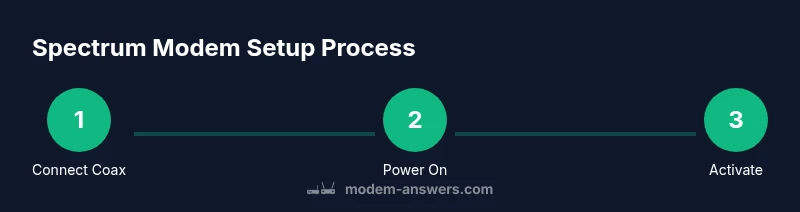
This guide shows you how to connect Spectrum modem and get online fast. You’ll verify service, attach the coax cable, power up, access the modem’s admin page, and activate service. After activation, test your connection and secure your Wi‑Fi network using simple, screen-by-screen steps you can follow with any computer or mobile device.
Why Spectrum Modem Setup Matters
A reliable base connection starts with a proper modem setup. For many home networks, the Spectrum modem acts as the gateway to your internet; a shaky start leads to slow speeds, dropped video calls, and frustrating buffering. According to Modem Answers, following a clear activation flow reduces common outages and minimizes the need for technician visits. In this article, you’ll learn how to connect Spectrum modem end-to-end, including coax preparation, initialization timing, admin-page login, and best practices for securing your Wi‑Fi. The steps are user-friendly, and you won’t need specialized tools beyond a few everyday devices. By the end, your home network will be ready for streaming, gaming, and remote work with confidence.
What You’ll Need Before You Start
Before touching the modem, gather the essentials so you don’t pause mid-setup. Keep a clean workspace and ensure you have: a coaxial cable (RG6) in good condition, the modem’s power adapter, a computer, tablet, or smartphone with a web browser, and any activation details from your Spectrum account (account number or service PIN). If you plan to use Wi‑Fi from the modem, you’ll want to note the default network name (SSID) and password on the modem label. Optional items include an Ethernet cable for a wired laptop connection and a notepad for jotting down IP addresses or gateway information. Having these at hand reduces back-and-forth and speeds up activation.
Step 1: Verify Your Spectrum Service and Equipment
Start by confirming you have active Spectrum service in your area and that you’re using a supported modem. Check the modem model to ensure it’s compatible with your plan; Spectrum often updates supported devices and may require activation after installation. If you’re replacing an old gateway, set aside the old hardware so you can return it if required. This step also helps identify any preexisting outages or maintenance windows that could affect activation. If you encounter issues, write down any error messages to reference when you contact Spectrum customer support. This upfront check saves time later in the process.
Step 2: Physically Connect the Coaxial Cable
Power down power outlets only if advised by Spectrum, then connect the coaxial cable to both the wall outlet and the modem’s coax port. Hand-tighten initially, and avoid using a wrench or over-tightening, which can damage the connector. If your wall outlet uses a split coax for TV services, ensure you’re using the correct line for data service and not a dedicated TV feed. After the connection, snug the connectors again but do not force them. A solid coax connection is essential for signal integrity and reliable activation.
Step 3: Power On and Allow the Modem to Initialize
Plug the modem into a live outlet and switch it on. It can take several minutes for the device to boot, download firmware, and establish a link with the Spectrum network. During this initialization, you may see a sequence of LED lights changing from blinking to solid; the exact colors vary by model. Resist the urge to reboot repeatedly; give the device time to update and register with the provider’s activation servers. If the lights remain off after 10 minutes, check the power connection and coax cable, then attempt a restart once.
Step 4: Access the Modem Admin Page and Activate
On a connected device, open a web browser and enter the gateway address shown on the modem label (often 192.168.0.1 or 192.168.100.1). If prompted, enter the default credentials found in the manual or on the device, then navigate to the status or activation section. Spectrum activation may occur automatically; if not, follow the prompts to enter your account details or service PIN. Complete the prompts, then save changes and wait a few minutes for the network to reflect online status. If you can’t reach the page, verify you’re connected to the modem’s network and disable any VPNs or guest networks.
Step 5: Test Wi‑Fi, Secure Your Network, and Optional Bridge Mode
Once activation confirms online, test the Wi‑Fi signal by connecting a phone or laptop. Change the default SSID and password to a unique, strong password to protect your home network. If you’re using a separate router, you can place Spectrum in bridge mode to pass all routing duties to your own device, but be aware that bridge mode disables the modem’s Wi‑Fi—this is optional and not required for most homes. Periodic checks for firmware updates help keep security current.
Step 6: Final Checks and Routine Maintenance
Take a few minutes to run a quick speed test to verify you’re getting service levels advertised by Spectrum. Note your gateway address, SSID, and password in a safe place for future devices. If any devices exhibit connectivity trouble, repeat the basic steps or move the modem to a more central location to improve coverage. Keeping firmware up to date reduces security vulnerabilities and improves overall performance. The Modem Answers team recommends documenting these steps so you can re-create a solid setup anytime.
Tools & Materials
- Coaxial cable (RG6)(New or good-condition existing cable; check for kinks)
- Modem power adapter(Use the included adapter or Spectrum-approved replacement)
- Computer, tablet, or smartphone(With a web browser for admin access)
- Ethernet cable (optional)(Helpful for wired setup or troubleshooting)
- Activation details (account number or PIN)(Have on hand during activation prompts)
- Notebook or notes(Jot down gateway IPs and SSIDs for future reference)
Steps
Estimated time: 30-50 minutes
- 1
Unpack and Inspect
Remove the modem and accessories from the box. Check for any visible damage and confirm you have all required items listed in Tools & Materials. This prevents delays caused by missing parts.
Tip: If any part is damaged, contact Spectrum before proceeding. - 2
Connect Coax Cable
Screw the coax cable firmly to the wall outlet and to the modem’s coax port. Ensure a snug fit without forcing; a loose connection causes activation failures.
Tip: Avoid reused or damaged cables; replace if the signal has degraded. - 3
Power On the Modem
Plug in the modem and wait for the LED indicators to show the device is online. This can take several minutes as the modem boots and negotiates with Spectrum.
Tip: Place the modem on a stable surface and away from heat sources. - 4
Access the Admin Page
From a connected device, open a browser and enter the gateway address shown on the modem label. Log in with the default credentials and navigate to the status page to confirm connectivity.
Tip: If you don’t see the login screen, verify you’re connected to the modem’s network. - 5
Activate Service
Follow on-screen prompts to activate Spectrum service, or enter your account number/PIN as requested. Activation may be automatic in some cases.
Tip: Have your Spectrum account number handy to speed the process. - 6
Test Internet and Wi‑Fi
Connect a device to the network and run a quick speed test. Confirm your Wi‑Fi name (SSID) and password are set and that devices can join without issue.
Tip: Change the default admin password to improve security. - 7
Finalize and Secure
Document your network name and password, update firmware if prompted, and adjust security settings as needed. Keep a note of any troubleshooting steps for future problems.
Tip: Consider enabling guest network if you have visitors using your internet.
FAQ
Do I need a separate router after connecting Spectrum modem?
Many Spectrum modems are gateway devices with built-in Wi-Fi. If you need stronger performance or broader coverage, you can add a separate router. If you do, you may choose to enable bridge mode depending on your equipment.
Most Spectrum modems include Wi-Fi, but you can use your own router for better range.
What should I do if I can't access the modem admin page?
Ensure you are connected to the modem’s network, confirm you’re using the correct gateway address, and disable any VPNs that might block local pages. Try a different browser if needed.
Make sure you’re on the modem’s network and try another browser if the page won’t load.
How long does activation take after connecting Spectrum modem?
Activation can be instantaneous or take several minutes. If activation does not complete, contact Spectrum support and have your account details ready.
Activation can be instant, but if it doesn’t complete, contact Spectrum.
Why are lights on the modem blinking or red?
LED indicators vary by model. Blinking usually signals boot or data activity; solid lights often indicate online status. Refer to the manual for model-specific meanings and contact Spectrum if unclear.
Blinking usually means boot or activity; check the manual for your model.
Can I use my own router with Spectrum modem?
Yes. You can connect your own router to the Spectrum modem. In some setups you might enable bridge mode on the modem to hand routing duties to your router, especially if you want features like advanced parental controls.
Yes, you can use your own router, sometimes in bridge mode.
Watch Video
Key Takeaways
- Verify service and equipment before setup
- Secure coax connections and power on correctly
- Use the admin page for activation and status
- Secure Wi‑Fi with a strong password
- Document steps for future setups