How to Install Spectrum Modem
Learn how to install a Spectrum modem with a practical, step-by-step approach. This guide covers required materials, activation, Wi-Fi setup, and troubleshooting for a reliable home network.


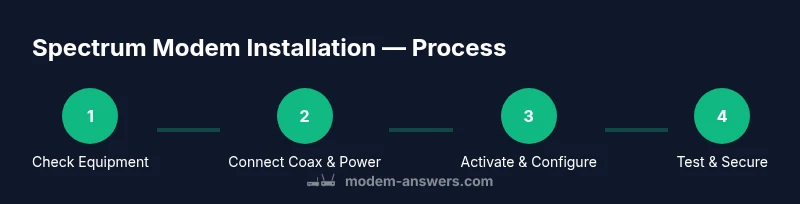
Goal: Install and activate your Spectrum modem quickly and reliably. You’ll need the coax cable, power adapter, a computer or phone for configuration, and your Spectrum account details. This steps-based guide covers unboxing, hardware hookup, activation, Wi‑Fi setup, and basic troubleshooting. Use the detailed STEP-BY-STEP section for precise actions to complete activation.
What you’ll need before starting
Before you touch any cables, gather everything you’ll need for a smooth Spectrum modem installation. Having the right items at hand saves time and reduces the risk of interruptions during activation. According to Modem Answers, a prepared setup minimizes delays and helps ensure a clean, reliable connection from day one. Collect the coax cable, power adapter, a computer or phone for configuration, and your Spectrum account credentials. If you plan to use a separate router, have an Ethernet cable handy as well. Keep a notepad nearby to record activation details, SSID, and password for later reference. A quiet, well-lit workspace makes reading activation prompts easier and reduces mistakes.
Activation basics and compatibility
Spectrum typically assigns a public IP to your modem and uses the coaxial network to deliver service. A compatible modem is important; Spectrum's policy allows both rental devices and customer-owned modems that meet DOCSIS standards. If you're bringing your own device, verify it supports DOCSIS 3.0 or 3.1 and is listed as compatible in Spectrum's equipment guide. If you have a prepaid modem or a rental account, activation steps may differ slightly. Modem Answers analysis, 2026, indicates that most users complete activation within a few minutes when all prerequisites are in place. You may need to sign in with your Spectrum username and password to authorize the device.
Tools & Materials
- Spectrum modem(Ensure it is the model assigned by Spectrum or approved by Spectrum for your service.)
- Coaxial cable (RG6)(Finger-tight connections only; avoid overtightening.)
- Power adapter for modem(Use the original adapter supplied with the modem.)
- Ethernet cable (Cat5e/Cat6)(Used to connect modem to a router or computer.)
- Router (optional)(If you want Wi-Fi from a separate router, plan to connect router to modem.)
- Computer or smartphone(Used to access activation page and configure Wi‑Fi.)
- Spectrum account credentials(Have your Spectrum login email and password ready.)
- Pen and paper(For writing down your SSID and password.)
Steps
Estimated time: 20-45 minutes
- 1
Unbox and inspect the modem
Carefully remove the modem and accessories from the box. Check for any visible damage and verify you have the coax cable, power adapter, and any included documentation. If anything is missing or damaged, contact Spectrum before continuing.
Tip: Inspect packaging and accessories immediately; missing parts can delay activation. - 2
Connect the coaxial cable
Screw the coaxial cable into the modem’s coax port and snug it finger-tight. Avoid overtightening or forcing the connection. If you’re using a wall outlet, ensure the outlet is live before continuing.
Tip: A snug, clean connection prevents activation errors. - 3
Plug in the power and wait for the lights
Connect the power adapter to the modem and plug it in. Give the device 2–3 minutes to boot and for indicator lights to stabilize. If lights don’t come on, recheck the power connection and outlet.
Tip: Wait for the power and downstream lights to indicate a healthy boot. - 4
Connect a device to begin activation
Using a computer or smartphone, connect to the modem directly via Ethernet or prepare to connect your router later. Access the activation page or Spectrum app as prompted by the screen instructions.
Tip: A wired connection is more stable for the activation step. - 5
Activate the modem with Spectrum
Sign in to your Spectrum account and follow the activation prompts. If online activation fails, you can call Spectrum support to complete the process. Keep your account details handy for verification.
Tip: Have your account username and password ready to authorize the device. - 6
Set up Wi‑Fi (router or modem)
If you’re using a separate router, connect it to the modem with an Ethernet cable and configure your Wi‑Fi network. If the modem includes built‑in Wi‑Fi, access its admin page to set your SSID and password.
Tip: Choose a unique network name and a strong password to improve security. - 7
Test connectivity and finalize
Run a quick speed test and try connecting multiple devices to confirm a stable network. Note any issues and adjust settings or placement as needed.
Tip: Document the final SSID, password, and basic settings for future reference.
FAQ
Do I need to use a Spectrum-supplied modem, or can I use my own?
Spectrum supports both rental devices and customer-owned modems that meet DOCSIS standards. Check Spectrum’s equipment guide to confirm compatibility before buying or installing.
Spectrum supports both rental and compatible customer-owned modems; check compatibility before purchase.
Can I use a separate router with the Spectrum modem?
Yes. Connect the router to the modem with an Ethernet cable and configure the router’s Wi‑Fi settings for your network.
Yes, you can use a separate router by plugging it into the modem with Ethernet and setting up Wi‑Fi.
What should I do if activation fails?
First, verify all cables are secure and that the modem is powered. Retry online activation. If it still fails, contact Spectrum support for assistance.
If activation fails, check cables, reboot, and contact Spectrum if needed.
How long does activation take?
Activation typically completes within a few minutes if all prerequisites are met. If delays occur, try online activation again or call Spectrum.
Usually a few minutes; if it takes longer, retry or contact Spectrum.
How do I secure Wi‑Fi after installation?
Change the default SSID and set a strong password using WPA2 or WPA3 when available. Disable WPS if possible for tighter security.
Change your Wi‑Fi name and password to secure your network.
Do I need to bridge mode with Spectrum?
Bridge mode is not required for most home setups. Use your router in standard gateway mode unless you have a specific networking need to bridge.
Bridge mode is usually unnecessary unless you have a special network setup.
Watch Video
Key Takeaways
- Gather all required materials before starting.
- Activate the modem online to complete setup.
- Change the default Wi‑Fi name and password.
- Test the connection with a speed check to verify performance.