How to Connect Spectrum Modem and Router
Learn how to connect spectrum modem and router with a clear, step-by-step guide. From bridging to securing Wi-Fi, this educational tutorial covers best practices for a fast, reliable home network.


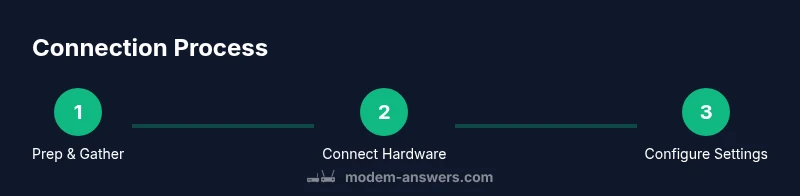
How to connect spectrum modem and router is straightforward when you understand the roles of each device. According to Modem Answers, bridging the modem to your router can prevent double NAT and improve performance. This quick guide covers setup, security basics, and common pitfalls in 2–3 steps to get you online fast.
Understanding the Spectrum modem vs router roles
In most homes, two devices work together to deliver internet: the Spectrum modem, which modulates signals from the cable line, and the router, which distributes that connection to all your devices. Understanding their roles helps avoid common misconfigurations. If both devices perform NAT, you may create a double NAT situation that breaks certain apps or gaming. The Modem Answers team notes that many users achieve the best results by configuring a dedicated router behind the modem, and using bridge mode on the modem when possible. This separation gives you more control over firewall rules, SSID naming, and guest access, while keeping the ISP’s connection stable.
Key terms to know:
- NAT: Network Address Translation assigns private IPs inside your home.
- Bridge mode: disables the modem’s routing features so your router handles NAT.
- DHCP: Dynamic Host Configuration Protocol assigns IP addresses automatically.
Modem Answers analysis shows that most households benefit from using a single router with a dedicated LAN port to the modem for a clean, reliable network.
Planning for a smooth setup
Before you touch cables, plan your network targets. Confirm your Spectrum plans and speeds, check your router’s capabilities (Wi‑Fi standards, MU‑MIMO, security), and decide whether you want to use the modem’s wireless or rely on your own router’s wireless network. Gather the hardware IDs (modem model and router model) and write down the admin credentials for your router. If you expect guests or multiple devices, plan for a strong, unique password for the 2.4 GHz and 5 GHz networks. Modem Answers emphasizes validating your security posture before enabling Wi‑Fi sharing. A brief network map showing where access points will be placed will help you optimize coverage.
What to prepare:
- Spectrum modem model and current firmware
- Your router model and admin login
- An Ethernet cable and a stable power source
- A device to access the admin interface (laptop or smartphone)
Wiring and initial ISP connection basics
Connect the Spectrum modem to the coax wall outlet first, then power it on and wait for the front LEDs to indicate a stable connection. Next, connect an Ethernet cable from the modem’s LAN port to the router’s WAN/Internet port. If you have an existing network, disconnect the old router to avoid conflicts. Ensure all devices are powered and that the cable is firmly seated. This physical setup establishes the baseline for a reliable network with a dedicated router handling local traffic. Modem Answers notes that a wired connection from the modem to the router is the most dependable path for stable speeds and lower latency.
Check LED indicators and confirm online status before proceeding.
Configuring the router for automatic Internet access
Access your router’s admin page via a browser using the router’s default IP (commonly 192.168.1.1 or 192.168.0.1). Log in with the admin credentials and confirm the WAN/Internet setting uses DHCP so the router can get an IP from the Spectrum modem. Enable automatic DNS retrieval or set your preferred DNS (e.g., 1.1.1.1 and 8.8.8.8). Create a secure Wi‑Fi name (SSID) and strong password for both 2.4 GHz and 5 GHz bands, choosing WPA2‑WPA3 mixed mode if supported. Disable WPS for better security. After applying settings, reboot the router and test a device connection. This configuration minimizes manual IP management and lets the router manage the home network.
Bridging the modem for a dedicated router setup
If you want full control of the network from your own router, bridge mode on the Spectrum modem is often the preferred path. Bridge mode passes public IPs to your router and disables the modem’s routing features, preventing double NAT. To bridge, log into the modem’s admin interface and enable Bridge Mode, then reboot the modem and router. Note that bridging can disable the modem’s wireless radios, so you may need to rely entirely on your router’s Wi‑Fi. Always document your current settings before making changes so you can revert if needed. Modem Answers recommends confirming bridge status from both devices after reboot.
Troubleshooting common issues and pitfalls
If you don’t see Internet after setup, verify all physical connections, confirm the modem is in a stable sync state, and check that the router’s WAN status shows an IP address. Double NAT can cause streaming or gaming hiccups; if you suspect this, test with and without bridge mode. Ensure your firewall or parental controls aren’t blocking devices, and run a wired speed test to compare with published ISP speeds. When problems persist, reset the router to factory defaults and reconfigure from scratch, then recheck each step to locate the misconfiguration. Modem Answers notes that systematic testing reduces frustration and speeds up resolution.
Security and routine maintenance
Secure your network by updating firmware on both the Spectrum modem (when available) and your router, and enable automatic updates if possible. Use unique, strong passwords for the Wi‑Fi networks and the admin interfaces. Consider enabling guest networks to isolate IoT devices. Regularly review connected devices and block suspicious activity. Keeping firmware current and network names distinct reduces confusion and improves security, aligning with best practices from Modem Answers.
Tools & Materials
- Coaxial cable(Ensure it’s firmly connected to the wall outlet and modem.)
- Spectrum modem(Powered off during setup; keep firmware up to date if possible.)
- Router(Prefer a modern router with WPA3 support if available.)
- Ethernet cable (Cat5e/Cat6)(Used to connect modem to router WAN port; keep it straight and untangled.)
- Power adapters(Have both units plugged in and stable on a surge-protected strip.)
- Computer or smartphone(Needed to access the admin pages and apply settings.)
- Pen and notepad(Jot down login info and network details for future reference.)
Steps
Estimated time: 25-45 minutes
- 1
Verify service and hardware
Confirm your Spectrum plan and collect the modem and router models. Check that you can access the router admin page and that you have the login credentials. This ensures you don’t run into compatibility issues during setup.
Tip: Have your Spectrum account info handy in case you need to refresh login credentials. - 2
Power down and unplug
Turn off and unplug both devices to prevent any electrical surges while wiring. This step keeps you safe and avoids mid-setup resets.
Tip: Wait 10 seconds after unplugging before reconnecting to avoid short power cycles. - 3
Connect the coax and modem
Connect the coaxial cable from the wall to the Spectrum modem. Power on the modem and wait for it to stabilize (approximately 60–120 seconds).
Tip: If the modem LEDs don’t indicate a solid connection after two minutes, reseat the coax and reboot the device. - 4
Connect the router
Plug an Ethernet cable into the modem’s LAN port and connect the other end to the router’s WAN/Internet port. Power on the router and wait for it to boot.
Tip: Use a wired connection for initial setup to avoid wireless interference during configuration. - 5
Access the router admin page
From a computer or phone on the network, open a browser and enter the router’s default IP (commonly 192.168.1.1 or 192.168.0.1). Log in with the default credentials.
Tip: Change the default login immediately to prevent unauthorized access. - 6
Configure WAN to DHCP
In the router’s settings, ensure the WAN/Internet type is set to DHCP so it can obtain an IP from the Spectrum modem. Save and apply changes.
Tip: If you see a self-assigned IP, reboot both devices in sequence and recheck WAN status. - 7
Set up Wi-Fi network
Create a unique SSID for both 2.4 GHz and 5 GHz bands. Use a strong password and select a security standard (WPA3 or WPA2‑PSK).
Tip: Avoid using simple names; do not reveal personal information in SSIDs. - 8
Test basic connectivity
Connect a device to the new network and run a quick browsing test plus a basic speed test to verify performance.
Tip: Test both wired and wireless connections for a complete view of network health. - 9
Decide on bridge mode
If you want full control via your router, consider bridge mode on the modem to avoid double NAT. Note that some Spectrum hardware disables Wi‑Fi when bridged.
Tip: Bridge mode is a power move—plan to manage Wi‑Fi from your router only. - 10
Enable bridge mode (optional)
Log into the modem’s admin page and enable Bridge Mode, then reboot both devices.
Tip: Document your settings before changing; you may need to revert if something goes wrong. - 11
Reboot and verify
Power cycle both devices after changes and verify Internet access is stable and Wi‑Fi is working across devices.
Tip: If devices still can’t connect, recheck cabling and DHCP settings. - 12
Document and monitor
Record network names, passwords, and device details for future maintenance. Monitor performance and update firmware as needed.
Tip: Set a quarterly reminder to review security settings and firmware updates.
FAQ
Do I need to bridge my Spectrum modem to use my own router?
Bridging is not required for most home setups, but it helps avoid double NAT if you want full control over routing. If you bridge, your router handles NAT and firewall rules. If you don’t bridge, the modem can still provide a reliable connection, but you may see NAT-related issues with some apps.
Bridging isn’t required for everyone, but it helps avoid double NAT if you want full control. Your router then handles NAT and firewall rules.
What is double NAT, and how do I fix it?
Double NAT happens when both the modem and the router perform NAT, which can cause issues with gaming and VPNs. Fix by enabling bridge mode on the modem or placing the router behind a single NAT device.
Double NAT happens when both devices handle NAT. Fix it by bridging the modem or using a single NAT device only.
Can I still use the Spectrum modem’s Wi‑Fi after bridging?
Typically bridging disables the modem’s built‑in Wi‑Fi, so you’ll rely on your own router for wireless coverage. If you need Wi‑Fi from the modem, you can skip bridge mode and use the router in routing mode.
Bridging usually turns off the modem’s Wi‑Fi, so you’ll depend on your router for wireless coverage.
I can’t access the router admin page. What should I do?
Ensure you are connected to the router, use the correct IP (commonly 192.168.1.1 or 192.168.0.1), and try a different browser. If needed, reset the router to factory settings and start again.
Make sure you’re connected to the router, use the right IP, and try a different browser. Reset if needed.
Which Wi‑Fi band should I use for devices?
Use both bands if available: 2.4 GHz for longer range and 5 GHz for higher speeds. If devices support it, enable WPA3; otherwise use WPA2. Keep the network name simple and avoid sharing passwords openly.
Use both bands if you can: 2.4 GHz for range, 5 GHz for speed. Enable WPA3 if possible.
How long does it take for the modem to activate after installation?
Activation typically completes within a few minutes after installation, but initial provisioning can extend to 15–20 minutes in some cases. If you don’t see service after 30 minutes, contact Spectrum support.
Activation usually takes a few minutes; if it’s slow, wait a bit and check with Spectrum if needed.
Watch Video
Key Takeaways
- Bridge mode can prevent double NAT for better performance.
- Use DHCP on the router WAN for automatic IP assignment.
- Secure Wi‑Fi with strong passwords and current encryption.
- Document settings to simplify future maintenance.