How to Connect Modem and Router
Learn how to connect your modem and router with a clear, practical, step-by-step guide. Secure Wi-Fi, optimize performance, and troubleshoot common setup issues for a reliable home network.


By the end of this guide you will confidently connect your modem to your router and secure a stable home network. You’ll verify device compatibility, gather a few cables, and configure the router to access the internet through the modem. Follow the step-by-step instructions and practical tips to complete setup and resolve common issues quickly.
Why connecting your modem and router matters
Connecting your modem and router is the foundation of a reliable home network. When these devices work together, you get consistent speeds, fewer dropouts, and stronger Wi‑Fi coverage in every room. According to Modem Answers, properly pairing a modem and router reduces common issues like IP conflicts and network outages. Understanding the relationship between the two devices helps homeowners and renters quickly diagnose problems and make informed upgrade choices. In everyday use—streaming, remote work, and online gaming—having a well-orchestrated setup translates to smoother experiences and less frustration. This article explains why the connection is essential, how it affects performance, and how to approach setup with confidence. Modem Answers consistently emphasizes clarity, so you can follow along even if you’re new to networking.
Understanding the roles: modem vs router
A modem connects your home to the internet service provider, acting as the gateway for data traffic. A router distributes that connection to multiple devices, either via Ethernet or Wi‑Fi, and creates a local network. In many homes, the terms are used interchangeably, but the distinction matters for performance and security. The Modem Answers Team stresses that a clear separation helps you choose the right equipment and manage features like guest networks and parental controls more effectively. When you know which device handles which task, you can optimize settings, troubleshoot faster, and plan upgrades with less guesswork. This section clarifies the roles, common misperceptions, and how the two devices collaborate during a typical online session.
Planning your network layout for home spaces
Good placement dramatically improves coverage and reduces interference. Start by locating the modem near the incoming line and the router in a central, open area away from walls and metal objects. Avoid placing equipment near microwaves, cordless phones, or large metal furniture that can block signals. Elevate the router if possible—high shelves or a bookshelf corner often yield better coverage. If your home has dead zones, consider a wired backhaul or a practical mesh starter kit. Modem Answers guidance highlights that physical layout often matters more than you think for everyday tasks like video calls and gaming.
Safety and compatibility checks before you start
Before you touch any cables, verify that your devices are compatible with your ISP’s service type (cable, fiber, DSL). Check whether your router supports the required connection type (DHCP, PPPoE, or static IP) and whether your modem is approved for use with your provider. Use a surge-protected power strip and keep cords organized to avoid accidental disconnections. If you’re renting equipment, confirm that you’re allowed to connect a separate router. Modem Answers notes that skipping compatibility checks can lead to outages or limited functionality, so take a few minutes on the front end to prevent headaches later.
Common misconceptions and quick fixes
Many people think you must buy the latest devices to see improvements, but correct setup often yields bigger gains than hardware upgrades alone. For example, enabling a strong, unique SSID and password can dramatically reduce unauthorized access, while outdated firmware can slow performance. Don’t assume the WAN port color indicates status; rely on the router’s status lights and admin page indicators. If you encounter a problem, a quick power cycle (turning both devices off and back on) can resolve IP or DNS hiccups. Remember to document your network name, password, and admin credentials after configuring.
Testing and securing your network after setup
After completing the wiring and configuration, test the connection from multiple devices, both via Ethernet and Wi‑Fi. Run a speed test to confirm your expected throughput, and check for stable latency on streaming and video calls. Secure the network by using a strong WPA3 (or at least WPA2) password, disabling WPS, and enabling automatic firmware updates when available. Change the router’s default admin password and back up your configuration. Modem Answers emphasizes that ongoing maintenance—firmware updates, password hygiene, and periodic rechecks—keeps your home network safe and reliable.
What Modem Answers recommends for most households
For typical home use, a straightforward modem/router setup with a central router and secure Wi‑Fi is sufficient. Prioritize a strong, modern Wi‑Fi standard, and keep your equipment updated. If you frequently experience dead zones, a mesh starter kit or wired backhaul may be worth considering. In all cases, document your network details and backup settings so you can restore them quickly if you need to reset devices. The Modem Answers team advises following this guide to maintain a resilient, secure home network that supports work, school, and entertainment without constant troubleshooting.
Tools & Materials
- Ethernet cable (Cat5e or Cat6)(At least 3 feet long; use gigabit-rated if possible)
- Power adapters for modem and router(Keep original power adapters; ensure outlets are surge-protected)
- Laptop or smartphone for configuration(Access the router’s admin page via a web browser)
- ISP credentials (if PPPoE)(Only if your provider requires PPPoE authentication)
- Notes app or notebook(Record the new Wi‑Fi name (SSID) and password)
- Optional: Ethernet switch or Wi‑Fi extender(Use if you need more wired ports or broader coverage)
Steps
Estimated time: 20-40 minutes
- 1
Power down and prepare
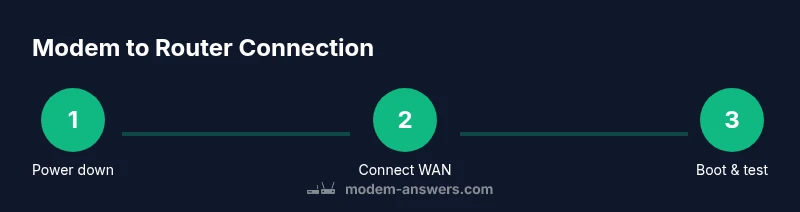
Unplug both devices from power and clear a workspace. Lay out the Ethernet cable and ensure you have the manuals handy for quick reference. This prevents accidental damage and makes the following steps smoother.
Tip: Keep a small note with device model numbers for quick checks later. - 2
Check compatibility and gather cables
Review your ISP service type (cable, fiber, DSL) and confirm the router supports that connection. Gather a Cat5e/Cat6 Ethernet cable and any required power adapters to avoid interruptions mid-setup.
Tip: Prefer shorter, high-quality cables to minimize signal loss. - 3
Position devices and plan routing
Choose a central, elevated location for the router and keep the modem near the incoming line. Plan cable routes to minimize tripping hazards and radio interference from nearby electronics.
Tip: Avoid placing devices behind furniture or inside cabinets for best signal. - 4
Connect modem to router via WAN port
Plug one end of the Ethernet cable into the modem’s Ethernet port and the other end into the router’s WAN/Internet port. Ensure you’re using the correct ports and not a spare LAN port.
Tip: Verify the router’s WAN light behavior after connection. - 5
Power on the modem and allow initialization
Plug in the modem first and give it 2–3 minutes to initialize. You should see the downstream/upstream lights stabilizing before proceeding.
Tip: If a reboot is needed, always start with the modem. - 6
Power on the router and boot
Plug in the router and wait 1–2 minutes for it to boot. Access the admin interface from a connected device once the router is ready.
Tip: Use Ethernet when you first configure to avoid intermittent Wi‑Fi issues. - 7
Access the router admin page and choose setup mode
Open a browser and enter the router’s IP address (often 192.168.0.1 or 192.168.1.1). Run the setup wizard or configure WAN settings (DHCP or PPPoE as required by your ISP).
Tip: Have your ISP login credentials handy if PPPoE is required. - 8
Configure Wi‑Fi name and security
Create a unique SSID and strong passphrase. Enable WPA3 if available, or WPA2 as a minimum, and disable WPS for security.
Tip: Choose a password that is long and unique; avoid common phrases. - 9
Test, save, and document
Test internet access on multiple devices, then save the configuration and note the new credentials in your records. Back up the router settings if the option exists.
Tip: Keep a backup of the working configuration in a secure location.
FAQ
Do I need to reboot both devices after making changes?
Yes. Reboot the modem first to re-establish the internet connection, then reboot the router to apply new settings. This helps prevent stale IP configurations and ensures changes take effect.
Usually you should reboot the modem first, then the router to apply new settings cleanly.
Can I use a single device as both modem and router?
Some devices combine modem and router functions. If you have a modem-router combo, you do not need a separate router. If you have separate devices, follow the standard setup steps to connect the two.
If you already have a combo device, you can skip connecting a separate router.
What if my ISP requires PPPoE authentication?
Enter your PPPoE username and password in the router’s WAN settings during setup. If you don’t have credentials, contact your ISP for the necessary information.
PPPoE needs a username and password in the router settings.
What cables do I need to connect modem to router?
An Ethernet cable (Cat5e or Cat6) is used to connect the modem to the router. No other cables are required for the main Internet connection.
You only need an Ethernet cable for the modem-to-router link.
Why is my Wi‑Fi not working after setup?
Check that the Wi‑Fi is enabled, verify the SSID and password, and ensure you’re connected to the correct network. If issues persist, reboot devices and verify firmware is up to date.
If your Wi‑Fi isn’t working, check the network name and password and reboot if needed.
How often should I update the firmware?
Check for firmware updates monthly and enable automatic updates if available. This helps protect against security vulnerabilities and keeps performance optimal.
Update firmware regularly to stay secure and fast.
Watch Video
Key Takeaways
- Connect modem to router via the WAN port.
- Create a strong, secure Wi‑Fi with a unique SSID.
- Test connectivity on multiple devices and document settings.
- Keep firmware up to date for security and performance.