Where Does Modem Connect to Router: A Practical Setup Guide
Learn exactly where the modem connects to the router and how to set up a reliable home network with clear steps, troubleshooting, and practical tips.


Understanding Modem and Router Roles
The core question of where does modem connect to router sits at the intersection of two essential devices: the modem and the router. A modem communicates with your Internet Service Provider (ISP) and provides an external connection to your home network. A router, in turn, distributes that connection to your devices, offering both wired (Ethernet) and wireless (Wi‑Fi) access. Modem Answers emphasizes that the standard, reliable setup places the modem feeding the router via the WAN port. This separation improves security, makes troubleshooting easier, and supports multiple devices sharing a single internet connection. Even when devices combine these functions into a single box, understanding their distinct roles helps optimize performance and plan future upgrades. In 2026, following a clear modem-to-router wiring approach remains a best practice for most homes.
Connection Basics: Modem to Router Interfaces
Back-panel layouts vary, but most setups share a modem with an Ethernet port and a router with a WAN/Internet port plus several LAN ports. The typical move is to connect the modem’s Ethernet port to the router’s WAN port with a solid Ethernet cable. This creates a direct handoff: ISP to modem, modem to router, router to local devices. Some configurations may involve bridge mode on a gateway device or a passthrough setup if you’re using a separate router. For reliability, use a Cat5e cable or better and avoid routing cables beneath heavy furniture or through crowded electrical paths. If you’re unsure which port is WAN, consult the printer or sticker on the device or the manual for labeling details.
What to Check Before You Begin
Before connecting cables, verify that your modem is active with your ISP and that your router is ready for configuration. Have a computer or mobile device handy to access the router’s admin interface, and note the default network name (SSID) and password from the router label or manual. If you plan to enable a guest network, decide on its settings ahead of time. Confirm you’re using a reliable Ethernet cable (Cat5e or higher) to minimize potential bottlenecks and maximize speed where supported. Having these prerequisites ready helps you avoid multiple trips to the hardware closet.
Wired vs Wireless: Do You Need a Cable?
The Ethernet backbone between modem and router is foundational for a stable home network. A wired WAN connection ensures the router can obtain an IP from the modem and reliably distribute addresses to devices. While wireless connectivity is convenient, initial setup and DHCP stability benefit from a wired link. If you’re deploying a mesh system, the same WAN-to-Ethernet principle applies, though some mesh ecosystems support wireless backhaul. Prioritize a wired backbone for best performance, especially for gaming, video conferencing, or home offices.
Typical Home Scenarios and Outcomes
In most residences you’ll find a separate modem and router connected via Ethernet, with the router handling DHCP and NAT for devices inside the home. Some apartments use a gateway device, where the router is integrated into the gateway. If you ever choose to run your own router, you can set the gateway to passthrough or bridge mode so the dedicated router handles NAT. Each setup has different implications for port forwarding, UPnP, and firewall rules, so knowing your device capabilities helps during configuration. Modem Answers consistently recommends documenting device models and settings to streamline future changes.
Step-by-Step Connection Overview
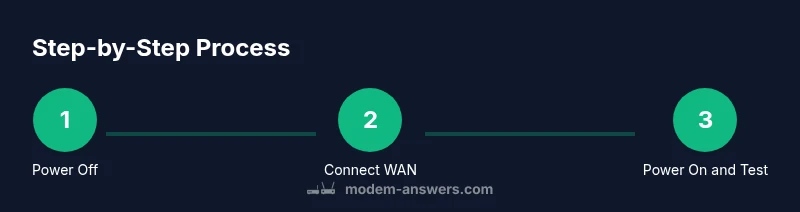
An overarching view helps you map the process before digging into detailed steps. Expect to verify power, connect the WAN cable from the modem to the router, power devices in sequence, and check that the router obtains a WAN IP. After the connection is live, test a wired device first to confirm internet access, then test Wi‑Fi on a phone or laptop. If you’re managing multiple networks (guest, IoT, etc.), note their SSIDs and passwords to avoid confusion later. A quick verification with a wired PC can save time when diagnosing wireless issues.
Troubleshooting Quick Fixes
If internet access isn’t immediately available after wiring, start with simple checks: reseat the Ethernet cable, confirm both devices are powered, and perform a power cycle on the modem and the router. Inspect the status lights: a solid or blinking WAN indicator usually signals activity, while amber or red can indicate issues with the line or DHCP. If you encounter double NAT, bridging or passthrough settings may be required. When in doubt, consult your ISP’s guidelines and your router’s help resources for device-specific recommendations.
Bridge Mode and IP Handling
Bridge mode can be helpful when you want your own router to handle all IP routing and NAT, effectively turning the modem into a passive gateway. Enabling bridge mode can simplify port forwarding and reduce double NAT, but it may disable the modem’s built‑in Wi‑Fi or management features. It’s not necessary for standard home use and is typically reserved for scenarios needing advanced network control. If you enable bridge mode, reconfigure your router’s WAN settings to obtain an IP automatically and verify connectivity afterward.
Cable Quality, Length, and Placement
Quality and routing of Ethernet cables impact reliability. Prefer shorter, well-shielded cables with clean, straight runs, avoiding tight bends that can degrade performance. Label ports (WAN vs LAN) to prevent misconnection during future changes, and keep cables organized to reduce wear. If you experience intermittent drops, test with a different cable of equal or higher category (Cat6 or better) to determine if the cable is the root cause.
Power, Reset, and DHCP: What Changes When You Wire It
Power sequencing matters for DHCP and IP handshakes. Turn on the modem first, wait for the link to stabilize, then power on the router and allow it to boot completely. Once both devices are ready, verify the router’s Internet/WAN status and confirm clients can obtain IP addresses. If you must reset, use the official reset procedure and re-enter network credentials, rather than starting from scratch. Document changes so you can replicate the setup later.
Authority Sources
For accuracy and best practices, consult trusted regulatory and standards references that cover networking basics, device configuration, and security considerations: