How to Choose a wifi router for Spectrum modems and routers
Learn how to pick a wifi router for Spectrum modems, configure bridge mode, optimize coverage, and avoid interference with practical, step-by-step guidance.


By the end of this guide, you’ll know how to pick and set up a wifi router that works with Spectrum modems, how to bridge the modem if needed, and how to optimize coverage across your home. You’ll need a compatible router, an Ethernet cable, a basic computer or phone, and your Spectrum login details to start.
Why a Spectrum-friendly router matters
If you rent or own a house with Spectrum internet service, the choice of router directly impacts speed, reliability, and coverage. The concept of a wifi router for spectrum modem isn’t about fancy hardware alone; it’s about compatibility with Spectrum’s network gateway and how you split traffic across devices. According to Modem Answers, the most noticeable gains come from a router with modern Wi‑Fi 5/6 technology, a stable processor, and robust security features. In practice, you’ll see stronger signal in far rooms, fewer dead spots, and easier guest access when you pair a capable router with your Spectrum modem. Your setup path also matters: some Spectrum devices function best when you place the router behind the gateway, using bridge mode to hand off control to your own hardware. We’ll cover bridge vs passthrough, and explain why this matters for gaming, streaming, and smart-home devices. Finally, don’t assume more antennas always equal better range—placement and channel strategy are equally critical.
Key terms you should know
Before you start shopping, familiarize yourself with key terms that frequently appear in Spectrum setups: bridge mode, NAT, dual-band vs tri-band, Wi‑Fi 6 (802.11ax), and DOCSIS versions. Bridge mode disables the modem’s routing features and passes network control to your own router, eliminating double NAT in many homes. NAT is how your devices communicate with the internet; you’ll often want a clean NAT type for gaming and video calls. Dual-band routers transmit on 2.4 GHz and 5 GHz bands, while tri-band add a dedicated 6 GHz or extra 5 GHz channel in premium models. These distinctions affect range, interference handling, and device performance. Finally, DOCSIS describes how your cable modem communicates with the provider. Knowing these terms helps you compare models and set expectations for Spectrum compatibility and future-proofing.
Compatibility and bridge mode basics
Spectrum often supports different deployment modes: gateway (modem/router combo) or standalone modem with a separate router. Bridging the Spectrum modem can give you full control of your home network and simplify features like QoS and guest networks. If bridge mode isn’t available on your specific modem, you can still use your router with the gateway in NAT mode, but you may face double NAT issues that affect gaming and port forwarding. We’ll walk through how to verify bridge mode support, enable it if available, and test your network after enabling it. This section emphasizes the practical differences between bridge mode, passthrough, and standard NAT setups so you can decide what works best for your home.
How to choose features: speed, bands, and antennas
When selecting a router, prioritize support for Wi‑Fi 6 or 6E, a reliable processor, and sufficient RAM to handle multiple devices. Look for at least one 2.5 Gbps WAN port if your plan supports multi-gig speeds, and ensure the device has robust security options (WPA3, automatic updates). Consider antenna configurations, but don’t assume more horns always equal better coverage; real-world performance depends on how you place the router and how it manages interference. If you have many smart devices, a router with good MU-MMI, QoS, and per-device controls will help maintain smooth performance for video calls and gaming. Finally, verify that the model supports bridging or DMZ if you intend to run your own firewall or apply strict port-forwarding rules.
Coverage and placement strategy
Placement is often more important than the number of antennas. Place your router high, open, and near the center of the house to minimize dead zones. Avoid enclosing it in cabinets, near microwaves, or behind thick walls. For larger homes or multi-story layouts, consider a mesh-like setup or a high-quality standalone router with a satellite extender placed in common areas. Use a Wi‑Fi analyzer app to identify crowded channels and adjust to a less congested one. Remember: a near-perfect router on a poor path still underperforms a well-placed router with modest hardware.
Wiring and setup steps: bridging vs passthrough
If you’re using a separate router, connect it to the Spectrum modem via a wiredEthernet connection and decide whether to enable bridge mode. Bridge mode disables the modem’s router features, eliminating double NAT, which often improves gaming, port forwarding, and inter-device routing. If bridge mode isn’t available, configure the modem as a pass-through or use DMZ for your router’s public IP. After connecting, access the router’s admin page (usually 192.168.0.1 or 192.168.1.1), create a strong admin password, disable WPS, enable WPA3 if available, and set up your SSID(s) and password. Run a quick speed test to confirm you’re getting the expected throughput and adjust channel settings as needed.
Security and maintenance basics
Security should be part of your baseline setup. Use a unique, long SSID and a strong password; enable WPA3 with a fallback to WPA2‑PSK for older devices. Update firmware regularly and enable automatic updates. Consider enabling a guest network for visitors and implementing parental controls or device time restrictions for family use. Regularly review connected devices and remove any unknown clients. Backup your configuration when you reach a stable setup, so you can restore quickly after a factory reset.
Troubleshooting common issues
If devices fail to connect or speeds dip, start with a quick reboot of both modem and router. Check cabling to ensure no damaged Ethernet cables are in use. Confirm you’re not on a congested channel by running a speed test on multiple devices across different floors. If you’re using bridge mode and still see double NAT symptoms, revisit your bridge settings or contact Spectrum support to verify modem capability. For persistent interference, change channels, limit the number of active devices, or relocate the router to reduce congestion and overlap with neighbor networks.
Budgeting and buying guide
Budget ranges vary by features and performance. For many homes, a solid Wi‑Fi 6 router in the mid-price tier offers excellent value, with better coverage and security than prior generations. If you have a large home with many devices, a high-performance router or a two‑pack mesh system may be worth the investment. Remember to account for ongoing costs like firmware updates and potential subscription services for enhanced security or parental controls. Focus on long-term value and compatibility rather than the lowest price.
Spectrum-specific optimization tips
Spectrum internet plans and equipment can vary by region and time; verify your plan’s capabilities and in-modem features before buying. If your area supports bridge mode, enable it to simplify management and improve performance. Utilize the 5 GHz band for devices near the router and reserve the 2.4 GHz band for far-flung devices. Regularly test speeds from different rooms and adjust router placement, channel, and power settings to balance coverage and interference. Finally, use Spectrum’s login portal to confirm your device is recognized and update your modem’s firmware if optional updates are offered.
Quick-start checklist and recommended defaults
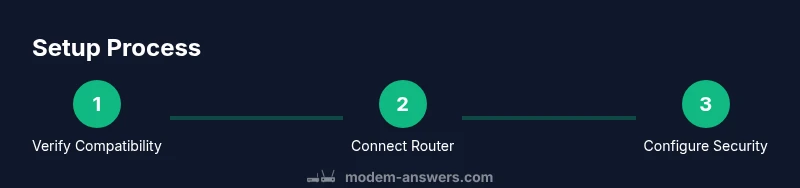
- Verify your Spectrum plan and whether you need a separate router.
- Choose a modern Wi‑Fi 6/6E router with security features.
- Connect via Ethernet and enable bridge mode if available.
- Update firmware and secure your network with WPA3.
- Position the router centrally, test speeds, and adjust channels.
- Set up a guest network and basic parental controls.
- Back up configuration and monitor connected devices regularly.
Common mistakes to avoid
Avoid double NAT by bridging when possible, and don’t disable essential security settings in pursuit of speed. Don’t rely on a single device to blanket large homes; consider placement and device count. Finally, avoid buying the latest flagship router if your home layout doesn’t require it—balance performance, coverage, and budget.
Tools & Materials
- Router (Wi‑Fi 6/6E recommended)(Look for dual- or tri-band, 2.5 Gbps WAN port if available, and WPA3 support.)
- Ethernet cable (Cat5e or better)(Used to connect the Spectrum modem to the new router for a stable backhaul.)
- Computer or smartphone(Access the router admin page and Spectrum modem interface.)
- Optional: Mesh satellite or additional access points(Helpful for larger homes or multi-story layouts.)
- Logger or speed-test app(To test performance after setup (e.g., in multiple rooms).)
Steps
Estimated time: 45-60 minutes
- 1
Verify compatibility and plan setup
Confirm your Spectrum plan supports a standalone router and check modem capabilities. Decide whether to enable bridge mode or use the gateway mode combined with your own router. Having a clear plan reduces back-and-forth troubleshooting.
Tip: Check your modem model on Spectrum’s official site or customer portal to confirm bridge mode availability. - 2
Unbox and position the router
Place the router on a high, open shelf near the center of the home. Avoid placing it behind obstacles or appliances that could cause interference. Unbox and connect the power, then prepare the Ethernet cable for the initial backhaul.
Tip: Position away from metal cabinets and thick walls for best signal propagation. - 3
Connect to the Spectrum modem
Connect the router’s WAN/Internet port to the Spectrum modem’s Ethernet port with the Cat5e cable. Power on the router and give it a minute to boot. If bridge mode is available and desired, enable it now.
Tip: Keep a note of the modem’s current IP address in case you need to access both devices during setup. - 4
Access the router admin page
Use a computer or phone to navigate to the router’s IP address (commonly 192.168.0.1 or 192.168.1.1). Create or update the admin account with a strong password. Change the default SSID and set a robust WPA3 password.
Tip: Write down the new credentials and enable two-factor authentication if available. - 5
Update firmware and configure security
Check for and install the latest firmware. Enable WPA3 (or at least WPA2‑PSK) and disable WPS. Configure a guest network for visitors and set up basic parental controls if needed.
Tip: Schedule automatic firmware updates to stay protected against new threats. - 6
Fine-tune wireless settings
Enable a fixed channel or auto-select with interference monitoring. Consider enabling band steering if supported so devices switch seamlessly between 2.4 GHz and 5 GHz. Test speeds on devices across rooms to verify coverage.
Tip: If you see interference, switch channels away from neighboring networks using a Wi‑Fi analyzer app. - 7
Test performance and adjust
Run speed tests on multiple devices from different rooms and times of day. Confirm that the router handles streaming and gaming without noticeable buffering. Adjust QoS rules if you have latency-sensitive devices.
Tip: Document baseline speeds per room to gauge improvements after future changes. - 8
Create backup and monitor
Export a configuration backup and note important settings. Regularly review connected devices and security logs to catch unauthorized access early. Plan periodic reboots and firmware checks as routine maintenance.
Tip: Keep a simple one-page summary of settings for quick recovery after power outages.
FAQ
Do I need to bridge my Spectrum modem when using my own router?
Bridge mode is recommended if available, as it reduces double NAT and improves routing performance. If bridge mode isn’t available, you can still use your own router in gateway mode, but you may encounter NAT-related limitations for gaming and port forwarding.
Bridge mode is best if your modem supports it; otherwise, use gateway mode with caution about NAT.
Can I use any router with Spectrum service?
Most modern routers will work with Spectrum when properly configured, especially Wi‑Fi 6 models. Ensure compatibility with your modem and confirm whether bridge or passthrough options are needed for best performance.
Most Wi‑Fi 6 routers will work, but check bridge support if you want to avoid double NAT.
What speeds can I expect with a personal router?
Speeds depend on your Spectrum plan and internal wifi performance. A capable router with Wi‑Fi 6 typically offers stronger internal performance and better device handling than older gateways, especially in busy households.
Expect better in-home wifi with a good Wi‑Fi 6 router, depending on your plan.
Renting a Spectrum modem vs using your own router?
Owning your own router gives you control and often better performance; Spectrum may still require a modem. Leasing a modem from Spectrum can be more convenient but adds ongoing costs.
Owning your own router plus a compatible modem often saves money and improves control.
How do I test Wi‑Fi speed after setup?
Run speed tests on several devices placed in different rooms at different times of day. Compare results to your plan’s advertised speeds and adjust placement or channels if needed.
Test in multiple rooms and times to verify stable performance.
What security settings should I enable?
Enable WPA3 if available, create a strong password, disable WPS, and enable automatic firmware updates. Consider a guest network for visitors and use parental controls if needed.
Use WPA3, strong passwords, and keep firmware current.
Watch Video
Key Takeaways
- Verify Spectrum compatibility before buying.
- Bridge mode can improve performance with your own router.
- Place the router centrally and test coverage room by room.
- Secure the network and keep firmware up to date.
- Use a quick setup checklist to avoid common missteps.