How to Setup Spectrum Modem and Router: A Practical Guide
Learn how to setup Spectrum modem and router with clear steps, security tips, and troubleshooting. This guide covers compatibility checks, bridge mode, Wi-Fi configuration, and common issues for homeowners and renters.


Goal: Successfully set up your Spectrum modem and router for fast, reliable home Wi‑Fi. Begin by confirming compatibility, connect the coax to the modem, then plug in power and your router. Use the admin page to configure Wi‑Fi, security, and, if needed, bridge mode when using a separate router. This approach minimizes troubleshooting and yields a stable network.
Understanding Spectrum Modem and Router Roles
Spectrum offers two common home-network configurations: a single gateway device that combines modem and router functions, or a separate modem paired with your own router. In a gateway setup, the device handles both the internet connection and wireless distribution. A dedicated router sits behind the modem, giving you more control over Wi‑Fi bands, guest networks, and advanced features. According to Modem Answers, starting with the right hardware and a clear plan speeds up setup and minimizes later hiccups. The Modem Answers team found that households with a well-defined configuration—deciding early which device handles routing or bridging—tend to experience fewer connectivity issues. For most homes, using your own router behind Spectrum’s gateway provides stronger coverage and more customization options. This section outlines both pathways and notes when to choose bridging if you’re using separate gear.
Preparation and compatibility checks
Before you touch cables, verify that your Spectrum service is active and that your equipment is compatible. If you’re using a Spectrum gateway, ensure that it’s up to date with the latest firmware. If you plan to use your own router, confirm that your plan supports third-party devices and review any rental fees for Spectrum's gateway if applicable. Gather all required items and have a reliable web browser ready. Finally, decide whether you will enable bridge mode later if you intend to run only your own router. Preparation reduces on-site troubleshooting and helps you tailor settings to your home layout.
Step-by-step connection overview
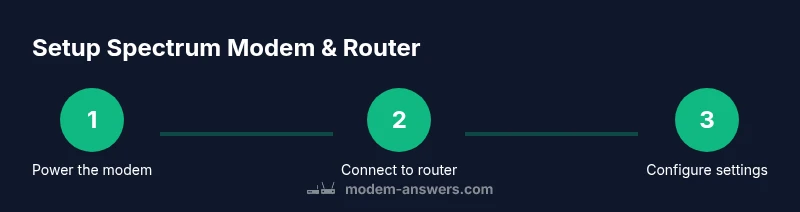
This middle section provides a high-level map of the actions you’ll perform in the detailed steps. You’ll start by connecting the coaxial cable to the modem, powering devices, and then accessing the router/modem admin interface. From there, you’ll configure network names (SSIDs), security settings, and IP addressing. If you’re using a separate router, you’ll place the gateway in bridge mode to avoid double NAT when needed. The sequence matters: physical connections first, then admin login, then configuration, followed by testing. Use wired connections during setup for reliability, then switch to wireless once settings are stable.
Configuring the modem and router: IPs, Wi‑Fi, security
Access the device’s admin panel through the default gateway address shown on the device label or in the manual (common addresses are 192.168.0.1 or 192.168.1.1). Change the admin password to a strong, unique key. Set your Wi‑Fi network name (SSID) and a strong password using WPA2‑PSK or WPA3‑SA, if available. Disable WPS for better security, and enable network isolation for guest networks if you need them. If you own a separate router, enable bridge mode on the Spectrum gateway to turn off its router functionality and pass the public IP address to your own device. Finally, update firmware on both devices to ensure security and compatibility.
Troubleshooting common issues
If the internet won’t come up after setup, recheck all physical connections—coax tightness, power indicators, and Ethernet cable integrity. Confirm you’re connected to the correct network and that the router’s WAN/Internet port is plugged into the modem. If you’re not getting an IP address, reboot both devices in correct order (modem first, then router). For Wi‑Fi problems, ensure the correct SSID, fix channel interference by selecting a different band, and verify that devices are not blocking access with MAC filters. If issues persist, contact Spectrum support to verify service status and device compatibility or consult the official setup guides for your specific model.
Authority sources
- FCC: https://www.fcc.gov/consumers/guides/home-networking
- NIST: https://www.nist.gov/topics/wireless-networking
- CISA: https://www.cisa.gov/publication/tips
Additional notes and best practices
- If you’re using your own router, consider placing the router in a central location for even coverage and minimizing interference from walls and electronics. - Schedule periodic firmware checks and updates to stay protected against new vulnerabilities. - Keep a written note of your network name and password in a secure place for future changes or guest access.
Tools & Materials
- Spectrum modem(Coax connected and powered)
- Spectrum-approved router(If using your own router behind gateway)
- Coaxial cable(Secure, finger-tight connection to modem)
- Ethernet cable(Between modem and router or computer during setup)
- Computer or mobile device(Web browser for admin login)
- Power adapters(For both modem and router)
- Pen and paper or password manager(Record SSID and password)
Steps
Estimated time: 30-60 minutes
- 1
Power down and prep
Power off all devices on the network and unplug them. Clear the area around the modem and router to give airflow and reduce heat during setup.
Tip: Having a clear workspace minimizes mis plugs and accidental disconnections. - 2
Connect coax to the modem
Attach the coaxial cable to the modem’s coax port and tighten gently. Ensure the other end is connected to the wall outlet or splitter with a secure signal path.
Tip: A snug connection reduces signal loss and helps activation go smoothly. - 3
Power up the modem and router
Plug the modem into power and wait for the online indicator. Then connect the router to its power and give it a moment to boot.
Tip: If the lights don’t stabilize within 2–3 minutes, power cycle by unplugging and re-plugging. - 4
Connect a device to the modem
Use an Ethernet cable to connect a computer directly to the modem for initial setup. This avoids Wi‑Fi interference during login.
Tip: Wired connections provide a stable baseline for configuration. - 5
Access the admin interface
Open a browser and enter the gateway IP (commonly 192.168.0.1 or 192.168.1.1). Login with the default credentials shown on the device label.
Tip: Change the admin password immediately after first login. - 6
Configure Wi‑Fi and security
Set a unique SSID for your network and a strong password. Enable WPA2‑PSK or WPA3‑SA and disable WPS to improve security.
Tip: Use a different password for each network (2.4 GHz and 5 GHz) if possible. - 7
Bridge mode (optional for own router)
If you’re using a separate router, enable bridge mode on the Spectrum gateway to prevent double NAT. This allows your router to handle routing.
Tip: Bridging may require a brief outage; perform during a low-usage window. - 8
Test and optimize
Disconnect the computer and connect devices wirelessly. Run a speed test and verify if multiple devices can connect without issues.
Tip: If performance varies by room, consider adjusting router placement or adding a mesh node.
FAQ
Do I need to rent a Spectrum modem if I want to set up my own router?
Spectrum supports using your own modem if it’s compatible with their network, but many households prefer Spectrum’s gateway for simplicity. Check your plan and equipment list. If you use your own modem, you’ll need a separate router for Wi‑Fi.
You can use your own modem if it’s compatible; you’ll still need a router for Wi‑Fi unless you buy a gateway.
Can I use a third-party router with Spectrum gateway in normal mode?
Yes, you can use a separate router behind the Spectrum gateway, but you may experience double NAT unless you enable bridge mode on the gateway. This setup is common for advanced features and better control.
Yes, but you might need bridge mode to avoid double NAT.
What is the default IP address to access the modem/router admin page?
Common default admin URLs are 192.168.0.1 or 192.168.1.1. If neither works, check the device label or the manual for the exact address. You may also need the default login credentials found there.
Typically 192.168.0.1 or 192.168.1.1; check your device label for specifics.
How do I change the Wi‑Fi name and password?
Log into the admin page, locate the Wireless or Wi‑Fi settings, and edit the SSID and password. Save changes and reconnect devices to the new network. Use WPA2‑PSK or WPA3 if available.
Go into the router settings, update SSID and password, and reconnect devices.
What should I do if the modem lights are red or nothing shows online?
Power cycle all devices: unplug, wait 30 seconds, then plug back in. Check coax connections for tightness and verify service status with Spectrum. If issues persist, contact Spectrum support.
Power cycle, check connections, verify service, contact support if needed.
Watch Video
Key Takeaways
- Verify compatibility and service status before configuring devices.
- Use bridge mode only if you own a separate router and need full control.
- Secure Wi‑Fi with a strong password and up-to-date firmware.
- Test speeds and reliability after setup; monitor performance over time.