Modem Hard Reset: A Step-by-Step Guide for Home Networks
Learn how to perform a modem hard reset safely, what changes to expect, and how to reconfigure your network afterward. This comprehensive guide covers when to reset, how to reset, and common issues with clear, actionable steps.


A modem hard reset restores factory defaults by rebooting the device and clearing temporary glitches that can slow or break connectivity. This quick fix can resolve stubborn outages, unresponsive admin pages, and slow speeds. Remember, a reset may erase customized Wi‑Fi names, passwords, and port-forwarding rules, so have your login details handy and be prepared to reconfigure essentials afterward.
What a modem hard reset does
A modem hard reset returns the device to its factory-default settings by pulsing power and restoring internal firmware to the original state. This action clears temporary glitches that can slow your connection or cause the admin interface to become unresponsive. After a hard reset, your Wi‑Fi network name (SSID) and password typically revert to the defaults that came with the device, and custom settings like port forwarding, DNS tweaks, or bridge mode are removed. This is not a cure for every problem, but it's a powerful first step when troubleshooting persistent outages, devices that won’t connect, or unresponsive admin pages. According to Modem Answers, understanding what changes during a reset helps you plan what to reconfigure immediately, rather than guessing at random settings. It’s also important to know that any service-provider specific configurations (like PPPoE credentials, VLAN tagging, or static IPs supplied by your ISP) may need to be re-entered after the reset. If you rely on parental controls or guest networks, you’ll want to note those details beforehand so you can quickly restore them.
Why this matters for homeowners and renters: a hard reset is often the fastest way to regain control when a modem behaves erratically, but it comes with the trade-off of re-setup work. Modem Answers emphasizes having a simple recovery plan so you don’t get stuck reentering dozens of settings.
If you’re uncertain, start with a softer reboot (power cycle) before committing to a full factory reset. A factory reset should be your last resort when problems persist after basic troubleshooting.
When to use a hard reset
A modem hard reset is not a daily maintenance task; it’s a targeted troubleshooting step intended for specific scenarios. Use a hard reset when you encounter one or more of the following: a persistent internet outage that cannot be resolved through simple reboots, the admin page or smartphone app becoming unresponsive, the device failing to assign an IP address to connected devices, or Wi‑Fi networks that won’t broadcast or connect devices consistently. Before you reset, ensure you’ve exhausted lighter options such as a simple reboot, checking connections, and verifying service status with your ISP. Modem Answers analysis shows that most connectivity hiccups are caused by software glitches that a reset can clear, but hardware faults or provider-side issues may require different interventions.
Additionally, consider a reset if you recently updated settings that caused instability or if you’ve inherited a modem from a previous tenant or service plan and you’re unsure of the current configuration. Keeping a quick reference of your prior Wi‑Fi credentials and login details will speed up post-reset reconfiguration.
If you rely on a managed router or mesh network, determine whether the reset should be performed on the modem alone or on the entire gateway system to avoid unintended downtime.
Tip: If you’ve recently changed your account password or ISP credentials, you’ll want to have those ready for re-entry after the reset.
How to perform a hardware hard reset (button method)
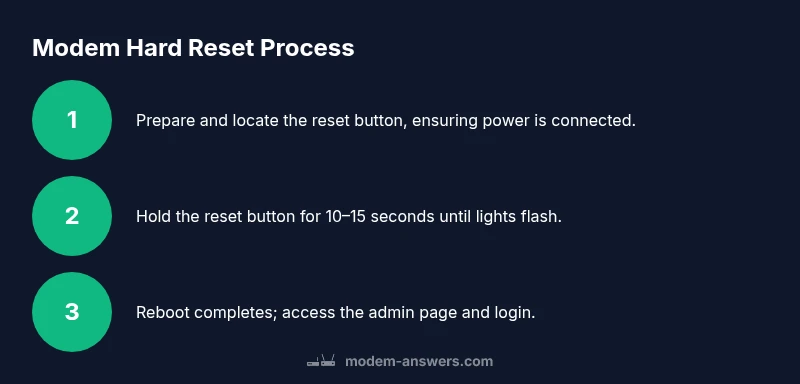
Performing a hardware hard reset is straightforward but requires attention to avoid accidental missteps. Locate the reset button on your modem—usually a small recessed hole labeled RESET—often on the back or underside. You’ll need a paperclip, pin, or similar thin object. With the device powered on, insert the tool into the hole and press-and-hold for 10–15 seconds until the lights flash or the status indicators briefly blink. Release, then allow the modem to reboot fully, typically 2–5 minutes. If the lights return to a steady pattern indicating an online connection, you can proceed to the next steps.
Why this works: the reset sequence interrupts the current firmware session, forcing the device to reload its default configuration and clear lingering errors. If your modem has a digital display or LED patterns, consult the user guide to interpret the specific blink sequence for a successful reset.
Pro tip: Do not press other buttons while holding RESET—unintended actions can alter settings or trigger a different mode (like bridging) unintentionally.
Accessing the admin interface after reset
After a hard reset, you’ll typically connect to the modem with its default network settings or directly via a wired Ethernet connection to your computer. Open a web browser and enter the standard default IP address (commonly 192.168.0.1 or 192.168.1.1) or the URL printed on the device label. Log in with the default credentials (often admin/admin or admin/password) unless you’ve previously changed them. If you don’t know the defaults, check the modem’s manual or the manufacturer’s support site. Make sure you’re on a private network rather than public Wi‑Fi during this step to protect your credentials.
Once logged in, immediately change the admin password to a strong, unique one. Next, verify your WAN connection type (DHCP, PPPoE, or static IP) and check that the modem has correct DNS settings. If you have a separate router or a mesh system, this is also a good time to confirm that the bridge mode state and IP addressing align with your home network design.
From here you’ll start the reconfiguration process, prioritizing security and reliability. The Modem Answers team notes that keeping firmware updated and documenting changes helps prevent repeat issues.
Safety note: As soon as you complete changes, save or apply settings and reboot the device to ensure the new configuration takes effect.
Reconfiguring essential settings: Wi‑Fi, login, and security
With the modem accessible again, you’ll reconfigure essential network settings. First, create a new, strong Wi‑Fi network name (SSID) and a unique password. If you use multiple bands (2.4 GHz and 5 GHz), consider using distinct SSIDs so devices can connect to the optimal band. Re-enter your ISP credentials if required (PPPoE username and password, VLAN IDs, or static IPs). Validate the WAN status and confirm DHCP is enabled so devices obtain IP addresses automatically.
Next, review security options. Enable a firewall, disable remote management unless you need it, and update the admin password. If you use port forwarding, guest networks, or parental controls, re-create those rules based on your pre-reset notes. This is also a good time to update firmware to the latest version and to adjust settings that improve stability, such as MTU size and DNS provider. If you rely on a secondary router, confirm that the bridge mode settings are correctly configured to avoid double NAT or IP conflicts.
Finally, test your Wi‑Fi coverage around the home. If performance is uneven, consider adjusting channel selection or enabling band steering if your device supports it. Keeping a short record of the new configurations helps future troubleshooting.
Troubleshooting after a reset
If things don’t go as planned after a modem hard reset, start with a quick checklist. Confirm that the modem is fully powered and connected to the internet service. Verify that login credentials were entered correctly and that you saved the new settings. If devices cannot access the network, try reconnecting a test device directly via Ethernet to rule out Wi‑Fi issues.
Common post‑reset problems include: incorrect PPPoE credentials, wrong VLAN tags, or misconfigured DNS. If you suspect a provider-side issue, contact your ISP to confirm service status and obtain any required configuration details. For persistent issues, you may need to restore from a previously saved backup of your settings or perform a repeat reset using a slightly longer hold (always following manufacturer guidance).
Modem Answers emphasizes documenting your changes and keeping a backup plan for quick recovery. If firmware appears outdated after reset, schedule an update window and monitor performance after changes are applied.
Final checks before going live
Before concluding the reset process, run quick tests to ensure stability: check internet connectivity on multiple devices, perform a basic throughput test to confirm speeds are in line with your plan, and verify that essential services (smart home devices, printers, and streaming devices) reconnect without requiring manual intervention. If you notice ongoing issues—such as intermittent disconnects, persistent reboot loops, or IP address conflicts—consider a professional assessment or a replacement modem if the hardware shows signs of aging. Continuous monitoring over 24–48 hours can help confirm that the reset resolved the root cause.
Tools & Materials
- Modem device with power supply(Ensure it’s the model you’re troubleshooting and it powers on normally.)
- Access to admin interface (web browser or app)(You’ll need the modem’s login credentials.)
- Ethernet cable(Helpful if Wi‑Fi is unstable during login.)
- PIN or paperclip(Needed to press the recessed RESET button.)
- Admin credentials and backup settings(Have them ready to re-enter after reset.)
Steps
Estimated time: 15-30 minutes
- 1
Prepare for reset
Confirm that a reset is appropriate by verifying the issue isn’t caused by a simple reboot or ISP outage. Gather login credentials and backup settings to reconfigure after the reset.
Tip: Have PPPoE or VLAN details on hand if your ISP uses them. - 2
Locate the reset button
Find the small recessed RESET button on the modem, usually at the back or bottom. You’ll need a pin or paperclip to press it.
Tip: Use good lighting and a steady hand to avoid triggering nearby buttons. - 3
Perform the hardware reset
With the device powered on, press and hold the reset button for 10–15 seconds until the lights flash or the status indicators reset.
Tip: Do not release too early; releasing too soon may not trigger the reset. - 4
Wait for reboot to complete
Allow the modem to reboot fully, typically 2–5 minutes. Wait for the online indicator to appear.
Tip: Avoid unplugging during the reboot to prevent firmware corruption. - 5
Access the admin interface
Connect a computer to the modem and open the admin page at the default IP (e.g., 192.168.0.1). Log in with defaults or your pre-reset credentials.
Tip: If the default login doesn’t work, check the device label or manufacturer site for updated defaults. - 6
Reconfigure essential settings
Set a new Wi‑Fi name/password, verify WAN/PPPoE settings, and re-enable security features. Restore any backups if you prepared them.
Tip: Save changes after each section to avoid losing progress.
FAQ
What is the difference between a hard reset and a soft reset on a modem?
A hard reset restores factory defaults by resetting hardware and firmware, erasing custom settings. A soft reset restarts the device without changing configurations. Use a soft reset first for minor glitches, and reserve a hard reset for persistent problems that soft resets can’t fix.
A hard reset returns the modem to factory settings, while a soft reset simply restarts it. Start with a soft reset for minor issues, and use a hard reset only if necessary.
Will a modem hard reset delete my ISP login details?
Yes. A hard reset usually clears ISP credentials like PPPoE or VLAN configurations. You’ll need to re-enter these details after the reset to regain internet access.
Expect to re-enter your ISP credentials after a hard reset to restore connectivity.
How long does a reset take from start to finish?
The physical reset takes about 10–15 seconds for the button hold, and the reboot typically completes within 2–5 minutes. Allow extra time for reconfiguration.
Plan for about 15–30 minutes total, including reconfiguration and testing.
Can I reset my modem if I’m using a separate router or mesh system?
If your network includes a separate router or mesh system, you typically reset the modem first, then reconfigure the router/mesh to reconnect properly. In some setups, you may need to set bridge mode correctly to avoid double NAT.
Reset the modem first, then adjust the router or mesh settings to match your network design.
I can’t access the admin page after reset. What now?
Ensure you’re connected to the modem’s network and use the correct default IP. If the login fails, check for updated defaults on the device label or manufacturer site, and consider restoring from a backup if available.
If the login page won’t load, double-check connections and try again with the default address.
Watch Video
Key Takeaways
- Plan before you reset to avoid losing settings
- Back up essential network details for quick restoration
- Follow each step in order to minimize downtime
- Verify login credentials after reconfiguration
- Test connectivity on multiple devices after completion