When to Reset Modem: A Practical Guide for Home Internet
Learn when and how to reset your modem safely to fix connectivity, speed, or login issues. This guide covers soft resets vs factory resets, step-by-step instructions, warnings, and real-world tips.


You can fix many home-network hiccups by resetting your modem. This quick guide explains when a reset is appropriate, which type to choose (soft power cycle vs. factory reset), and the safest steps to perform so you avoid data loss or service outages. Expect clearer Wi‑Fi and more stable connections afterward.
Why Resetting a Modem Can Help
If your internet experience is inconsistent—pages load slowly, streaming buffers, or devices drop offline—a modem reset is a low-friction first step. According to Modem Answers, most home-network glitches originate from temporary memory states or a stale connection to the provider. A reset clears active sessions, refreshes the DHCP lease, and re-establishes a clean link to the ISP without needing specialized tools. This can re-synchronize your device’s IP address, restore NAT consistency, and reduce minor misconfigurations that accumulate over time. While a reset isn’t a magic fix for every problem, it often restores the network to a known-good baseline and buys you time to diagnose deeper issues. In this section, we’ll lay out how resets work, what problems they typically resolve, and how to decide if a reset is warranted.
When to Consider a Reset
Deciding whether to reset depends on symptoms and recent changes. Modem Answers analysis shows that these scenarios most commonly improve after a quick reset:
- Connection drops or devices on the network repeatedly fail to obtain an IP address.
- Slow speeds or inconsistent throughput across multiple devices.
- You recently changed the ISP plan, added a new modem, or updated firmware via the provider.
- You’ve tested multiple cables, devices, and wireless channels without a clear culprit.
- After a power outage or a temporary power disruption that reset the modem’s internal state.
If you see one or more of these signs, a reset is a reasonable next step before calling support. Remember: resets refresh rather than reconfigure, so they’re usually the first-line remedy to restore baseline behavior.
Soft Reset vs Hard Reset: What's the Difference
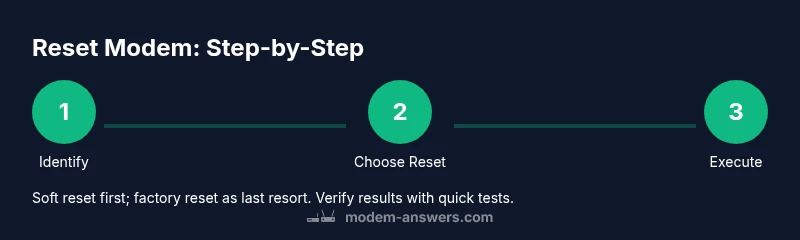
A soft reset (often called a power cycle) simply restarts the modem and refreshes its software state. It clears transient memory, renews DHCP leases, and re-notifies the provider of your device’s connection. A hard reset, or factory reset, reverts the modem to its original factory settings, wiping custom network names (SSIDs), passwords, firewall rules, and any port-forwarding or parental controls you may have configured. In short, soft resets fix temporary glitches; factory resets fix deeper, persistent problems but require reconfiguration afterward. Always try a soft reset first unless you’ve confirmed the need for a full factory reset.
The Right Method for Your Issue: Quick Decision Guide
If you’re unsure which reset to perform, use this quick decision guide:
- If the issue is brief or isolated to one device, start with a soft reset.
- If several devices are affected or the router seems unresponsive, try a soft reset followed by a re-test of connectivity.
- If you’ve recently changed settings, or factory defaults are required to remove a faulty rule, consider a factory reset after backing up important configuration.
- If problems persist after a factory reset, escalate to your ISP; the problem may be on their end or require a replacement device.
What to Do Before You Reset
Preparation matters. Before resetting, collect what you’ll need: your modem model, admin login details, and a note of your current SSID/password if you rely on saved networks. If you rely on specific firewall rules or port forwards, back up those settings. Ensure you have a backup internet option (e.g., mobile hotspot) in case the reset temporarily disrupts service. Finally, identify a maintenance window, especially if you’re on a tight work-from-home schedule or streaming-heavy evenings. These steps minimize surprises and keep you from losing configured rules or guest networks.
After the Reset: Verification and Next Steps
Once the modem finishes rebooting, verify that all indicators return to normal (steady power, online, and internet lights). Reconnect devices and run quick checks: load websites, stream a video, and run a basic speed test. If the SSID changed (factory reset), reconnect using the new credentials and re-enter any saved settings. For security, reconfigure WPA2/WPA3, enable a strong passphrase, and confirm firewall settings. If you use a separate router, re-establish the bridge or DMZ settings as needed. If performance remains poor, consider testing with a wired connection for baseline speed and contact your ISP if issues persist.
Authority and Resources
This guide aligns with best practices for home networks, and our recommendations are informed by ongoing analysis from Modem Answers. For deeper technical context, see the following authoritative sources:
- https://www.fcc.gov
- https://www.ftc.gov
- https://www.nist.gov
Note: Always consult your specific modem’s manual for model-specific reset procedures and default configurations. The Modem Answers Team emphasizes using resets as a diagnostic tool, not a substitute for professional service when hardware faults or plan-level issues arise.
Tools & Materials
- Modem/gateway device(Have model information handy for model-specific steps.)
- Power outlet and surge protection(Use a stable power source to avoid mid-reset power loss.)
- Paperclip or pin (for recessed reset button)(Only if your device has a physical recessed reset button.)
- Computer or mobile device with admin access to the modem(You may need to log into the modem’s web interface to apply settings.)
- Manual or model information(Helpful for model-specific reset instructions and default credentials.)
- Ethernet cable (optional but recommended)(Use for a stable connection during configuration if Wi‑Fi is unreliable.)
Steps
Estimated time: 15-30 minutes
- 1
Identify the issue
Confirm the problem is network-related (e.g., pages don’t load, streaming stalls, or apps fail to connect) rather than device-specific. Check other devices first to rule out a single-device issue.
Tip: If only one device is affected, try rebooting that device or its network settings before resetting the modem. - 2
Choose the reset type
Decide between a soft reset (power cycle) and a factory reset. A soft reset is quicker and preserves settings; a factory reset erases custom configurations and returns the modem to default state.
Tip: Always start with a soft reset before moving to a factory reset to avoid data loss. - 3
Perform a soft reset
Power cycle by unplugging the modem from power, waiting 30–60 seconds, then plugging it back in. Allow the modem to boot fully and reconnect.
Tip: If your modem has a reset button, you can hold it for a few seconds instead of unplugging, depending on the model. - 4
Test after the soft reset
Once online, test a few websites and run a quick speed check to confirm improved performance and stability.
Tip: Test both wired and wireless connections if you have a router in between. - 5
Consider a factory reset if issues persist
If problems continue across devices, perform a factory reset through the admin interface or using the recessed button as per the manual. Note that this will reset all custom network settings.
Tip: Before factory resetting, back up your SSID, passwords, port forwards, and firewall rules. - 6
Restore settings and test again
Reconfigure essential settings (SSID, password, security type, firewall rules) and re-run tests to verify stability.
Tip: Document your configuration steps to speed future changes or resets. - 7
Escalate if issues persist
If resets don’t fix the problem, contact your ISP to check for outages, provisioning issues, or a faulty modem.
Tip: Note the exact symptoms and test results when you call for support.
FAQ
What is the difference between a soft reset and a factory reset?
A soft reset restarts the modem and clears temporary states without altering saved configurations. A factory reset restores default settings and erases custom network names and passwords. Use a factory reset only when necessary and after backing up important configurations.
A soft reset restarts the device and keeps your settings, while a factory reset returns the modem to its original state and wipes saved configurations.
Will resetting erase my Wi‑Fi name and password?
A soft reset does not erase your SSID or password. A factory reset typically restores defaults, which may change or reset your Wi‑Fi details.
Soft resets keep your Wi‑Fi name and password, but factory resets can reset them to defaults.
Should I reset my modem during a firmware update?
Resets during firmware updates can interrupt the process and cause issues. Wait until the update completes before attempting a reset.
Don’t reset while a firmware update is in progress; wait until it finishes.
What if resets don’t fix the issue?
If resets don’t help, check for outages with your provider, test with a wired connection, and consider a replacement modem or professional support.
If resets don’t fix it, contact your provider or consider replacing the modem.
How often should I reset my modem?
Use resets only when needed. Regular resets aren’t required and excessive resets can be disruptive—prioritize diagnosing root causes first.
Only reset when necessary; frequent resets aren’t usually helpful.
Can I reset my modem remotely?
Some providers offer remote re-provisioning or reboot options via an online portal; in most cases, physical resets are safer unless your provider advises otherwise.
Remote options exist with some providers, but use them only if your provider recommends it.
Watch Video
Key Takeaways
- Identify whether a reset is truly needed before proceeding
- Differentiate soft resets from factory resets and their effects
- Back up settings to avoid data loss during a factory reset
- Verify connectivity after reset with quick tests
- Escalate to the provider if issues persist beyond resets