Reset Modem and Router: A Complete Step-by-Step Guide
Learn how to reset both your modem and router safely. This educational guide covers soft vs hard resets, preparation, step-by-step actions, aftercare, and troubleshooting tips to restore performance for homeowners and renters.


This guide shows you how to reset both devices to resolve intermittent Wi‑Fi, slow speeds, or connection drops. We'll cover soft and hard resets, what to back up, how to avoid losing custom settings, and how to verify connectivity after resetting. The steps are safe for most home networks and designed for homeowners and renters.
What resetting your modem and router fixes
When your home network is acting up—Wi‑Fi that drops, pages that stall, or devices that won’t connect—a quick reset often clears the issue. Resetting your modem and router cycles power and refreshes internal software, much like rebooting a computer. According to Modem Answers, this simple step addresses many common problems without requiring specialized tools. The goal is to restore a clean connection from the source outward, not to replace your equipment.
Common symptoms that respond to a reset include intermittent connectivity, slow browsing speeds, streaming stutters, and devices that show “no internet” even though the router lights look normal. It’s important to distinguish between issues that originate at your home network and those caused by the internet service provider or external sites. A reset can fix local networking glitches, refresh the router’s routing tables, clear cached DNS entries, and sometimes resolve IP address conflicts.
Before you reset, gather a few basics: know which device is your primary gateway (usually the modem), have the admin login ready for the router, and note your network name (SSID) and password. If you’ve made custom settings, such as port forwarding, a guest network, or parental controls, write these down or take a screenshot. Modem Answers emphasizes that reset routines work best when you approach them methodically, not as a last‑ditch effort.
Soft reset vs hard reset: understanding the options
A soft reset, or a simple reboot, restarts the devices without erasing settings. It clears temporary faults while preserving your configured network name and passwords. A hard reset, sometimes called a factory reset, restores devices to their original factory state, deleting custom settings, login credentials, and saved networks. Use a soft reset first; if problems persist after rebooting, a hard reset may be warranted. Understand that some Internet Service Providers (ISPs) also provide a gateway device that combines modem and router functionality; in these cases, you may need to reset the gateway differently to avoid unintentional changes to your service settings.
Benefits of a soft reset include speedier cycles, minimal disruption, and safer results for casual users. A hard reset can fix stubborn issues tied to misconfigurations, firmware glitches, or corrupted caches, but it requires re‑configuring your network afterward. If you rely on advanced features (VPNs, static IPs, or custom DNS), a factory reset means you’ll re‑enter these settings. Always verify whether your ISP has bridged mode turned on or uses a separate gateway device, because this changes what you reset and how.
Preparing to reset: backups, passwords, and notes
Preparation reduces the friction of a reset and prevents data loss. Start by locating your login credentials for both devices. Write down the router’s admin username and password, the modem’s login if applicable, and the IP address you use to reach the admin interface. If you changed the default password on either device, ensure you remember the new credentials; otherwise you may be locked out after a factory reset.
Create a quick recovery plan: keep a record of your Wi‑Fi network name (SSID) and password, as well as any custom DNS or port‑forwarding rules. If you’ve enabled a guest network, note its settings too. Back up the router’s configuration if the option exists, and consider saving a screenshot of the current status page showing connected devices and firmware version. If you’re using a bridge mode with your ISP, review the bridging configuration so you can restore it afterward. Modem Answers recommends keeping a paper trail to minimize post‑reset headaches.
When to escalate: bridge mode, ISP gateways, and double NAT
Resetting a modem and router can reconfigure how traffic is routed in your home network, but it can also reveal deeper issues such as bridge mode, double NAT, or ISP gateway constraints. Bridge mode is typically used when you want your own router to handle all routing duties; a factory reset on the gateway may revert it to standard behavior, disrupting bridges you rely on. If you’re using an ISP gateway device, be prepared to re‑enable bridge mode if that’s part of your setup, and you may need the ISP’s documentation (or customer support) to re‑establish a bridge.
Double NAT occurs when both the modem/gateway and an attached router perform NAT (Network Address Translation). This can cause port forwarding to fail and gaming or video calls to misbehave. After a reset, test whether you’re in double NAT by checking the network map; if needed, place the router in bridge mode or set up a DMZ with caution. In these scenarios, resetting might help, but it’s not a guaranteed fix; you may need targeted reconfiguration.
Step-by-step flow when you reset: a high-level outline
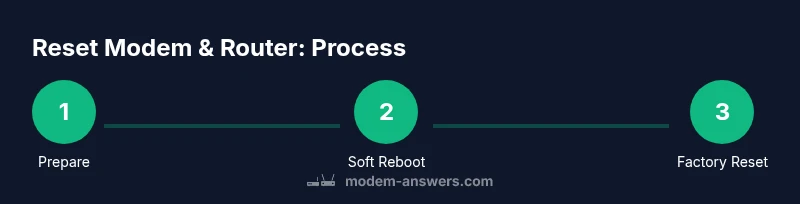
A reset is most effective when you approach it in a deliberate sequence. Start with a soft reboot of the modem, followed by the router. Then check for a stable internet connection on a wired device before testing wireless devices. If the issue persists, you’ll move to a factory reset on the router, and only consider factory resets on the modem if the gateway is still misbehaving. Throughout this flow, keep your backup notes handy and avoid changing multiple settings at once, so you can identify what actually caused the problem.
After a reset, re‑establish your network name, password, and any custom rules. If you use a static IP or VPN, test those configurations carefully. Finally, perform a quick speed test and device‑level checks to confirm you’ve regained expected performance.
Aftercare: reconfigure, test, and secure your network
Post‑reset steps matter just as much as the reset itself. Begin by reconnecting a computer to the network via Ethernet to confirm reliability before moving to wireless devices. Re‑enter your SSID and password, apply any custom DNS or port rules, and re‑enable security features such as WPA3 or a strong admin password. Verify firmware versions and update if needed, as firmware updates can address stability issues and security gaps. Run a quick speed test to ensure you’ve regained expected performance, then rotate passwords if you suspect any compromise.
For extra protection, consider enabling guest network segregation, disabling WPS, and setting a separate admin password on each device. If you needed to place the router in bridge mode, re‑check that configuration and test all essential services (work VPNs, gaming, smart home devices). Authority sources include official guidance from government and university sites to ensure your approach aligns with best practices. See the links under Authority sources in this article for more details. Based on Modem Answers analysis, always secure admin credentials after reset. The Modem Answers team notes that a well‑planned post‑reset routine yields longer lasting improvements.
Authority sources (for further reading)
- Official sources on home network security and device management: https://www.fcc.gov
- Cybersecurity and infrastructure guidance: https://www.cisa.gov
- Public‑facing standards and guidelines: https://www.nist.gov
Common mistakes to avoid and quick fixes
Common mistakes after resetting include skipping firmware updates, skipping a backup of your configuration, and assuming all settings reset to defaults. Take time to reinstall and verify each feature (guest networks, port forwards, and DNS settings) step by step. Avoid immediately changing every advanced option; instead, test connectivity between changes to identify what actually improves or degrades performance. If problems persist, contact your ISP or consult your router’s support resources. Remember, though resetting is powerful, it won’t fix faulty hardware or an aging device.
Tools & Materials
- Modem power adapter(Keep original or compatible adapter on hand)
- Router power adapter(Same note as above)
- Paperclip or reset pin(Use only to trigger a factory reset when advised)
- Ethernet cable (Cat5e/Cat6)(Wired connection for reliable admin access)
- Laptop/phone with browser(Access the admin interfaces at 192.168.0.1 or similar)
- Notes app or screenshot tool(Document SSIDs, usernames, and passwords)
- Backup storage(Save router configurations if the option exists)
Steps
Estimated time: 25-40 minutes
- 1
Prepare and gather credentials
Collect admin usernames and passwords for both devices and note your current SSID and wifi password. If you have bridging or VPN configurations, write those down as well.
Tip: Having everything ready prevents lockouts after a factory reset. - 2
Power cycle the modem
Unplug the modem, wait 60 seconds, plug it back in, and allow 2 minutes to fully boot. This soft reset clears transient faults at the source.
Tip: A quiet wait lets the device reinitialize its network channels. - 3
Power cycle the router
Unplug the router, wait 30 seconds, plug it back in, and allow 2 minutes to boot. This refreshes your local network routing.
Tip: If you’re using a separate SSID, confirm the wireless network remains visible after reboot. - 4
Test after a soft reset
Connect a device via Ethernet or Wi‑Fi and verify internet access. If the issue persists, you may proceed to a factory reset on the router.
Tip: Prioritize checking wired connectivity first for reliability. - 5
Factory reset the router (if needed)
If the problem remains, perform a factory reset using the reset button for 10‑15 seconds with the device powered. Wait for the router to re‑initialize.
Tip: A factory reset erases custom rules, so plan to reconfigure afterward.
FAQ
Should I reset my modem and router at the same time?
Typically, reboot each device sequentially. If issues persist, perform a router factory reset while keeping the modem powered to isolate the fault.
Typically, reboot each device one by one. If needed, reset the router first and then the modem.
What’s the difference between soft resets and factory resets?
A soft reset reboots without losing settings. A factory reset restores default settings, erasing custom rules and passwords.
Soft resets reboot; factory resets wipe personalized settings.
Will resetting affect my ISP login or bridge mode?
Yes—especially with ISP gateways. You may need to re‑enable bridge mode or reconfigure login details after a reset.
Bridge mode or ISP login may need reconfiguration after a reset.
What should I do after a reset to secure my network?
Change admin passwords, enable WPA3, update firmware, and consider disabling WPS. Reconfigure any VPNs or port forwards as needed.
Change admin passwords and enable strong security after resetting.
How long should I wait after powering up?
Give devices 2–5 minutes to boot and re‑establish connections before testing.
Give boot time a few minutes before testing.
Can I reset remotely through the provider app?
Remote resets are possible on some provider apps, but use caution and ensure you can access the admin interface afterward.
Remote resets can work, but make sure you can reconnect afterward.
Watch Video
Key Takeaways
- Begin with soft resets to minimize disruption
- Back up settings before a factory reset
- Test connectivity after each major step
- Secure admin passwords immediately after reset