How to Wipe a Modem: Factory Reset Guide for Home Networks
Learn how to wipe a modem with a step-by-step factory reset. Prerequisites, hardware vs software resets, post-reset setup, security tips, and a practical checklist from Modem Answers.


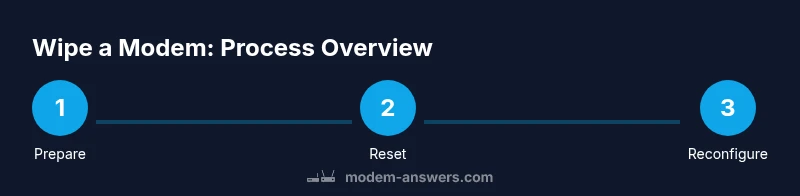
To wipe a modem, perform a factory reset using either the hardware reset button or the admin interface, then reconfigure your network from scratch. Back up any essential settings first, ensure you have power, and verify the reset completed successfully before reconnecting devices. This guide shows the key steps and safety tips.
What wiping a modem does and why you might need it
According to Modem Answers, wiping a modem means restoring it to its factory default settings. This action removes personalized configurations, saved passwords, and custom network names, returning the device to its original state. You might need to wipe a modem if you’re selling or returning the device, troubleshooting persistent configuration issues, or preparing a fresh setup after a security incident. The goal is to eliminate stray settings that could compromise performance or privacy while preserving the essential firmware that keeps the device functional. In this guide on how to wipe a modem, we walk through both hardware and software options, what to back up, and the exact steps to perform a secure reset without harming the device.
How to wipe a modem: prerequisites and safety considerations
Before you begin, gather the required tools and plan for a brief outage. Ensure you have physical access to the modem, a backup path for important credentials, and a stable power source. You should also note the default login credentials often printed on the device or included in the manual, because you’ll need them after the reset to access the admin interface. Modem Answers emphasizes the importance of using a wired connection during the setup phase whenever possible to minimize connection drops. It’s also wise to inform other household members about the temporary loss of service and potential reconfiguration steps.
Hardware reset vs software reset: choosing the right method
A hardware reset uses a physical button or pinhole on the modem and is typically a true factory reset. A software reset, performed through the admin interface, can be quicker and less disruptive but still returns most settings to default. If you’ve locked yourself out of the admin panel, a hardware reset is often the most reliable option. If the device responds to the web interface, a software reset can be safer when you want to preserve firmware updates or apply a targeted reset to specific features. The choice depends on your access, the device model, and whether you want a full factory reset or a targeted refresh.
Backing up settings before you wipe
Backing up important information helps prevent chaos after the reset. Record your current Wi‑Fi network name (SSID) and password, any custom port forwarding rules, DHCP reservations, and router settings if available. Some providers store device credentials in the cloud; note those details if you rely on the modem for your service. If you use a separate router behind the modem, document the router’s admin details and any special network configurations. Modem Answers recommends a simple backup strategy: write it down or store securely in a password manager, and store a local copy if the device allows exporting configuration files.
Post-reset expectations: what changes and what stays
After a factory reset, the modem will boot with default settings. You’ll likely need to reconnect to the admin interface using the default IP, username, and password printed on the device. Expect to re‑enter your ISP credentials and reconfigure your Wi‑Fi name and password. Some devices will automatically fetch firmware updates after the reset; others require manual checking. The reset also clears parental controls, guest networks, and any custom QoS rules. Being aware of these changes helps you plan your reconfiguration strategy.
Reconfiguring your network after a modem wipe
Once the modem is reset, begin by securing the admin interface with a strong, unique password and enable encryption (WPA3 if available). Recreate your Wi‑Fi network name and password, set up guest networks if needed, and restore essential settings like port forwards and DHCP reservations when applicable. If you have a separate router, re-link it to the modem and verify its settings. Finally, test connectivity with wired and wireless devices, and run a basic speed test to confirm service levels.
Common mistakes to avoid during a modem wipe
Don’t skip backing up important configurations before the reset. Avoid powering off the device during the reset process; an unexpected interruption can leave the modem in an uncertain state. Don’t assume all settings will be restored automatically; you will need to reconfigure network names, passwords, and security features. Finally, avoid performing resets repeatedly in a short timeframe, which can confuse your network and prolong downtime.
Security best practices after wiping a modem
After wiping, change the default router password and administrator credentials. Enable the highest available encryption (WPA3 or WPA2‑AES), disable remote management if you don’t need it, and consider updating the firmware to the latest version. Document your new network details securely and limit access to trusted devices. Modem Answers highlights that consistent firmware updates and strong credentials are essential for long-term network security.
Final checklist before you finish the wipe
Confirm you have: (1) backing up essential settings, (2) power stability during reset, (3) reset completed and device rebooted, (4) reconfigured Wi‑Fi name/password, (5) updated firmware if prompted, and (6) secured admin access. Once complete, reconnect your devices, verify internet connectivity, and monitor for any odd behavior over the next 24–48 hours. This approach minimizes downtime and helps ensure a smooth transition after wiping a modem.
Tools & Materials
- Small pin or paperclip(Used to press the recessed reset button on the modem)
- Access to the modem's admin interface(You’ll sign in to perform a factory reset or verify settings)
- Device with network access (laptop/tablet/phone)(To access the admin page or verify after reset)
- Stable power source(Keep the modem powered during reset to avoid bricking)
- Backup method for credentials(Optional: write down Wi‑Fi name/password before reset)
- Ethernet cable (optional)(Helpful for a stable connection during reconfiguration)
Steps
Estimated time: 15-45 minutes
- 1
Locate and prepare the reset option
Identify whether your modem has a hardware reset pinhole or button. Ensure you have a clear, stable surface and a nearby power source. This prepares you for a clean factory reset and reduces the risk of interruption during the reset process.
Tip: If using a pinhole, have a paperclip ready and avoid pressing other buttons. - 2
Decide between hardware and software reset
Choose hardware reset for a complete factory return, or software reset via the admin interface for a scoped refresh. The reason for choosing one method is determined by your access to the device and whether you want to restore all defaults or preserve firmware features.
Tip: If you’re unsure, start with a software reset; if access is blocked, proceed to hardware reset. - 3
Back up important settings
Before wiping, record essential details like the Wi‑Fi name/password, port forwards, DHCP reservations, and any custom DNS settings. This makes the post-reset setup faster and reduces network downtime.
Tip: Store backups in a password manager or a written note kept safe. - 4
Perform hardware factory reset
If you’re using hardware reset, press and hold the recessed button for the recommended duration (typically 10–30 seconds) until the status lights indicate a reboot. Do not release early; incomplete resets can leave the device in an unusable state.
Tip: Some models require lights to blink in a specific pattern before releasing the button. - 5
Wait for the modem to reboot
Allow the modem to fully reboot, which may take several minutes. Don’t unplug the device during this period. A successful reboot will indicate the device returning to its default configuration state.
Tip: If the device doesn’t reboot, try a longer press or a second reset attempt as a last resort. - 6
Access the admin interface after reset
Connect to the modem’s default network and sign in with the default credentials shown on the device or in the manual. This step is essential to confirm the reset and begin the reconfiguration process.
Tip: Use a wired connection when possible for stability during initial setup. - 7
Reconfigure network settings
Set a new admin password, configure Wi‑Fi SSID and passphrase, and reapply any necessary security features. If you have a separate router, re-link it to your modem and verify its settings.
Tip: Use strong, unique passwords and enable the latest encryption standard available. - 8
Verify connectivity and test
Test internet access on multiple devices, run a speed test, and confirm services like VoIP or IPTV function as expected. Check for firmware updates and apply them if prompted.
Tip: If issues arise, consult the provider’s support page or perform a soft reset to recover network settings.
FAQ
What is the difference between a soft reset and a factory reset?
A soft reset restarts the modem without changing your saved settings, while a factory reset restores default settings and erases custom configurations.
A soft reset just restarts the device; a factory reset wipes your settings clean.
Will wiping erase firmware updates or settings I want to keep?
Wiping returns the device to factory defaults and may remove user configurations, but firmware remains the current version unless the reset triggers an update. You’ll need to reapply any desired settings afterward.
Wiping resets settings, but firmware stays as is unless the device updates after reboot.
Should I back up configurations before wiping?
Yes. Backing up Wi‑Fi details, port forwards, DHCP reservations, and admin credentials saves time during reconfiguration and reduces downtime.
Yes—back up important settings before you wipe.
Can I wipe a modem remotely?
Remote wiping depends on whether the device supports remote management. Most consumer modems require local access for a factory reset.
Usually you need local access; remote wipes aren’t common on consumer modems.
What should I do after wiping to secure my network?
Change default admin passwords, enable strong encryption, and disable unnecessary remote management. Regular firmware updates also help protect against new threats.
After wiping, secure your admin access and update firmware.
Is it safe to wipe a rental modem from a provider?
Check your rental agreement. Some providers require returning the device or may restrict certain resets. If uncertain, contact the provider’s support before wiping.
Check your rental terms before wiping a provider-supplied modem.
Watch Video
Key Takeaways
- Back up critical settings before wiping.
- Choose the reset method based on access and goal.
- Reconfigure network securely after reset.
- Keep firmware up to date and change default credentials.