How to Reset Modem and Router: A Complete Step-by-Step Guide
Learn how to reset your modem and router safely with this comprehensive, step-by-step guide. Distinguishes soft resets from factory resets, backup tips, and post-reset checks.


Resetting your modem and router can restore connectivity and fix stubborn network issues. This quick guide explains when to reset, how to perform soft resets vs. factory resets, and how to reconfigure settings safely after the reset to prevent future problems. Following these steps reduces downtime and keeps devices secure.
Why Resetting Your Modem and Router Can Fix Common Issues
A reset is a simple, often overlooked, troubleshooting step that can resolve a wide range of home-network problems. By refreshing memory, renewing DHCP leases, and reinitializing firmware processes, a reset gives devices a clean slate. The Modem Answers team emphasizes that a reset should be approached thoughtfully: use it when you’ve ruled out simpler fixes like replugging cables or updating firmware. According to Modem Answers, many connectivity issues originate from cached settings or minor glitches in the device’s software, which a well-timed reset can clear without lasting harm. To minimize downtime, ensure you have your Wi‑Fi network name (SSID) and password handy before proceeding.
This section will help you understand when a reset makes sense and how to perform it without inadvertently erasing critical configurations. It also covers differences between soft resets and factory resets, so you pick the method that aligns with your goals and comfort level.
Tip: If your router supports a backup/restore feature, consider saving the current configuration before making changes. This reduces the risk of losing custom rules, port-forwarding settings, or guest networks.
Soft Reset vs Factory Reset: Choosing the Right Method
A soft reset simply restarts the device and clears temporary memory without changing saved settings. It’s fast, safe, and ideal for minor connectivity hiccups, stuck UI screens, or slow performance that doesn’t require reconfiguration. A factory reset, on the other hand, restores the device to its original out‑of‑the‑box state, removing all customizations, passwords, and network names. Use a factory reset only when you suspect corrupted firmware, persistent lockups, or after you’ve tried a soft reset without success. The decision hinges on your goal: preserve current settings or start fresh.
In many cases, a soft reset resolves the issue and preserves your network identity. If you perform a factory reset, you’ll need to re-enter your ISP credentials and re-create Wi‑Fi settings, which can be time-consuming but sometimes necessary to fix stubborn problems. Modem Answers analysis notes that knowing the difference between these resets helps homeowners avoid unnecessary downtime and data loss.
Visual cue: Many devices display a reset button with a pinhole; the labels may read “Reset” or “Restore Factory Settings.”
Safety and Preparation Before You Reset
Before you begin, gather essentials and plan for the downtime. Ensure you have access to the admin interface (username and password), and have a backup of current Wi‑Fi names and passwords if possible. It’s also wise to note any specific port mappings, parental controls, and guest network credentials you want to re-create after the reset. If you’re resetting both devices, have Ethernet cables handy to streamline reconfiguration and testing. Make sure you’re connected to a power source, and avoid handling devices during a power outage or lightning storm.
For renters or households with multiple users, communicate the timing clearly—they may be temporarily offline while devices reboot. If you rely on VoIP or smart-home hubs, plan for a short service interruption and consider resuming services after the reboot to verify everything is functioning normally.
Why this matters: A well‑planned reset minimizes the risk of losing critical network information and reduces repeat troubleshooting later on. Modem Answers recommends keeping a quick reference of default IP addresses and admin URLs for quick access after reset.
Step-by-Step Overview
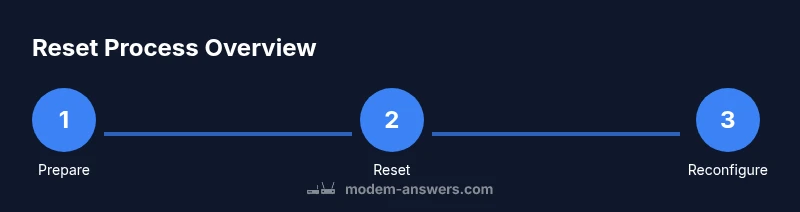
This section provides a concise roadmap of what you’ll do, followed by detailed steps in the dedicated STEP-BY-STEP block. The overview helps you set expectations and prepare for the actual actions.
- Decide between a soft reset and a factory reset, based on the issue and your backup readiness.
- Prepare by collecting credentials, backups, and a stable power source.
- Perform the chosen reset and observe the boot sequence.
- Reconfigure essential settings (Wi‑Fi, password, and security).
- Test across multiple devices to ensure reliability.
Refer to the detailed STEP-BY-STEP section for precise actions and timing.
Quick Verification After Reset
Once the devices reboot, confirm basic functionality first: the modem’s status lights should indicate online status, and the router should establish a broadcast network. Connect a mobile device and verify internet access, then test several laptops or smart devices to ensure consistent performance. If you use a static IP or custom DNS, reapply those settings now.
Next, re-enter your Wi‑Fi credentials on each device. If you rely on any port-forwarding rules, VPNs, or firewall configurations, re-create them as needed. It’s also smart to run a basic speed test from multiple devices to confirm you’re getting expected results. If problems persist, a secondary reset or contact with your provider may be needed (see AUTHORITY SOURCES for guidance).
Common Pitfalls and How to Avoid Them
To minimize mistakes, avoid rushing through hardware steps or unplugging devices in the middle of a reset. Do not perform a factory reset without backing up settings first, unless you’re prepared to re-enter everything from scratch. Some devices have separate reset options for the modem and the router—ensure you know which one you’re resetting and why. Finally, do not skip reconfiguration steps after a reset; otherwise, devices may fail to reconnect or expose insecure defaults.
AUTHORITY SOURCES
- Federal Communications Commission (FCC): Keep your home network secure and functioning. https://www.fcc.gov/consumers/guides/keep-your-home-network-secure
- Cybersecurity and Infrastructure Security Agency (CISA): General best practices for home networks. https://www.cisa.gov
- Consumer Reports or other major publications for consumer guidance on device resets and warranty information. https://www.consumerreports.org
Additional Notes and Next Steps
If the reset resolves the issue, note what you did and share a quick summary with other household members. If problems persist after a reset, consider a firmware update or consulting your provider for advanced diagnostics. After any reset, you should test critical services (video calls, streaming, gaming) to ensure everything is performing as expected.
Tools & Materials
- Paperclip or pin(Needed to press recessed reset button on modem/router.)
- Admin login credentials(Username and password for both devices' admin interfaces.)
- Backup of current Wi‑Fi settings(If possible, save SSID and password before factory reset.)
- Ethernet cable(Useful for stable connections during reconfiguration.)
- Quiet space and timing plan(Minimize interruptions during reboot and reconfiguration.)
Steps
Estimated time: 20-30 minutes
- 1
Identify reset type
Decide whether you will perform a soft reset (recommended first) or a factory reset (only if necessary). This choice affects whether you retain or lose current settings. Ensure you have admin credentials ready.
Tip: Starting with a soft reset preserves your network identity. - 2
Prepare backup data
Record your current Wi‑Fi name (SSID), password, and any custom DNS or port-forwarding rules. This makes reconfiguration faster after a factory reset.
Tip: Use a screenshot or a simple text note for quick reference. - 3
Power cycle the devices
unplug both devices from power, wait 15 seconds, then plug them back in. Let them fully boot before proceeding to any configuration.
Tip: A full power cycle often fixes minor startup delays. - 4
Perform soft reset if chosen
If you chose a soft reset, locate the reset button (often a recessed pinhole) and press it for 10-15 seconds using a paperclip. Release and allow the device to reboot completely.
Tip: Do not hold too long; some devices auto-update firmware after boot. - 5
Perform factory reset if needed
If a soft reset didn’t resolve the issue, perform a factory reset by holding the reset button for 20-30 seconds until lights indicate reset. Note: this will erase all custom settings.
Tip: You will need to re-enter ISP credentials and reconfigure Wi‑Fi afterward. - 6
Reconfigure and test
Log in to the admin interface, set up your Wi‑Fi name and password, reapply security settings, and re-establish any port mappings or parental controls. Test connectivity on multiple devices and run a quick speed check.
Tip: Consider enabling automatic firmware updates to keep devices secure.
FAQ
What is the difference between a soft reset and a factory reset?
A soft reset restarts the device without erasing saved settings, while a factory reset restores defaults and removes custom configurations. Use a soft reset first to preserve your setup, and reserve a factory reset for persistent problems.
A soft reset restarts the device, keeping your settings. A factory reset wipes configurations; use it only if problems persist.
Will resetting erase my Wi-Fi password?
A soft reset will not erase your saved Wi‑Fi password. A factory reset will revert the router to default settings, which usually requires you to set a new Wi‑Fi name and password.
Soft reset? Your password stays. Factory reset? You’ll need to set new credentials.
Do I need to reset both modem and router at the same time?
Often, you can reset the modem and router separately. If you’re experiencing issues that involve the whole network, a coordinated reset of both devices can help, but ensure you reconfigure after the reset.
Usually you can reset one at a time, but reset both if the issue affects the entire network.
How long does a reset take?
A soft reset is quick, typically under a minute. A factory reset can take several minutes, as devices reboot and you re-enter settings afterward.
Most resets finish quickly; factory resets take a bit longer due to reconfiguration.
What should I do if the reset doesn’t fix the problem?
If issues persist, check for firmware updates, verify cables, and consider contacting your ISP for further diagnostics. A factory reset is sometimes repeated, but hardware faults may require professional support.
If it keeps happening, update firmware or contact your provider for deeper diagnostics.
Watch Video
Key Takeaways
- Back up settings before a factory reset.
- Soft resets fix most minor problems without losing data.
- Reconfigure essential settings promptly after a reset.
- Test across multiple devices to confirm stability.