How to Reset Cox Modem: A Practical Step-by-Step Guide
Learn how to reset Cox modem safely with a step-by-step approach. Reboot, factory reset, and reconfigure your network to restore reliable home internet.


This quick guide explains how to reset Cox modem, covering both a simple reboot and a full factory reset. You’ll learn when each method is appropriate, how to perform the steps on typical Cox models, and how to re-establish your Wi‑Fi network after resetting. Follow the steps carefully to avoid data loss or extended outages.
Why Resetting Your Cox Modem Helps
If you’re troubleshooting home internet, a reset is often the fastest way to clear glitches and refresh network state. The phrase how to reset Cox modem describes two common approaches: a soft reboot (power-cycle) that restarts the device while preserving most settings, and a factory reset that restores default values and passwords. According to Modem Answers, many connectivity hiccups originate from stale DHCP leases, DNS cache buildup, or stuck firmware processes. A reset can resolve these issues without calling support in many cases. This section also notes that some Cox devices can operate in bridge mode or act as gateways; understanding your device role before resetting helps prevent unintended outages. After reset, you’ll need to re-enter your Wi‑Fi name and password and possibly reconfigure port forwarding or device privileges.
Soft Reboot vs Factory Reset: When to Use Each
A soft reboot is the safest first step. It clears transient errors without changing network credentials or custom settings. Use this when you notice slow speeds, intermittent drops, or flaky page loads. A factory reset should be reserved for persistent problems, misconfigurations, or if you’re planning to hand the modem to a new user. It restores the device to its original state, wiping custom SSIDs, passwords, and admin credentials. Before performing a factory reset, make sure you have any required login details and note your preferred network name so you can re-create it afterward. Modem Answers emphasizes planning: reset only when necessary and document changes to minimize downtime.
Identifying Your Cox Modem Model and Access Options
Before you reset, identify the exact model you’re using. This matters because some Cox devices offer button-based resets, while others require access through the admin interface. Look for a model label on the bottom or back of the device, or check your account dashboard for device details. If you can access the admin portal, you’ll see options labeled Reset, Restore Defaults, or Factory Reset. If you’re using a separate router behind the Cox gateway, decide whether you want to reset the gateway, the router, or both. If you’re unsure, start with a soft reboot and only proceed to a factory reset if the problem persists.
Quick Soft Reboot: Step-by-Step (Power-Cycle)
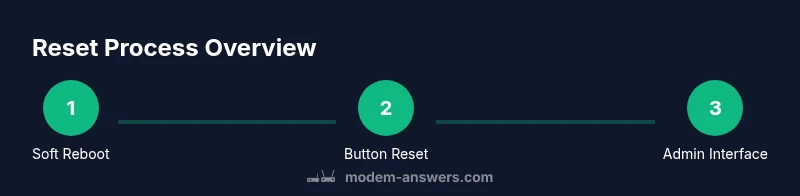
A soft reboot is the simplest path. Unplug the modem’s power cord, wait 60 seconds, and plug it back in. Give the device 2–3 minutes to fully reinitialize and stabilize lights. After reboot, test a device connected to your network to confirm the connection. If you still don’t have internet, proceed to more thorough resets. The goal here is to clear temporary glitches without altering your network setup.
Factory Reset: Button Method (If Available)
Some Cox modems include a recessed reset button. If yours has one, insert a pointed object (like a paperclip) and press and hold for 10–15 seconds, until lights flash or cycle. This is a true factory reset, returning the device to its default settings. Be prepared to reconfigure your Wi‑Fi network and admin password afterward. If your device doesn’t have a physical reset button, skip to the next section and use the admin portal.
Factory Reset via Admin Interface: Web Portal or App
If you prefer not to use the physical button or your model lacks one, use the admin interface. Connect a computer or mobile device to the modem, open a browser or the Cox app, and log in with your admin credentials. Navigate to the Reset or Restore Defaults option and confirm. After the reset completes, you’ll need to set a new network name and password and reapply any custom settings such as port forwarding or parental controls. This method ensures you control what gets reset and preserves a documented change history.
After Reset: Reconnect, Reconfigure, and Security
Once reset is complete, reconnect your devices and set up your network again. Create a strong Wi‑Fi password, enable WPA3 if available, and update the admin password for the device itself. Check for firmware updates in the admin portal, as updates can improve stability and security. Finally, run a quick speed test to confirm you’re back to expected performance. If problems recur, consider contacting Cox support with details about what you tried.
Troubleshooting Common Post-Reset Scenarios
If the lights on the modem indicate a problem after reset (for example, no connectivity or a constant blinking pattern), verify your coaxial cable is securely connected and that the service outage window is not affecting your area. Check that your router is properly providing internet to your devices and that there are no IP address conflicts. If you’re still stuck, a technician visit or a phone support session may be needed. Modem Answers recommends documenting each step you took to make the troubleshooting process efficient.
Tools & Materials
- Modem power cable(Keep connected during reset if performing a simple reboot; unplug only during a factory reset if advised by the admin steps.)
- Computer or mobile device(Needed to access the admin portal or Cox app for factory reset and reconfiguration.)
- Web browser or Cox app(Used to log in and execute reset options or view device status.)
- Paperclip or pin (if needed for button reset)(Only for modems with a recessed reset button.)
- Notebook or digital doc(Record your network name, password, and admin credentials before resetting.)
Steps
Estimated time: 20-35 minutes
- 1
Perform a soft reboot (power-cycle)
Unplug the modem from power, wait 60 seconds, and plug it back in. Allow 2–3 minutes for the device to reinitialize and for the lights to stabilize. This neutral reset clears temporary faults without altering Wi‑Fi credentials.
Tip: If the issue clears after this step, you’ve likely resolved a transient glitch without reconfiguration. - 2
Test connectivity after reboot
Connect a device to your network and load a few websites or run a speed test to verify the connection. If the problem persists, proceed to a more thorough reset.
Tip: Testing right away helps you decide whether a deeper reset is needed. - 3
Prepare for a factory reset (button method)
If your model has a reset button, locate it with a small tool, press and hold for 10–15 seconds, and observe the lights. If the device returns to factory defaults, you’ll need to reconfigure the network afterward.
Tip: Do not press too long; holding longer than required may trigger another cycle or cause confusion about the reset state. - 4
Factory reset via admin interface (no button)
Open a browser or the Cox app, log in with admin credentials, and navigate to the Reset or Restore Defaults option. Confirm the action and wait for the modem to reboot. Reconfiguration will be required post-reset.
Tip: If you forgot the admin password, use the account recovery process or contact Cox support. - 5
Reconnect and reconfigure Wi‑Fi
After reset, create a new network name and password. Reconnect devices and apply any custom settings like port forwarding or device prioritization.
Tip: Write down the new credentials and settings for future reference. - 6
Update firmware and secure the device
Check for firmware updates in the admin portal and install them if available. Enable strong security features (WPA3, strong admin password) to protect your network.
Tip: Firmware updates can fix known issues and improve stability.
FAQ
Can I reset my Cox modem without losing my settings?
A soft reboot preserves settings, while a factory reset restores defaults and erases custom configurations like the Wi‑Fi name and password. If you only need a quick fix, try a reboot first.
A soft reboot keeps your setup intact, but a factory reset will erase custom settings and revert to defaults.
Will resetting affect my network password?
A factory reset will erase the current Wi‑Fi password, requiring you to create a new one. A soft reboot does not change the password.
Factory reset wipes your Wi‑Fi password; a soft reboot keeps it as is.
What if I can’t access the admin interface?
Ensure you’re connected to the modem’s network, try the default gateway address in a browser, and verify you’re using the correct admin credentials. If needed, contact Cox support for account recovery.
Make sure you’re connected and using the right login details; contact support if you’re stuck.
How long does a factory reset take?
A factory reset typically takes a few minutes. After the reset, you’ll need to reconfigure the network settings and credentials.
Most factory resets finish in a few minutes; you’ll reconfigure settings afterwards.
Is resetting safe for Cox customers?
Resetting is a standard troubleshooting step. Follow the official steps carefully to avoid unintended outages, and back up important settings beforehand.
Resetting is safe if you follow the steps and back up settings first.
Watch Video
Key Takeaways
- Choose the correct reset method for the issue at hand
- Soft reboot preserves settings; factory reset restores defaults
- Back up network credentials before resetting
- Reconfigure Wi‑Fi and admin credentials after reset
- Check for firmware updates to improve stability