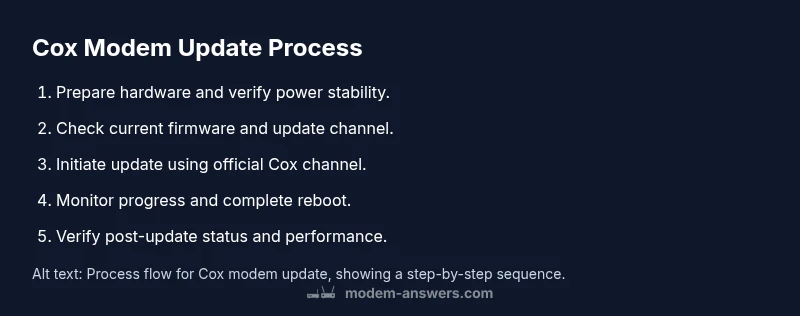
Cox Modem Update: Safe Firmware Step-by-Step Guide
Learn how to safely update your Cox modem firmware with a wired connection, official Cox steps, and best practices for reliable home internet. This guide covers prerequisites, troubleshooting, and post-update checks for a smooth Cox modem update.


To update a Cox modem, you’ll ensure the device is connected, backed up if recommended, and updated through Cox's official steps. This guide covers checking current firmware, performing a safe update, and verifying the connection afterward. According to Modem Answers, a timely cox modem update improves security and reliability, with minimal downtime when using a wired Ethernet link.
What is a Cox modem update and why it matters
A Cox modem update, or firmware update, is when Cox releases software changes to improve performance, security, and compatibility with Cox services. The cox modem update can fix known bugs, improve stability, and provide new features like better Wi‑Fi management or improved energy efficiency. According to Modem Answers, keeping firmware current reduces vulnerability exposure and helps ensure reliable home internet. Regular updates can also resolve issues that appear after long periods of operation. In practice, updates are designed to be seamless, but the exact steps can vary by model and whether you're using a combined modem-router device or a standalone modem. Staying current helps prevent surprise outages and keeps your home network compatible with evolving Cox services.
How Cox delivers updates: auto vs manual
Cox typically pushes updates automatically whenever the modem is connected to the internet. These updates install in the background and reboot the device as needed, minimizing manual effort. Some models offer update prompts via the My Cox app or the device's web management page, allowing you to schedule or trigger installations. If automatic updates are disabled, you can often perform a manual check from the admin interface or the Cox account dashboard. Even when auto-updates are enabled, periodic checks ensure you’re on the latest stable build. Modem stability and security often improve with regular, official firmware updates.
Prerequisites for a smooth Cox modem update
Before starting, have a reliable wired connection between your computer and the modem, and ensure you are logged into your Cox account. Gather essential items: a tested Ethernet cable, a capable device (computer or mobile) with internet access, and sufficient power to avoid interruptions. If possible, perform the update during a low-usage window to minimize potential congestion on your home network. If you have a backup of your current settings, keep it handy in case you need to restore.
Known issues and how to troubleshoot during an update
Power interruptions are the most common cause of failed updates. If the update stalls or the device reboots unexpectedly, pause and retry after ensuring a solid network link. Confirm you are connected via Ethernet, not Wi‑Fi, and verify you’re using official Cox channels for the update. If problems persist, check Cox's status pages for outages and consider reaching out to Cox support. A failed update can leave the device in a nonfunctional state, so proceed with caution and follow official guidance.
Step-by-step verification after update
Once the update completes, verify the firmware version on the modem’s status page and run a quick internet speed test to confirm performance. Inspect LED indicators for normal operation (power, online, and Wi‑Fi lights). If results look off, reboot the modem and re-run basic diagnostics. Document any changes to your network settings and monitor performance over the next 24 hours to ensure stability.
Security and best practices during updates
Prioritize official Cox methods and keep credentials secure. Enable automatic updates if available and disable unnecessary features like bridge mode unless you specifically need them. After updating, review your security settings, update weak passwords, and ensure the modem firewall is active. Regularly check for updates and notifications from Cox to stay ahead of vulnerabilities.
Common misconceptions about Cox modem updates
Many users assume updates occur instantly for all devices or that updates always add visible new features. In reality, firmware updates can be model-specific and may only improve stability or security. Downgrading firmware is usually not supported, and updates may require a reboot that briefly interrupts service. Trust official Cox channels for updates rather than third-party tools to avoid bricking the device.
What to do if Cox update doesn't apply
If the Cox update doesn’t install, retry with a stable wired connection and ensure you’re targeting the correct device. Confirm your account permissions and check for model compatibility in Cox’s support resources. If issues persist, contact Cox support for guided troubleshooting and possible device replacement options. Do not perform risky factory resets without explicit guidance.
How to maintain modem health after an update
Continue monitoring your network health after an update by periodically checking firmware status and performing quick speed tests. Keep other network devices updated and restart the modem periodically to maintain responsiveness. Maintain a clean network environment by placing the modem away from interference sources and ensuring adequate ventilation to prevent overheating.
Tools & Materials
- Computer or mobile device with internet(Prefer wired connection to avoid interruptions during the update)
- Ethernet cable (Cat5e or better)(Essential for stable, uninterrupted update progress)
- Cox account login credentials(Needed to access My Cox or the modem admin page)
- Backup of current modem settings(Helpful in case you need to restore custom configurations)
- Uninterruptible power supply (UPS) or charged device (optional)(Reduces risk of power loss during longer updates)
Steps
Estimated time: 30-45 minutes
- 1
Prepare your hardware and network
Confirm your power source is stable, connect via Ethernet, and sign into your Cox account. Close bandwidth-heavy applications to reduce interruptions during the update.
Tip: Pro tip: Use a surge protector and keep the router in a cool, ventilated area. - 2
Check current firmware version
Open the modem's admin page or My Cox app to view the current firmware version and device model. Compare with Cox's latest release notes to gauge whether an update is available.
Tip: Pro tip: Take a screenshot of the current settings before updating. - 3
Connect and verify update path
Ensure the update is being downloaded from Cox's official update channel. If auto-update is enabled, you may see a banner or notification indicating a pending upgrade.
Tip: Pro tip: Use a wired connection and disable VPNs during the update. - 4
Initiate and monitor the update
Click the update button or allow auto-update to start. Do not unplug the device; monitor progress on the status page and watch for the reboot.
Tip: Pro tip: Do not attempt multiple update attempts in quick succession. - 5
Verify post-update status
After reboot, re-check firmware version, run a speed test, and confirm all lights indicate normal operation (power, online, wifi).
Tip: Pro tip: Record the new firmware version for future reference. - 6
Troubleshoot if issues arise
If the update fails, retry with a stable connection. If problems persist, contact Cox support and provide device model, firmware version, and error messages.
Tip: Pro tip: Do not factory reset without guidance; it may erase custom settings.
FAQ
Do I need to restart my Cox modem after updating?
Yes. A reboot is typically required to finalize the new firmware. This ensures the update is active and all modules initialize correctly.
Yes, you’ll usually need to restart your modem after updating to complete the installation.
Can I update a Cox modem myself?
Most Cox updates can be initiated by the user via the My Cox app or the modem's admin page. Ensure you’re on the official Cox channel and have network connectivity.
You can usually update through Cox’s official app or admin page.
Will a Cox modem update cause internet downtime?
There may be a brief interruption while the modem reboots, but it’s typically short and planned.
There could be a brief interruption during the reboot.
What if the update fails to install?
Retry with a stable wired connection. Verify you’re updating the correct device and has eligible firmware. If it still fails, contact Cox support.
Retry with a stable wired connection and contact Cox if it fails.
Is there a risk of bricking my modem during update?
The risk is low when using official Cox updates and a stable connection. Avoid power cuts and interruptions during the process.
Risk is low if you use official updates and keep power steady.
How often should I check for Cox modem firmware updates?
Check for updates when notified by Cox, or periodically via the My Cox app. Automatic updates are recommended if available.
Check for updates when Cox notifies you or use automatic updates.
Watch Video
Key Takeaways
- Prepare with a wired connection and ready Cox credentials.
- Verify current firmware before updating and use official Cox methods.
- Update using supported channels to minimize risk and downtime.
- Test connectivity after update and monitor for stability.