Cox Replace Modem: A Practical Homeowner's Guide
Learn how to replace your Cox modem with a compatible device, activate it, and optimize your home network. This step-by-step guide covers compatibility checks, installation, and best practices for reliable Cox Internet service in 2026.


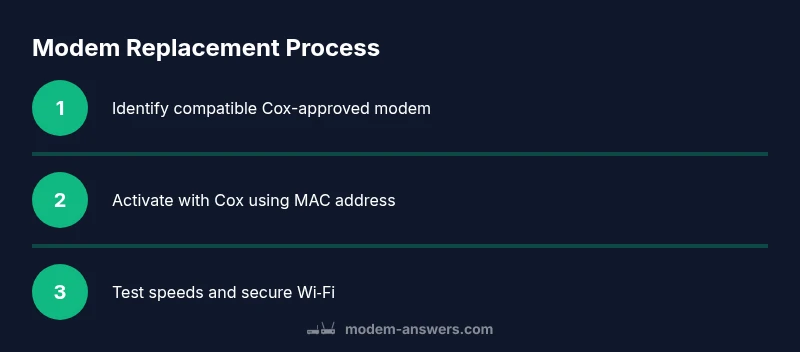
By the end, you'll know how to replace a Cox modem with a compatible unit, confirm service compatibility, and complete activation and basic optimization. This involves checking DOCSIS compatibility, gathering the right cables, and following Cox activation prompts. The Modem Answers team provides step-by-step guidance to minimize downtime and maximize home network performance.
Why replacing a Cox modem matters
If you’re researching "cox replace modem", you’re likely aiming for a faster, more reliable home network. In many homes, an aftermarket or upgraded modem/ gateway can unlock improved stability, better Wi‑Fi performance, and longer service life before the next hardware refresh. A replacement also gives you a chance to simplify setup by choosing a compact, modern device that fits your space. The Modem Answers team has analyzed dozens of residential setups and consistently finds that a compatible modem can reduce buffering during streaming, improve online gaming latency, and lower some rental fees over time. As you plan, remember that reliability starts with compatibility, not just speed—so verifying Cox support for your chosen model is essential.
How compatibility shapes your choice
Compatibility with Cox matters more than the latest feature set. Start by confirming the modem DOCSIS standard (3.0 vs 3.1) supported by your service tier, because Cox’s network may cap certain devices. In many markets, Cox supports DOCSIS 3.0 modems for basic plans and DOCSIS 3.1 devices for higher speeds. The Modem Answers analysis shows that using a Cox-approved modem reduces activation friction and minimizes service interruptions. Additionally, consider whether you want a standalone modem or a gateway that includes built-in Wi‑Fi; gateways are convenient but may deliver different Wi‑Fi performance depending on your home layout. Always validate firmware policies and any required certification with Cox before purchase.
Choosing the right modem for Cox service
Begin with a Cox-approved list of modems to ensure a smooth activation and ongoing support. Look for models with a documented speed tier that matches your plan (e.g., 500 Mbps, 1 Gbps). Ensure the device supports your preferred DOCSIS standard and has enough Ethernet ports for your home network. Practically, you’ll want a modem with a solid thermal design, reliable +5V power supply, and a MAC address you can register with Cox. The Modem Answers team notes that sticking to Cox-recommended devices reduces the risk of activation errors and future compatibility issues. If you’re unsure, compare three models side-by-side and read user-reported experiences from trusted sources.
Activation and initial setup best practices
Activation is usually quick but can fail if the device isn’t recognized by Cox’s provisioning system. Connect the modem to the coax wall outlet first, then connect the power and wait for the online indicator. Use Cox’s app or web portal to start the activation, and have your account details handy (account number, service address, and MAC/IMEI if needed). After activation, reboot the modem to ensure it completes the provisioning handshake. If you plan to use your own router, decide whether to place the router behind the modem (standard setup) or enable bridge mode to avoid double NAT, which can complicate port forwarding.
Router integration and IP addressing options
If you keep a separate router, you’ll likely place the router behind the modem for straightforward control. In many homes, bridge mode on the gateway eliminates double NAT and simplifies port forwarding. If you’re using a separate router, set the router to obtain IPs via DHCP from the modem or configure a static IP if needed. Ensure your router’s firmware is up to date and that you enable WPA3 (or WPA2‑PSK if necessary) for stronger wireless security. Document your network name (SSID) and password for quick reference and future changes.
Security and network hygiene after replacement
After replacing a modem, reset any default credentials on connected devices and review your Wi‑Fi security settings. Use a strong, unique password for the network and consider enabling guest networks for visitors. Keep firmware on your modem and router up to date, and disable remote management if you don’t need it. Regularly review connected devices and set up MAC address filtering if you want extra control. These steps help protect your home network from potential threats.
End-of-life considerations for your old modem
If you’re returning a rental modem, follow Cox’s return instructions to avoid continued charges. If you own the device, decide whether to keep it as a spare or recycle it according to local electronics recycling guidelines. Some communities offer electronics take-back programs or retailer recycling events. Keeping records of the return or disposal helps prevent future billing questions.
Troubleshooting after activation: quick checks
If you notice intermittent drops or slow speeds after activation, run a wired speed test to establish a baseline. Check signal levels at the modem’s status page (e.g., US parameters and channel bonding) and compare with Cox recommendations. If issues persist, power-cycle the modem and router, verify cable integrity, and consider swapping the coax splitter to a direct line if you’re using one. For persistent problems, contact Cox support with your MAC address, serial number, and a brief description of the observed symptoms.
Authority sources and further reading
For readers who want to dive deeper, consult authoritative references like the FCC guidance on modem usage, trusted technology outlets, and Cox support resources. The Modem Answers team recommends visiting official provider pages and governmental resources to verify current policies. This ensures you stay compliant and protect your home network while performing a cox replace modem.
Quick reference: activation checklist and resource links
- Confirm Cox-supported modem model and DOCSIS standard.
- Gather coax cable, Ethernet cable, power adapter, and activation details.
- Use the Cox app or website to activate and verify connection.
- Decide on gateway vs. separate router configuration.
- Update firmware and secure Wi‑Fi with strong credentials.
- Record MAC address, model number, and activation outcome for future reference.
Tools & Materials
- New Cox-approved modem (docsis 3.0/3.1 as appropriate)(Verify model is listed as Cox-compatible; check your current speed tier.)
- Coaxial cable and any necessary splitters(Use high-quality coax and minimal splitter count to maintain signal integrity.)
- Ethernet cable (Cat5e or better)(Used to connect a router to the modem or for direct wired devices.)
- Power adapter that ships with the modem(Keep the original power supply; third-party adapters may not be supported.)
- Paper and pen or digital note app(Record activation steps, MAC address, and model details.)
- Access to Cox account (app or website)(Needed for activation, outage checks, and plan verification.)
Steps
Estimated time: 25-45 minutes
- 1
Identify plan and gather equipment
Review your current Cox plan to ensure the new modem supports your speed tier. Collect the modem, coax cable, Ethernet cable, power adapter, and activation details before you begin.
Tip: Have your Cox account number handy and confirm the exact model is Cox-approved. - 2
Power down and disconnect the old modem
Unplug the old device from power and detach all cables. Note how the current setup is wired to help replicate or adjust the arrangement with the new modem.
Tip: Take a quick photo of the cable layout for reference during reassembly. - 3
Connect the new modem to the coax line
Connect the coax cable from the wall to the modem’s coax port. If you use a splitter, ensure the split is appropriate for your signal levels and re-tighten connectors.
Tip: Prefer a direct connection from wall to modem; use splits only if necessary. - 4
Power up and boot
Plug in the modem and wait 2–5 minutes for it to boot and reach online status. Observe the LED indicators to confirm boot and bonding.
Tip: Avoid unplugging the device during activation to prevent provisioning issues. - 5
Activate with Cox
Open the Cox app or website and start activation. You’ll need the MAC address and possibly the serial number; Cox will provision the device on your account.
Tip: If activation stalls, use the phone option or web chat and have your account details ready. - 6
Connect a router (optional) or enable bridge mode
If you’re using a separate router, connect it to the modem via Ethernet. Decide whether to use router mode or bridge mode depending on your network needs.
Tip: Bridge mode minimizes double NAT issues for some setups; verify your devices still receive DHCP properly. - 7
Test wired and wireless performance
Run wired and wireless speed tests to verify speeds. Check that all devices can connect and that essential services function correctly.
Tip: Test with multiple devices and at different times to gauge consistency. - 8
Document and secure settings
Record the MAC address, model, activation outcome, and network details. Enable strong Wi‑Fi security and keep firmware updated.
Tip: Update your Wi‑Fi password and enable guest network if needed.
FAQ
Do I need a Cox technician to replace my modem?
No. If you choose a Cox-approved modem, you can replace it yourself and activate it using the Cox app or website. Some issues may require phone support, but a technician is not required for standard replacements.
You can replace it yourself and activate it online or in the Cox app.
How do I know if my modem is compatible with Cox?
Check Cox’s official device list for your region, verify DOCSIS standard, and confirm it supports your plan’s speed. If in doubt, compare three Cox-approved models.
Look up Cox-approved models and DOCSIS specs to be sure.
Should I use a gateway or a separate router with Cox?
A gateway combines modem and Wi‑Fi, which is convenient, but a separate router can offer more advanced features and better coverage for larger homes. Your choice depends on your space and needs.
Gateways are simpler; dedicated routers give you more control.
What if activation fails after replacement?
Power cycle the modem, reattempt activation via the Cox app, and verify the MAC address is registered. If problems persist, contact Cox support with your device details.
Power cycle and try activation again; contact Cox if it fails.
Can I reuse my old modem after Cox replacement?
If you own the modem and it’s compatible, you can reuse or reassign it as a spare. If you rented from Cox, return it to avoid rental charges.
Only if compatible and not a rental; otherwise return it.
How long does activation typically take?
Activation usually completes within a few minutes, but in some cases it may take up to an hour if provisioning is slow. If the status remains offline, contact Cox.
Usually a few minutes, sometimes longer if provisioning delays occur.
Do I need to change my Wi‑Fi password after replacing the modem?
Yes. After changing hardware, update your Wi‑Fi password and network name to enhance security and reflect the new device.
Yes—update your Wi‑Fi password after replacement.
Watch Video
Key Takeaways
- Choose a Cox-approved modem to ensure compatibility.
- Verify DOCSIS standard and speed tier before purchase.
- Activate using Cox app or phone, keeping MAC/serial handy.
- Decide on gateway vs. separate router for your network.
- Secure and document your new network configuration.