Activate a New Cox Modem: Step-by-Step Activation Guide
Learn how to activate a new Cox modem with a practical, step-by-step guide. Preparation, activation, verification, and troubleshooting to get your internet live quickly.


This guide shows you how to activate new modem cox, connect it to your home network, and confirm service is live. It provides a practical, step-by-step plan, key checks, and troubleshooting tips to minimize downtime, plus what you need before you begin and how to verify the connection from multiple devices.
Understanding activation basics
Activation is the critical transition from unboxing to reliable internet service. When you activate new modem cox, you link the device to Cox's account and enable the modem to communicate with the provider's network. This process assigns a path for your home devices to obtain IP addresses, apply firmware updates, and receive service profiles such as security settings and speed tiers. Without activation, a modem might broadcast a local network name but will not be able to reach the internet, leaving connected devices effectively offline.
According to Modem Answers, the two most important ingredients for a smooth activation are a compatible modem and accurate account information. A DOCSIS-compatible modem connected with a working coaxial cable and a powered-on power supply will usually begin interacting with Cox’s activation servers within minutes. Small issues—like a loose coax connection, wrong Wi-Fi name, or stale login credentials—are the typical culprits that stall activation. By checking the basics first, homeowners and renters can minimize downtime and avoid multiple trips to the router closet.
What you need before you start
Before you attempt activation, gather essentials: your Cox account login credentials, a compatible modem approved by Cox, the coaxial cable that came with the device, the power adapter, and a device to complete activation (smartphone or computer). If you prefer guided activation, you can use the Cox mobile app. If you plan to connect a third-party router, have an Ethernet cable handy for a direct link during setup. Make sure you know your service address and the last four digits of your account number for verification if prompted. Creating a small activation checklist helps prevent backtracking: check coax connections, ensure the modem is unboxed, verify the unit's label with the model number, and confirm you have a printed or saved copy of the activation steps provided by Cox or Modem Answers.
Cox activation workflow overview
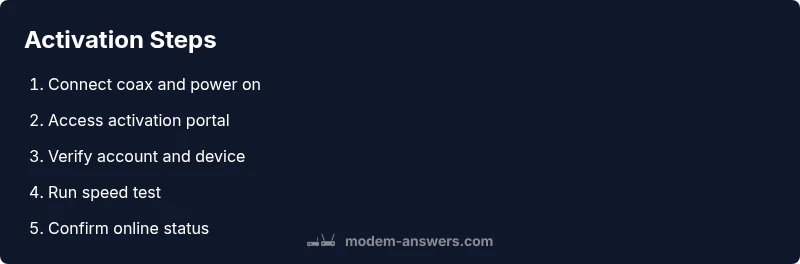
Activation is a sequence of five core phases: 1) connect and power on the modem; 2) associate the device with your Cox account; 3) verify the device information and service status; 4) test connectivity and speeds; 5) finalize the activation and secure your network. In practice, you will connect the modem to the coax line, power it up, and use a phone or computer to reach Cox’s activation portal or app. The system will detect the hardware, validate your account, and push configuration settings to the device. Successful activation results in an online status LED and a confirmed service status in your Cox dashboard. Modem Answers notes that the exact screens you see can vary by device model, but the underlying steps remain the same.
Troubleshooting common activation issues
Common activation blockers include a loose coax connection, a non-supported modem model, incorrect account information, or a temporary service outage. If activation stalls, first recheck the coax cable’s connector and reseat the modem. Verify you are using a Cox-approved modem and that the device label matches the model list in Cox’s activation portal. Double-check your Cox account username and password, and ensure you complete any two-factor verification. If you still cannot activate, try a different device or browser, and clear the browser cache. In some cases, activation will time out and you’ll need to restart the activation flow after a minute.
Verifying service after activation
Once activation completes, verify service by checking the internet connection on multiple devices. Run a speed test from a wired connection first, then test over Wi-Fi. Log into your Cox account to confirm the modem is registered and that the current plan and speed tier match what you expect. If DNS resolution or page loading is slow, flush DNS on the devices and reboot the router. Document the activation timestamp and the test results for future reference. If problems persist, check Cox’s status page for outages and contact support with your activation ID.
Using the Cox mobile app for activation
The Cox mobile app can simplify activation by guiding you through pairing and verification steps. Open the app, sign in to your Cox account, and select 'Set up a new modem' from the device menu. Follow the prompts to scan the modem’s label, connect to your home Wi-Fi, and confirm the service status. The app may send push notifications about completion or required actions, such as firmware updates. If you encounter issues, you can access the Cox live chat or support line directly from the app, reducing call times.
Modem placement and network optimization
For best performance, position the modem in a central location away from thick walls and metal appliances. Elevate the device off the floor, keep it away from other electronics, and ensure the coax cable is not bent sharply. If possible, place the router (if you use one) in a high, open area to maximize Wi-Fi coverage. After activation, run a simple network map to identify dead zones and plan a practical extender setup if needed. Use the 2.4 GHz band for longer reach and the 5 GHz band for speed where devices support it.
Advanced options: bridge mode and compatibility
Bridge mode can be useful if you prefer a separate router to handle your home network. When enabled, the modem acts as a simple modem and passes all routing duties to your third-party router. Cox guides and Modem Answers emphasize checking compatibility before enabling bridge mode, as some services (like VoIP) may rely on the gateway features. If you are renting a Cox gateway, contact support before switching modes to avoid losing service. Also verify you are using a DOCSIS 3.0 or 3.1 modem that’s compatible with your Cox service tier.
Security and privacy considerations during activation
Activation is a good time to review basic security steps: change default Wi-Fi network name (SSID) and password, enable WPA3 if supported, and disable WPS in the router settings. Keep firmware updated by allowing automatic updates, and enable the firewall on the device. Make a note of your network details in a secure location. Be mindful of phishing messages during activation; Cox will not ask for your password via email or text. If you use the Cox app, ensure you sign out on shared devices and enable biometric protection if available.
What to do if activation fails
If activation fails despite following steps, document the error message and time, and contact Cox support with your modem’s MAC address and activation ID. You can also call the support line or use the live chat from the Cox app. Some customers resolve issues by temporarily swapping to another coax outlet or verifying service outages in their area. If the problem persists, you may need a replacement modem or a service technician visit. Modem Answers recommends keeping calm and following the official activation checklist to avoid delays.
Tools & Materials
- DOCSIS-compatible modem (approved by Cox)(Model should be on Cox's approved list; check compatibility)
- Coaxial cable(Quality connector; tight but not over-tightened)
- Power adapter(Original or Cox-approved power supply)
- Smartphone or computer(Used to access activation portal or app)
- Ethernet cable (optional)(Wired setup can help during activation)
- Cox account login credentials(Username and password; may require 2FA)
- Activation documentation (printed or digital)(Keep handy for reference)
Steps
Estimated time: Estimated total time: 25-40 minutes
- 1
Prepare and gather materials
Collect the modem, coaxial cable, power supply, activation device, and Cox account details. Confirm your service address and have any required IDs ready.
Tip: Have all items within arm's reach to avoid backtracking. - 2
Connect the coaxial cable
Lightly screw the coax into the modem's coax port. Ensure a snug fit without forcing it.
Tip: Check for any kinks or damaged connectors before attachment. - 3
Power up and wait for boot
Plug in the modem and power it on. Wait 2–4 minutes for the device to boot and reach a steady light pattern.
Tip: Do not unplug during boot; interruptions reset activation progress. - 4
Connect a device for activation
Use a smartphone or computer connected to the modem's Wi‑Fi or a wired Ethernet link.
Tip: If you can, keep the device close to the modem for a stable connection. - 5
Open the activation portal/app
Navigate to Cox activation page or open the Cox app and choose to set up a new modem.
Tip: If you don’t see prompts, refresh the page or restart the app. - 6
Enter account and device details
Provide your Cox account information and the modem's serial/MAC label as prompted.
Tip: Locate the serial/MAC on the bottom or back label for accuracy. - 7
Verify activation status
Follow on-screen checks to confirm the device shows online and registered.
Tip: If verification fails, retry after a minute or use another device. - 8
Test connectivity
Run a wired speed test first, then test over Wi‑Fi to confirm performance.
Tip: Note the result and compare against your plan's expected speeds. - 9
Document and conclude
Capture activation confirmation and test results for your records, and secure your network settings.
Tip: Store results in a safe, accessible location.
FAQ
What should I do if the activation page doesn't load?
First check your internet connection to the modem, then try a different browser or device. Clear the cache and try again. If it still fails, contact Cox support.
If the activation page won't load, check your connection, switch devices or browsers, and clear the cache. If it still fails, reach out to Cox support.
Do I need to replace my old modem?
Activation can proceed with a Cox-approved replacement modem. Ensure the new device is compatible with your service tier and Cox account.
You can activate a Cox-approved replacement modem as long as it's compatible with your plan.
How long does activation typically take?
Activation duration varies by region and device, but most customers complete setup within the activation window provided by Cox. If it stretches, check for outages.
Activation times vary, but you usually complete it within the typical activation window. If it drags, check Cox status.
What is bridge mode and when should I use it?
Bridge mode disables the router function of a gateway and passes routing to your own device. Use it if you want full control over your network with a separate router.
Bridge mode turns your modem into a simple bridge and lets your own router handle the network.
Can outages affect activation?
Yes, service outages can delay activation. Check Cox’s status page and try again once service is restored.
If there’s an outage, activation may be delayed; check Cox status and retry later.
Is activation the same for cable and fiber Cox services?
This guide focuses on Cox cable internet activation. Fiber services may use different equipment and steps; verify with Cox for your service type.
Cable activation steps apply here; fiber setups may differ, so confirm with Cox.
Watch Video
Key Takeaways
- Prepare with all materials before starting
- Follow the official sequence for stable activation
- Verify with wired and wireless tests after activation
- Document results and monitor for outages