Reset Cox Modem: A Complete Step-by-Step Internet Recovery Guide
Learn how to reset a Cox modem safely, troubleshoot connectivity problems, and restore reliable home internet with this expert, step-by-step guide from Modem Answers.


Reset Cox Modem quickly to resolve network problems. A soft reset (power cycle) refreshes your device without losing settings, while a hard reset to factory defaults restores baseline configurations. Start by unplugging the modem, waiting 60 seconds, then reconnecting. If service remains unstable, perform a factory reset only after backing up important settings, since this erases custom configurations.
What resetting your Cox modem accomplishes
Resetting a Cox modem can resolve a surprising number of home-network problems with minimal effort. A reset clears temporary configurations and refreshes the device's software, which helps fix slow speeds, intermittent Wi-Fi, and dropped connections. According to Modem Answers, most connectivity issues stem from transient software hiccups that a quick reset can correct. The Modem Answers team emphasizes that resetting is generally safe and should be your first step before seeking professional help. If you're curious about the exact term you'll see when searching for help, many users look for reset cox modem to find guides, but it's essential to follow a trusted step-by-step procedure. For homeowners and renters alike, understanding what is resettable and what isn't helps you decide whether to perform a soft reset or a factory reset without losing important settings.
Soft reset vs hard reset: what’s the difference
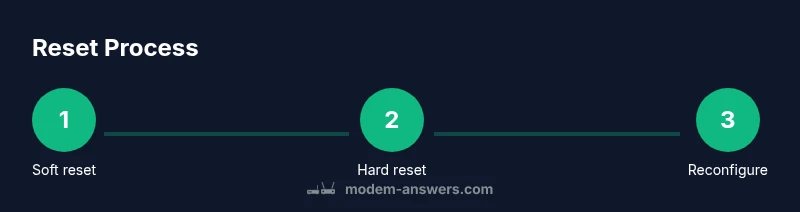
Two common reset methods exist: a soft reset (power cycle) and a hard reset to factory defaults. A soft reset reboots the device while preserving most user settings, including the Wi-Fi network name and password. A hard reset wipes configurations and restores the modem to its original state, requiring you to reconfigure network details from scratch. In practice, start with a soft reset; it fixes many problems and is quicker and safer. A factory reset should be reserved for persistent issues after you’ve backed up essential data and documented your current configuration. The line between the two methods is clear: preserve data with a soft reset, erase data with a factory reset. The Modem Answers team notes that soft resets address most problems and avoid the time cost of reconfiguration.
When to reset your Cox modem
Resetting is most helpful if you notice slow speeds, Wi-Fi dropouts, devices failing to connect, or after a firmware update that seems unstable. If several devices report issues, or streaming performance dips, a reset can refresh the connection and restore stability. For renters and homeowners, timing matters: a soft reset is typically enough for minor issues, while a factory reset is a more drastic step used only when soft resets fail and after you’ve backed up settings. According to Modem Answers, using resets tactically can prevent unnecessary calls to support and speed up diagnostics.
Tools & Materials
- Cox modem (modem-router combo or standalone)(Ensure it’s powered off before starting)
- Power outlet and power cord(Have convenient access)
- Paperclip or pin(Used for recessed reset button)
- Coaxial cable(From wall outlet to modem)
- Smartphone, tablet, or computer(For admin login and status checks)
- Ethernet cable (optional)(Useful for wired testing when troubleshooting)
- Notebook and pen (optional)(To record SSID/password after reset)
Steps
Estimated time: 15-25 minutes
- 1
Power-cycle the modem
Unplug the modem from power, wait 60 seconds, then plug back in. This clears temporary memory and refreshes the network stack without changing saved Wi-Fi credentials.
Tip: If you have a separate router, reboot it after the modem comes back online. - 2
Check the status lights and connectivity
Wait for the lights to indicate online status. If a light pattern looks abnormal, note it for support and test a device connected via Ethernet if possible.
Tip: Record the pattern (e.g., solid green, blinking amber) to aid troubleshooting. - 3
Access the admin page to verify settings
Open a browser and enter the modem's IP address (commonly 192.168.0.1 or 192.168.1.1). Review connected devices and current WAN status.
Tip: Have your login credentials ready; if you forgot them, use the default provided by Cox or reset to factory settings. - 4
Perform a hard reset if needed
If soft reset fails, locate the recessed reset button and press for 10–15 seconds until lights flash and the device reboots.
Tip: Back up any custom settings before performing a factory reset. - 5
Reconfigure network and features
After reboot, re-enter your Wi-Fi name and password, set security (WPA2/WPA3), and reapply any port forwards or DNS rules as needed.
Tip: Choose a strong, unique Wi‑Fi password and avoid common names. - 6
Test and monitor performance
Run a speed test and load several websites or apps to ensure stability across devices. Monitor for 24–48 hours for any flakiness.
Tip: If issues recur, check for outages in your area or contact Cox support.
FAQ
What is the difference between soft reset and factory reset on Cox modems?
A soft reset restarts the modem without deleting saved settings; a factory reset restores the device to its original state and erases user-defined settings. Use soft reset first and reserve factory reset for persistent issues.
A soft reset keeps your settings, a factory reset wipes them. Start with soft reset.
Will resetting erase my Wi-Fi name and password?
A soft reset typically preserves your Wi‑Fi name and password. A factory reset resets them to defaults, so you’ll need to set them again.
Soft reset usually keeps your Wi‑Fi, factory reset does not.
Can I reset the Cox modem without calling support?
Yes, you can perform a soft reset yourself. A factory reset may require re-provisioning or additional setup with Cox.
You can reset on your own, but factory reset may require re-provisioning.
How long does it take for the internet to return after a reset?
Most resets restore service within a few minutes, but full propagation can take up to 10 minutes on some networks.
Usually a few minutes; up to ten minutes in some cases.
What if the reset doesn’t fix the problem?
If issues persist, check for outages in your area, test a wired connection, and consider contacting Cox support for provisioning or hardware checks.
If it still doesn’t work, check for outages or contact support.
Is it safe to reset while using a UPS?
Resetting on a UPS is safe, but ensure the UPS stays powered during the reboot to prevent data loss.
Yes, but keep the power supply stable during reboot.
Watch Video
Key Takeaways
- Start with a soft reset to preserve settings.
- Factory resets erase custom configurations—backup first.
- Reconfigure Wi-Fi and security after any reset.
- If problems persist, check for outages or contact Cox support.