Spectrum Activate New Modem: A Step-by-Step Guide
Learn how to spectrum activate a new modem with a simple, practical process. This guide covers compatibility, setup, activation steps, troubleshooting, and best practices for a reliable home network.


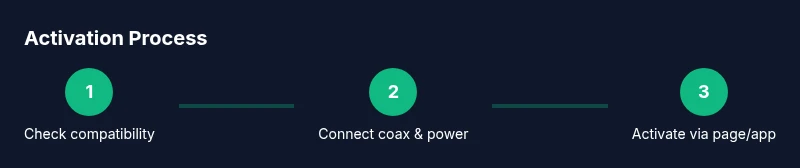
To spectrum activate new modem, first confirm compatibility with Spectrum, then connect the coax cable, plug in the modem, and power it on. Open the Spectrum activation page or mobile app, follow the on-screen prompts, and sign in to your account to link the device. This quick answer flags the essential steps and required details to get online fast.
What You Need Before You Begin
When you spectrum activate new modem, preparation matters. Start by confirming that your current Spectrum service plan supports the modem model you’ve chosen and that you have any required account details on hand. Gather the coax cable, a power outlet near where you’ll place the modem, and a computer or smartphone with internet access for the activation page or Spectrum app. Having this ready reduces back-and-forth during activation and helps you avoid delays. If you’re replacing an old modem, note any custom Wi‑Fi settings you want to reuse so you don’t lose configured networks. By arranging essentials ahead of time, you’ll experience a smoother activation journey and a faster path to online activity.
Choosing the Right Modem for Spectrum
Not all modems work with every plan, so selecting a Spectrum-compatible model is essential. Look for DOCSIS 3.0 or 3.1 devices, as these standards support faster speeds and better reliability. Check the modem’s certification status with Spectrum to avoid compatibility issues, and ensure it has at least one Ethernet port if you plan to connect a computer directly. If you’re unsure, reach out to Spectrum support or consult their official guidance to verify model compatibility before purchase. A well-chosen modem minimizes activation problems and ensures stable performance across devices.
The Activation Flow: What Happens Behind the Scenes
Activation is a handshake between your modem and Spectrum’s network. Once powered, the modem communicates with Spectrum’s activation servers to confirm your service, link the device to your account, and provision the correct speed and settings. This process can also update the device’s firmware automatically, improving security and performance. Understanding this flow helps you troubleshoot common hiccups, such as slow provisioning or delays in recognizing the device. If the system prompts you to provide account details or a PIN, have them ready to speed the process.
Activation Steps in Plain Language
Activation can be described in simple terms: power up, connect to Spectrum, and confirm your account details. First, connect the coaxial cable securely to the modem and wall outlet. Then plug in the modem and wait for the LED indicators to show a stable connection. Use a computer or phone to access the activation page or Spectrum app, sign in, and follow prompts to add the new modem to your account. Allow several minutes for provisioning, and test your internet connection afterward. If prompted, enable Wi‑Fi and create a fresh network name and password.
Common Problems and Quick Fixes
If activation stalls, recheck coax connections for snug fittings and verify the line is active in your account. Reboot the modem by unplugging power for about 10 seconds and then reconnecting. Ensure you’re connected to the activation page on a secure network rather than a public hotspot. If provisioning times out, try a different device or browser, clear cache, and retry. Persistent issues may require calling Spectrum support to verify service readiness on your account and to request a manual activation if needed.
After Activation: Optimizing Your Home Network
Once activated, take a few steps to optimize your home network for reliable performance. Change the default Wi‑Fi name (SSID) and set a strong password using WPA3 or at least WPA2 security. Update the modem’s firmware if prompted, and enable auto updates to keep security current. Consider creating a guest network for visitors to keep your main network secure. Place your modem in a central location away from walls and obstructions to improve coverage, and position any external antennas (if present) for best signal. Regularly reboot the router to maintain peak performance and monitor connected devices to spot unusual activity.
Safety, Security, and Compliance
Activating a new modem involves network settings that should be handled carefully. Keep your Spectrum account credentials private and avoid sharing them over public networks during activation. Use a secured home network for the activation steps, and ensure firmware updates come from Spectrum or the device manufacturer. If you notice unexpected activity after activation, run a basic security check on connected devices and consider enabling guest networks to minimize risk.
Quick-reference Glossary
- Activation: The process of provisioning a new modem to Spectrum’s network so you can access the internet.
- DOCSIS: Data Over Cable Service Interface Specification, the standard for cable modems (3.0/3.1).
- PTM: Passive Tuning Management (term used in some setups for managing network performance).
Tools & Materials
- Coaxial cable (RG6) with F connectors(Ensure a spare length; use standard RG6 for best performance)
- Ethernet cable (Cat5e/Cat6)(For wired connection during activation or setup)
- Power outlet near modem(Stable power source; avoid power strips with other high-draw devices)
- Computer or mobile device with internet(Access activation page or Spectrum app)
- Account details (Spectrum account number, PIN)(Needed to link modem to your account during activation)
- Pen and paper for notes(Record Wi‑Fi credentials and important steps)
Steps
Estimated time: About 20-35 minutes
- 1
Verify compatibility and gather details
Confirm your modem is Spectrum-certified and compatible with your service plan. Gather your Spectrum account information, including the account number and any PIN or security questions you may need to answer during activation.
Tip: If unsure, contact Spectrum support before starting to avoid wasted time. - 2
Connect the coax cable
Firmly attach the coax cable from the wall outlet to the modem’s coax port. Ensure the connection is snug and there are no loose screws or damaged connectors.
Tip: A loose coax can prevent the modem from booting properly. - 3
Power up and wait for boot
Plug the modem into a power outlet and wait for the LED indicators to stabilize. This may take several minutes as the device powers up and negotiates with Spectrum.
Tip: Do not unplug the modem during this boot sequence. - 4
Access activation page or app
On a connected device, open the Spectrum activation page or launch the Spectrum app. Sign in to your Spectrum account to begin the activation of the new modem.
Tip: Use a secure browser or app to protect your credentials. - 5
Link modem to your account
Follow prompts to add the new modem to your account. The system will provision service and configure settings automatically where possible.
Tip: If prompted, input the device’s MAC ID or serial number found on the modem’s label. - 6
Test the connection and secure Wi‑Fi
Once activated, run a quick test of your internet connection and set up your Wi‑Fi network with a unique name and strong password.
Tip: Write down the network name and password for future reference.
FAQ
Do I need a Spectrum account to activate a new modem?
Yes. You’ll need to sign in to your Spectrum account to link the new modem to your service during activation.
Yes, you’ll sign in to your Spectrum account to link the new modem during activation.
How long does activation take after I start the process?
Activation usually completes within a few minutes, but it can take longer if provisioning is delayed on Spectrum’s end.
Activation typically takes a few minutes, but delays can happen if Spectrum provisioning is slower.
What if activation fails or the modem isn’t recognized?
Check coax connections, reboot the modem, and try the activation page again. If it still fails, contact Spectrum support for manual assistance.
Check the cables, reboot, and retry. If it doesn’t work, contact Spectrum support.
Can I activate the modem without a technician?
Yes. Most activations are self-serve and can be completed via the activation page or Spectrum app.
Yes, you can usually activate yourself using Spectrum’s activation tools.
Do I need to use Spectrum’s app for activation?
You can activate through the activation page or Spectrum app; using the app can streamline the process on mobile devices.
You can use the activation page or the Spectrum app; the app often makes it quicker on mobile.
What information do I need to complete activation?
Have your Spectrum account number, PIN, modem MAC ID or serial number, and basic network preferences ready.
You'll need your account number, PIN, and the modem’s MAC ID or serial number.
Watch Video
Key Takeaways
- Verify modem compatibility first
- Use secure networks during activation
- Link the device to your Spectrum account during setup
- Create a unique, strong Wi‑Fi name and password
- Regularly update firmware for security and reliability