How to Log Into Your Modem: A Step-by-Step Guide
Learn how to securely log into your modem, locate the login page, enter credentials, and adjust essential settings. A homeowner-friendly guide from Modem Answers to protect your network.


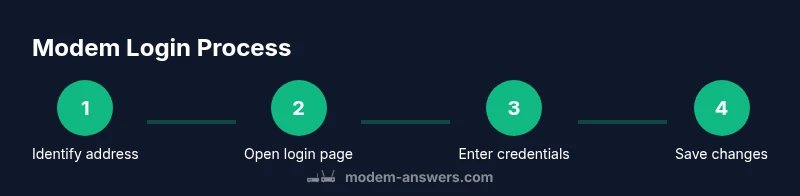
To log into your modem, connect a device to the modem's network, locate the login page address (most often 192.168.0.1 or 192.168.1.1), and open it in a browser. Enter the admin username and password (found on the modem label or from your ISP). If you don’t know them, reset credentials safely and update them after login. This guide helps homeowners access the admin panel securely.
Understanding why logging into your modem matters
Knowing how to log into your modem isn't just about tweaking settings; it's the first line of defense for your home network. When you access the modem's admin interface, you can adjust security options, monitor connected devices, and block unknown access. According to Modem Answers, most household network issues stem from default credentials or insecure configurations. In this section, we'll explain the why behind the process and set expectations for the steps ahead. The ability to log into your modem gives you direct control over firewall rules, firmware updates, and guest network policies, all of which help protect your information and devices. For homeowners, this is not an optional task—it's part of responsible network stewardship. We'll cover practical, step-by-step actions that are easy to follow, even if you consider yourself not tech-savvy.
Preparing for login
Before you start, gather the basics to avoid interruptions. You will need a device with a modern web browser (phone, tablet, or laptop) and a stable connection to the modem, either via Wi‑Fi or a wired Ethernet cable. If your modem is supplied by an Internet Service Provider (ISP), your username and password for the admin page may be printed on a label on the device itself or provided in the setup email or portal. Decide whether you want to log in from the LAN only or enable remote access; most homeowners disable remote management to reduce exposure. Have a quiet place to write down credentials and a strong new admin password ready in case you change it. If you’re following the steps from Modem Answers, you’ll also want to note the default IP address range; many devices use 192.168.0.1 or 192.168.1.1, but variations exist.
Finding your modem's login address
The login address (often called the admin URL or gateway) is the doorway to the device settings. Start by visually inspecting the modem for a sticker with the IPs 192.168.0.1 or 192.168.1.1, plus the default username and password. If you don’t find a sticker, check your ISP’s support site or your router’s documentation. You can also run a quick check from your computer: on Windows open Command Prompt and type ipconfig, then look for the Default Gateway address; on macOS open System Preferences > Network, select your connection, and check the Router field. Use that address in your browser to reach the login page. If the address isn’t working, your device may be in bridge mode or using a different private IP; consult Modem Answers for troubleshooting steps.
Connecting to the modem securely: wired vs wireless
For best reliability during login, connect via Ethernet if possible. A wired connection reduces the risk of accidental disconnects that can interrupt the login process. If Ethernet isn’t available, a stable Wi‑Fi connection to the modem’s network works as well. Avoid public or guest networks for authentication, since they can expose credentials to others. If your device is already connected to the modem via Wi‑Fi, make sure you’re on the router’s own network, not a guest network, and that you’re not accidentally connected to a neighbor’s AP with a similar name. If you’re using a separate mesh system, log into the primary node’s admin page for the most accurate results.
Accessing the admin interface for the first time
Open a modern browser and enter the login address you determined in the previous step. If prompted, temporarily disable browser autofill for security, then enter the admin username and password. Some ISPs preconfigure auto-login for convenience, but you should log in to verify and later replace those credentials. If you’ve never accessed the modem’s admin page before, you may see a warning about an unsecured connection; confirm that you’re on a private network before proceeding. Take note of any certificate warnings; they’re common on home devices and usually safe to ignore in this context.
Credentials: defaults vs personalized
Default credentials are widely known and often documented on the device label. It’s crucial to replace them as soon as you gain access. If you can’t locate a password, try common defaults like admin/admin or admin/password, but avoid trying dozens of guesses—this can lock the account after repeated failures. If you cannot remember the password, use the modem’s reset option (soft reset) from an available button or through the interface, following the manufacturer’s instructions. After logging in with the default or a temporary password, navigate to the security or administration section to update the username and password to something you can remember, but not easily guessable by others.
Securing your modem: changing credentials and Wi‑Fi settings
Once you’ve logged in, immediately change the admin password to a strong, unique password. Use a long passphrase with a mix of upper and lower case letters, numbers, and symbols. Do the same for the Wi‑Fi network: create a new SSID and a robust wireless password. Consider enabling WPA3 if your hardware supports it; if not, WPA2‑AES is the minimum. Disable remote management unless you need to access the modem from outside your home network. Review attached devices and enable a guest network for visitors to keep your main network private. Finally, review firewall settings and enable basic protections such as DoS protection if available.
Saving changes, rebooting, and verifying access
After making changes, save them and reboot the modem if prompted. This ensures all new settings take effect. Reconnect to the modem using the new Wi‑Fi password or the device’s saved credentials. Open the login page again to verify that you can sign in with your updated admin credentials. If you can’t access the admin page, double‑check the IP address, clear browser cache, and try again on a different device. If problems persist, perform a soft reset via the device’s interface or the hardware button per the manufacturer’s guidance.
Troubleshooting common login problems
If you can’t reach the login page, start by checking the device’s connection and the IP address. If your browser complains about a non-secure connection, confirm you’re on a private network and contract the administrator address. Passwords failing to work could mean you’ve changed them recently and forgotten; use the reset option to restore access, then reconfigure settings carefully. If you still cannot log in, you might be in bridge mode or using a second router; consult your ISP’s support documentation or Modem Answers’ troubleshooting guide to determine the correct login method for your setup.
Best practices for ongoing modem security
Treat the modem as a critical part of your home security routine. Update firmware when available, change credentials every 12 to 18 months, and monitor connected devices for unfamiliar entries. Keep a written inventory of your network gear and their admin access details, stored securely. Regularly review firewall rules and port forwards to ensure they align with your current needs. If you have guests or family members who need access, use a guest network with limited permissions. Finally, consider turning off remote management unless you require remote support from a trusted provider.
What Modem Answers recommends for homeowners
The Modem Answers team emphasizes that learning how to log into your modem is a foundational skill for maintaining a safe home network. Start with the basics, keep credentials secret, and stay informed about firmware updates and security settings. If you encounter persistent issues, rely on trusted resources and your device’s manual. By applying these steps, homeowners can protect personal data, improve network performance, and enjoy a more stable Internet experience.
Tools & Materials
- A laptop, tablet, or smartphone with a modern web browser(Use a supported browser (Chrome, Edge, Safari, or Firefox) for best compatibility)
- Active connection to the modem (Wi‑Fi or Ethernet)(Do not rely on a third-party network when logging in)
- Modem login address (IP or URL)(Common addresses: 192.168.0.1 or 192.168.1.1—check device label or ISP docs)
- Admin username and password(May be on a label; if unknown, check ISP resources or reset procedure)
- Pen and paper or password manager(For recording credentials securely after setup)
- Optional: Ethernet cable for direct connection(Useful if Wi‑Fi is unstable)
Steps
Estimated time: 15-40 minutes
- 1
Identify the login address
Start by locating the modem's admin IP or URL on the device label or in the manual. If unavailable, check your ISP's support site or run a quick search for your modem model. This address is essential to reach the login page. If multiple addresses exist, start with the most common (192.168.0.1 or 192.168.1.1).
Tip: Verify the address on the hardware label before typing it into the browser. - 2
Connect your device to the modem
Ensure your device is directly connected to the modem via Ethernet or firmly connected to the home Wi‑Fi network. A stable connection prevents timeouts during login. If you use a separate router or mesh system, log in through the primary device.
Tip: Prefer a wired Ethernet connection for reliability during login. - 3
Open the login page in a browser
Enter the login address into your browser's address bar and load the page. You should see a username and password prompt. If you get a certificate warning, confirm you’re on a private network and proceed with caution.
Tip: Do not paste the address from memory; type it to avoid typos. - 4
Enter admin credentials
Input the admin username and password. If you’re using the first setup, these may be on a device label or provided by your ISP. If login fails, double‑check for extra characters or case sensitivity.
Tip: If you don’t know the credentials, consult your ISP resources instead of guessing. - 5
Change the default credentials
Once logged in, immediately replace any default username and password with a strong, unique pair. This reduces risk from credential leaks and common defaults. Maintain a record securely for future access.
Tip: Use a passphrase with multiple character types and a length of 14+ characters. - 6
Secure your Wi‑Fi settings
Create a strong Wi‑Fi password and, if possible, enable WPA3 or at least WPA2‑AES. Change the SSID to something unique and avoid revealing personal information. Disable WPS if available.
Tip: Avoid using obvious names like “Home” or “Network.” - 7
Save changes and reboot
Apply the changes and reboot the modem if prompted. A reboot ensures new settings take effect and reduces the chance of configuration drift.
Tip: Allow the reboot to complete fully before testing access. - 8
Verify access and test
After reboot, reconnect and try to log in with your updated admin credentials. Confirm you can access the admin page and that Wi‑Fi devices reconnect as expected.
Tip: If you’re unable to log in, recheck the IP address and try a different device. - 9
Document credentials and settings
Keep a secure record of your admin username, password, and key settings. Regularly review and update as part of a security routine.
Tip: Store credentials in a password manager rather than a sticky note. - 10
Troubleshoot login failures
If login fails, verify the device connection, test with another computer or phone, and consider a soft reset from the admin interface or hardware button per your device's manual.
Tip: Avoid frequent resets; they can disrupt service and void settings if misused.
FAQ
What should I do if I can't access the login page?
First check that your device is on the same network as the modem and that you’re using the correct login address. If the page won’t load, try a wired connection and clear your browser cache. If issues persist, consult your ISP or Modem Answers for device-specific guidance.
If you can’t reach the login page, verify network connection and the login address, then try again with a wired device or different browser.
Where can I find my modem's IP address?
Look for a label on the modem that lists the default IPs (commonly 192.168.0.1 or 192.168.1.1). If the label isn’t present, check your ISP documentation or perform a gateway check on your computer to identify the current router address.
Check the device label or your computer’s gateway address to locate the login IP.
What if I forget the admin password?
Use the reset option described in your modem’s manual to restore access. After a reset, you’ll need to reconfigure security settings and create a new admin password. If you’re unsure, contact your ISP or refer to Modem Answers’ step-by-step guide.
If you forget the admin password, perform a reset per the manual and then reconfigure security settings.
Should I enable remote management?
Remote management is convenient but increases exposure to external access. Only enable it if you need remote support, and use a strong password and secure connection when doing so.
Remote management should generally be off unless you explicitly need it for remote help.
Can I change the login address?
Some devices support changing the admin URL or moving login to a different port. If supported, follow the device’s documentation, and always document the new address for future access.
Some modems let you change the login address; if yours does, make a note of the new address.
Do I need to reset my modem to login?
A soft reset (via the interface) can recover login in some cases. A full factory reset should be a last resort, as it erases custom settings. Always back up important settings first.
Reset is a last resort; try other login fixes first.
Watch Video
Key Takeaways
- Log into your modem to secure your home network.
- Always change default admin credentials first.
- Use strong Wi‑Fi passwords; enable WPA3 if possible.
- Document credentials and review settings regularly.