How to Access Modem Settings: A Practical Guide
Learn how to access modem settings safely and efficiently. This step-by-step guide covers IP access, admin credentials, security best practices, and common issues for a stronger home network.


Accessing your modem settings lets you manage Wi‑Fi names, passwords, security, and network features. In most homes you reach this page by typing your modem's IP address into a browser and logging in with the admin credentials. The Modem Answers team recommends using a secure password and keeping firmware up to date to protect your network.
What accessing modem settings lets you do
If you’re wondering how to access modem settings, you’re taking a crucial first step toward a stronger, more reliable home network. Modem settings control the essentials: your Wi‑Fi network name (SSID), the password that protects it, security protocols, parental controls, device prioritization, and sometimes bridge modes for advanced setups. When you understand this interface, you can tailor performance to your home layout, reduce interference, and prevent unauthorized access. According to Modem Answers, knowing where to locate these options helps you troubleshoot without calling in service technicians and empowers you to maintain a clean, secure network environment. This knowledge also supports routine maintenance: firmware updates, password hygiene, and privacy protections all rely on comfortable navigation of the modem’s settings.
In practice, most home networks rely on a single gateway device that handles both routing and Wi‑Fi. Accessing its settings is not about overhauling your internet connection; it’s about making targeted improvements. You’ll often find sections for Wireless, Security, LAN, and Advanced settings. Treat this like a map: you don’t need to touch every lane, but knowing where the key hubs live saves time and reduces risk when experimenting with new configurations. The goal is to give you control without compromising stability or security.
Why you might need to access your modem settings
There are several common scenarios where you’ll want to dive into the modem settings. First, if your Wi‑Fi signal is weak in certain rooms, you can adjust transmit power, change channels, or enable 2.4 GHz/5 GHz band steering to improve coverage. Second, if an unknown device appears on your network, you’ll want to verify connected clients, enable MAC address filtering, or strengthen the admin password to prevent unauthorized access. Third, for parents or renters, adjusting parental controls or guest network settings can help manage devices and keep the main network secure. Fourth, if you’re experiencing frequent drops or slow speeds, a firmware update or resetting privacy and security defaults can resolve compatibility or bug-related issues. Modem Answers analysis shows that proactive configuration reduces common home networking problems and improves overall reliability.
Common access methods
Most people access modem settings through one of three routes:
- Web-based admin page: Open a browser and enter the device’s IP address (commonly 192.168.0.1 or 192.168.1.1). You’ll be prompted for a username and password, usually found on a label on the device or in the manual. This method is universal across brands and is the fastest way to reach the most frequently used options.
- Mobile app: Many modem/router combos provide a companion app that streamlines login and navigation. This is handy if you prefer a touch‑friendly interface or you’re away from a computer. App access typically uses the same admin credentials but can offer simplified controls for basic tasks like changing the Wi‑Fi password.
- Default reset paths: If you’ve forgotten credentials, a factory reset may be necessary. This returns the device to its original settings, including the default IP, username, and password. Use this only as a last resort, since you’ll lose any saved customizations.
Regardless of the path you choose, ensure you’re connected to the correct network and that you’re using a secure device. For best results, perform sensitive changes from a device you control and avoid public or shared networks during the login.
Safety, security considerations and password management
Security is central to modem settings. After you gain access, change default credentials immediately and set a strong admin password. This reduces the risk of unauthorized changes, especially in households with multiple tenants or guests. When configuring Wi‑Fi, prefer WPA3 if available, or WPA2‑AES as a strong fallback, and disable older protocols like WEP. Create a unique, long Wi‑Fi password and rotate it periodically—ideally every 6–12 months. If your router supports a guest network, enable it for visitors to keep your main network private. Finally, keep firmware up to date; updates often patch security vulnerabilities and improve stability. As noted by the Modem Answers team, maintaining a secure, current modem setup is a foundational step in protecting your home network.
Troubleshooting common issues and quick fixes
Even with careful setup, you may encounter issues when accessing or changing modem settings. If the login screen doesn’t load, check your device’s connection to the modem’s network (wired or wireless). If the page loads but credentials fail, confirm you’re using the correct admin username and password; check the label on the device for defaults, or contact your ISP if the credentials were changed by the service provider. If saved changes take effect slowly or appear not to apply, refresh the page, clear the browser cache, or reboot the modem after applying settings. When a device stops connecting after a change, verify that the correct network name and password are being used and that the security protocol matches your devices’ capabilities. For persistent problems, consult the official support resources from your ISP and Modem Answers for guidance on safe troubleshooting.
After-access best practices and next steps
Once you have accessed and adjusted the modem settings, take a few precautionary steps to solidify your changes. Record the current login credentials in a secure location, and consider enabling two‑factor authentication if your device supports it. Test all critical devices to confirm stable connectivity and verify that the guest network functions correctly for visitors. Review connected devices periodically to catch unfamiliar activity early, and set up notifications if your modem supports them. Finally, maintain a habit of checking for firmware updates on a regular schedule and applying them promptly to keep your network protected and performing at its best.
Tools & Materials
- A computer or smartphone with internet access(Used to access the modem admin page in a web browser or app)
- Modem IP address (likely 192.168.0.1 or 192.168.1.1)(Check the device label or manual if unsure)
- Admin username and password(Default credentials may be on a label; if changed, use the updated ones)
- Pen and notebook or password manager(Record credentials and notable settings for future reference)
- Firmware update available(Optional but recommended to check for updates before making major changes)
Steps
Estimated time: 20-40 minutes
- 1
Identify the IP address and login credentials
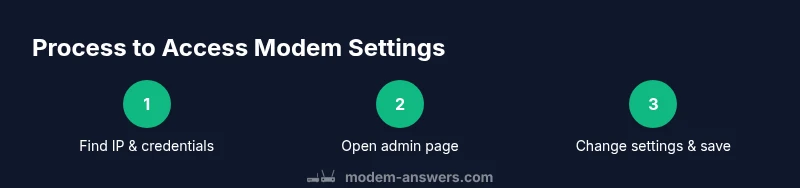
Locate the modem’s IP address and admin username/password. This information is often printed on a label on the device or included in the user manual. Confirm you have the correct credentials for the admin account, not a guest or ISP-provided login.
Tip: If you can’t find the credentials, look for a reset option; you’ll lose custom settings but regain access with default credentials. - 2
Open the admin page in your browser
Enter the IP address into the browser’s address bar and press Enter. Make sure you’re connected to the modem’s network. If the page fails to load, try another device on the same network or verify the IP address.
Tip: Use a wired connection if you’re making significant changes to reduce interference and ensure stability. - 3
Log in with admin credentials
Type the username and password for the router’s admin account. If prompted for a security code or two-factor authentication, complete the process as required by your device.
Tip: If you suspect credential compromise, change the admin password on this screen immediately. - 4
Navigate to Wireless or Security settings
Find the Wireless, Wi‑Fi, or Security section where you can adjust SSID, password, and encryption. The location varies by brand, but these sections typically appear in a left-hand menu or tabbed interface.
Tip: Make a small change first to confirm you’re in the correct area before adjusting sensitive options. - 5
Change the Wi‑Fi name and password
Update the SSID to something memorable but not personally identifying. Create a strong password using a mix of letters, numbers, and symbols. Apply or save the changes.
Tip: Note the new credentials and consider updating guest network access if you have guests frequently. - 6
Review security and advanced options
Check the encryption type (prefer WPA2‑AES or WPA3 if available) and disable insecure features like WPS if not needed. Review any firewall or parental control settings you want to enable or adjust.
Tip: Avoid enabling too many experimental features at once; test connectivity after each change. - 7
Save changes and reboot if prompted
Click Save or Apply and reboot if the prompt appears. Some changes require a reboot to take full effect; wait for the device to restart fully before testing connectivity.
Tip: If you lose connectivity after reboot, reconnect using the new SSID and password. - 8
Verify connectivity on multiple devices
After changes, connect a phone, tablet, and computer to test network access. Confirm the new credentials work and that internet service is stable across devices.
Tip: Document the results and note any devices that needed manual reconfiguration.
FAQ
What is the typical default IP address for accessing modem settings?
Most modems use a common private IP such as 192.168.0.1 or 192.168.1.1. If you don’t see the page, check the label on the device or your manual for the exact address.
Common defaults are 192.168.0.1 or 192.168.1.1. If in doubt, check the device label or manual.
What should I do if I forget my admin password?
Use the device label to recover defaults or perform a factory reset if you have no alternative. Note that a reset clears custom settings, so you’ll need to reconfigure any favorites or security rules.
If you forget the admin password, you may need a factory reset to regain access, which resets all settings.
Is it safe to change settings on the fly?
Yes, but make small, testable changes and verify connectivity after each one. Large, sweeping changes can disrupt services for other devices.
Yes, but change one thing at a time and test as you go.
Do I need to reboot after changing settings?
Often yes; some changes take effect immediately, but many require a reboot for full application. Check for a prompt or follow the on-screen instructions.
Usually you’ll reboot to apply changes, but follow the prompt you see on screen.
What’s the difference between 2.4 GHz and 5 GHz networks?
2.4 GHz travels farther but is slower and more prone to interference; 5 GHz is faster but shorter range. If you have many walls, consider splitting networks or enabling band steering where available.
2.4 GHz covers more area but is slower; 5 GHz is faster but shorter range.
How can I secure devices after changing settings?
Ensure each device uses strong passwords and that the guest network is separate from the main network. Regularly review connected devices and remove unknown ones.
Use strong passwords and keep an eye on connected devices.
Watch Video
Key Takeaways
- Identify the correct IP and admin credentials first.
- Use strong passwords and current security protocols.
- Test changes on multiple devices after applying them.
- Keep firmware up to date for security and stability.
- Document settings to simplify future maintenance.