How to Modem Settings: A Step-by-Step Guide for 2026
Learn how to adjust modem settings for better speed, security, and reliability. This Modem Answers guide covers accessing the admin page, configuring Wi‑Fi, firewall, and firmware updates with a clear, actionable approach.


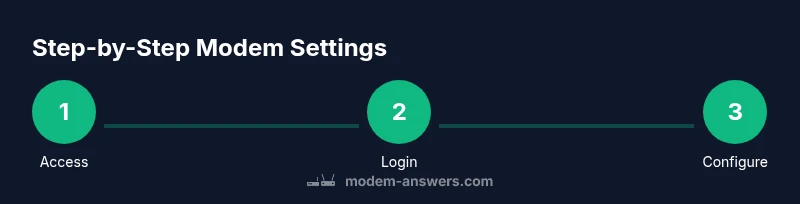
You can learn how to adjust your modem settings to improve privacy, speed, and reliability. According to Modem Answers, this guide walks you through accessing the admin page, logging in safely, and configuring Wi‑Fi, security, and port forwarding. You'll also know when to update firmware and how to test your changes. By the end, you'll have a stable home network with clear rollback steps if something goes wrong.
Why Modem Settings Matter
According to Modem Answers, properly tuning your modem settings is the backbone of a stable home network. The right configuration can boost speed, improve privacy, and reduce dropped connections. If you’re looking for instructions on how to modem settings, this guide breaks down practical steps you can perform without specialized equipment. We’ll cover both essential defaults and smart enhancements that keep your network resilient as devices multiply. By understanding modem settings, you can tailor performance to your home layout, internet plan, and usage patterns, from streaming high‑definition video to supporting remote work. This section lays the groundwork for safe changes and explains why some tweaks matter more than others.
Accessing the Modem Admin Page Safely
Access to your modem’s admin page is the gateway to all changes. Start by connecting your computer or phone to the modem’s network, ideally with a wired connection for stability during configuration. Open a browser and enter the device’s default IP address (commonly 192.168.0.1 or 192.168.1.1). If prompted, log in with the current admin credentials. If you don’t know them, check the label on the modem or your service provider’s setup email. Do not reuse default passwords from past devices; always choose a unique, strong password and enable two‑factor authentication if available. After logging in, save a backup of the current settings before making changes so you can restore quickly if something goes wrong.
Wi-Fi and Local Network Settings
The Wi‑Fi section is where most homeowners see the biggest gains. Start with a strong, unique SSID name and a robust password using WPA3 or WPA2‑AES if WPA3 isn’t available. Consider running separate networks for guests and devices that require higher bandwidth. For dual‑band modems, separate the 2.4 GHz and 5 GHz networks with distinct names so you can control where devices connect. Set a reasonable channel width (40 MHz on 2.4 GHz can improve speed in crowded environments, but 20 MHz is more stable in dense apartment buildings). Enable automatic channel selection if your model supports it to reduce interference.
Security Settings and Parental Controls
Security is not optional. Change the default admin password immediately and store it securely in a password manager. Enable WPA3 on the Wi‑Fi network, or WPA2‑AES as a fallback. Disable remote management unless you genuinely need it, and consider turning off UPnP if you don’t require it for gaming or VoIP. Regularly review connected devices and block anything unfamiliar. Use parental controls or access schedules to manage when family devices can connect, which can help keep the network secure and productive, especially for children’s devices during study hours.
Advanced Config: Port Forwarding, DMZ, QoS, Bridge Mode
Advanced tweaks should align with real needs. Port forwarding opens specific services (like a game server or a camera) to the internet, but only for trusted devices. If you’re hosting a service from inside your network, add a precise forward rule and limit exposure. A DMZ exposes one device to the internet and is rarely necessary; only use it to troubleshoot a problematic device. QoS prioritizes critical traffic (video conferencing, gaming) over background downloads, but misconfigured QoS can degrade overall performance. Bridge mode converts your gateway into a pass‑through device so your own router handles routing, useful when you already have a dedicated router. Always document changes and test connectivity after each tweak.
Firmware Updates and Maintenance
Firmware updates fix bugs, close security gaps, and add features. Check for updates on the admin page and install them promptly, preferably during a low‑usage window. If your ISP provides a gateway, some settings may be locked; you might need to switch to a standalone router for full control. Before updating, back up current settings and review the changelog to understand what’s changing. After updating, verify that your devices reconnect automatically and that your essential services (email, streaming, work apps) function correctly.
Troubleshooting Common Issues
If you notice slower speeds after a change, revert to the previous configuration where possible or reset the modem to factory defaults and rebuild from a known good baseline. If devices fail to connect, double‑check SSIDs, passwords, and whether you separated 2.4 GHz and 5 GHz networks. For persistent issues, verify that firmware is current and that you aren’t exceeding the device’s capabilities with too many connected devices. When in doubt, consult the provider’s support page and use the backup restore to return to a working setup.
Tools & Materials
- Computer or mobile device with internet access(Used to access the modem's admin page via a web browser)
- Modem admin credentials(Username and password; check the device label or provider login)
- Ethernet cable (optional but recommended)(Provides a stable connection during configuration)
- Notepad or password manager(Record changes and keep credentials secure)
- Backup storage (USB drive or cloud backup)(Save a copy of current settings before changes)
Steps
Estimated time: 30-60 minutes
- 1
Prepare and secure
Identify the goal of the changes (e.g., faster Wi‑Fi, better security). Back up current modem settings and ensure you have admin access. If you’re on a shared network, inform household members about planned maintenance to avoid confusion.
Tip: Document your baseline speeds and settings before making changes. - 2
Connect to the admin page
Connect your device to the modem’s network, prefer a wired connection for stability, and open the admin URL (e.g., http://192.168.1.1).
Tip: If the page won’t load, verify you’re on the correct network and try a different browser. - 3
Change the admin password
Navigate to Security or Administration settings and replace the default password with a long, unique one. Enable two‑factor authentication if available.
Tip: Use a password manager to store this securely. - 4
Update firmware
Check for firmware updates in the Maintenance or Firmware section and apply any available updates. Do not interrupt the process.
Tip: Back up current settings before updating. - 5
Configure Wi‑Fi basics
Set strong, separate SSIDs for 2.4 GHz and 5 GHz. Use WPA2‑AES or WPA3‑AES encryption and update the password.
Tip: Disable WPS if possible to reduce attack vectors. - 6
Fine‑tune security and guest access
Review connected devices, enable guest networks with isolation, and turn off remote management unless needed.
Tip: Set device‑level access controls for known devices. - 7
Tweak advanced features (if needed)
If you need port forwarding or QoS, add precise rules only for trusted devices and test connectivity afterward.
Tip: Record every rule you add to simplify rollback. - 8
Back up and reboot
Export the current configuration as a backup and reboot the modem to apply changes. Recheck all essential services.
Tip: Store the backup in a safe location. - 9
Test performance and connectivity
Run speed tests from multiple devices and locations in your home to verify improvements. Note any issues and adjust as needed.
Tip: Keep a log of tests for future reference.
FAQ
How do I access my modem settings for the first time?
Connect to the modem's network, open a browser, and enter the default IP address shown on the device label. Log in with the provided credentials and begin editing settings.
To start, connect to the modem, go to the admin page using the device's IP address, and log in with the default credentials to adjust settings.
What should I change first in the modem settings?
Change the admin password and enable WPA3 (or WPA2). This is the most important initial security step before any network tweaks.
Start by changing the admin password and enabling strong Wi‑Fi encryption.
Can I manage settings from my phone?
Yes. Most modems have a responsive web interface or a companion app. Ensure you’re connected to the home network when making changes.
You can use a phone app or browser on your home network to adjust settings.
What if I forget my admin password?
Use the modem’s reset option per the manual to restore default credentials, then immediately set a new secure password.
If you forget it, reset the device and set a new password right away.
Is it safe to enable bridge mode?
Bridge mode disables the modem’s routing features, making your own router the primary device. Use it only if you have a dedicated router and understand the consequences.
Bridge mode is safe if you know you want your own router to handle routing.
Should I enable remote management?
Only enable remote management if you truly need access from outside your home network. Otherwise, keep it off to reduce risk.
Turn it off unless you need external access.
Watch Video
Key Takeaways
- Identify your goals before changing settings.
- Back up configurations prior to updates.
- Use strong passwords and current encryption standards.
- Test connectivity after each major change.