How to Manage Your Modem: A Practical Guide
Learn how to manage your modem with a step-by-step approach: access the admin page, secure credentials, update firmware, configure router vs bridge mode, and optimize Wi-Fi for reliability and privacy. A Modem Answers how-to for homeowners and renters.


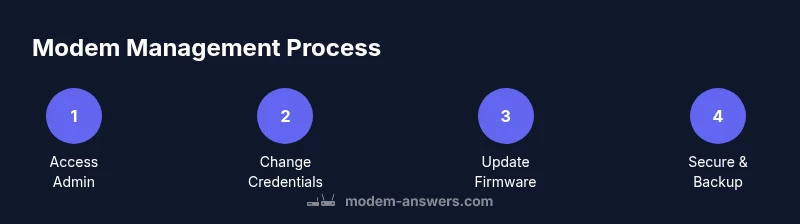
This guide shows you how to manage your modem by securely accessing the admin interface, updating firmware, changing default credentials, configuring router or bridge mode, and optimizing Wi‑Fi with strong security. You’ll follow practical steps that fit most home setups and avoid common misconfigurations.
What does it mean to manage a modem?
Managing a modem means keeping the gateway to your internet running reliably, safely, and in a way that supports all your devices. According to Modem Answers, proactive management reduces outages and privacy risks by keeping firmware current, credentials unique, and remote access properly controlled. In practical terms, it includes updating firmware, changing default credentials, securing Wi‑Fi, and choosing between router mode and bridge mode based on your home network needs. This foundation helps both homeowners and renters get consistent performance without surprises, whether you’re streaming, gaming, or working from home. By adopting a repeatable routine, you can prevent many common issues before they disrupt your day.
Why a routine makes sense
A simple modem-management routine involves quarterly firmware checks, monthly credential audits, and periodic reviews of connected devices. A steady cadence minimizes performance dips and security gaps, and it scales as your network grows. Modem Answers emphasizes that small, regular habits beat infrequent, big changes that can backfire. Implementing a predictable process helps every household member understand the rules of engagement for the home network.
Core tasks you should do regularly
Key tasks include verifying firmware status, reviewing connected devices, updating Wi‑Fi settings, and backing up your configuration. Regularly checking for unusual activity on your network can reveal unfamiliar devices or rogue access. Keeping a simple log—date, action taken, and result—turns a potentially complex maintenance job into a manageable, repeatable workflow. This section also discusses how to balance performance with privacy by turning off unused features and disabling remote management when not needed.
How to access your modem's admin interface
Most modems expose an on-device admin page accessed through a web browser. Typically, you enter an IP address such as 192.168.0.1 or 192.168.1.1 in the address bar and log in with a username and password. If you don’t know your credentials, check the manual or the sticker on the device. For new setups, the default password is often printed on the modem; change it immediately after first login. If you can’t reach the page, ensure your computer is directly connected to the modem or your device is on the same network. Some providers also offer a mobile app that exposes the same settings.
Change login credentials and secure admin access
Change the default admin username and password to something unique and strong. Use a passphrase with at least 12 characters, combining upper and lower case letters, numbers, and symbols. If available, enable two‑factor authentication for the admin interface. Disable remote management unless you truly need it, and consider restricting admin access to a specific device or LAN segment. Keeping admin access local reduces the risk of exposure from external networks.
Review and adjust basic network settings
Review your network name (SSID) and password, opting for a modern encryption standard such as WPA3 (or WPA2‑AES if WPA3 isn’t supported). Consider separating the 2.4 GHz and 5 GHz bands with distinct SSIDs to simplify troubleshooting. Choose a strong, unique Wi‑Fi password and avoid common phrases. If your modem supports channel auto‑select, enable it, or manually select a least‑congested channel to improve performance. Periodically verify bandwidth allocation and QoS rules if you use dedicated devices for work or gaming.
Update firmware safely
Firmware updates fix security vulnerabilities, improve stability, and add features. Check for updates via the admin interface or the provider’s app, and read the changelog before applying. Always back up your current configuration, ensure your device is plugged in, and avoid updating during critical activities (like a video call or online gaming). If an update fails, retry after a reset or consult the provider’s support.
Router mode vs bridge mode: which to choose
Router mode makes the modem act as the main router, handling NAT, firewall, and DHCP for all devices. Bridge mode disables the router functions so you can run a separate dedicated router. Choose router mode for a simple, all‑in‑one setup; choose bridge mode if you already own a high‑quality router and want to bypass double NAT. The decision affects features like guest networks, port forwarding, and parental controls.
Wi‑Fi security, updates, and guest networks
To protect your home network, keep encryption on, use WPA3 if possible, and disable WPS where feasible. Create a guest network for visitors to keep your main network isolated. Maintain a reasonable password policy and periodically rotate passwords. If your modem supports firewall settings, enable basic protections and review rules that may block legitimate traffic.
Backups, logs, and maintenance
Export or back up your modem configuration when a stable setup is achieved. Store backups in a secure location and note the firmware version used. Review system logs or connection history to spot anomalies. Establish a quarterly maintenance cadence and keep a simple checklist for actions taken, updates applied, and outcomes observed.
Authority sources
For additional guidelines and best practices, see: https://www.fcc.gov, https://www.cisa.gov, https://www.nist.gov
Real-world considerations for renters vs. homeowners
Renters often rely on the ISP’s gateway and may have limited control over firmware updates or bridge mode. Homeowners usually have greater flexibility to customize the router, enable advanced features, and implement stricter security. Regardless of your status, following a consistent management routine improves reliability and privacy for everyone in the home.
Tools & Materials
- Computer or mobile device with a web browser(Needed to access the modem's admin interface)
- Modem model number and manual(Helpful for exact steps and supported features)
- Current network details (SSID/password)(If you’re updating Wi‑Fi settings, have them handy)
- Web browser with access to internet(May be used to fetch manuals or firmware notes)
- Paper and pen or digital notes(Keep a log of changes and dates)
Steps
Estimated time: 60-90 minutes
- 1
Identify your modem model and prepare access
Locate the model number on the device and confirm the default IP address and credentials. This ensures you know the exact steps and avoid guessing. If you’ve changed credentials before, use the most recent ones.
Tip: Having the exact model number reduces lookup time for support pages. - 2
Connect to the modem’s admin page
Connect a computer or mobile device to the modem via Ethernet or Wi‑Fi on the same network. Open a browser and enter the IP address (commonly 192.168.0.1 or 192.168.1.1). If you don’t know the address, check the manual or a sticker on the device.
Tip: If you can't reach the page, power cycle the modem and try a different device. - 3
Log in with current credentials
Enter the username and password. If it’s the first login, use the default credentials from the manual. If the login fails after several attempts, contact your ISP and re-check the model details.
Tip: Change the login immediately after your first successful access. - 4
Change default admin credentials
Navigate to the admin/account settings, replace the default username and set a strong password. Enable two‑factor authentication if available and disable remote management if you don’t need it.
Tip: Use a password manager to store credentials securely. - 5
Audit basic network settings
Review SSID names, passwords, and encryption (prefer WPA3 or WPA2‑AES). Adjust bandwidth allocation or QoS if you need to prioritize devices. Separate 2.4 GHz and 5 GHz networks with distinct names for easier management.
Tip: Avoid using common names or personal information in SSIDs. - 6
Update firmware
Check for available firmware updates and read the release notes. Back up current settings, then perform the update with the device plugged in. Avoid interruptions during the process.
Tip: If a failure occurs, revert to the backup or contact support for recovery steps. - 7
Decide on router vs bridge mode
If you own a dedicated router, bridge mode may reduce double NAT and improve features. If you don’t have a separate router, keep router mode for simplicity. Test connectivity after changing modes.
Tip: Record a before/after performance snapshot to verify benefits. - 8
Enhance Wi‑Fi security
Enable WPA3 (or WPA2‑AES). Disable WPS if possible and limit admin access to your local network. Consider enabling a guest network for visitors to protect your main network.
Tip: Regularly rotate Wi‑Fi passwords and review connected devices. - 9
Create a backup of settings
Export the modem configuration to a safe location. This makes it easy to restore a known-good setup after updates or resets.
Tip: Keep at least one recent backup in a separate storage location. - 10
Monitor performance and logs
Track uptime, connected devices, and error messages. Use basic statistics to identify recurring issues or misbehaving hardware.
Tip: Set up an alert if a device connects unexpectedly or the modem reboots frequently. - 11
Create a maintenance cadence
Schedule quarterly check-ins and annual reviews of firmware and security settings. Document changes for future reference.
Tip: Automate reminders to keep the routine consistent. - 12
Plan for on‑site or remote support if needed
If problems persist, contact your ISP or modem manufacturer with precise model details and the steps you’ve already taken. Having logs and backups speeds resolution.
Tip: Prepare a short summary of symptoms and timeframes before contacting support.
FAQ
Do I need to reset my modem to change settings?
No. In most cases you can change credentials, update firmware, and modify Wi‑Fi settings without a factory reset. Only reset if you’re locked out or the device is malfunctioning and other recovery steps fail.
You usually don’t need a reset to adjust settings. Only reset if you can’t access the admin page after trying recovery steps.
Can I change the Wi‑Fi name and password easily?
Yes. Access the admin interface, locate the wireless settings, and update the SSID and password. Use a strong password and enable the latest encryption standard available.
Yes. Just go to wireless settings, change the name and password, and apply the new security setting.
What is the difference between router mode and bridge mode?
Router mode makes the modem function as the main router with NAT and firewall. Bridge mode disables those features so you can use a separate router. Choose based on whether you need advanced features on a separate device.
Router mode uses the modem as the main router; bridge mode lets you use your own router.
What should I do if I can’t access the admin page?
Check physical connections, try a different device, and confirm you’re on the same network. If needed, power cycle the modem and verify IP address. Contact your ISP if the problem persists.
If you can't reach the admin page, verify connections, reboot, and try again; contact support if needed.
How often should I update firmware?
Check for updates monthly or when the manufacturer releases a security notice. Apply updates during low-usage times and back up your settings first.
Check for updates regularly, and apply them during low usage times after backing up.
Watch Video
Key Takeaways
- Audit credentials and lock admin access
- Keep firmware up to date for security
- Decide router vs bridge mode based on your router ownership
- Secure Wi‑Fi with strong encryption and unique passwords
- Back up configurations before updates