What to Do With a Modem: A Practical Home Guide
Learn step-by-step how to use, set up, secure, and optimize your modem for reliable home internet. This educational guide covers basics, firmware, troubleshooting, and best practices from Modem Answers.


In this guide you’ll learn what to do with modem to maximize reliability and security. We cover basics, setup, bridging vs routing decisions, firmware updates, and ongoing maintenance. By following these steps, homeowners can optimize performance and reduce common connectivity frustrations.
What does a modem do and why it matters
A modem is the bridge between your home network and the internet service provider. It converts signals from the provider into data your devices can understand, and, in many setups, provides the gateway to your local network. Understanding what to do with modem helps you avoid bottlenecks, plan for future upgrades, and troubleshoot without guessing. In most homes the modem connects to a coaxial, fiber, or DSL line and then either powers a built-in router or connects to a separate router. Knowing this role lets you decide whether you need a standalone router, a gateway device, or a bridge setup for a dedicated router. The Modem Answers team emphasizes clarity about function to reduce confusion during troubleshooting and configuration.
In this opening segment we focus on the essential concept: the modem is the first link from the internet. If you improve its configuration, you often improve overall speed, stability, and ease of use. This is the foundation for the rest of the guide, including security measures and routine maintenance.
Before you start: tools, accounts, and safety
Before touching the hardware, gather the basics and verify access. You will need a modem (provided by your ISP or your own), a power adapter, an Ethernet cable, a computer or smartphone for configuration, and access to your ISP account or admin credentials. Have a pen and notebook or a digital note app ready to document settings and firmware versions. Safety matters: unplug devices when you work on physical connections, keep liquids away from electrical components, and avoid forcing connectors. The Modem Answers team recommends a calm, methodical approach to minimize mistakes and protect equipment.
This section sets the stage for safe, effective work. By collecting the right tools and access, you’ll reduce back-and-forth troubleshooting later.
Step-by-step overview of setup decisions
Setting up a modem is not just plugging it in; it’s choosing how it interacts with a router, how traffic is managed, and how you lock down security. Start by identifying whether your network will use router mode, bridge mode, or a gateway configuration. Router mode provides network address translation (NAT) and built-in Wi‑Fi, while bridge mode passes the public IP to a dedicated router. If you’re new to home networks, begin with router mode and add a separate router later if you need stronger Wi‑Fi or more advanced features. Keep in mind that bridge mode can disable the modem’s Wi‑Fi capabilities, so plan accordingly.
A quick decision framework helps you pick the right mode for your home and devices. The Modem Answers team notes that many households see improved performance with a dedicated router and bridge mode only when necessary.
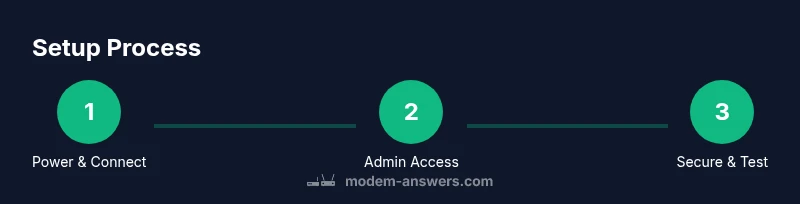
Step-by-step: linking hardware and configuring basics
-
Power down and locate ports: Power off the modem and unplug the power cord, then locate the incoming connection port (coaxial, DSL, or fiber) and the Ethernet port. Label cables if needed. Why: starting from a known state prevents miswiring and makes final setup easier. Tip: take a photo of the back panel before you unplug anything.
-
Connect the internet line and power: Attach the appropriate incoming line to the modem and plug in the power. Ensure finger-tight connections and avoid overtightening. Why: loose connections degrade signal quality and cause intermittent outages. Tip: use a surge-protected power strip.
-
Power on and wait for boot: Turn the modem on and wait 2–5 minutes until the status lights indicate a stable online state. Do not press reset during boot. Why: some modems perform firmware checks during startup. Tip: if lights stay unusual for more than 5 minutes, proceed to troubleshooting.
-
Access the admin interface: From a connected device, open a browser and navigate to the modem’s gateway address (printed on the label or in the manual). Log in with the default credentials and immediately change the admin password. Why: securing the interface stops unauthorized changes. Tip: bookmark the login page for quick future access.
-
Configure network mode: Decide between router mode or bridge mode. If using a separate router, start with router mode; if you own a router but want direct IP pass-through, consider bridge mode. Why: the chosen mode affects NAT, Wi‑Fi, and device visibility. Tip: record the chosen mode and note the IP range used by your router.
-
Update firmware and test: Check for firmware updates and install them if available, then reboot. After that, test connectivity on multiple devices to confirm stability. Why: firmware updates fix bugs, improve security, and enhance performance. Tip: keep firmware update notifications enabled.
This step-by-step covers the core actions in a modular way, enabling readers to navigate setup with confidence.
Tools & Materials
- Modem(Provided by ISP or your own device (must be compatible with service))
- Power adapter(Original adapter supplied with the modem or a compatible replacement)
- Ethernet cable (Cat5e/Cat6)(Used to connect modem to a router or computer if needed)
- Laptop or smartphone(For accessing the admin interface and configuring settings)
- ISP account information / admin credentials(Needed to activate or register the device with the service)
- Notebook or digital notes(To record settings and firmware versions)
- UPS or battery backup (optional)(Uninterruptible power supply for uptime during outages)
Steps
Estimated time: 45-60 minutes
- 1
Power down and prep ports
Power off the modem and unplug the power. Locate the incoming connection port and the Ethernet port, and identify any labels on the panel. This ensures safe handling and a clear plan for wiring.
Tip: Label cables or note their positions before disconnecting. - 2
Attach the incoming line and power
Connect the appropriate incoming service line (coaxial, DSL, or fiber) and plug in the modem’s power. Verify snug, not forced, connections to avoid signal loss.
Tip: Avoid twisting cables; use finger-tight turns only. - 3
Power on and verify boot
Turn the modem on and observe the indicator lights for a solid online state. If a light sequence is unclear, wait the full boot cycle.
Tip: If lights don’t stabilize after several minutes, document the pattern for troubleshooting. - 4
Log into the admin interface
On a connected device, open a browser and enter the gateway address shown on the device label. Sign in and immediately change default credentials.
Tip: Use a strong, unique password and save it securely. - 5
Choose network mode
Decide between router mode (with NAT and Wi‑Fi) or bridge mode (pass-through IP to an external router). If unsure, start with router mode.
Tip: Bridge mode may disable the modem’s built-in Wi‑Fi. - 6
Update firmware and test
Check for firmware updates, install if available, and reboot. Test connectivity across multiple devices to confirm stability.
Tip: Document firmware version after update and note any changes. - 7
Document settings and secure
Save configuration details, like SSID, password, and IP ranges, in a safe place. Schedule regular checks for firmware and performance.
Tip: Keep a running log of changes for future reference.
FAQ
What is the difference between a modem and a router?
A modem connects your home to the internet and demodulates signals, while a router distributes that connection to devices and creates your local network. Some devices blend both functions as a gateway.
A modem connects you to the internet; the router builds your home network from that connection.
Can I use my own modem with my ISP?
Many ISPs permit third‑party modems, but you should verify compatibility and activation steps with your provider before purchase.
Yes, often you can use your own modem, but check compatibility and activation with your ISP.
Should I enable bridge mode on my modem?
Bridge mode passes the public IP to an external router, eliminating double NAT. Enable it only if you’re using a dedicated router and need direct IP control.
Bridge mode is for when you want your own router to handle networking directly.
How do I access my modem's admin interface?
Look for the gateway address on the device label or manual. Connect via Ethernet or secure Wi‑Fi, then log in with updated credentials.
Open a web browser and type the gateway address shown on the modem.
Is it safe to update firmware automatically?
Automatic updates improve security, but ensure you have a stable connection during the process.
Automatic updates are helpful; just avoid interruptions during installation.
What should I do if the internet is slow after setup?
Restart the modem, check cable quality, reduce interference, and test with multiple devices. If issues linger, contact your provider.
If it feels slow after changes, restart and test with another device; if needed, call your provider.
Watch Video
Key Takeaways
- Know the modem's role in your home network
- Choose router mode or bridge mode deliberately
- Secure the admin interface with strong credentials
- Keep firmware up to date for security
- Test connectivity after each major change