How to Use Modem WiFi: A Complete Step-by-Step Guide
Learn how to use modem wifi to connect devices, secure your home network, and optimize performance. This comprehensive guide covers setup, security, guest networks, speed testing, and troubleshooting with practical steps from Modem Answers.


This guide shows you how to use modem wifi to connect devices, share a secure home network, and optimize speeds. You’ll learn basic setup, whether your modem includes a router, how to configure SSID and passwords, and how to test performance. According to Modem Answers Team, start by powering on the modem, verify internet status, and then configure wireless settings for best results.
Understanding the basics of modem wifi
Modem wifi combines two essential pieces of your home network: the modem, which talks to your internet service provider, and the wireless access point, which broadcasts your Wi‑Fi signal. In many homes the modem also includes a built-in router, turning it into a gateway. If you have a separate router, you can still connect it to the modem to extend range and features. As the Modem Answers team notes, the simplest path for most households is to start with a single device that provides both modem connectivity and Wi‑Fi, then add a dedicated router later if you need more control or faster speeds. Understanding these pieces will help you decide when to bridge, when to use router mode, and how to avoid common pitfalls like double NAT.
In practice, you’ll typically have a few core concepts: the network name (SSID), the network password, encryption type (WPA2/WPA3), and the admin interface used for configuration. Your goal is to keep the network name consistent across devices, use a strong password, and update firmware regularly to protect against threats. This foundation makes everything that follows simpler and more reliable.
Assessing your current setup and goals
Before touching any settings, take stock of what you already have and what you want to achieve. List your ISP plan (speed tier, data cap if any), your modem model, and whether your device acts as a gateway or is paired with a separate router. If you’re moving from a basic modem-only connection to a full Wi‑Fi setup, decide whether you’ll rely on the built‑in Wi‑Fi (if present) or add a dedicated router for stronger performance or advanced features. The Modem Answers team emphasizes clarity: define your priorities first—better coverage, tighter security, or easier guest access—and then tailor the setup accordingly. Remember to check if your modem supports the latest Wi‑Fi standards and if firmware updates are readily available from the manufacturer or ISP.
Planning and gathering the right tools
A smooth setup starts with the right tools. You’ll need a powered modem, a device to access the admin interface (computer or smartphone), an Ethernet cable for initial configuration if available, and a router only if you choose to add one or if your modem lacks Wi‑Fi. Collecting these items ahead of time reduces back-and-forth. If your modem already has built‑in Wi‑Fi and routing, you’ll still benefit from a checklist: confirm model compatibility with your ISP, locate the admin login details on the device, and have a plan for where to place the router or modem for best coverage. Pro tip: download the user manual from the manufacturer’s site so you have screenshots for reference later.
Step-by-step setup walkthrough: part one — initial connection and access
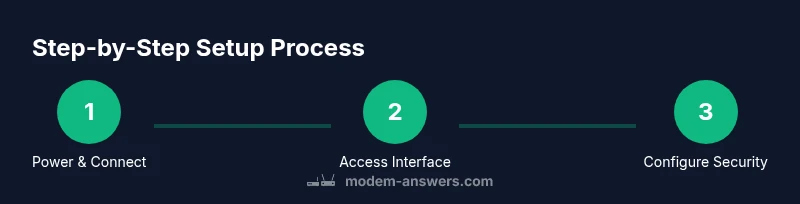
Begin by plugging in the modem and waiting for the status lights to indicate a stable connection. Connect a computer or mobile device to the modem via Ethernet or Wi‑Fi. Open the modem’s admin interface using the local IP address or the companion app, then log in with the default credentials found on the device label or in the manual. Once logged in, verify the internet status and note the WAN/Internet status indicators. The key is to establish a reliable baseline before making changes. You should also back up any existing configuration if the interface offers a backup feature. This ensures you can revert if something goes awry.
Step-by-step setup walkthrough: part two — configure wireless basics
Set your Wi‑Fi network name (SSID) and a strong password. Choose the highest security protocol available (prefer WPA3 if all devices support it, otherwise WPA2‑PSK). Disable WPS, which can be a weak link in security, and change the default admin password to something unique. If your modem provides a single network name for both 2.4 GHz and 5 GHz bands, consider splitting them so you can optimize devices based on their needs. Save changes and reboot if prompted. Ensure your devices reconnect and test a few representative devices (phone, laptop, smart speaker).
Step-by-step setup walkthrough: part three — router mode, bridging, or mesh decisions
If you’re using a separate router, decide whether to place the router in standard router mode, enable bridge mode on the modem, or deploy a mesh system for larger homes. Enabling bridge mode turns off the modem’s router function and avoids double NAT, but you’ll manage your network primarily from the router. If you opt for bridge mode, connect the router’s WAN/Internet port to the modem with an Ethernet cable and configure the router’s WAN settings accordingly. For mesh or multi‑node setups, follow the manufacturer’s guidelines to pair satellites or nodes and assign a single SSID for seamless roaming. This step is often where many users improve range and reliability.
Step-by-step setup walkthrough: part four — testing and tuning
After the core network is in place, run a few practical tests: check page load times on multiple devices, run a speed test, and confirm that devices automatically reconnect without interference. If coverage is uneven, try repositioning the modem/router closer to central areas and away from thick walls or metal appliances. Adjust channel selections if your network is congested (auto-channel usually works, but manual selection can help in crowded apartments). Finally, review your firmware version and enable automatic updates when available to keep security and performance current.
Step-by-step setup walkthrough: part five — security hardening and ongoing maintenance
Enhance security by keeping firmware up to date, using a unique admin password, and enabling guest networks if you share your Wi‑Fi with visitors. Consider enabling parental controls or time-based access if you have children or shared spaces. Create a backup of your configuration if the interface offers it, and document your settings in a simple note for future reference. Schedule regular reviews (every 6–12 months) to refresh passwords and verify device compatibility with new standards. Regular maintenance reduces the chances of outages and security incidents.
Step-by-step setup walkthrough: part six — verification and wrap-up
Conclude by performing a final round of verification: confirm all essential devices stay connected, run a final speed check, and ensure security features remain active. Review your home network diagram (a simple map of devices and networks helps future updates) and confirm you have the necessary login information stored securely. If anything fails, consult the backup configuration you saved earlier and consider repeating the steps with a fresh reboot. This habits‑driven approach keeps your Wi‑Fi reliable and easy to manage.
Tools & Materials
- Powered modem(Must be plugged in and receiving ISP signal)
- Ethernet cable(Cat5e or newer, at least 1–2 meters)
- Router (optional if modem has built‑in Wi‑Fi)(Use if you need more features or better coverage)
- Smartphone, tablet, or computer(To access admin interface and test connectivity)
- ISP account details and device labels(For troubleshooting and setup references)
Steps
Estimated time: 45-75 minutes
- 1
Power on and verify modem status
Plug in the modem and wait for the status lights to indicate a stable connection. Use a device to verify you can access the internet and reach the admin interface. Document any abnormal indicators and prepare to troubleshoot if necessary.
Tip: If no internet light appears after a minute, reseat cables and reboot the modem. - 2
Access the admin interface
Open a browser or the device’s app and navigate to the modem’s local IP or app URL. Log in with the default credentials or the ones provided by your ISP. Confirm you can see basic status pages and note the firmware version.
Tip: Change the admin password immediately after logging in. - 3
Configure wireless basics
Set a new SSID and strong WPA2/WPA3 password. Choose a secure encryption method and disable WPS if available. Save changes and reboot if prompted.
Tip: Use a unique SSID that distinguishes your network from neighbors. - 4
Decide router mode vs bridge mode
If using a separate router, decide whether to run in router mode or enable bridge mode on the modem to avoid double NAT. Connect the router to the modem via Ethernet and configure WAN settings as needed.
Tip: Bridge mode can improve stability for multi‑device homes, but you’ll manage settings from the router. - 5
Test devices and coverage
Connect multiple devices to the network and run speed tests at different locations. Observe signal strength on 2.4 GHz and 5 GHz bands and adjust placement or bands as needed.
Tip: Prioritize 5 GHz for devices near the router; 2.4 GHz travels farther but is slower. - 6
Tighten security and enable maintenance
Ensure firmware is up to date, enable automatic updates if available, and consider a guest network for visitors. Save a backup of the configuration.
Tip: Set up a regular reminder to check for updates every 3–6 months. - 7
Document and finalize
Write down the network name, password, admin login, and any custom settings. Share access details securely with household members and close out the setup.
Tip: Keeping a written record avoids rework during future changes.
FAQ
Should I use my modem’s built‑in Wi‑Fi or a separate router for better performance?
For smaller spaces, built‑in Wi‑Fi may be enough. If you need stronger coverage or advanced features, adding a dedicated router or a mesh system usually yields better performance. Consider your home size, interference, and device count when deciding.
If you want simple coverage, use the modem’s Wi‑Fi. For larger homes or more devices, add a dedicated router or mesh system.
How do I recover or change my wifi password?
Open the admin interface or app, navigate to wireless settings, and update the Wi‑Fi password. Save changes and reconnect all devices with the new password.
Update your Wi‑Fi password in the admin interface and reconnect devices with the new password.
Why is my Wi‑Fi signal weak in some rooms?
Wi‑Fi strength depends on distance, walls, and interference. Try moving the router, switching to the 5 GHz band for nearby devices, or adding a mesh node or extender to bridge gaps.
Weak signal can be fixed by repositioning the router, using 5 GHz closer to devices, or adding a mesh device.
How often should I update firmware?
Check for firmware updates monthly or enable automatic updates if available. Updates improve security, performance, and compatibility with new devices.
Check for updates monthly or enable automatic updates to stay secure and compatible.
What should I do if I can’t access the admin interface?
Ensure you are connected to the modem, try a different browser or app, and confirm the device’s IP address. If needed, reset to factory defaults and reconfigure from scratch.
Make sure you’re connected, try another browser, and reset if necessary to regain access.
Watch Video
Key Takeaways
- Define your network goals before changing settings
- Use strong encryption and unique admin credentials
- Test coverage and speeds across typical devices
- Prefer bridge mode for multiple routers to avoid double NAT
- Keep firmware up to date and back up configurations