How to Configure Modem for Wi-Fi: A Step-by-Step Guide
Learn how to configure your modem for Wi-Fi with a clear, practical approach. Set SSID, security, bands, and guest networks for a reliable home network, with troubleshooting tips and best practices from Modem Answers.


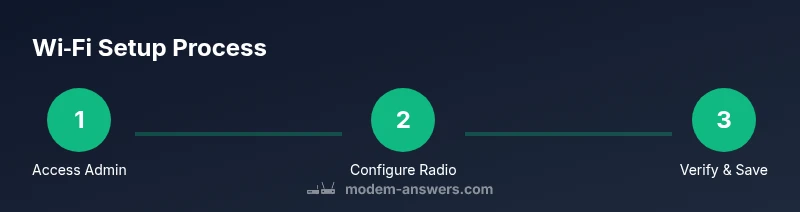
Goal: configure your modem to broadcast a secure Wi‑Fi network. You’ll access the modem’s admin page, set a unique SSID, enable strong encryption (WPA2/WPA3), create a robust password, and verify 2.4 GHz and 5 GHz bands. Have your login credentials and a browser ready; optionally use a wired connection for reliability. Modem Answers guides you through safe, practical steps.
Why configuring your modem for wifi matters
A well-configured modem is the foundation of a reliable home network. It helps you control who connects, which devices get priority, and how fast your internet feels on a busy household. If you're wondering how to configure modem for wifi, this step matters. The default settings on many modems are designed for basic setup, not for optimal performance or security. By customizing your wifi name, password, bands, and security, you reduce interference from neighbors, prevent unauthorized access, and improve stability across devices.
When you configure your modem for wifi, you align the hardware's radio settings with your home layout. For example, 2.4 GHz penetrates walls better but offers lower bandwidth per device, while 5 GHz provides faster speeds at shorter ranges. Choosing clear SSIDs for each band, or a single name with band steering if supported, helps devices connect to the best band automatically. Another key benefit is security: using WPA2 or WPA3 encryption, disabling WPS if not needed, and keeping firmware up to date all reduce vulnerability. The Modem Answers team emphasizes planning before you dive into menus. Prepare a quick diagram of where devices sit, which rooms need coverage, and whether you want guest access or parental controls. This upfront planning saves time and reduces the number of reconfigurations later.
In short, knowing how to configure your modem for wifi gives you control over performance, security, and your home's digital experience. It also provides a path to faster, more reliable streaming, gaming, and video calls without constant tinkering. According to Modem Answers, a deliberate setup reduces the odds of double NAT and other common issues that frustrate households.
Understanding the modem’s role in Wi‑Fi setup
A modem handles the connection to your internet service provider and may also manage local network traffic if it includes built‑in routing capabilities. When you learn how to configure modem for wifi, you’re primarily adjusting the wireless settings that control how devices connect and communicate. If your device is a dedicated modem-router combo, your changes can affect both the internet bridge and the internal network. Some setups require you to put the device in bridge mode to avoid double NAT, which can impact gaming, streaming, and VPNs. Decide early whether you want the modem to handle routing or if you prefer a separate router for advanced features. In many homes, using a dedicated router behind a modem can offer stronger performance and more granular controls while keeping your ISP equipment simpler and easier to troubleshoot. Understanding this distinction helps prevent misconfigurations that could degrade speed or block devices from reaching the internet.
Plan your Wi‑Fi layout: SSID, security, and bands
Before you touch menus, sketch a plan for how your home will use Wi‑Fi. Define the SSID names, decide on separate network names for 2.4 GHz and 5 GHz or use a single name with band steering if your device supports it, and choose strong security like WPA2 or WPA3. Write down the password, and decide whether you want a guest network with its own password. Consider parental controls, device prioritization, and guest access rules. The goal is to minimize changes later while maximizing coverage and reliability. If your home has thick walls or multiple floors, you may place the 2.4 GHz band closer to far rooms and reserve 5 GHz for spaces near the modem. This planning step helps you avoid backtracking and makes the actual configuration faster and less error‑prone.
Safety and privacy considerations when configuring wifi
Security should guide every setting you adjust. Use WPA2 or WPA3 as the default encryption, avoid WEP, and create a password that’s long and unique. Disable WPS unless you specifically need it for legacy devices, since it can present a security risk. Keep the modem’s firmware up to date, as updates often fix vulnerabilities and improve compatibility with new devices. If you enable a guest network, make sure it is isolated from your main network to prevent guests from accessing personal devices or files. Password protect the admin interface with a strong, unique credential and change it periodically. Finally, consider disabling remote administration unless you need it for a specific purpose, to minimize exposure to attackers.
Get ready: gather credentials and access to the admin page
Collect everything you’ll need before logging in: the modem model, the admin username and password, the default IP address (often 192.168.0.1 or 192.168.1.1), and a device with a web browser. If the default credentials were changed, you’ll need the updated ones or perform a factory reset if you’re locked out. Have a notebook or digital note handy to record your final SSID, password, and security settings. If you can, connect your configuring device to the modem via Ethernet for a more reliable session, especially on crowded networks. Finally, make sure you’re on the same local network as the modem; attempting changes from a different network will not work.
What you will configure: common fields explained
When configuring wifi, you’ll typically adjust the SSID, security mode, password, band choices, and sometimes channel settings. Your modem may offer separate SSIDs for 2.4 GHz and 5 GHz or a single network name with band steering. Choose a strong password and a security protocol (WPA2/WPA3). Decide whether to enable a guest network and set its password. Some devices also let you customize channel width and channel, which can help reduce interference in dense neighborhoods. If you plan to use smart home devices, consider giving them a dedicated IoT network or enabling client isolation on guest networks. Finally, review all changes before saving so you don’t accidentally disable essential services like DHCP or DNS.
After you’ve saved changes: verify connectivity and performance
Reboot the modem if prompted and reconnect your devices. Check that the new SSID appears on your devices, and verify you can browse the web from a phone, tablet, and computer. Run a quick speed test to ensure speeds match your plan and confirm that both 2.4 GHz and 5 GHz bands are active. Ensure guest network access works without giving guests access to your primary network. If devices still have trouble, test with a wired connection to rule out wireless issues, and consider temporarily disabling features like QoS to see if performance improves. Document any adjustments so you can replicate the setup in the future or assist others who will use the network.
Maintenance: keep wifi running smoothly with regular checks
Schedule a routine to check for firmware updates and apply them promptly. Review your Wi‑Fi plan every 6–12 months, especially if you add or remove devices or change the layout of your home. Periodically audit the security settings: change admin passwords, re‑confirm WPA2/WPA3 status, and test guest network access. If you’re moving households or changing providers, re‑run the configuration to ensure compatibility and optimal performance. A well‑maintained modem and wifi network reduces issues and provides a reliable internet experience for all devices in your home.
Tools & Materials
- A computer, tablet, or smartphone with a web browser(Used to access the modem's admin page)
- Web browser (Chrome, Edge, Firefox, or Safari)(Ensure cookies are enabled for login)
- Modem model and admin credentials(From sticker or ISP instructions; keep handy)
- Ethernet cable (optional but recommended)(For a stable setup session)
- Notepad or digital note for credentials(Record final SSID, password, and settings)
Steps
Estimated time: 25-40 minutes
- 1
Access the modem’s admin page
Open a browser and enter the modem’s IP address (commonly 192.168.0.1 or 192.168.1.1). Log in using the admin username and password from the manual or device sticker. If you’re locked out, use the reset procedure to restore factory credentials.
Tip: Have your credentials ready and avoid performing a reset unless you cannot log in. - 2
Navigate to the wireless/Wi‑Fi settings
Find the Wireless or Wi‑Fi section in the admin interface. Some devices separate 2.4 GHz and 5 GHz settings; others offer a single page. Take note of current names to use as references if you need to revert.
Tip: If you cannot locate the section, check the help or support pages for your model. - 3
Change the SSID names (network names)
Edit the SSID for each band if your device supports separate names. If you prefer a clean single network name, enable band steering if available. Avoid using default names that reveal the device make or location.
Tip: Document the final SSIDs so you don’t forget which network you connected to. - 4
Set a strong password and security type
Choose WPA2 or WPA3 as the security protocol. Create a long, unique password with a mix of letters, numbers, and symbols. Do not reuse passwords across services.
Tip: Use a password manager to store and autofill the credentials securely. - 5
Configure band settings (2.4 GHz and 5 GHz)
Decide whether to use separate SSIDs for each band or a single name. If devices frequently move between floors, separate bands can help—5 GHz for close-range devices, 2.4 GHz for farther rooms.
Tip: If your devices struggle to switch bands, set up band steering only if your router supports it reliably. - 6
Adjust channel and channel width
Set the channel to Auto where possible, or manually select a channel with less interference. 20 MHz is common for 2.4 GHz; 40 or 80 MHz may be available for 5 GHz depending on your device. This reduces congestion and improves performance.
Tip: Run a quick site survey app to identify the least congested channel in your area. - 7
Enable guest network (optional)
If you want visitors to use your internet without accessing your main devices, enable a guest network with its own password and limited access to LAN resources.
Tip: Disable file/printer sharing on guest networks to protect your primary devices. - 8
Apply settings and reboot
Save changes, and if required, reboot the modem. Reconnect your devices to the new network names and verify connectivity across multiple devices.
Tip: After reboot, test both bands on multiple devices to confirm consistent performance. - 9
Verify and document the configuration
Test web access, streaming, gaming, and video calls. Note the final SSIDs, passwords, and security settings in a safe place for future reference.
Tip: Keep a small change log to track updates or future modifications.
FAQ
Do I need a wired connection to configure the modem for wifi?
You can configure the modem over Wi‑Fi, but a wired connection provides more stability during setup. If the wireless link is unstable, switch to Ethernet for the configuration session.
You can use Wi‑Fi to configure, but a wired connection is more stable for setup.
Should I set separate SSIDs for 2.4 GHz and 5 GHz?
It’s optional. Separate names give you control over which devices use which band, but many modern devices support band steering and can connect automatically to the best band.
You can have two names, or one with band steering if your device supports it.
Which security protocol should I use?
Use WPA2 or WPA3. Avoid WEP, as it’s outdated and insecure. If possible, enable the latest supported standard for better protection.
Choose WPA2 or WPA3 for security.
What if I forget my admin password?
If you forget the admin password, use the device’s reset button to restore factory settings, then reconfigure from scratch. Keep a record of the new credentials.
If you forget it, reset the modem and set up again.
How often should firmware be updated?
Check for firmware updates monthly or when your ISP notifies you. Installing updates helps patch security vulnerabilities and improve performance.
Check for updates monthly and install when available.
Can I create a guest network?
Yes. A guest network provides internet access without exposing your main devices. Use a separate password and limit access to LAN resources if possible.
Yes, you can set up a guest network with its own password.
Watch Video
Key Takeaways
- Plan the Wi‑Fi layout before changes.
- Use strong encryption and unique passwords.
- Decide on separate or unified band names based on devices.
- Test connectivity after saving changes and keep a change log.