How to Adjust Modem Settings: A Practical Guide
Learn to safely adjust modem settings—login, tweak Wi‑Fi, DNS, and security options, then verify changes to improve speed, reliability, and privacy across your home network.


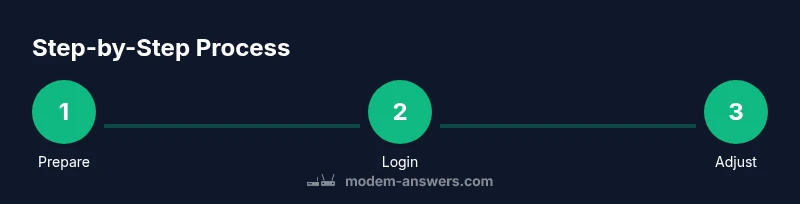
Here's what you will accomplish: learn how to adjust modem settings to improve speed, reliability, and security. You’ll verify access, identify essential options like Wi‑Fi name, password, DNS, and firmware, and implement safe changes. Before you begin, gather a browser-enabled device, a working connection, and your modem’s model info. This quick answer sets the stage for a deeper, step-by-step process.
What you can adjust in a modem
Modem settings span Wi‑Fi configuration, security controls, and network behavior. You can change the wireless network name (SSID) and password, pick a security protocol (WPA2/WPA3), adjust the channel and band (2.4 GHz vs. 5 GHz), and tweak features like DHCP, DNS, firewall rules, port forwarding, and UPnP. Understanding these areas helps you optimize coverage, reduce interference, and improve privacy. When you adjust settings, you’re effectively shaping how devices connect, route traffic, and respond to threats. For many households, small changes—like selecting the right Wi‑Fi channel or updating DNS—can yield noticeable improvements in speed and reliability. According to Modem Answers, a structured approach to changing settings reduces downtime and improves reliability.
Safety and prerequisites
Before touching any settings, take a small, disciplined approach. Record the current configuration, especially the admin credentials and the current firmware version. Make sure you have a stable power source and an alternative connection (cellular hotspot) in case you lose internet during changes. If you have multiple devices, consider performing changes during a low-traffic window. This minimizes disruption while you experiment with configurations. Note any ISP-specific features (like bridge mode or integrated router mode) that might affect your changes, so you don’t accidentally unlock undesired behavior.
Accessing the modem admin page
To start, connect your computer or mobile device to the modem via Ethernet or Wi‑Fi. Open a browser and enter the modem’s IP address (commonly 192.168.0.1 or 192.168.1.1). Log in with the admin username and password found on the label or in your manual; if you haven’t changed them, use the default credentials and then update them immediately to a strong password. Once logged in, explore the main sections (Wi‑Fi, LAN, DHCP, DNS). If you get locked out, perform a factory reset only as a last resort and reconfigure from scratch. Keeping a secure login is essential to protect your network. The Modem Answers team emphasizes updating credentials to guard against unauthorized access.
Wi‑Fi basics: name, password, and channel
Start with your Wi‑Fi settings: set a clear SSID, choose a strong, unique passphrase, and pick a security protocol (prefer WPA3 or WPA2‑AES when available). Decide between 2.4 GHz and 5 GHz bands or enable both (dual‑band) for better coverage. If interference exists, manually select a channel with the least congestion or use auto channel selection. Save changes and rejoin your network with the new credentials. These changes often improve throughput for busy households with many devices.
LAN and DHCP basics
The Local Area Network (LAN) settings govern how devices receive private IP addresses. If DHCP is enabled, the modem assigns IPs automatically; if you need fixed IPs for a printer or a server, configure a static DHCP reservation. Set a reasonable IP address range that leaves room for future devices. Ensure you understand the subnet mask and gateway address you’re using so devices can route traffic correctly. Misconfigurations here can cause IP conflicts that disrupt connectivity.
DNS settings and MTU
DNS translates domain names to IP addresses. You can use your ISP’s DNS or switch to public options like Google DNS (8.8.8.8 and 8.8.4.4) or Cloudflare (1.1.1.1). If you encounter slow loading times, try a different DNS provider and verify after changes. The MTU (maximum transmission unit) can impact performance for large files or streaming; in most households, the default MTU works fine, but adjusting to 1458–1492 can help if you notice fragmentation. After changes, test page load times and reliability.
Advanced features: Port forwarding, DMZ, UPnP
Port forwarding redirects external traffic to devices on your network (useful for gaming or remote access). DMZ places one device outside the firewall; use it sparingly due to exposure risk. UPnP can automate port rules but may introduce security risks, so only enable it if you understand the implications. Always document what you open and why, then test from outside your network to confirm access only for intended services.
Security hardening: disable remote management, firmware updates
Turn off remote management unless you actively need it, and prefer management from your local network. Enable automatic firmware updates if available, or check for updates regularly to patch known vulnerabilities. Create a strong, unique admin password and consider enabling a guest network to isolate IoT devices. Regular security hygiene reduces the chance of external compromise and helps protect your data.
Testing your changes: speed tests and connectivity checks
After saving each set of changes, test your network with a few quick checks: run a local speed test, test multiple devices, and verify stable connections across rooms. Reboot devices if they don’t connect automatically. If problems arise, revert the last change or perform a factory reset and reapply essential settings methodically. Consistent testing confirms whether adjustments produced the desired improvements.
Rollback plan if things go wrong
If a change disrupts service or creates instability, have a rollback plan ready. Reboot into the admin page and restore the previous configuration, or reset the modem to factory defaults and reconfigure from scratch. Keep a labeled backup of essential settings to speed up the recovery. If you still have issues, contact your ISP for guidance on supported configurations and compatibility with their network.
Tools & Materials
- Computer or mobile device with a web browser(Connected to the modem's network (Wi‑Fi or Ethernet))
- Active internet connection (for verification)(Needed to validate external connectivity after changes)
- Ethernet cable(Optional but recommended for stable login)
- Pen and paper or digital note tool(Record current settings and changes)
- Modem manual or model number(Used if default credentials or specific features vary)
Steps
Estimated time: 30-45 minutes
- 1
Prepare and access the admin page
Gather your equipment and locate the modem’s IP address. Connect your device via Ethernet or Wi‑Fi, then open a browser and enter the IP (commonly 192.168.0.1 or 192.168.1.1). Log in with admin credentials and navigate to the main settings area.
Tip: If you can’t login, check for a sticker on the modem for the default IP and credentials, then update the password after first login. - 2
Change Wi‑Fi name and password
In the Wi‑Fi section, set a distinct SSID and strong password. Enable WPA3 if available, otherwise WPA2‑AES. Apply changes and reconnect all devices using the new credentials.
Tip: Note which devices reconnect automatically to avoid future handoffs and test at multiple distances from the router. - 3
Configure LAN/DHCP and reservations
Review DHCP settings and adjust the address pool if needed. Create reservations for devices that require fixed IPs (printers, NAS) to prevent IP changes.
Tip: Document the reserved IPs and MAC addresses for easy troubleshooting later. - 4
Set DNS and verify MTU
Switch to preferred DNS servers (e.g., public DNS), then check MTU settings and adjust if you experience fragmentation or slow loading.
Tip: Test a few DNS lookups and load times after changing DNS to confirm improvement. - 5
Configure security basics
Disable remote management unless needed, ensure the admin password is strong, and consider enabling a guest network for visitors and IoT devices.
Tip: Keep firmware version visible and note the update schedule in your calendar for regular reviews. - 6
Test, verify, and backup settings
Reboot modem and connected devices; run speed tests and connectivity checks across rooms. Save and export the current configuration as a backup.
Tip: If anything fails, revert to the previous configuration or perform a factory reset and reconfigure stepwise.
FAQ
What should I do first before adjusting settings?
Start by backing up the current configuration and noting admin credentials. Then verify you have a stable connection to the modem and a device you can use to access the admin page.
First, back up your settings and check you can reach the modem’s admin page. Make sure you have a stable connection and a device handy.
Can I adjust settings without affecting my internet?
Yes. Make small, incremental changes and test after each one. If something disrupts service, revert the last change or restore the backup.
You can adjust settings in small steps and test as you go. If anything breaks, revert the last change or restore your backup.
How do I reset the modem to factory defaults?
Locate the reset button on the modem and hold it for 10–15 seconds with a paperclip. This will restore original settings; you’ll need to reconfigure from scratch.
If you need to reset, press the reset button for about 10 to 15 seconds with a paperclip. You’ll have to set it up again from scratch.
Is it safe to change DNS servers?
Changing DNS servers is generally safe and can improve resolution speed. Use trusted providers and monitor performance after the switch.
Switching DNS servers is usually safe and can improve speed. Use trusted providers and watch performance after the change.
How often should I update modem firmware?
Check for updates monthly or enable automatic updates. Updating firmware can fix security vulnerabilities and improve stability.
Check for updates monthly or enable automatic updates. Firmware updates can fix security issues and improve stability.
What if I forget admin credentials?
Use the ISP’s support process or perform a factory reset if necessary, then immediately create a new, strong password.
If you forget the password, use support or reset the modem, then set a new strong password right away.
Watch Video
Key Takeaways
- Identify and document current settings before changes.
- Prioritize secure Wi‑Fi and strong admin passwords.
- Test changes incrementally and verify connectivity.
- Keep firmware up to date for security and stability.
- Have a rollback plan and backups ready.