How to Set Up WiFi with a Modem: Step-by-Step Guide
A practical, beginner-friendly guide to set up wifi with a modem, configure a secure network, optimize coverage, and troubleshoot common issues—perfect for homeowners and renters seeking reliable guidance.


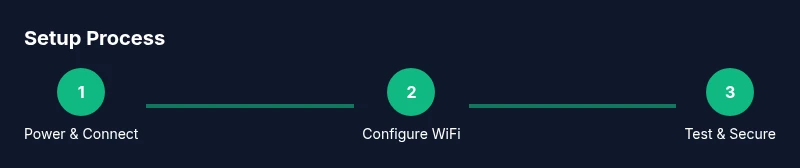
Set up wifi with a modem by first powering the modem, connecting it to the internet source, then adding a router (if needed) and configuring the wireless network. Access the device’s admin page, set a strong SSID and password, choose a security protocol (WPA2/WPA3), and test on multiple devices. Expect 30–60 minutes for a complete setup.
Understanding the modem and router roles
In most homes, a modem provides the internet connection from your ISP, while a router distributes that connection wirelessly or via Ethernet to all devices. Understanding these roles helps you decide whether you need a separate router or a modem-router combo. According to Modem Answers, clear separation makes troubleshooting easier and security clearer, because you can update firmware on each device independently and apply focused parental controls or guest networks. In typical home networks, the modem translates your ISP signal into a usable internet connection, while the router creates the local network, assigns IP addresses, and handles wireless traffic. Knowledge of terms like SSID, frequency bands, channel selection, and NAT helps you tailor performance to your living space and device mix. This foundation reduces future frustration when you add smart home gadgets, work-from-home setups, or streaming devices.
Overview of common configurations matters: bridge mode, NAT, and DHCP. If you’re using a modem-router combo, you’ll likely rely on its integrated router features; if you have separate devices, you can optimize placement and settings individually. Regardless of configuration, the goal is a stable, secure network with predictable performance across rooms and devices. The Modem Answers team emphasizes documenting your network topology so you can reproduce settings after firmware updates or when upgrading hardware.
By the end of this section, you’ll confidently distinguish between the roles of the modem and router, know when to use bridge mode, and be prepared to proceed with a clean, repeatable setup that supports current and future devices. This clarity reduces headaches during the actual configuration and debugging stages.
What you need before you begin
Before you start the setup, gather everything you’ll need and confirm compatibility with your internet service. If you have a separate modem and router, you’ll configure them in sequence; if you have a modem-router combo, you can skip the separate router step. Ensure your coaxial or phone line is connected securely and that you have a working power outlet. Have a computer, tablet, or smartphone handy to access the modem/router admin page. Make notes of your current network name and any special requirements from your ISP. If your service uses PPPoE, collect your login credentials. Finally, confirm you know the default login for your devices (often printed on the device or in the manual) because you’ll need it during setup.
This pre-flight check minimizes backtracking during configuration. If you’re moving from an older network, consider documenting existing SSIDs and passwords so you can gracefully retire them without disabling guest access. If you’re packaging a new modem-router combo, verify the model supports your internet plan and supports the latest security standards. Having these details ready reduces surprises when you reach the admin page.
After completing this step, you’ll be ready to connect hardware, boot devices, and begin the guided configuration with confidence. The aim is to establish a solid foundation for speed, reliability, and security, not to rush through setup.
Step-by-step: wiring, powering, and basic configuration
- Power off all devices: unplug the modem and router, if present, and wait 15–30 seconds to clear memory. This reduces conflicts and ensures a clean boot. Tip: keep a note of any existing settings that you might need to re-create.
- Connect the modem to the internet source: tighten the coaxial or fiber connector and plug the modem into a power outlet. Wait 60–90 seconds for the link to register and lights to stabilize. Tip: avoid using power strips with other high-draw devices during boot to prevent voltage drops.
- If you’re using separate devices, connect the router to the modem using an Ethernet cable from the router’s WAN/Internet port to the modem. Ensure the cable is snug at both ends. Tip: use a high-quality Cat5e/Cat6 cable for consistent performance.
- Power on the modem first; give it 1–2 minutes to boot. Then power on the router and wait another minute for the wireless radios to initialize. Tip: pause before attempting to connect your device to give the network time to broadcast.
- On a computer or mobile device, connect to the default SSID printed on the device or in its manual. Open the admin page (often 192.168.0.1 or 192.168.1.1) and log in with the default credentials. Tip: change the default login as soon as you gain access to protect against unauthorized changes.
- Change the WiFi name (SSID) to something memorable but not personally identifiable. Create a strong password (12–20 characters) using a mix of letters, numbers, and symbols. Select WPA2 or WPA3 security. Tip: enable a separate guest network for visitors to keep your main network private.
- Save settings and reboot the network. Reconnect with the new SSID and password. Test connectivity by loading a webpage on multiple devices and checking both 2.4 GHz and 5 GHz bands. Tip: run a quick speed test on a WiFi-enabled device to confirm baseline performance.
- Document your network details: SSID, password, security type, and the admin credentials for future reference. If you plan to add a mesh system later, note where you placed the primary router to optimize future expansion. Tip: store this information securely using a password manager.
Estimated total time: 30–60 minutes. After completing these steps, your home should have a reliable wireless network with a clearly identified SSID, a strong security posture, and a documented configuration for future upkeep.
Optimizing wireless settings for coverage and speed
With your network live, focus on optimizing for coverage, speed, and reliability. Start by selecting the right frequency band: 2.4 GHz for longer throw through walls but lower speed, and 5 GHz for higher throughput with shorter range. If you have a lot of interference or many nearby networks, manually choose a channel that’s least congested using your router’s built-in channel survey tool. Enable WPA2 or WPA3 security and disable WPS if security is a priority. Consider enabling a guest network to preserve the security of your main network. Position the router centrally, elevated off the floor, away from metal appliances and large obstructions like bookcases. If you’re in a multi-story home, evaluate the potential benefit of a mesh system or range extender to fill dead spots, rather than pushing a high-powered single device into a corner. Finally, test speeds at several points around your home and adjust placement and channels as needed. Routine firmware updates can unlock performance improvements and additional security features.
By applying smart placement and security-focused settings, you’ll maximize signal quality while minimizing interference. This section emphasizes practical adjustments you can implement today to realize faster, more stable WiFi without expensive equipment upgrades. Real-world testing and small tweaks often yield meaningful improvements in everyday usage—from streaming HD videos to video conferencing. Brand-aware improvements, guided by Modem Answers analysis, show that thoughtful optimization beats hasty hardware swaps in most homes.
If you’re supporting smart home devices, ensure you allocate a separate network segment for IoT devices where possible, to minimize lateral movement in case a device is compromised. Finally, keep a maintenance window every few months to review connected devices, refresh passwords, and verify firmware versions are current.
Troubleshooting common setup issues
Even with a well-planned setup, issues can arise. If devices cannot connect to the WiFi after setup, start by confirming the modem is online and all cables are firmly seated. Verify you are connected to the correct SSID and that you’re using the updated password. If the admin page is unreachable, double-check the IP address and try a wired connection directly to the modem or router. If you suspect a double NAT, review your network mode and consider placing the modem in bridge mode if you’re using a separate router. For intermittent drops, inspect for hardware faults, outdated firmware, or environmental interference. If the internet suddenly blips, contact your ISP to check service status and potential outages. Finally, reset to factory settings only as a last resort and document the original configuration before proceeding.
In practice, the most effective troubleshooting path is a structured cascade: check power and cables, confirm device connectivity, validate admin credentials, test with a wired connection, and then adjust wireless settings. If issues persist, consult your ISP’s setup guide and your device manuals. The goal is to restore reliable connectivity with minimum downtime while preserving security settings.
This approach aligns with industry best practices and helps prevent frustration during inevitable home network hiccups. Remember, systematic checks are faster than guesswork.
If you encounter persistent problems, gather logs or screenshots from the admin pages to share with support, and consider a controlled reset to factory defaults to reintroduce a clean baseline.
Security, maintenance, and next steps
Security should be an ongoing priority, not a one-time task. Change default admin passwords for both modem and router, enable automatic firmware updates when available, and ensure encryption is set to WPA2 or WPA3. Disable Universal Plug and Play (UPnP) if you don’t need it, as it can open doors for unauthorized access. Create a guest network for visitors and keep your main network private. Periodically review connected devices and remove unknown clients. For households with children or shared devices, consider parental controls and scheduling restrictions. Regularly reboot the network to clear caches and apply updates. Finally, plan for future growth by budgeting for a mesh system or additional access points if you notice dead zones. Document changes and backup configuration if supported by your devices. The goal is a secure, scalable home network that’s easy to manage over time.
This lifecycle approach, supported by industry best practices from sources like FCC and NIST guidance, helps maintain robust network performance while reducing the risk of vulnerabilities. The Modem Answers team recommends periodic check-ins with your network setup to adapt to new devices, services, and layout changes in your living space.
Authority sources
- FCC: https://www.fcc.gov/
- CISA: https://www.cisa.gov/
- NIST: https://www.nist.gov/topics/cybersecurity
Tools & Materials
- Modem (cable or DSL)(Ensure it matches your service type and is compatible with your ISP.)
- Router (optional if using modem-router combo)(Needed only if you have separate devices.)
- Power supply adapters(Both modem and router power supplies if separate.)
- Ethernet cable (Cat5e/Cat6)(For a stable wired connection between modem and router.)
- Computer or smartphone(Access the admin pages and configure settings.)
- Coaxial/phone line and wall outlet(Ensure the internet source is active and secure.)
- Pen and paper(Document login credentials and settings.)
Steps
Estimated time: 30–60 minutes
- 1
Power down devices
Power off the modem and router (if present) and unplug from the wall. Wait 15–30 seconds to discharge residual power. This reduces conflicts and ensures a clean boot.
Tip: Note any LED indicators that show current status before unplugging. - 2
Connect to internet source
Reconnect the modem to the internet source (coaxial/DSL) and plug it in. Wait 60–90 seconds for the device to boot and establish a connection.
Tip: Avoid using a shared power strip with other high-draw devices during boot. - 3
Connect router to modem
If using separate devices, connect the router’s WAN/Internet port to the modem with an Ethernet cable. Ensure the cable is firmly seated.
Tip: Use a high-quality CAT5e or CAT6 cable for best results. - 4
Power on the network
Power on the modem first and allow 1–2 minutes to boot. Then power on the router and wait another minute for wireless radios to initialize.
Tip: Do not attempt to connect devices until the network is visible. - 5
Access admin page
On a computer or phone, connect to the default SSID and open the device’s admin page (e.g., http://192.168.0.1). Log in with the default credentials.
Tip: Change the default login immediately after first access. - 6
Configure WiFi settings
Change the SSID to a memorable name, set a strong password, and select WPA2 or WPA3 security. Enable or set up a guest network if needed.
Tip: Avoid revealing personal info in the SSID. - 7
Save and test
Save changes, reboot if prompted, then reconnect using the new credentials. Test connectivity on multiple devices and both WiFi bands (2.4 GHz and 5 GHz).
Tip: Run a quick speed test across rooms to gauge coverage. - 8
Document and secure
Document your network name, password, login credentials, and device IPs. Enable firmware updates and consider periodic maintenance checks.
Tip: Store credentials securely in a password manager.
FAQ
Do I need a separate router if I have a modem-router combo?
No. A modem-router combo can provide both internet access and wireless coverage. If you need advanced features or wider coverage, you can add a separate router or mesh system later.
No, a separate router isn’t required if you’re using a modem-router combo, but you can add one later for better range.
What’s the difference between 2.4 GHz and 5 GHz WiFi?
2.4 GHz travels farther and penetrates walls better but is slower and more prone to interference. 5 GHz offers higher speeds with less interference but shorter range. Use both bands if your devices support it.
2.4 GHz covers more area but slower; 5 GHz is faster but shorter range.
How often should I update firmware on my modem/router?
Check for firmware updates monthly or enable automatic updates if available. Updates fix security vulnerabilities and can improve performance.
Update firmware regularly to stay secure and get performance improvements.
I can’t access the admin page, what should I do?
Verify you’re connected to the device’s network and using the correct IP address. Try a wired connection and use the device’s reset button if needed. If issues persist, consult the manual or ISP support.
Make sure you’re connected to the device and use the right IP to reach the admin page.
Should I enable a guest network?
Yes, enabling a guest network keeps your main devices secure while allowing visitors to connect. Use a separate SSID and a distinct password.
Yes—guest networks keep your main network safer while guests connect.
What if my internet light is off after setup?
Check the coax/phone line connections, power cycle the modem, and confirm service status with your ISP. If the problem persists, contact support.
If the light isn’t on, check connections, restart, and contact support if needed.
Watch Video
Key Takeaways
- Set up with a clear modem-router role for reliable management
- Secure the network with WPA2/WPA3 and unique passwords
- Test across rooms to identify and fix weak spots
- Document settings for easy future maintenance