Logging in to Modem: A Practical Guide
Learn how to log in to your modem securely, locate the admin page, update credentials, and harden your home network with a clear, step-by-step approach from Modem Answers.


Logging in to modem gives you control over your home network, including Wi‑Fi settings, security, and firmware updates. You’ll need the modem’s admin URL, a connected device, and the login credentials. This guide covers common IP addresses, default credentials, and best-practice steps to stay secure and avoid common login pitfalls.
Why logging in to modem matters
Accessing your modem's admin interface is the gatekeeper for your home network. Logging in to modem gives you the authority to view connected devices, adjust firewall rules, update firmware, and configure Wi‑Fi settings. Without a secure login, your network remains vulnerable to misconfigurations, poor password hygiene, and potential security threats. The Modem Answers team emphasizes that many home incidents start at the router or gateway device: weak passwords, outdated firmware, and open default ports. By logging in, you gain visibility into who is using your network, what devices are online, and how data flows between your internet connection and your devices. This step is not just about convenience; it's about laying a foundation for performance, reliability, and privacy. If you’re new to home networks, treat the modem as a small but powerful computer that deserves regular attention and clear security practices.
Identify your login URL and credentials
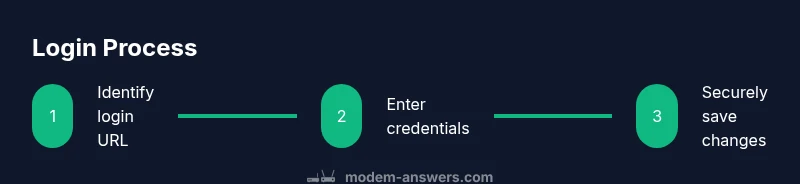
The first challenge is locating the correct login page. Most modems expose an admin interface at a private IP address, commonly 192.168.0.1 or 192.168.1.1, but there are exceptions depending on the model or ISP. Check the device label on the back or bottom of your modem for the exact IP and default login credentials. If you’re using a gateway provided by your internet service provider, the login may be accessible via http://dlink.local or another brand-specific address. When you find the address, prepare the credentials you’ll use: either the default username and password printed on the label, or the new credentials you set previously. If you cannot locate the information, consult the manual online or the provider’s support page. This step reduces guessing and helps you login with confidence. According to Modem Answers analysis, changing default credentials significantly improves security posture, so plan to update them as soon as you can access the dashboard.
Prepare for a successful login
Before you open a browser, gather everything you’ll need for a smooth session. Have a connected device: a computer, tablet, or smartphone; ensure it is on the same network as the modem or connected via Ethernet for stability. Verify you know the network password for Wi‑Fi access if you need to configure wireless settings. Use an up-to-date browser (Chrome, Edge, Safari, or Firefox) and clear any cached login data to avoid stale sessions. If you’ve enabled two-factor protection in the router UI (where offered), have your secondary authentication method ready. Plan for a short downtime if you need to reboot the modem or apply firmware updates. Finally, consider documenting the current settings so you can compare changes later and rollback if needed. With these preparations, you’ll minimize login friction and keep the session focused on essential changes.
Finding the modem's IP address on different devices
The steps vary slightly by device, but the goal is the same: identify the gateway address that grants admin access. On Windows, open Command Prompt and type ipconfig, then look for the Default Gateway value. On macOS, go to System Preferences > Network > Advanced, then check the TCP/IP tab for the router address. On iOS or Android devices, you can find the gateway in the Wi‑Fi settings for the connected network. If you prefer a browser-only route, you can attempt known defaults (192.168.0.1 or 192.168.1.1) and see which loads the login page. If your network uses a bridge mode or a separate router, you may need to login to the router module provided by your ISP. Document the discovered IP address to ensure you can access it again later. This step anchors your login process in the correct place.
Accessing the login page securely
Enter the detected IP address into the browser’s address bar to load the login page. Most home modems use HTTP rather than HTTPS, so you may see a plain portal rather than a bordered secure site. Avoid entering credentials on suspicious networks or public Wi‑Fi; perform the login on a trusted home connection. If a warning about insecure page appears, proceed cautiously, as some devices use self-signed certificates. After the login page loads, confirm you’re at the device’s interface by checking branding in the header and the available menus (Debug, Status, Wireless, Security, Maintenance). Never share your admin password, and consider turning on browser password prompts to help manage credentials securely. If the page fails to load, try a different browser, clear cookies, or disable VPNs that could block local traffic.
Enter credentials and confirm access
On the login screen, enter the administrator username and password. If you’re using the default credentials, change them immediately after login to prevent unauthorized access. Once authenticated, you should land on the device’s main dashboard, where you can view connected devices, status indicators, and basic configuration options. Take a moment to verify you’re in the correct section (often labeled Status, Network, or Advanced). If you can’t log in, double-check the IP address, ensure you haven’t typed it with the wrong dots, and confirm there are no captive portals blocking access. Save any prompts that appear about password changes or firmware updates. After logging in, log out if you’re on a shared device to reduce risk, and close the browser tab when you’re finished.
Changing the admin password and Wi‑Fi credentials
With access established, immediately update the admin password to a strong, unique value. Use a passphrase or a combination of upper/lowercase letters, numbers, and symbols. Avoid common words and predictable patterns. If your modem offers separate admin and wireless credentials, consider using distinct passwords for each to limit exposure. Next, review your wireless settings: change the SSID to something distinctive (avoid personal details) and enable a strong security protocol such as WPA3 or WPA2-PSK. If you have guests, set up a guest network with its own password. Disable WPS if the option is present to reduce exposure to brute-force attacks. Save changes and reboot the device if required. Finally, document the new credentials in a secure location and run a quick password hygiene check across your other home devices.
Troubleshooting common login problems
Login issues are common and solvable with a calm, methodical approach. If the page loads but credentials fail, confirm you’re using the correct username (often admin) and avoid trailing spaces. If the IP address is incorrect, revisit the device label or try the other common defaults mentioned earlier. Clear your browser cache and disable extensions that might intercept requests. Some ISPs run a bridge mode or provide a separate gateway device; in those cases, you may be logging into the wrong device. If you suspect the router UI is locked by a firmware bug, check for updates from the admin dashboard or the provider’s site, then perform a safe reboot. Finally, if all else fails, prepare to perform a factory reset as a last resort, understanding that it will erase custom settings.
When to reset the modem and how to do it safely
A factory reset can restore default settings but should be done with caution. Only reset if you cannot recover the login due to corrupted credentials or a non-responsive admin page. Locate the reset pinhole on the back of the device. Using a paperclip or small tool, press and hold the reset button for about 10-15 seconds, or as specified in the manual. Release and wait for the device to reboot fully; this can take several minutes. After reset, log in again with the default credentials shown on the device label, and then immediately configure a strong admin password and basic Wi‑Fi protections. If you have a saved configuration, you can re-import it; otherwise you’ll need to re-create essential settings. Keep in mind that a factory reset erases all custom rules and port forwarding. Always test your internet connection after restoring settings.
Post-login security hardening
Now that you’re in, take steps to secure the gateway. Enable automatic firmware updates where available and set a backup reminder to check for new releases every few months. Turn off remote management unless you need it for support, and only enable it over a secure connection if you do. Use strong, unique passwords for admin and Wi‑Fi, as previously discussed, and consider enabling a guest network to isolate IoT devices. Review firewall settings and close unused ports. If your modem supports login alerts, enable notifications for admin changes or new connected devices. Finally, document your security posture: date-stamped notes of changes, firmware version, and any unusual activity. These practices reduce exposure to vulnerabilities and help you maintain long-term control of your home network.
Backing up configuration and keeping notes
Configuration backups are a safety net when you’re changing router settings. Many modems let you export a configuration file from the admin panel; store this file in a secure location and label it with the date and device model. Regular notes about the changes you’ve made—admin password updates, Wi‑Fi name changes, and port forwarding rules—make future troubleshooting faster. If your gateway supports cloud backups or a local dump, enable those features. Include a quick change log for each session: what was changed, why, and when. When you back up, verify the file integrity by attempting a restore in a test environment if possible. Finally, consider keeping a simple diagram of your network layout for quick reference during future login sessions. This practice improves resilience and makes it easier to roll back unintended changes.
Quick-reference login checklist
End with a concise, practical checklist the reader can print or save. Include items like locate IP address, choose a secure browser, have admin credentials, access the login page, review settings, update passwords, enable security features, save changes, reboot if needed, and confirm connectivity. A short, memorable sequence reduces the chance of missing a critical step during busy moments. Use this checklist after any major changes to ensure you didn’t overlook essential protections or configurations. Keeping it handy helps homeowners and renters maintain a consistent, secure home network.
Tools & Materials
- A connected computer or smartphone(Device connected to modem via Wi‑Fi or Ethernet)
- Web browser(Up-to-date Chrome, Edge, Safari, or Firefox)
- Modem IP address label(On device label; also manual/installation guide)
- Admin credentials(Username and password for the modem admin panel)
- Paper and pen or digital note system(Record credentials and changes for future reference)
- Small tool for reset (paperclip)(Only if performing a factory reset)
- Ethernet cable (optional)(Use if Wi‑Fi is unstable during login)
Steps
Estimated time: 20-40 minutes
- 1
Identify the correct login URL
Locate the admin interface address using the device label or manual. Write down the IP (commonly 192.168.0.1 or 192.168.1.1) and confirm you’re aiming at the modem, not a downstream router. This reduces misdirection during login.
Tip: If you’re unsure, compare the IP against other devices on the same network. - 2
Open the login page in a trusted browser
Enter the IP address into your browser’s address bar and load the modem’s login page. Ensure you’re on a private home network and avoid using public Wi‑Fi for this step.
Tip: Disable any VPNs or proxies that could block local network access. - 3
Enter admin credentials
Input the admin username and password. If you’re using defaults, you must replace them immediately after accessing the dashboard.
Tip: If you can’t recall credentials, try the label values first and then start a safe reset process if needed. - 4
Navigate to security settings
From the dashboard, locate sections such as Security, Administration, or Advanced. Confirm you can view connected devices and status indicators before changing any settings.
Tip: Take a screenshot of the current layout before making changes. - 5
Change the admin password
Update to a long, unique passphrase. Avoid common words and reuse across devices. This is crucial for preventing unauthorized access.
Tip: Use a password manager to store and generate strong passwords. - 6
Update Wi‑Fi credentials
If you adjust wireless settings, consider changing the SSID and enabling WPA3 or WPA2‑PSK. Create separate guest network if needed.
Tip: Record the new password and SSID in a secure location. - 7
Enable security features
Turn on firewall features, disable WPS if available, and review port forwarding rules. Ensure only essential ports are open.
Tip: Limit remote management to trusted IPs or disable it when not in use. - 8
Apply and save changes
Click Save or Apply and wait for the device to confirm changes. Reboot if prompted or perform a manual reboot to ensure settings take effect.
Tip: If rebooting, note any brief internet interruption for household planning. - 9
Test connectivity
Reconnect devices and verify internet access. Check both wired and wireless connections, and confirm devices show as online in the admin panel.
Tip: Run a quick speed test to verify there’s no degradation after changes. - 10
Document changes
Record what was changed, the date, and the firmware version if shown. This helps future troubleshooting and recovery.
Tip: Keep a dated changelog accessible only to trusted users. - 11
Back up configuration
If the UI offers export, save a copy of the configuration file to a secure location. This makes rollback straightforward.
Tip: Verify the backup by attempting a local restore in a test environment if possible. - 12
Plan regular maintenance
Schedule periodic checks for firmware updates and password hygiene. Routine maintenance reduces security risks and keeps performance steady.
Tip: Set a calendar reminder every 6–12 months to review settings.
FAQ
What is the default login URL for most modems?
Most modems use a private IP such as 192.168.0.1 or 192.168.1.1. Check the device label or manual for the exact address. If in doubt, contact your provider or search the model number on the manufacturer site.
Most modems use a private IP like 192.168.0.1 or 192.168.1.1. Check your device label or manual to confirm.
Can I log in from any device on my network?
Yes, as long as the device is connected to the same network and has a browser. Using a wired connection can reduce connectivity issues during login.
Yes, from any device on the same network with a browser. A wired connection can help.
What if I forget the admin password?
If you can’t recall it, you’ll typically need to reset the modem to factory settings and reconfigure from scratch. Resetting erases custom settings, so proceed only if you can’t recover the password.
If you forget it, a factory reset may be needed, which erases custom settings.
Does the login page always use HTTPS?
Many home modems use HTTP rather than HTTPS for the admin page. Look for a secure connection indicator, but don’t assume HTTPS is always available. Be cautious about entering credentials on public networks.
The admin page often uses HTTP; look for security cues and avoid public networks.
How do I update firmware from the login page?
In the admin interface, locate the Firmware or Maintenance section, check for updates, and install if available. Keep in mind some updates require a reboot and can briefly disrupt connectivity.
Find Firmware in the admin panel, check for updates, and install if available.
How often should I login to check settings?
Treat router access as part of periodic maintenance. Log in at least every few months to review security, update firmware, and refresh credentials in response to new devices or risks.
Check every few months to review settings and update firmware.
Watch Video
Key Takeaways
- Identify the correct login URL and credentials.
- Securely login and immediately change default passwords.
- Enable strong Wi‑Fi security and disable vulnerable features.
- Back up configurations and document changes.
- Regularly audit and update your modem’s firmware and settings.