How to Access My Modem: A Step-by-Step Guide
Learn how to access your modem’s admin interface safely. This educational guide covers IP addresses, login credentials, and steps to secure your network, plus troubleshooting tips for common access issues.


This guide explains how to access your modem’s admin interface, locate the login page, and adjust settings safely. It covers browser-based and mobile app access, typical gateway IPs, credential handling, and best practices to secure your network. Whether you’re a homeowner or renter, these steps work for most gateways and help you diagnose issues quickly.
Why Accessing Your Modem Matters
Accessing your modem is a foundational skill for maintaining reliable home internet. Being able to reach the device's admin interface lets you check firmware status, update security settings, configure your Wi-Fi name and password, and troubleshoot connectivity without calling your ISP. If you want to know how to access my modem, this section explains the rationale and safety precautions before you begin. According to Modem Answers, keeping direct access to your modem helps homeowners quickly identify issues affecting speed and stability, and reduces downtime during outages. In practice, you’ll often need to confirm that you are on the local network, distinguish the modem’s interface from a router’s admin page, and distinguish between consumer-grade features and advanced admin tools. The result is a more stable network and a clearer path to faster speeds. The goal is not to complicate things but to give you a reliable method you can repeat whenever your internet acts up.
Tip: Always have your credentials handy before you start, and avoid making changes you don’t understand.
Understanding Modem Admin Interfaces
Most consumer modems expose an admin interface that you can reach via a web browser or, in some cases, a companion mobile app. The web UI is usually the quickest path to review device status, firmware versions, and security settings. You’ll often be asked for a username and password, and some devices support two-factor authentication. It’s important to distinguish the modem’s admin page from a separate router or mesh system’s interface, since changing settings in the wrong device can disrupt your network. If you’re unsure, start with the physical device label for the correct URL or IP address and verify that you’re connecting to the modem itself, not a connected router. This section also covers common terms you’ll see, such as “gateway,” “admin,” and “firmware.”
Common Access Methods: Web UI, Mobile Apps, and SSH
Access methods vary by model, but most home gateways offer a Web UI that you reach through a browser, often at a private IP like 192.168.0.1 or 192.168.1.1. Some modems also provide a manufacturer or carrier app that lets you view status, security settings, and network details from your phone. SSH is rarely exposed on consumer devices, and is generally not needed for everyday configuration. Know which method your device supports before attempting changes. This section clarifies when to use each method and what to expect during setup, including the typical prompts you’ll encounter.
Finding Your Modem’s IP Address
Before you can log in, you must know the gateway IP address. Start by checking the device label for the default URL, then verify in your computer’s network settings. If your device uses a standard private IP, common options include 192.168.0.1 and 192.168.1.1; however, some providers use different addresses. If you’re connected via a router, you may actually be prompted to log into the router instead of the modem. In that case, you’ll need to connect directly to the modem (via Ethernet) or check the provider’s support page for the correct IP. This step is critical to ensure you access the intended device and not another gateway on the network.
Logging In and Handling Credentials
With the IP address, open a browser and reach the login page. You’ll be asked for a username and password; if you don’t have them, look for the credentials on the device label or your ISP’s setup guide. Once logged in, plan to change any default credentials to a strong, unique password. If you forget the credentials, use the built-in recovery or reset options provided by the device, or consult the provider’s support resources. This section emphasizes security and the importance of keeping access to trusted devices only.
Securing Your Modem After Access
After you gain access, the next step is securing your modem to protect the home network. Change the admin password to a strong, unique combination, and enable encryption such as WPA2/WPA3 on your Wi‑Fi network. Disable remote management unless you truly need it, and enable automatic firmware updates if available. Create a guest network for visitors to keep your main network secure. Document changes and test connectivity after updating settings to confirm there are no unintended side effects.
Troubleshooting Access Issues
If you can’t reach the login page, verify you are on the local network and not using a VPN or remote desktop tool that could block local addresses. Clear your browser cache or try a different browser, and ensure you’re visiting the correct IP or URL. If the page times out, reboot the modem and wait a few minutes before retrying. If you still cannot access the interface, consider temporarily disabling firewall protections on your device to test access, or consult the provider’s support resources for endpoint-specific guidance.
When to Reset Your Modem (Factory Reset Considerations)
Factory resetting should be a last resort, as it erases custom settings and returns you to factory defaults. If you perform a reset, have your account details and service plan information ready, because you’ll need to reconfigure the connection and Wi‑Fi from scratch. Before resetting, note which settings you use (port forwards, DNS, parental controls) so you can restore them later. If possible, save a backup configuration or screenshot important screens and settings to speed up the reconfiguration.
Best Practices and Next Steps
To maintain ongoing access, establish a routine for checking and updating credentials, firmware, and security preferences. Schedule periodic reviews of your network name and password, enable automatic updates where possible, and keep a simple record of the gateway IP and login details in a secure password manager. The Modem Answers team recommends treating modem access as a fundamental network maintenance task, not a one-time event. By following these steps, you’ll maintain a stable, secure home network and minimize downtime during outages.
Tools & Materials
- Computer, smartphone, or tablet(Device with a modern web browser and network access)
- Active internet connection to the modem(Connected via Ethernet or Wi-Fi)
- Modem login credentials (or known default)(Username and password; if unknown, plan to reset if allowed)
- Modem IP address reference (e.g., 192.168.0.1)(Common gateway addresses; if the IP differs, check the modem label or ISP guide)
- ISP support page or modem manual(Helpful for credential recovery and model-specific steps)
Steps
Estimated time: 20-40 minutes
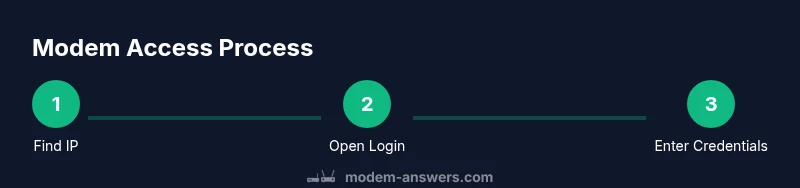
- 1
Find the modem's IP address
Locate the gateway IP listed on the modem label or in the device documentation. If there is no label, check the manufacturer’s support site or your ISP’s setup guide. Once found, prepare to enter this IP in a web browser to access the admin page.
Tip: Use a wired connection if possible to avoid wireless interference during this step. - 2
Open the login page in a browser
Enter the gateway IP in the address bar and press Enter to load the modem’s login page. Confirm you are visiting a local address (not a public site). If the page loads a certificate warning, proceed only if you recognize the site as legitimate.
Tip: Always use HTTPS if the page offers it; avoid entering credentials on a non-secure page. - 3
Enter credentials and sign in
Provide the username and password. If you don’t know them, check the device label or the provider’s documentation. If credentials are unknown, use the provider’s recovery options or prepare to reset the device following manufacturer instructions.
Tip: Do not reuse credentials from other devices; use a unique password for the modem admin page. - 4
Change default credentials
After accessing the page, immediately change any default username or password to a strong, unique combination. This reduces the risk of unauthorized access and protects all devices on your network.
Tip: Record the new credentials in a password manager for safe keeping. - 5
Review essential settings
Check Wi‑Fi name (SSID), Wi‑Fi password, and security mode. Ensure firmware version is current and enable auto-update if available. Save changes and confirm the settings apply without errors.
Tip: Keep a backup of current settings before making larger changes. - 6
Apply security enhancements
Disable remote management unless you need it, enable a guest network for visitors, and ensure your network is using a strong encryption standard (WPA2/WPA3). These steps reduce exposure to external threats.
Tip: Only enable remote management through secure channels and strong authentication. - 7
Test connectivity post-change
Disconnect and reconnect devices, verify internet access, and test both 2.4 GHz and 5 GHz bands if your modem supports dual-band networks. Validate that connected devices retain access after reconfiguration.
Tip: Run a quick speed test on multiple devices to confirm stability. - 8
Troubleshoot access issues
If login fails, confirm you are on the local network, clear browser cache, and retry with a different browser. If problems persist, reboot the modem and retry, or contact your ISP for device-specific guidance.
Tip: Avoid applying multiple resets in a short period; allow time for the device to reboot between attempts.
FAQ
How do I tell if I’m on the modem’s admin page versus a router’s admin page?
Look at the URL to confirm you’re on the modem’s gateway address (e.g., 192.168.0.1 or 192.168.1.1). Check the branding on the page and verify it matches the modem’s label. If you’re unsure, disconnect the router temporarily and try the IP again to isolate the gateway device.
Check the address bar for the gateway IP and confirm the branding matches your modem. If needed, disconnect other devices to identify the modem’s interface.
What should I do if I forget my login credentials?
Use the device’s credential recovery options or the ISP’s support resources. If those fail, you may need to reset the modem to factory settings and reconfigure from scratch.
Use recovery options or support resources. If needed, reset and reconfigure.
Can I access my modem from a phone or tablet?
Yes, many modems offer a companion mobile app or a mobile-friendly web UI. Ensure you’re connected to the home network and use secure credentials.
Most modems support mobile access via an app or mobile web UI when you’re on the home network.
Is it safe to change the modem’s login password?
Yes. Changing the password improves security. Use a long, unique password and store it securely.
Yes, changing the password is a smart security move. Use a unique, strong password.
What IP should I use if I don’t know the default gateway?
Check the modem label, the provider’s support page, or your device’s network settings. Common IP ranges include 192.168.0.1 and 192.168.1.1, but yours may differ.
Check the label or support page. Common gateway IPs include 192.168.0.1 or 192.168.1.1.
How can I verify changes took effect?
Test a few connected devices, reload pages, and confirm the Wi‑Fi settings and firmware status reflect the changes.
Test several devices to confirm the changes saved and are active.
Should I back up modem settings before changes?
If your modem supports exporting configuration, do so before making changes so you can restore quickly.
Yes—back up if possible, so you can restore quickly.
What if I need to reset the modem?
Only reset if necessary and you understand you will need to reconfigure all settings. Keep documentation of your network setup.
Only reset if necessary; you’ll need to reconfigure everything afterward.
Watch Video
Key Takeaways
- Know your modem’s login URL and IP address
- Use strong, unique credentials for admin access
- Secure Wi‑Fi settings and enable automatic updates
- Test connectivity after every change
- Consult official support if login issues persist