Login Modem: Step-by-Step Admin Access Guide
Learn how to safely log in to your modem's admin page, change credentials, update firmware, and optimize settings for a secure home network. Practical, wired-first guidance from Modem Answers.


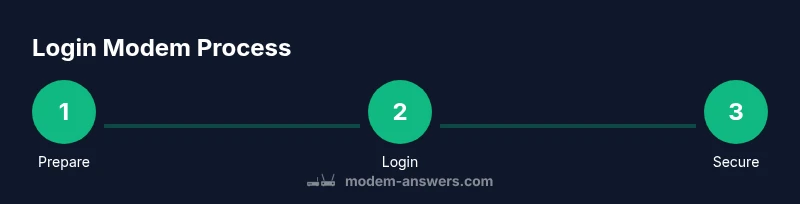
Log in to your modem’s admin page to view status, update credentials, and secure your home network. In this quick guide you’ll verify you can reach the login page, sign in with the correct credentials, and make essential security changes. According to Modem Answers, using a wired connection during login reduces errors, and changing default passwords is a best practice for 2026.
Understanding Why You Need to Log In to Your Modem
Your modem’s admin interface is the control center of your home network. When you log in, you can check connection status, view the devices on your network, and apply important security and performance settings. Regular access helps you verify that your network is healthy and that firmware updates have been installed. It also gives you visibility into data usage, connected devices, and potential security alerts. According to Modem Answers, regular access to the admin page helps you spot unusual activity early and prevents misconfigurations that could impact speed or privacy. The login modem step is not optional for anyone who wants reliable, secure internet in a shared home environment. In most setups, you’ll access the page through a web browser on any computer, tablet, or smartphone connected to your home network.
Before you begin, understand that the exact interface and options vary by brand and model. Some modems combine functionality with a separate router; others are standalone units. The goal of this section is to help you approach the login process calmly, know what to expect once you’re in, and set a foundation for ongoing maintenance and security.
Preparing: What You Need Before You Start
Before attempting to login to your modem, assemble the essentials and confirm basic information. You’ll save time and reduce frustration during the process. Start with a dedicated device: a computer, tablet, or phone connected to your home network. If possible, use a wired Ethernet connection for the login step to ensure a stable link and reduce dropped requests, which can happen over crowded wireless networks. Locate the modem’s label for the default login URL or IP address and the default credentials if you haven’t changed them yet. Have a pen and paper or a password manager ready to record new credentials. If your model supports it, you may also want to note the current firmware version and the network SSID. Finally, allocate a quiet window of 15–20 minutes, since some routers require a quick reboot after credential changes and firmware updates. This preparation phase makes the rest of the process smooth and repeatable for future maintenance.
Tip: If you’re unsure about the exact IP address, check the quick-start guide that came with your device or visit the manufacturer’s support page. In many cases, the default address appears on the modem label itself. Remember to perform this step in a distraction-free environment to avoid accidentally changing the wrong settings.
Step-by-Step: Accessing the Modem Admin Page (Home Network)
In this section we outline the typical flow users follow to log in. The exact wording of tabs and labels will vary by brand, but the sequence is the same for most devices. Start by connecting your device to the modem via Wi‑Fi or Ethernet. Open a web browser and type the modem’s IP address or URL into the address bar. You will be prompted to enter a username and password. If you have never changed them, use the default credentials printed on the device label or in the user guide. After signing in, you’ll land on the admin dashboard where you can review status, monitor connected devices, and access security settings. For first-time logins, Modem Answers recommends changing the default password immediately and reviewing the security settings to disable remote management if not needed. Finally, log out when you’re finished and test a quick reconnect to confirm your changes took effect.
Note: Some ISPs provide a combined gateway that includes its own login screen or a captive portal. In those cases, you may need to access the gateway settings through a browser with a direct URL provided by your ISP and then navigate to the modem section from there.
Common Login Problems and How to Fix Them
Many users encounter hiccups during the login process. A nonresponsive admin page can stem from using a weak connection, an incorrect IP address, or outdated browser settings. If you can’t reach the login page, try rebooting the modem and the router, and confirm all cables are firmly connected. If you receive a “invalid credentials” error, double-check the username and password you’re using. If you’ve never changed the default password, assume it’s the factory default and update it once you gain access. Some modems restrict admin access when in bridge mode or when the ISP’s gateway is in control. In those cases, you’ll need to log in through the ISP’s interface or return to standard router mode. If you suspect a firmware issue, check for updates from the admin panel or the manufacturer’s support site. If problems persist, a factory reset may be the last resort, but this will erase custom settings and should be done with care. Finally, ensure that you’re not trying to login from a blocked device or a network segment with strict firewall rules.
Tip: Use a wired connection when possible to avoid wireless interference that can block your login attempts. If you must use Wi‑Fi, temporarily disable guest networks to reduce potential conflicts.
Securing Your Modem: Changing Default Credentials
Security is the main reason many users login modems: to replace factory credentials and protect their network. The first security step after login is to change the default username and password to something strong and unique. A long passphrase with mixed case, numbers, and symbols is preferable to a simple password. Do not reuse passwords across devices or services. After updating credentials, save your changes and log out. Then test login with the new credentials to confirm the change took effect. Consider enabling two-factor authentication if your modem supports it, and review which devices have administration rights. If your modem supports remote management, disable it unless you specifically need it. These actions help minimize exposure to attackers scanning for default credentials.
In addition to password changes, review the admin dashboard’s access controls. If the device allows multiple admin profiles, assign the minimum required permissions to each user. This reduces the risk of accidental misconfiguration. Finally, keep a record of the new credentials in a secure password manager. Losing them can lead to a longer recovery process that interrupts network access for other devices.
Navigating Key Settings: Wi‑Fi, IP, and Firmware
Once you’re inside the modem’s admin area, you’ll encounter a set of core settings that affect how your network behaves. Start with the Wi‑Fi section: configure your network name (SSID) and strong Wi‑Fi password. If your modem supports dual-band (2.4 GHz and 5 GHz), consider separating the networks and setting distinct passwords to manage congestion and compatibility. In the IP or LAN settings, you can adjust the local IP address range and DHCP behavior; default options typically work for home networks, but you may want to reserve static IPs for important devices. The firmware tab shows whether you’re on the latest version; enable automatic updates if available, or periodically check the manufacturer’s site for new releases. Firmware updates can improve security and performance, but they may cause brief downtime. If you’re in a shared environment, coordinate updates during off-peak hours. As you adjust settings, document changes so you can revert if needed. Finally, review any parental controls or guest network features to tailor access for visitors.
In Modem Answers’ experience, keeping firmware current is often overlooked but crucial for security, performance, and compatibility with newer devices. A well-structured Wi‑Fi configuration also helps reduce interference and improve overall home coverage.
Troubleshooting Tips for Different Internet Setups
Home networks vary widely: some users rely on a standalone modem, others use a gateway with built-in router, and some run a separate router behind the modem. If you have both devices, log in to the gateway first, then ensure bridging is configured correctly if you intend to use an external router. If you’re in a complex setup, recording the exact order and purpose of each device helps you quickly diagnose login or connectivity issues. If your ISP provided a coaxial or fiber modem, verify whether the gateway is a pure modem or a gateway/router. Some providers lock certain settings, which can affect login attempts. In such cases, follow the manufacturer’s guidance to access the device, and use the ISP’s support resources for steps that may differ from consumer-grade equipment.
Tip: If you suspect a compatibility or performance problem after a login, disable nonessential features temporarily (e.g., QoS, port forwarding) to identify possible conflicts. Document changes and revert gradually to find the optimal configuration.
Best Practices for Ongoing Modem Health and Maintenance
A healthy modem requires a routine. Schedule periodic checks of the admin page to confirm firmware is current, passwords are strong, and settings align with your network goals. Keep an inventory of devices that authenticate to the network and review the guest network policies. Regularly monitor connected device lists to identify unauthorized clients and remove them. If your modem supports automatic reboots or health checks, enable them to preserve performance and uptime. Finally, keep a backup of your current configuration so you can restore quickly after a failed update or reset. Following these practices helps you maintain a stable, secure home network and reduces the likelihood of login-related outages over time.
Tools & Materials
- Device with a web browser(A computer, tablet, or smartphone connected to the modem’s network)
- Access credentials(Default credentials (if not yet changed) found on the modem label or manual)
- Ethernet cable (optional)(For a more stable login session during first setup)
- Password manager or note-taking method(Store new credentials securely after changing them)
- Network diagram or adjacency plan (optional)( Helps in larger homes to map devices and access points)
Steps
Estimated time: 15-25 minutes
- 1
Connect Your Device
Ensure your device is joined to the same network as the modem. Use a wired connection if possible to maximize stability during login and avoid wireless interference that could interrupt the browser request.
Tip: Prefer a direct Ethernet link when performing login changes; it minimizes dropped requests and improves reliability. - 2
Open the Admin Page
In a browser, enter the modem’s IP address or URL shown on the device label or manual. Press Enter to reach the login prompt. If you don’t see a prompt, retry with a wired connection or verify you’re using the correct address.
Tip: If the address doesn’t load, try common defaults like 192.168.0.1 or 192.168.1.1, then check the label for the exact value. - 3
Sign In with Credentials
Enter the username and password. If this is your first login or you’ve never changed them, use the factory defaults from the label. If you’ve misplaced credentials, use the recovery options provided by the manufacturer.
Tip: Do not reuse passwords from other services; use a unique, strong password for the modem admin account. - 4
Change Default Password
Immediately update the default login credentials to a strong password. Save the changes and log out to confirm the new credentials work.
Tip: Record the new credentials securely in a password manager; never store them in plain text on the device. - 5
Review Security Settings
Disable remote management if not required, inspect firewall rules, and enable basic protections like a firewall and WPA3 if available.
Tip: Limit admin access to trusted devices or a secure network segment to reduce exposure. - 6
Test and Document
Log back in with the new credentials and take notes on the changes you made, including the firmware version and any new settings.
Tip: Create a quick one-page reference with the login URL, credentials, and changed options for future sessions.
FAQ
How do I find my modem's IP address for login?
Most modems use a default gateway IP such as 192.168.0.1 or 192.168.1.1. Look for the address printed on the device label or consult the manual. If the address is unknown, you can try scanning your network from a connected device using your router’s admin tools, or contact your ISP.
Most modems use a default gateway like 192.168.0.1 or 192.168.1.1. Check the device label or manual, and if needed, use your device’s network tools to identify the gateway.
I forgot my modem admin password—what now?
Use the manufacturer’s recovery options or reset the modem to factory settings as a last resort. Remember, a reset wipes custom settings. After regaining access, immediately set a strong new password and update security options.
If you forget the admin password, try recovery options first; a factory reset should be a last resort because it erases settings.
Can I login to my modem from a mobile device?
Yes. You can log in from a smartphone or tablet as long as it’s connected to the network. Use a browser to enter the admin IP or URL, then enter credentials. For best results, use a stable connection.
Yes, you can log in from a mobile device if it’s on the same network. Use your browser and the modem’s IP address or URL.
What if I can’t access the admin page after a firmware update?
Some updates reset certain settings or require re-login. Restart the modem and try again. If access remains blocked, check whether the update changed the login URL or required new credentials.
If login stops after an update, restart the device and retry login. Sometimes updates require new credentials.
Is it safe to enable remote management?
Remote management can be convenient but increases exposure to external threats. If not needed, keep it disabled and restrict admin access to a trusted local network. If you enable it, use strong authentication and monitor access logs.
Remote management is optional and increases risk. If you don’t need it, leave it off and keep strong credentials.
Watch Video
Key Takeaways
- Log in regularly to monitor network health and security.
- Use a wired connection for login tasks when possible.
- Change default credentials immediately and securely store them.
- Review firmware and security settings after every login.
- Document changes for easier future maintenance.