Login to Spectrum Modem: A Step-by-Step Tutorial
Learn how to login to Spectrum modem, access the admin interface, and adjust essential settings for a secure home network. This step-by-step guide covers IPs, credentials, safety tips, and common troubleshooting steps to help homeowners and renters.


Goal: you will login to Spectrum modem to access the admin interface, review your network status, and adjust basic settings like Wi‑Fi name and password. Before you begin, confirm your device is connected to the modem (via Wi‑Fi or Ethernet) and have the default or your admin credentials ready. If you run into issues, create a backup of current settings.
Why login to Spectrum modem matters
Accessing the modem's admin interface is a foundational skill for managing your home network. By logging in, you can rename your Wi‑Fi network, create a strong password, enable guest networks, check connected devices, and update firmware if available. According to Modem Answers, securing your gateway early reduces exposure to unauthorized access and helps you recover quickly if problems arise. The act of login to spectrum modem opens the door to practical controls you can audit regularly, from device lighting to firewall settings, without relying on the ISP's web portal alone. In this guide, you’ll learn what you can safely configure after you successfully complete the login to spectrum modem and how to keep your network protected.
What you need before you begin
Before attempting the login to spectrum modem, gather a few basics to avoid interruptions. Ensure your computer, phone, or tablet is connected to the modem either over Wi‑Fi or with a stable Ethernet cable. Locate the correct IP address for the admin page (commonly a 192.168.x.x address) on the device label or manual. Have the admin username and password ready: many devices use default credentials printed on the bottom or back of the unit, or the ones you previously set. If you can't locate credentials, check your Spectrum account or contact support. If you encounter issues, keep a backup of current settings so you can revert if needed.
Locating the modem's IP address and login credentials
The first step to access your modem is finding the right local IP address. Most Spectrum modems place the admin page at 192.168.0.1 or 192.168.1.1, but some devices use different schemes. If you cannot reach those addresses, use the network settings on your device to identify the gateway address. Keep your credentials handy; if you changed them in the past, use the new ones. If you forgot them, you may need to reset the modem to factory settings, noting that this will erase custom configurations. Remember, you should perform these actions on a trusted device to avoid credential exposure.
Accessing the admin interface securely and logging in
Open a web browser and type the IP address into the address bar, then press Enter. You should see the login prompt. Enter your admin username and password; if you are using a fresh device, use the default credentials found on the device label. Some Spectrum devices also support login through a secure HTTPS connection; prefer HTTPS if the option is available. After logging in, you should land on the dashboard, where you can review current network settings and connected devices, enabling you to tailor your setup for comfort and security.
Tip: If you notice mixed results across browsers, try another browser or clear the cache so the login page loads cleanly.
Common login issues and fixes
If the page doesn’t load, verify your device is connected to the modem and that you typed the correct IP address. Clear your browser cache or try a different browser. If you can’t log in due to incorrect credentials, check the label or Spectrum account; if necessary, reset to factory defaults with caution. A factory reset will erase custom configurations, including Wi‑Fi names, passwords, and port forwarding. If you still can’t access the interface, contact Spectrum support for guidance. By staying patient and methodical, you’ll usually identify a simple connectivity or credential problem rather than a larger device fault.
What to change after logging in and securing your network
After you gain access, consider changing the Wi‑Fi network name (SSID) and the password to a strong, unique passphrase. Update the admin password to something memorable but secure, enable WPA3 (if available), and set up a separate guest network for visitors. Remember to save changes and reboot the modem if required. Keep a record of settings in a secure location and consider enabling automatic firmware updates. These steps reduce risk and improve day-to-day performance for households of all sizes.
Security best practices after login to spectrum modem
Regularly review connected devices and remove any you don’t recognize. Use a strong, unique password for both the admin interface and your Wi‑Fi network, and enable firewall features offered by your modem. If the device supports remote management, disable it unless you need remote access. Keep firmware up to date, as updates often include security and stability improvements. The Modem Answers team recommends crafting a short, repeatable routine to check essentials like device list, guest network status, and backup options at least quarterly.
Tools & Materials
- Web browser on a connected device(Chrome, Firefox, Edge, or Safari are fine)
- Stable internet connection to the modem(Wired Ethernet is preferred for accuracy)
- Modem admin credentials(Printed on the device label or saved from a prior setup)
- Notepad or password manager(For recording credentials and changes securely)
- ISP quick-start guide(Optional if you want model-specific steps)
Steps
Estimated time: 15-25 minutes
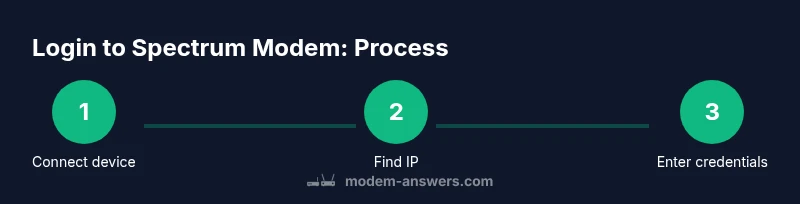
- 1
Connect your device to the modem
Ensure your computer, phone, or tablet is connected to the Spectrum modem via Ethernet or Wi‑Fi. A stable connection reduces the chance of interruptions during login. If possible, use a wired Ethernet connection for the most reliable results.
Tip: Wired connections minimize hiccups when loading the admin page. - 2
Find the modem's local IP address
Check the device label for the gateway IP (commonly 192.168.0.1 or 192.168.1.1). If the label is unclear, you can view the gateway IP from your device's network settings. Make a note of the address you will use to access the admin interface.
Tip: If you can’t locate the IP, use Spectrum’s app or your device’s network diagnostic tools. - 3
Open the admin login page
Open a web browser and type the IP address into the address bar, then press Enter. A login prompt should appear. If you see a certificate warning, proceed only if you trust the network and device.
Tip: Use HTTPS if the device supports it to encrypt the login traffic. - 4
Enter credentials
Enter the admin username and password. If you’ve never changed them, use the defaults on the label or user guide. If you’ve forgotten them, follow the reset procedure described by Spectrum, understanding it will erase custom settings.
Tip: Never reuse old credentials across multiple devices or accounts. - 5
Review and adjust settings
After you’re logged in, review essential settings: Wi‑Fi name (SSID), Wi‑Fi password, security mode (prefer WPA3), and guest network if needed. Document any changes you make for future reference.
Tip: Take screenshots of the current configuration before making changes. - 6
Apply changes and reboot if needed
Save your changes and reboot the modem if the interface requires it. Allow 2–5 minutes for the device to reboot and come back online before testing connectivity.
Tip: Test all devices after reboot to confirm the new settings take effect.
FAQ
What should I do if I can't locate the admin IP address for my Spectrum modem?
Check the device label for the gateway address and review your device’s network settings. If the address isn’t on the label, use the Spectrum app or your device’s network diagnostic tools to identify the gateway. If you still can’t locate it, contact Spectrum support for guidance.
If you can't find the admin IP, check the device label and your network settings, or contact Spectrum support for help.
I forgot the admin password. How can I regain access?
If you’ve never changed the credential, check the default on the device label. If you changed it and forgot it, use the official reset procedure from Spectrum, knowing this will erase custom settings. After resetting, you’ll need to reconfigure your Wi‑Fi and other preferences.
Forgot the admin password? Use the factory reset if needed, then reconfigure from scratch.
Is it safe to login to my Spectrum modem from a public Wi‑Fi network?
Logging into a home modem interface over public Wi‑Fi is not recommended. If you must, use a VPN and ensure you’re connecting to the correct local IP address, not a third-party network or captive portal. Always prioritize a trusted connection for admin tasks.
Avoid logging into your modem over public Wi‑Fi; use a trusted network or VPN if necessary.
Can I use my Spectrum account password to access the modem admin interface?
Typically, admin credentials are separate from your Spectrum account password. Some systems permit syncing, but it’s safer to keep a distinct admin password for the modem and a separate password for your Spectrum account.
The admin password is usually separate from your Spectrum account password.
How often should I check for firmware updates on the modem?
Check for firmware updates at least quarterly, or enable automatic updates if your device supports it. Firmware updates often include security improvements and performance fixes, so staying current is a good practice.
Update firmware quarterly or enable automatic updates if available.
Watch Video
Key Takeaways
- Login to Spectrum modem enables essential network controls.
- Know your device’s IP address and credentials before starting.
- Change default passwords and enable strong security settings.
- Backup settings and record changes for quick recovery.
- Regularly review connected devices and firmware updates.