Setting Up Spectrum Modem: A Complete Setup Guide
Learn how to set up your Spectrum modem with a clear, step-by-step process. Activation, Wi‑Fi configuration, security, and troubleshooting tips for a fast, reliable home network.


Goal: You’ll set up your Spectrum modem for a reliable home network. By following these steps, you’ll wire, activate, and secure your modem, then configure Wi-Fi and essential settings. You’ll need the modem, a coaxial cable, a power adapter, an active Spectrum account, and a computer or smartphone for setup.
Why setting up spectrum modem correctly matters
Setting up spectrum modem properly is the foundation of a stable home network. When you complete a full, correct setup, you reduce the risk of intermittent outages, weak Wi-Fi, or slow speeds. According to Modem Answers, a deliberate, step-by-step approach minimizes common misconfigurations and helps you distinguish between local wiring issues and service problems. A well-configured modem also improves security by enabling essential protections and by ensuring you’re running current firmware. For homeowners and renters, starting with a solid setup reduces frustration and saves time, especially when you’re juggling multiple devices and smart-home accessories. In short, a careful initial setup pays dividends in reliability, speed, and peace of mind across your connected household.
What to expect as you work through setting up spectrum modem
As you proceed, you’ll address physical connections, activation with Spectrum, basic Wi‑Fi configuration, and essential security tweaks. The process is straightforward but benefits from being methodical rather than rushed. Expect to spend about 40 to 60 minutes for a complete setup, including verification on multiple devices. If you’re new to home networking, this is a great learning experience that translates into fewer issues later. Remember: don’t skip activation steps or firmware prompts, as these are critical for a stable service and optimal performance.
Understanding the modem’s place in your home network
Your Spectrum modem acts as the bridge between the coaxial line from your provider and your local home network. In most homes, it handles both modem duties and Wi‑Fi broadcasting, though many people opt to use a separate router for advanced features. Clear knowledge of what the modem does helps you decide when to enable or disable certain features, such as Wi‑Fi, guest networks, or bridge mode. A solid understanding also helps you troubleshoot more quickly if something isn’t working as expected. Modem Answers emphasizes knowing whether you’re primarily using an integrated gateway or a separate router in your setup, since that choice drives your configuration steps.
Step-by-step: physical setup and initial boot
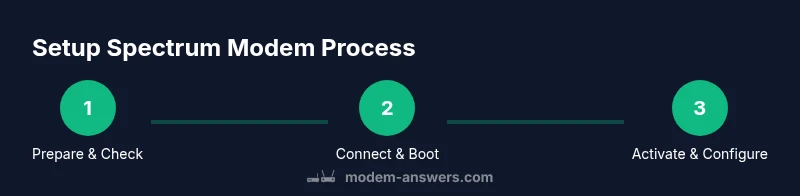
Begin with the physical connections before powering anything on. Attach the coaxial cable securely to the modem’s coax port and connect the power adapter. Make sure the power outlet is live and not controlled by a wall switch. After plugging in, give the device time to boot and initialize—this typically takes a few minutes. Once the status lights begin to stabilize, you’re ready to move on to activation and configuration steps. If lights won’t come on, recheck the power connection and outlet, as this often resolves the issue quickly.
Activation and provisioning with Spectrum
Activation is the bridge between your hardware and your service. Either visit Spectrum’s activation portal on a computer, use your mobile device, or call support if your device doesn’t automatically recognize the network. You’ll typically need your account details, the modem’s serial number, and the MAC address if prompted. Activation validates your service against your account and often starts a calibration period where speeds stabilize. If activation stalls, consult Spectrum’s outage and service status pages to rule out provider-side issues before proceeding with advanced troubleshooting.
Configuring Wi‑Fi: name, password, and security
Configure a unique SSID (network name) and a strong password. For security, choose WPA3 when available, or WPA2 at minimum, and disable WPS to prevent unauthorized access. Create separate networks for guests if you have visitors or IoT devices that don’t require full access to your primary network. If you plan to use your own router, enable bridge mode on the Spectrum modem to avoid double NAT and ensure smooth routing between devices. Writing down your credentials or storing them in a password manager helps you recover access quickly if you forget.
Performance tuning: placement, channels, and interference
Physical placement matters for coverage and speed. Place the modem in a central, elevated location away from walls or metal objects and large devices that can leak interference. If your router supports dual-band operation, connect high-demand devices to the 5 GHz network for faster throughput, while using 2.4 GHz for longer-range devices. Check channel settings if you experience interference from neighboring networks; auto-channel selection is often sufficient, but manual optimization can yield improvements in crowded environments. Regularly reboot during troubleshooting or after firmware updates to ensure optimal performance.
Troubleshooting common issues and quick fixes
If you experience slow speeds or dropouts, first verify the physical connections and check that Spectrum isn’t reporting an outage in your area. Run speed tests on multiple devices to confirm consistency. If a single device has issues, forget and rejoin the Wi-Fi network on that device or refresh the DHCP lease. For persistent problems, compare the modem’s firmware version with Spectrum’s recommended version and update if prompted. When in doubt, power cycling the modem and router can resolve many temporary faults without professional support.
Security and privacy basics you should enable
Security should be a core part of your modem setup. Enable automatic firmware updates, enable firewall protections, and disable remote management if you’re not using it. Create a strong, unique Wi‑Fi password and consider using a guest network for visitors. Regularly reviewing connected devices helps you spot unfamiliar access attempts. If you use a separate router, ensure it inherits security best practices, including automatic updates and strong admin passwords.
Ongoing maintenance: monitoring, backups, and routine checks
Maintenance is ongoing: monitor device lights, check for firmware updates, and re-run speed tests periodically to ensure performance remains steady. Keep notes of any changes you make, especially if you switch to a different router or reconfigure security settings. Periodically verify that your SSID and password remain secure and update them if you suspect a compromise. A well-maintained setup reduces the likelihood of future issues and keeps your network performing at peak levels.
Tools & Materials
- Spectrum modem(Ensure it’s the model approved for your service; older models may require firmware updates.)
- Coaxial cable(RG-6 preferred; 75-90 cm length is usually sufficient.)
- Power adapter(Use the original or an equivalent-rated adapter; check voltage and amperage.)
- Ethernet cable(Cat5e or better for future-proofing wired devices.)
- Computer or smartphone(Used for activation and admin interface access.)
- Notepad or password manager(Helpful for recording credentials and network details.)
Steps
Estimated time: 40-60 minutes
- 1
Inspect and prepare equipment
Unbox the modem and confirm all listed items are present. Inspect cables for any nicks or damage. Clean surfaces where you’ll place the device to prevent overheating. This initial check reduces surprises during activation.
Tip: Lay out items on a non-slip mat to prevent accidental tugs on cables. - 2
Attach the coaxial cable
Screw the coax cable onto the modem’s coax port with gentle, even pressure. Avoid over-tightening, which can damage the connector. Ensure a snug connection to prevent signal loss.
Tip: If you hear a faint crackling sound, check the connector and reseat the cable. - 3
Connect the power and power on
Plug the power adapter into a live outlet and into the modem. Wait for the device to boot; indicator lights should start up and stabilize. If nothing lights, try a different outlet before proceeding.
Tip: Don’t unplug during boot; interrupting power can delay activation. - 4
Prepare the admin access point
On your computer or smartphone, ensure you can connect to no network or the temporary network if the gateway emits one. This lets you reach the modem’s admin interface for activation and settings.
Tip: Have the default Wi‑Fi credentials ready if you’re unsure of the current network name. - 5
Activate the service
Open the activation portal or call Spectrum if required. Provide the modem’s serial number and MAC address if asked. Confirm your service tier and confirm activation prompts as directed.
Tip: If activation stalls, check Spectrum’s service status page for outages. - 6
Configure the Wi‑Fi settings
Set a unique SSID and a strong password. Choose WPA2 or WPA3 security if available. If using a separate router, consider bridge mode and disable gateway Wi‑Fi to avoid conflicts.
Tip: Use a password manager to generate and store a strong, unique password. - 7
Test wired and wireless connectivity
Connect a device via Ethernet to verify stable LAN connectivity, then test Wi‑Fi on multiple devices across rooms. Note speeds and any inconsistencies for later troubleshooting.
Tip: Run a baseline speed test and annotate the results for future comparison. - 8
Update firmware if prompted
If the modem prompts for a firmware update, allow the update to complete. Do not power off the device during an update.
Tip: Keep a backup plan in case the update requires another reboot. - 9
Implement basic security practices
Rename the network and change the admin password. Disable remote management if not needed and enable automatic firmware updates where possible.
Tip: Document changes to admin credentials in a secure location. - 10
Finalize the setup and monitor
Create notes on your network layout, favorite devices, and any changes made. Schedule periodic checks and keep firmware up to date.
Tip: Schedule a quarterly review of your home network settings.
FAQ
Do I need to activate the Spectrum modem?
Yes. Activation links the modem to your Spectrum account and begins service provisioning. This can be done via an online portal or by calling Spectrum, depending on your device.
Yes. Activation ties the modem to your account and starts service provisioning. You can activate online or by phone.
Can I use my own router with Spectrum modem?
Yes, many customers use their own router. If you do, you may enable bridge mode on the Spectrum gateway to avoid double NAT and ensure smoother routing.
Yes, you can use your own router. Check if you should enable bridge mode to prevent double NAT.
Why is there no internet after setup?
Check the coax and power connections first, then verify activation status with Spectrum. If the provider reports an outage, the issue is external.
First check cables and activation. If Spectrum reports an outage, you may need to wait for service restoration.
How long does activation take?
Activation can take from a few minutes to longer if the system needs to provision. If delays occur, try reloading the activation page or calling support.
Activation usually takes a few minutes; if delayed, retry the portal or contact support.
What should I do if modem lights aren’t stable?
Power cycle the modem, check cables, and verify firmware prompts. If instability persists, consult Spectrum support for diagnostics.
Power cycle and check connections. If it keeps blinking, contact support for help.
Should I change the default admin password?
Yes. Changing the default admin password improves security. Use a strong, unique password and, if possible, store it securely.
Yes—change the default admin password to improve security.
Watch Video
Key Takeaways
- Prepare equipment before starting
- Complete activation to enable service
- Choose strong, unique Wi‑Fi credentials
- Optimize placement for coverage
- Regularly update firmware and review security