How to Get Telstra Modem Out of Backup Mode
Learn practical steps to exit backup mode on a Telstra modem, verify the primary connection, and restore normal internet service. Clear, safe guidance for homeowners and renters.


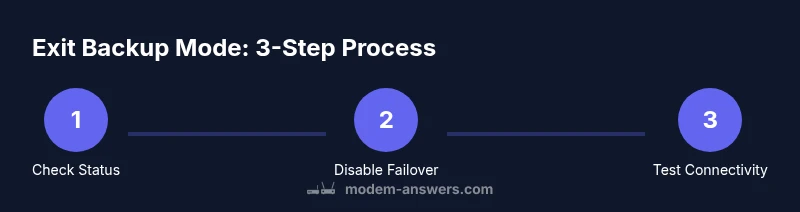
According to Modem Answers, to get a Telstra modem out of backup mode you start with a status check, then disable failover in the admin page and reboot. If the primary connection remains inactive, verify service status with Telstra and perform a controlled reset or factory reset only as a last resort.
Understanding backup mode on Telstra modems
Backup mode on a Telstra modem is a protective setting that keeps your internet connection alive by switching to an alternate path (such as a mobile network) when the primary fixed line is down or unstable. In practice, it means your router will favor the backup gateway over the primary WAN until the issue is resolved. If you're looking to restore the normal primary connection, understand the signs and the constraints. How to get telstra modem out of backup mode is a common question, and this guide walks through safe steps. The goal is to reestablish the primary connection without risking data loss or unintended downtime. Keep in mind that the exact steps can vary by model and firmware, so adapt the guidance to your device.
By following a methodical approach, you reduce the risk of accidental downtime and ensure your home network remains reliable. This section sets the stage for practical, model-agnostic steps that work across many Telstra modems.
According to Modem Answers, the first move is to confirm the current status and function of your WAN connections before making changes. This helps you avoid unnecessary resets and clarifies whether you’re dealing with a temporary outage or a configuration issue.
Common causes that keep a Telstra modem in backup mode
Several factors can cause a Telstra modem to stay in backup mode, including an unresolved line fault, active failover settings, or a misconfigured WAN interface. Some users see the modem automatically switch to backup mode after a firmware update, or when the primary ISP path is temporarily unavailable but not fully down. Environmental factors like a power interruption during an update can also trigger the feature. By understanding these causes, you can target the right area during troubleshooting and reduce the chance of recurring trips into backup mode.
Many times, the issue is not a fault in the device itself but a missed step in reconfiguring the primary WAN after a temporary outage. Being systematic helps you distinguish between a true outage and a stuck setting.
If you’re asking how to get telstra modem out of backup mode, this section highlights the common culprits so you can focus your efforts where it matters most.
Preparing to exit backup mode: prerequisites and safety
Before you begin, gather your login credentials for the modem’s admin interface, a computer or smartphone with a browser, and a stable power source. Note the device’s IP address, usually printed on the bottom or in the manual, and be prepared to re-enter Wi‑Fi settings if needed. If you rely on a backup service, arrange a temporary alternative like a mobile hotspot so you don’t lose service during the process. Finally, save any custom configurations you value so you can reapply if a reset is required.
Check that you have a quiet window to perform changes—unplanned interruptions can corrupt settings or require another reboot. This preparation reduces risk and speeds up the exit process.
If the modem is still showing backup indicators after a full reboot, you may be dealing with a service-side issue; in that case, having Telstra’s status page handy is helpful.
Exit strategy: steps to take and checks you’ll perform
This section outlines a non-destructive approach to leave backup mode. Start by logging into the modem’s admin page, then locate the optional settings for backup/failover and disable them. Apply the changes and reboot the device. After reboot, test the primary connection by visiting a website or running a speed test and pinging a reliable DNS (for example 8.8.8.8). If the connection does not return to primary, recheck the WAN settings or consider a factory reset as a last resort. After exiting backup mode, monitor stability for at least 24 hours to confirm the main link remains active. If issues persist, contact Telstra support for guidance.
A methodical reboot often resolves lingering backup-mode states. If you see persistent indicators, it’s time to verify the service status with your provider and ensure your firmware is up to date.
Data-backed considerations and model differences
Modem Answers analysis shows that many users resolve backup-mode issues by explicitly turning off the failover option and performing a controlled reboot rather than a full factory reset. However, some Telstra models require an additional step, such as reconfiguring the primary WAN or updating DNS settings. Always consult the user manual for your specific model and firmware level, as menu labels and locations can vary. The guidance provided here is designed to be model-agnostic, but adjust based on your device’s interface and any prompts you see during the process, especially after firmware changes.
Verdict
The Modem Answers team recommends following a cautious, repeatable exit plan rather than jumping to a factory reset. Disable failover in the admin interface, reboot, and test the primary path before resorting to more drastic measures. If problems persist, verify service status with your provider and consider professional assistance to avoid unnecessary downtime. This approach minimizes risk while restoring normal internet service.
Tools & Materials
- Computer or smartphone with a web browser(Used to access the modem’s admin interface)
- Telstra modem power cable(Ensure power supply is stable during the process)
- Ethernet cable(Optional but recommended for stable admin access)
- Admin login credentials(Username and password for the modem admin page)
- Mobile hotspot or alternative internet (optional)(Backup connectivity if you lose service during steps)
- Notebook or digital notes(Record settings before changes)
Steps
Estimated time: 30-45 minutes
- 1
Log in to the modem’s admin interface
Open a browser, enter the gateway IP address shown on the device or in the manual, and log in with your admin credentials. If you can’t recall the password, use the factory-reset method only as a last resort. This step confirms you can access the device settings.
Tip: Have credentials ready and use a wired connection if possible to avoid login interruptions. - 2
Find backup/failover settings
Navigate to the WAN, Internet, or Failover/Backup section. Look for terms like backup mode, failover, or primary/backup WAN. Understanding the labels is crucial because menu names vary by firmware.
Tip: If you’re unsure which option controls backup mode, consult the manual or vendor support pages for your exact model. - 3
Disable backup mode and apply changes
Toggle off the backup/failover option and save or apply the changes. Some interfaces require you to click a Save and then a Reboot to confirm. Do not disconnect power during this step.
Tip: Double-check that the change is saved by re-opening the settings page after saving. - 4
Reboot the modem
Power cycle the device by turning it off, waiting 20–30 seconds, and turning it back on. A clean reboot ensures new settings take effect and resets any stuck states.
Tip: Avoid unplugging during the boot sequence; wait for all lights to stabilize. - 5
Test the primary connection
Run a quick speed test and load several websites to confirm the primary path is active. If you use DNS, try pinging a reliable address like 8.8.8.8 to check responsiveness.
Tip: If pages are slow, recheck WAN configuration and DNS settings. - 6
If issues persist, consider a reset or support
If the modem still remains in backup mode, you can perform a targeted factory reset after exporting your settings. If problems continue, contact Telstra support for guidance to avoid extended downtime.
Tip: Factory reset should be your last resort; note down the current configs before proceeding.
FAQ
What does backup mode mean on a Telstra modem?
Backup mode is a failover measure that automatically uses an alternate connection when the primary line is unavailable. It helps keep you online but may require manual steps to return to the primary path.
Backup mode uses an alternate connection when the main line is down, so you may temporarily lose the primary path while staying online.
How can I tell if my modem is in backup mode?
Check the status LEDs and log into the admin interface to see if a failover or backup WAN is active. The router will often show a secondary connection as the active path.
Look at the lights and the settings page to confirm if backup or failover is active.
Will exiting backup mode affect my data?
Exiting backup mode should not erase data. It may briefly pause internet activity during switch-over and reboot. Always back up important settings before making changes.
No data is deleted when you exit backup mode; there may be a short disconnect while the path switches.
Do I need to reset the modem to exit backup mode?
Usually not; disable failover and reboot. A factory reset is only a last resort if settings won’t save or the device remains stuck in backup mode.
Typically you don’t need a reset; try turning off failover and reboot first.
What should I do if I can’t load the admin page?
Try a wired connection, another browser, or clear cache. If it still won’t load, use a temporary reset method or contact Telstra for guidance.
If the admin page won’t load, check your connection or reset options and contact support if needed.
Watch Video
Key Takeaways
- Know what backup mode means and why it triggers.
- Disable failover before rebooting to resume normal service.
- Verify service status with Telstra if primary path doesn’t come back.
- Monitor the connection for 24 hours after exiting backup mode.