How to Get Out of Modem Mode: A Practical Guide
Learn how to exit modem mode safely with practical steps, troubleshooting tips, and verification checks to restore normal home networking and avoid double NAT.


Exit modem mode by logging into the gateway admin interface, disabling bridge mode, saving changes, and rebooting the device. If your ISP device is in bridge mode, you may need to disable it there or perform a soft reset after applying settings. If you can’t access the interface, try a hard reset and contact your provider for guidance.
Understanding modem mode and why you might be stuck
Modem mode, often called bridge mode, is when your gateway acts as a pure modem and forwards routing responsibilities to a separate router. This setup is common when households want more granular control over their network or when a service plan recommends using a third‑party router. While exiting modem mode can simplify a home network, it also introduces the risk of misconfiguring NAT, Wi‑Fi, or firewall settings if you’re not careful. According to Modem Answers, understanding the distinction between modem mode and router mode helps you decide the best path forward, especially if you notice double NAT or limited features on your own router. Modem Answers analysis shows that many homes simplify their networks after exiting modem mode and re‑enabling a single, properly configured router. The goal of this guide is to walk you through safe exit steps, verify connectivity, and reduce downtime as you return to a conventional home network configuration. By approaching the process methodically, you protect your devices and maintain consistent internet access.
Quick diagnostic checks before exiting modem mode
Before making changes, run a few quick checks to confirm you are actually in modem mode and to anticipate the effects of leaving it. Look at the WAN status in your gateway’s admin UI to see if the device is functioning as a modem only, or if it still performs routing. Check your computer’s IP address: if it starts with 192.168.x.x and you see two routers on the path, you are likely in bridge mode. Observe LED indicators for power, online, and link activity—some devices display a distinct pattern when operating in bridge mode. Note any current Wi‑Fi networks: if the gateway’s wireless network disappears when you log in, you may be in a special bridge state. If you’re comfortable, note the current settings for your wireless, firewall, and port forward rules; you will want a record to restore your configuration if needed. These preliminary checks will guide your exit approach and help you avoid surprises.
Step-by-step: exit through the web admin interface
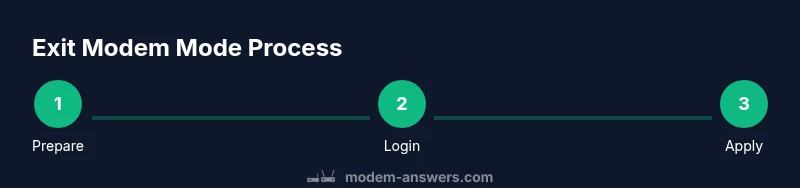
To exit modem mode, you need to regain access to the gateway's admin interface and disable the bridge or modem mode setting. Start by connecting a computer directly via Ethernet to the gateway to ensure a stable connection. Open a browser and enter the common gateway IPs such as 192.168.0.1 or 192.168.1.1; log in with the admin credentials. Navigate to the section labeled Bridge, Modem, or Internet (the exact label varies by model). Turn off the bridge mode or set the router to be the primary NAT device. Save or apply changes, then reboot the gateway. After the reboot, verify that the gateway is routing traffic and issue IP addresses to your devices. Finally, reconnect your primary router if you use one, and confirm your devices obtain a single public IP from your gateway. If your service uses a separate router provided by your ISP, you may need to re‑enable that device as the main router and place the gateway in pass‑through if required by your plan. This approach keeps changes organized and minimizes downtime.
Alternative: exiting using physical reset or factory reset
Some people find it easier to reset the gateway to its default settings and reconfigure from scratch. A soft reset (power cycle or button hold for a short time) preserves your customizations, while a factory reset restores default credentials and initial network settings. If you choose factory reset, plan for reconfiguration of your Wi‑Fi name, password, firewall rules, and port forwards. After the reset, the gateway returns to a known baseline and you can set up your router as the primary device again. Remember to secure the device: change default admin passwords, enable WPA3 or at least WPA2‑Personal, and update firmware if prompted. Keep notes of any changes you make so you can revert if needed. A reset should be your last resort when other exit methods fail or the admin interface is inaccessible.
If you can't access the admin interface: troubleshooting routes
Loss of login access can happen if the device has a stale IP, a changed address, or incorrect credentials. Start by restoring a wired connection and use the device's default login information from the underside label or the provider’s guide. If you still cannot reach the login page, power cycle the gateway, then try again. If the gateway is in a locked state or the browser blocks the page, disable browser extensions that interfere with authentication or use a different browser. In some cases, you may need to temporarily bypass your primary router and connect directly to the gateway using a PC or laptop. If all else fails, contact your ISP for remote access or instructions to reset the device safely. Having the correct credentials is essential to re‑establish control.
When your ISP provides the gateway: bridging considerations
ISPs often supply gateways that can operate in bridge or router mode, and the steps to exit vary by model. Check the manufacturer’s manual or the ISP’s knowledge base for model‑specific steps. If you operate with a separate router, ensure you configure the gateway to pass traffic to your router or disable its routing features entirely. Some providers require you to place the gateway in bridge mode while leaving your own router in charge; others recommend using the provider’s gateway as the main router with a separate access point. Clarify whether you will lose features like guest networks or firewall options in bridge mode, and plan accordingly. In all cases, record the settings you plan to change and back up the configuration before proceeding so you can revert if needed.
Common mistakes and how to avoid them
One common mistake is not saving the new settings after exiting modem mode, which leaves the configuration incomplete and leads to intermittent connectivity. Another is neglecting to reboot the gateway after changes, which means devices still rely on the old network. Users often forget to note their original credentials or restore points in case something goes wrong. Always test connectivity with wired devices before reconnecting Wi‑Fi, and verify that your WAN IP and NAT are behaving as expected. Finally, avoid disabling security features or leaving default passwords in place; this creates vulnerabilities for your home network. If you’re unsure, consult the provider’s support resources or a reputable guide.
Security considerations after exiting modem mode
Once you are out of modem mode and relying on your own router, review your security posture. Update firmware on both gateway and any connected routers, enable strong encryption on Wi‑Fi networks (WPA3 where available), and configure a robust administrator password. Set up a firewall on your router and consider enabling features such as guest networks to segment devices. Regularly monitor connected devices and review port forwarding rules to ensure no unnecessary exposure exists. If you use UPnP, disable it by default unless needed, and keep an eye on security advisories from your ISP and device manufacturers. A thoughtful security setup minimizes risk while you enjoy improved network control.
How to verify you are out of modem mode
After you complete the exit, verify that your network is functioning as a standard home network with a single router performing NAT. Confirm that devices obtain a public IP from your gateway or router, and that you can access the internet consistently via wired and wireless connections. Run a quick test of LAN devices and check if port forwarding rules apply correctly on your primary router. Confirm that wireless networks are visible and protected with a strong password. Modem Answers recommends documenting each change and testing across multiple devices to ensure stability. Modem Answers analysis confirms that a careful, methodical approach reduces post‑exit issues and helps you regain reliable home networking quickly. For further guidance, consult the authoritative sources listed below.
Tools & Materials
- Ethernet cable(Cat6 recommended; use to connect PC directly to gateway for stable login)
- Computer or smartphone(Used to access the gateway admin interface; prefer wired connection for reliability)
- Paper and pen(Document current settings and changes for easy rollback)
- Power adapter(Keep gateway powered during changes; use a stable outlet)
- Backup of current config(Save a screenshot or export config when available)
Steps
Estimated time: 30-60 minutes
- 1
Prepare your environment
Assemble the essential tools, set a stable wired connection, and close other apps that might interrupt login. Having a plan reduces the chance of misconfigurations.
Tip: A wired connection provides the most stable login experience during configuration. - 2
Identify gateway IP and login credentials
Find the gateway IP (commonly 192.168.0.1 or 192.168.1.1) and locate the admin username/password on the device label or user guide. If credentials have been changed, use the last known values or contact your ISP.
Tip: If credentials are unknown, try the default ones listed in the manual or sticker on the device. - 3
Access the admin panel
Open a browser and enter the gateway IP. Log in with admin credentials. If you’re asked to update, proceed with caution and consider backing up settings first.
Tip: Do not share login credentials; treat them as sensitive network information. - 4
Disable bridge/modem mode
Navigate to the Bridge, Internet, or Modem section and switch off bridge mode or enable router mode as the primary NAT device. Save changes and apply.
Tip: If the option is labeled differently, search for terms like 'routing', 'LAN', or 'DHCP server'. - 5
Reboot and verify routing
Reboot the gateway. After it restarts, confirm that devices obtain IPs from a single router and that NAT is functioning normally.
Tip: Test both wired and Wi‑Fi devices to ensure consistency. - 6
Reintroduce your own router (if used)
If you have a separate router, reconnect it and ensure it is configured as the main router with the gateway in appropriate mode or passthrough as required.
Tip: Document any router-specific settings you use, such as DNS or port forwards. - 7
Verify security and connectivity
Check internet access, Wi‑Fi visibility, and security settings (encryption, password strength, firmware updates).
Tip: Update firmware on both devices if prompted.
FAQ
What is modem mode and why would I need to exit it?
Modem mode (often bridge mode) disables the gateway's router function, passing routing duties to an external router. Exiting it restores the gateway's router capabilities and can resolve issues caused by double NAT.
Modem mode disables the gateway's router; exiting it lets your own router handle networking.
Will exiting modem mode affect my Wi‑Fi settings?
Yes. Exiting modem mode typically makes your gateway or your own router handle Wi‑Fi. You may need to reconfigure SSIDs, passwords, and security settings after the change.
You may need to reconfigure your Wi‑Fi name and password after exiting modem mode.
What if I can't access the gateway admin page?
Try a wired connection, verify the IP, and check for default credentials. If necessary, perform a soft reset. If access remains blocked, contact your ISP.
Try a wired login and, if needed, contact your ISP for access help.
Is a factory reset always required to exit modem mode?
No. A factory reset is typically a last resort. Many issues can be resolved by changing the bridge setting and rebooting the gateway.
Factory reset is usually unnecessary and should be a last resort.
How long does it take to complete the exit process?
Most users finish within a session, but exact timing depends on device model and whether you need to coordinate with the ISP.
Most people complete it in a session; timing varies by model.
Where can I find official guidance for my model?
Check the manufacturer’s manual and your ISP's knowledge base for model-specific steps and credentials.
See the manufacturer or ISP manual for model-specific steps.
Watch Video
Key Takeaways
- Exit modem mode using the admin panel.
- Back up settings before changes to simplify rollback.
- Verify NAT and routing after exit to confirm normal operation.
- If issues persist, contact your ISP for guided assistance.