How to Put a Modem in Passthrough Mode
Learn how to safely set a modem to passthrough (bridge) mode so your own router handles the network. This step-by-step guide from Modem Answers covers prerequisites, enabling passthrough, verification, and troubleshooting.


Goal: put your modem in passthrough mode, also called bridge mode, so your own router manages the network. You’ll need admin access to both devices, your ISP credentials if required, and a modem that supports passthrough. This guide provides prerequisites, a clear step-by-step process, common pitfalls, and safety reminders to minimize downtime.
Why Passthrough Mode Matters
When you put a modem in passthrough mode (also called bridge mode), you tell the device to hand off the public IP address to your own router. The modem no longer performs network address translation (NAT) and routing duties. This setup is ideal if you want to use a high-performance router, run complex firewall rules, or use VPNs that don’t work well behind NAT. By letting a dedicated router manage DHCP, port forwarding, and QoS, you can often achieve a cleaner, faster home network. Passthrough mode also helps with troubleshooting when you notice double-NAT issues—where both the modem and your router try to assign private IPs. In practice, most users experience fewer port forwarding problems and more reliable remote access to devices on their network. The Modem Answers team notes that a majority of bridging questions come from users who want to simplify their networks or to replace a provider gateway with a personal setup. If you plan to host a gaming PC, a smart home hub, or a business-class firewall, passthrough mode is a sensible first step.
Prerequisites and Safety Considerations
Before making any changes, gather the essentials: administrator credentials for both your modem and your primary router, and a plan for how you want the network to behave. You’ll need access to the modem’s admin interface to enable passthrough/bridge mode, and you’ll need to connect your own router to the modem via an Ethernet cable to take over WAN duties. If your ISP requires PPPoE or unique authentication, have those settings ready for your router. Back up current configurations on both devices so you can revert if something goes wrong. Be aware that enabling passthrough mode typically disables the modem’s built-in Wi-Fi, DHCP, and NAT, so you’ll rely on the third-party router for wireless coverage. If you do not have a dedicated router, plan to replace the modem’s Wi-Fi immediately after enabling passthrough to avoid downtime. According to Modem Answers, taking careful notes and saving current settings minimizes the risk of getting stuck in a non-working state.
Compatibility and Limitations
Not all modems support passthrough or bridge mode, and some ISPs tightly couple the gateway function with service authentication. Check your device’s manual or the ISP’s support site to confirm whether passthrough is supported and how it’s labeled (often “bridge mode,” “pass-through,” or similar). Even when supported, there can be caveats: some features like VoIP through the modem may fail unless you configure your router to handle the necessary ports and QoS. If you rent a gateway from your internet provider, they may require you to revert to the provided device for outages or support. The performance gains depend on your router’s capabilities, the length of your network, and the quality of your Ethernet cables. Planning for these limitations helps avoid surprises after you flip the switch.
How to Verify Your Equipment Supports Passthrough
Begin by identifying which device will be the gateway. In most homes, the user-owned router becomes the primary gateway, and the provider modem is switched to passthrough. Connect a laptop to the modem via Ethernet and log in to the modem’s admin page using its IP address (often 192.168.0.1 or 192.168.1.1) and the admin credentials. Look for sections labeled “WAN settings,” “IP Passthrough,” “Bridge Mode,” or similar. If present, read any notes about required reboots or service interruptions, and note the exact steps. Before enabling passthrough, disable the modem’s Wi-Fi and DHCP only if you intend to rely entirely on your router for DHCP; otherwise, you might create conflicts. After saving the new setting, restart both devices and verify that your router’s WAN interface obtains a public IP address. If the WAN IP remains private, re-check the bridging configuration and confirm that the correct device is connected to the modem’s LAN port.
Step-by-step Overview
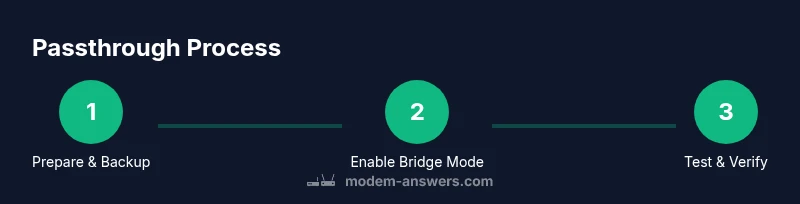
This section provides a concise, high-level plan before you dive into the detailed steps. You will prepare by backing up configurations, ensure you have the right credentials, and plan for a brief network outage. The goal is a clean handoff: the modem becomes a simple modem, and your router handles DHCP, NAT, and Wi‑Fi. After enabling passthrough, you’ll test connectivity on both wired and wireless devices, confirm an external IP on the router, and reconfigure Wi‑Fi on the router. If your setup includes VoIP or other service requirements, you may need to re-route those services through your router. Remember to document all changes so you or a support technician can revert quickly if needed.
Step-by-Step Process (Detailed Action List)
This section provides a thorough, actionable guide with step-by-step actions that align with best practices. Follow these steps in order to minimize downtime and avoid common pitfalls.
Troubleshooting Common Issues
If you encounter issues after enabling passthrough, start by checking connections: confirm the Ethernet cable is firmly seated between the modem and router, and ensure you’re using the correct LAN port. Double-check that DHCP on the modem is disabled and that the router’s WAN is configured to DHCP or PPPoE as required by your ISP. If you don’t see a public IP on the router, re-enter the passthrough/bridge settings and reboot both devices. Some ISPs require you to keep the modem in a specific bridged state or to release a reserved IP; consult the provider’s support page for any provider-specific steps.
Final Checks After Enabling Passthrough
With passthrough active, confirm that devices on your network can access the internet reliably. Check that the router’s WAN IP is public and that essential services (port forwarding, VPNs, remote access) work as expected. Re-enable or reconfigure the modem’s Wi‑Fi only if you plan to use hybrid networking; otherwise, keep it off to avoid interference. Finally, document the new network map: router model, firmware version, bridge mode status, and any ISP-specific notes. This helps with future troubleshooting and upgrades.
Tools & Materials
- Modem login credentials(Username and password from ISP or device label)
- Second router (your own router)(WAN port to modem; ensure DHCP server is enabled on router)
- Ethernet cable(Cat5e/Cat6 recommended; use a wired connection during changes)
- Computer or smartphone for admin access(Browser-based access; stay connected during the changeover)
- Backup of current modem/router settings(Document current Wi‑Fi names/passwords and NAT/DHCP settings)
- ISP auth settings (if required)(PPPoE or a specific VLAN/PPP settings depending on provider)
Steps
Estimated time: 30-60 minutes
- 1
Prepare and back up
Collect admin credentials for both devices and back up current configurations. Note current Wi‑Fi names, passwords, and any port-forward rules you rely on. This gives you a safe rollback path if things don’t work as planned.
Tip: Store backups on a USB drive or cloud note in case you need to restore quickly. - 2
Connect a laptop to the modem
Use a wired Ethernet connection to the modem for stability. Open a web browser and enter the modem’s IP address (commonly 192.168.0.1 or 192.168.1.1). Log in with admin credentials.
Tip: Avoid wireless login to prevent interruptions during settings changes. - 3
Find the passthrough/bridge option
Navigate to sections labeled IP Passthrough, Bridge Mode, or WAN settings. Read any notes about reboots or service interruptions before changing the state.
Tip: If you can’t locate the option, consult the user manual or your ISP’s online support article. - 4
Enable passthrough/bridge mode
Enable the passthrough/bridge setting and apply or save changes. You may need to reboot the modem after saving. Confirm that the modem indicates it is in bridged mode.
Tip: Do not enable both DHCP servers at once; disable DHCP on the modem if your router will manage it. - 5
Connect your router and configure WAN
Plug the router’s WAN/Internet port into the modem’s LAN port. In the router, configure WAN to obtain an IP address via DHCP (or PPPoE if your ISP requires it).
Tip: If PPPoE is required, have the username and password handy before applying settings. - 6
Test basic connectivity
Power cycle both devices and verify that the router shows a public IP address on the WAN interface. Check a wired device for internet access and then test Wi‑Fi on the router.
Tip: Run a simple speed test and ping a reliable server to confirm stability. - 7
Disable modem Wi‑Fi and finalize router setup
If you haven’t already, disable the modem’s Wi‑Fi to prevent interference. Complete your router’s wireless settings: SSID, password, encryption, and guest network if desired.
Tip: Document your router’s SSID and password in a secure place. - 8
Document changes and monitor
Record the change date, device models, firmware versions, and any provider-specific notes. Monitor the network for stability for 24–48 hours and adjust settings as needed.
Tip: Consider enabling automated firmware updates on your router to maintain security and performance.
FAQ
What is passthrough mode and why would I use it?
Passthrough mode (often called bridge mode) disables the modem's NAT so your own router handles IP routing. This setup is ideal when you need advanced features, better performance, or want to avoid double NAT.
Passthrough mode lets your router manage the network by turning off NAT on the modem.
Will passthrough mode disable Wi‑Fi on my modem?
Yes, enabling passthrough typically disables the modem’s built‑in Wi‑Fi. You’ll rely on your router for wireless coverage.
Expect the modem’s Wi‑Fi to be off once you bridge it.
What should I do if the internet stops after enabling passthrough?
Recheck the bridging settings, ensure the router is connected to the correct modem LAN port, and confirm the router’s WAN is configured for the provider's method (DHCP or PPPoE). Reboot both devices after changes.
Check the bridge state and reboot if necessary.
Can I revert passthrough mode later?
Yes. You can disable passthrough on the modem or reset to factory defaults to restore the provider gateway’s NAT and LAN functions. Keep backups to ease reversal.
You can switch it off and restore previous settings.
Do all ISPs support passthrough/bridge mode?
Most ISPs support bridge mode, but some require specific steps or devices. Check with your provider’s documentation or support team.
Check with your provider to confirm bridge compatibility.
Watch Video
Key Takeaways
- Back up current settings before starting
- Your router becomes the primary gateway
- Expect a short Wi‑Fi outage on the modem during the change
- Test internet and services after enabling passthrough