How to Login to Telstra Modem: A Step-by-Step Guide
Learn how to access your Telstra modem’s admin interface quickly. This guide covers common login IPs, credentials, and safe practices to help homeowners manage Wi-Fi, security, and network settings with confidence.


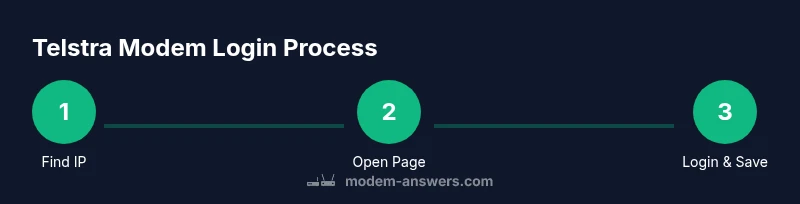
Goal: access your Telstra modem’s admin interface to adjust Wi‑Fi, security, and network settings. Start by connecting a device to the modem’s Wi‑Fi or via a LAN cable, then open a browser and enter the modem’s IP address (typically 192.168.0.1 or 192.168.1.1) or the Telstra portal. If login prompts appear, try the default username and password printed on the label or described in Telstra support.
Understanding Telstra Modems and Login Basics
Telstra modems serve as the gateway between your home network and your internet service. The login page is intended for configuring security, Wi‑Fi names (SSIDs), password changes, port forwarding, parental controls, and firmware updates. For homeowners and renters, knowing how to reach this page helps you troubleshoot connection issues and tailor your network to your household. In many homes the modem also acts as a router, which means the login controls the device that handles both your local network and your external internet connection.
According to Modem Answers, starting with a stable physical connection and using the correct browser will reduce login obstacles. Ensure the device you’re using is connected to the modem’s network, not a guest network, to prevent redirection or access problems. If you can’t access the login page, confirm you’re using the correct IP address and that the modem’s admin interface is enabled by the manufacturer.
Common Login Routes for Telstra Modems
Telstra commonly provides a few routes to reach the admin interface. The most common method is typing an IP address into your browser: 192.168.0.1 or 192.168.1.1. Some Telstra gateways use a dedicated portal URL (such as a local network address or a Telstra support URL) that redirects you to the login screen. If you see a login prompt but can’t proceed, try one of these paths or consult the modem’s label for the exact address. Keep in mind that different models may use different defaults depending on the era of the hardware.
When successful, you’ll land on a login screen asking for credentials. If you’ve never changed them, the default username and password are usually printed on a sticker on the modem’s bottom or back. In many cases the defaults are admin/admin or admin/password, but always verify against the label to avoid guessing.
IP Addresses, Portals, and Credentials: What to Try First
If you don’t see the expected address, you still have options. On a Windows computer, you can check the gateway IP in the network settings, which often reveals the correct login address. On macOS, the Network pane lists the router or gateway, which is typically the modem’s login address. If you’ve changed the login credentials in the past, you’ll need to remember the updated username and password; if you’ve forgotten them, you may need to reset the modem to factory settings.
Security best practices begin with updating the admin password after you log in. Use a unique password that you don’t reuse across sites, and enable WPA3 or the strongest available security protocol for Wi‑Fi. If you’re unsure about a setting, avoid enabling features you don’t understand, such as UPnP or DMZ, unless you have a clear reason.
Security Best Practices After Login
Once you access the admin interface, navigate to the wireless or security sections to update SSIDs and passwords. Prefer long, random passwords and a different SSID for guests. Disable remote management if you don’t need it, and consider scheduling automatic firmware updates if your device supports them. Regularly review connected devices and remove any that aren’t recognized.
Modem Answers emphasizes that taking control of your home network’s security reduces vulnerability to unauthorized access. For households with smart devices, ensure each device uses a strong, unique password and keep an eye on firmware as new vulnerabilities are discovered.
Troubleshooting Common Login Problems
If login attempts fail, double‑check that you’re connected to the correct network and using the right IP address. A common pitfall is trying to log into a router provided by a separate service or a mesh system that doesn’t expose the same admin interface. If the page loads but prompts for credentials that you don’t remember, consult the modem label or contact Telstra support for the default login details or reset procedures.
Modem Answers analysis shows that most login issues stem from using the wrong IP address or forgetting credentials. If the login screen won’t load at all, unplug the modem, wait 30 seconds, and reconnect to refresh the device. If problems persist, a factory reset may be necessary, followed by reconfiguration.
What to Do If You Forgot Your Admin Password
Forgetting the admin password is common. If you have access to the Telstra app or portal, you may be able to reset the password through the account management options. If not, a hardware reset on the modem will restore factory defaults, after which you can re‑enter the default credentials printed on the device. Remember that a reset will erase personalized settings, so plan to reconfigure Wi‑Fi names and passwords afterward.
The Modem Answers team recommends performing resets carefully: back up any important settings and write down new credentials in a safe place. After a reset, disable remote management and apply strong security settings immediately.
Next Steps After You Log In
With access secured, review the basics: update your Wi‑Fi name and password, enable encryption, and configure guest networking if needed. Periodically check for firmware updates and back up your configuration if the modem supports it. If you share your network with guests, consider setting up a separate guest network to isolate IoT devices from your main computers.
A well‑maintained modem login environment reduces risk and improves home network performance. The Modem Answers team suggests scheduling a monthly quick check of connected devices and a quarterly firmware review to stay current.
Tools & Materials
- Device to access the modem(Laptop, smartphone, or tablet powered on and connected to the modem’s Wi‑Fi or a LAN cable.)
- Web browser(Any modern browser (Chrome, Edge, Safari, Firefox) with JavaScript enabled.)
- Modem label with default credentials(Sticker on the device showing default username/password if you haven’t changed them.)
- LAN cable (optional)(Use for a stable connection during login if Wi‑Fi is unreliable.)
- Paper and pen(To record a new admin password after login.)
Steps
Estimated time: 10-20 minutes
- 1
Locate the login IP address
Identify the correct IP address or portal URL to reach the modem’s admin interface. Check the modem’s label for defaults and, if needed, use your computer’s network settings to discover the gateway address. Knowing the right address saves time and avoids repeated failed logins.
Tip: If the label is missing, try common addresses 192.168.0.1 and 192.168.1.1 first. - 2
Connect a device to the modem
Ensure your device is connected to the modem’s network via Wi‑Fi or a LAN cable. Avoid using a separate router’s network during login, as you may end up on a different device’s admin page.
Tip: Prefer a direct LAN connection for stability during login. - 3
Open the login page in a browser
Enter the discovered IP address into the browser’s address bar and press Enter. If there is a redirect, follow the on‑screen prompts to reach the login screen.
Tip: Clear browser cache if you are repeatedly redirected to an unrelated page. - 4
Enter credentials
Type the default username and password from the label, or use any credentials you have previously set. If prompted, confirm you’re logging into the modem, not a separate router.
Tip: If you changed the password before, use the updated credentials you created. - 5
Change the admin password
Once logged in, navigate to the security or administration section and set a new, strong password. This prevents unauthorized access if someone guesses the default credentials.
Tip: Use a passphrase with a mix of letters, numbers, and symbols (passphrase length >12 is good practice). - 6
Review and save settings
Check essential settings such as Wi‑Fi name (SSID), password, and security mode. Save changes and log out when finished to end the session securely.
Tip: Record the new credentials in a safe location. - 7
If login fails, consider reset
If you can’t access the interface after multiple attempts, perform a factory reset as a last resort and reconfigure the modem from scratch.
Tip: A reset erases personalized settings—back up configurations if possible.
FAQ
Do I need to be on Wi‑Fi or Ethernet to log in?
You should be connected to the modem’s network—Wi‑Fi or a wired Ethernet connection will work for logging in. A stable connection helps prevent timeouts during login.
Connect to the modem network either by Wi‑Fi or a wired cable to access the login page without disruptions.
What are the default credentials for Telstra modems?
Default credentials are usually printed on a label on the modem. If you haven’t changed them, try the common pairs shown there, but verify against the label to avoid guessing.
Check the label on the modem for the exact default username and password, then log in accordingly.
What if the IP address doesn’t work?
If the IP address doesn’t load, verify you’re connected to the correct network and try the alternative common address. You can also check your computer’s gateway or the Telstra support page for the exact address for your model.
Double‑check your connection and try the alternate IP address shown on the modem label or Telstra’s support guide.
How do I reset the modem to factory settings?
A factory reset clears all custom settings. Find the reset button (usually recessed) and hold it for about 10–30 seconds, then release and wait for the modem to reboot.
Use the reset button if you’re locked out and have no way to recover the login details.
Can I login through Telstra’s portal instead of IP?
Some Telstra modems offer a web portal alternative. If your device shows a unique login page, follow the on‑screen prompts or the Telstra support guide.
If a portal login appears, follow the screen directions for access, but use the same credentials once logged in.
What security settings should I enable after login?
Enable WPA3 (or the strongest available) for Wi‑Fi, use a strong admin password, disable remote management if not needed, and review connected devices regularly.
After logging in, lock down security with a strong password and up‑to‑date encryption.
Watch Video
Key Takeaways
- Know the common login IPs (e.g., 192.168.0.1/192.168.1.1).
- Use the modem label for default credentials or reset if forgotten.
- Always update the admin password after login.
- Back up important settings before resets if possible.