Modem GUI Login: Step-by-Step Guide to Access and Secure Your Modem
Learn how to access the modem GUI login, sign in securely, and configure essential settings like Wi‑Fi, firmware updates, and security features with a practical, step-by-step guide.


To access your modem GUI login, connect a computer to the modem via Ethernet or Wi-Fi, open a browser, and enter the modem’s IP address. Use the default username and password shown in the manual or sticker, then change credentials for security. This guide walks you through sign-in, troubleshooting, and best-practice security steps.
Why Modem GUI Login Matters
A modem's GUI login is the gateway to configuring and securing your home network. Through the browser-based interface, you can change Wi‑Fi names and passwords, enable or disable firewall features, update firmware, manage connected devices, and control remote access. The Modem Answers team notes that proper login management reduces exposure to cyber threats and helps you recover quickly after outages. For homeowners, taking control of the GUI simplifies troubleshooting, improves stability, and ensures you are not relying on default settings left by the manufacturer. Regularly updating credentials, reviewing connected devices, and customizing security options are essential habits for a healthy home network. By understanding the login, you also learn where sensitive settings live, so you can audit changes and monitor for unauthorized access. This knowledge is especially valuable for renters who share networks or households with multiple devices.
What the Modem GUI Lets You Do
The modem GUI consolidates critical controls in one place. From here you can manage your Wi‑Fi network name (SSID) and password, choose encryption standards (WPA3/WPA2), set up guest networks, configure firewall rules, and enable parental controls. You can also view a list of connected devices, block or limit access, and monitor data usage. Firmware updates often appear in the GUI, along with notices about security improvements. The GUI also provides diagnostic tools, such as a status page that shows modem uptime, signal quality, and current connection type. Understanding these features helps you optimize performance and protect devices connected to your network.
For many users, the GUI is the safest, most direct way to implement security best practices, like disabling universal plug-and-play (UPnP) when not needed and enforcing strong passwords for all admin users. Modem Answers emphasizes that a clear grasp of these settings reduces the chance of misconfiguration and simplifies future changes.
Default Credentials and IP Addresses to Know
Manufacturers often ship modems with default credentials and a default gateway IP address. Common IP addresses include 192.168.0.1 or 192.168.1.1, and the default login info is printed on a sticker on the modem or provided in the manual. This information is a starting point—not a long-term solution—because default credentials are widely known and pose security risks. If the sticker is missing, check the device’s status page on your computer or consult the manufacturer’s support site. Always assume the default credentials are only temporary and plan to replace them as soon as you access the GUI. Modem Answers guidance is to log in promptly, verify you’re connected to the correct device, and prepare to change credentials on first access.
If you’re using a gateway or a combined modem/router, ensure you’re editing the admin login for the device itself rather than the simple Wi‑Fi password. This keeps your network administration separate from your wireless access credentials, reducing the risk of unauthorized changes.
Security caveat: never use the same password across multiple devices or services, and avoid common phrases that attackers could guess.
How to Prepare Before You Login
Before you attempt to log in, gather a few essentials to streamline the process. Have a device handy with a modern browser, and ensure it is connected to the modem’s network either via Ethernet or a stable Wi‑Fi connection. Locate the IP address, which may be the router/gateway URL printed on the modem or found in your device’s network settings. If you can access another admin page from a different device, note any username changes you previously made. Prepare to document your current settings so you can revert if needed. If you are accessing a managed modem provided by an Internet Service Provider (ISP), you may need to use your account credentials from the ISP’s portal. Finally, decide whether you will enable remote access; if not, disable it in the GUI to minimize exposure. This step reduces surprises during login and sets a secure baseline for the changes you’ll make.
Step-By-Step: Accessing the Modem GUI Login
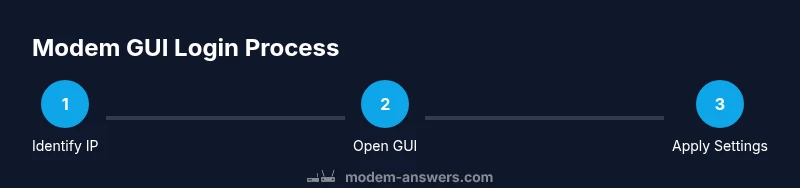
- Identify the modem’s IP address and the URL you should use to reach the admin page. The most common addresses are 192.168.0.1 or 192.168.1.1, but your device may use a different gateway. If needed, run a quick network scan or check the device label. (Why: You need the correct address to load the login interface.)
- Open a modern web browser on a device connected to the modem. Type the gateway IP into the address bar and press Enter. (Why: This loads the login page for the admin GUI.)
- Enter the admin username and password. Use the default credentials if you have not changed them yet, or enter the credentials you already set. If the default isn’t accepted, use the reset option described in the manufacturer’s guide or contact your ISP. (Why: Access requires valid credentials.)
- Change the admin password immediately after login, choosing a strong, unique password. Save the changes and sign out, then sign back in with the new password to confirm. (Why: Prevents unauthorized future access.)
- Review key settings, such as Wi‑Fi security (WPA2/WPA3), firewall rules, and remote access options. Enable only the features you need. (Why: Reduces risk and improves performance.)
- If available, set up a firmware update check and install updates. Reboot if required. (Why: Keeps your device protected against known vulnerabilities.)
Securing the GUI: Changing Passwords and Enabling Security Features
A secure GUI starts with strong credentials and careful configuration. Change the default admin username if your device allows it, and replace passwords with long, unique phrases. Enable the strongest encryption your device supports (prefer WPA3 or WPA2 at minimum) and disable UPnP unless you need it for gaming or port forwarding. Consider disabling remote management if you do not need to access the GUI from outside your home network. Regularly review connected devices and remove any that you do not recognize. Turn on all recommended security features, such as firewall logging, intrusion protection, and automatic firmware updates. Finally, create a recovery plan, including a backup of your current configuration and a documented set of steps to restore settings after a reset.
Firmware Updates and Security Considerations
Keeping firmware up to date is a foundational cybersecurity practice. The GUI will typically alert you to new firmware when you log in. If you can enable automatic updates, do so, but ensure you have a recovery plan if an update briefly disrupts connectivity. Before applying updates, back up your current configuration so you can restore settings if something goes wrong. After updating, verify your Wi‑Fi network name and password, security mode, and any custom rules you rely on. If your modem is supplied by an ISP, some updates may occur automatically; in that case, review the release notes to understand what changes were made. Modem Answers recommends reviewing update logs and testing network performance after each firmware change.
Troubleshooting Login Issues and Recovery
If you cannot reach the GUI, verify your device is connected to the correct network and that you’re using the right IP address. If the login page loads but you cannot sign in, double-check your username and password, and try resetting the password if available. For some devices, you may need to press and hold a reset button on the back for a short period to restore factory settings; be aware this will erase custom configurations. If you still cannot access the GUI after a reset, contact your ISP or the modem manufacturer’s support portal for assistance. Always perform the reset on a stable, known-good power source to avoid interruptions during the reset process.
Advanced Settings: Bridge Mode, Guest Networks, and Parental Controls
Advanced users may want to explore bridge mode, which disables the modem’s routing functions to let a separate router handle network duties. Other advanced features include guest networks for visitors, parental controls for content filtering, and QoS to manage bandwidth for critical devices. When adjusting advanced settings, document each change and consider testing in small stages to prevent unintentionally breaking connectivity. If you rely on a combined modem/router, ensure you understand the implications of features like bridge mode before enabling them. For many households, a secondary router provides more robust features than the stock router in a gateway device, so plan your network topology carefully.
FAQ-Style Quick Guides and Common Misconceptions
The GUI is not a puzzle; approach it like a system: verify device connections, locate the IP, sign in with secure credentials, and apply changes incrementally. Always back up configurations before making sweeping changes. With care, the GUI becomes a powerful ally for improving security and performance rather than a source of confusion.
Summary: Practical Habits for Ongoing Maintenance
Maintain an up-to-date login strategy, regularly review connected devices, enable firmware updates, and keep a log of changes. Use strong, unique credentials for admin access and avoid sharing them. By staying proactive, you minimize risk and maximize reliability of your home network.
Tools & Materials
- Computer or mobile device with a web browser(Ensure device is connected to the modem's network (Wi‑Fi or Ethernet))
- Modem IP address or gateway URL(Common defaults are 192.168.0.1 or 192.168.1.1; check the label or manual)
- Admin credentials (current or reset option)(If you don’t know them, plan to reset or contact your ISP)
- Password manager or secure place for notes(Use a password manager to store credentials securely)
- Firmware update access (optional)(Check for updates through the GUI or the manufacturer's site)
Steps
Estimated time: 15-25 minutes
- 1
Identify the gateway IP
Determine the modem's IP address or gateway URL you should use to reach the admin page. Consult the device label or manual if needed.
Tip: If you’re unsure, run a quick network scan or check your computer’s default gateway in network settings. - 2
Open the GUI login page
Launch a browser on a device connected to the modem and enter the gateway IP in the address bar.
Tip: Avoid bookmarks or saved pages to ensure you load the current login screen. - 3
Enter credentials
Input the admin username and password. If using a default, plan to change it immediately after login.
Tip: If the default credentials won’t work, do not guess—reset or contact support. - 4
Change admin password
Navigate to the security or account settings and set a new, strong password. Save changes and sign out.
Tip: Use a passphrase with a mix of letters, numbers, and symbols; avoid common words. - 5
Review key settings
Check Wi‑Fi security, firewall rules, and remote access options. Disable features you don’t need.
Tip: Enable WPA3 if available; disable UPnP unless required for specific devices. - 6
Update firmware
If a firmware update exists, install it following prompts and reboot the modem if prompted.
Tip: Back up configurations if the GUI offers a backup option before applying updates.
FAQ
What is the modem GUI login used for?
The GUI login provides access to the modem’s configuration panels, including Wi‑Fi, firewall, and firmware options. It’s the primary way to secure and tune your home network.
The GUI login lets you adjust your modem’s settings like Wi‑Fi, security features, and firmware updates.
What if I forget my modem admin password?
Use the reset option on the device or contact your ISP for assistance. After resetting, you can set a new password and reconfigure your settings.
If you forget the password, reset the modem or contact your provider; you’ll need to reconfigure settings afterward.
Can I access the GUI from the internet (remote management)?
Remote management exposes your network to external access. Disable it unless you have a specific need for remote control.
Remote management is risky; keep it off unless you truly need it.
Is it safe to use default credentials?
No. Default credentials are widely known and can be exploited. Change them immediately after login.
Default credentials are risky; switch to a strong, unique password right away.
How do I factory reset my modem?
Use the reset hole/button as described in the manual. A factory reset restores defaults and requires reconfiguration afterward.
A factory reset returns to defaults; you’ll need to reconfigure your network afterward.
Watch Video
Key Takeaways
- Know where to access the GUI (IP/URL) for your modem
- Change default credentials immediately after login
- Regularly update firmware to patch security flaws
- Review connected devices and guest network settings
- Backup configurations and monitor for unauthorized changes