How to Change a Modem Password: A Step-by-Step Guide
Learn how to change your modem password securely, protect admin access, and verify devices stay connected. This step-by-step guide covers locating the admin panel, crafting a strong password, applying changes, and ensuring long-term security.


This guide explains how to modem password securely by locating the modem’s admin panel, creating a strong, unique password, applying changes, and testing access on all devices. If you’re wondering how to modem password, this guide walks you through every step, including securing remote management and storing credentials safely for future changes.
Why Securing Your Modem Admin Password Matters
According to Modem Answers, the admin password for your modem is the gatekeeper to all device settings that control how your home network behaves. If that password is weak or unchanged from the factory default, a neighbor, stranger on the same network, or a compromised device could alter settings, disable security features, or expose your connected devices to risk. Strong admin passwords help prevent unauthorized changes, reduce the chance of remote attacks, and guard your personal information from interception or misuse. Beyond just a single password, combine this practice with regular reviews of security settings to keep your home network resilient against evolving threats. This article walks you through creating a robust password, applying it correctly, and validating access on every device in your household.
Prerequisites and Safety Considerations
Before you change your modem password, gather the basics: a device on the same local network, a browser, and a new password that you can remember or store securely. Consider using a password manager to avoid reusing credentials across devices. If your modem is a gateway provided by your internet service provider, note that some settings may reset during firmware updates or after a factory reset. In such cases, you’ll need to re-create the admin password and reconfigure essential security options. For safety, never share the admin password in insecure channels, avoid writing it on sticky notes, and ensure you’re connected to your home network rather than public Wi-Fi when making changes.
Step-by-Step Overview
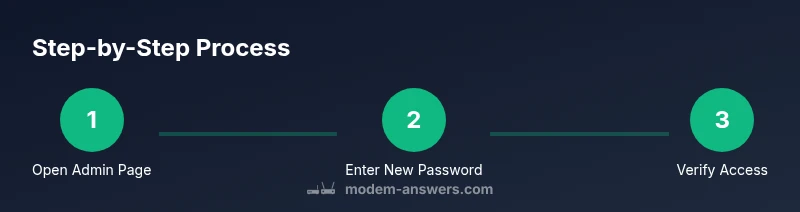
The process to change a modem password is straightforward but varies slightly by brand and firmware. The core steps are to access the admin interface, locate the password field under Security or Administration, enter your current password (if prompted), create a strong new password, save the changes, and verify that all devices reconnect with the new credentials. Post-change, double-check related settings such as remote management, firewall rules, and guest networks. The following sections provide detailed actions, safety tips, and a quick verification plan to ensure you don’t lose access or leave weak points behind.
How to Locate the Admin Password Field
Locating the correct password field is the first real hurdle. Start by logging into your modem's admin interface via a web browser using the gateway IP (commonly 192.168.0.1 or 192.168.1.1). Look for sections labeled Administration, Security, or System. If you see a field labeled Password or Admin Password, you’ve found the right place. Some devices separate the login credentials from Wi‑Fi settings, so confirm you’re editing the admin password, not the Wi‑Fi password. If you can’t find the option, consult the user manual or manufacturer support pages. In many cases, you’ll need to provide the current password to reveal the change option.
How to Create a Strong Modem Password
A robust admin password should be long, unique, and unpredictable. Aim for 12–20 characters, mixing uppercase and lowercase letters, numbers, and symbols. Avoid common phrases, personal data, or sequential patterns. Using a passphrase made from unrelated words can be both strong and memorable. If you’re unsure, use a reputable password generator and store the result in a password manager. Remember: never reuse passwords across devices, services, or interfaces. For devices with memory constraints, prioritize length and character variety within a manageable set.
How to Apply the Password and Verify Access
After entering the new password, save or apply the changes and wait for the modem to reboot if prompted. Reconnect to the admin interface using the new password to confirm access is restored. Then test from multiple devices on your network to ensure consistent login behavior. If you use remote management features, review whether they should remain enabled or be disabled for security reasons. Finally, update any saved credentials in password managers and note the change somewhere secure in case you forget it.
Post-Change Security Checklist
Concluding the password change, perform a quick security sweep: verify that the firewall is active, ensure WPS (if present) is disabled or restricted, and confirm that the admin interface is not exposed to the public internet. Consider updating firmware if a newer version is available, as updates often patch vulnerabilities that could compromise admin access. Keep your network layout documented, including any guest networks and device permissions, so future changes don’t disrupt connectivity.
Troubleshooting Common Issues
If login fails after updating the password, double-check for typing errors, ensure you’re using the correct URL and port, and verify that you’re on the local network. If you suspect a firmware hiccup, perform a soft reboot or follow the device’s recovery procedure in the manual. If all else fails, a factory reset will restore default credentials, but that requires reconfiguring the entire network; proceed only if you’ve prepared backup settings.
Tools & Materials
- Computer or smartphone with a web browser(On the same local network as the modem.)
- New strong admin password or password generator(12+ characters; mix of upper/lowercase, numbers, symbols.)
- Password manager or secure note(Store credentials securely for future changes.)
- Ethernet cable (optional)(Wired connection reduces risk of drop during changes.)
Steps
Estimated time: 15-25 minutes
- 1
Open the modem's admin page
On a device that's connected to your home network, open a browser and enter the gateway IP (commonly 192.168.0.1 or 192.168.1.1). Log in with the current admin credentials if prompted. If you don’t know the IP, check the bottom label on the modem or your manual. Don’t attempt changes from public Wi-Fi to avoid interception.
Tip: If you’re unsure of the IP, try both common defaults or consult the manufacturer support page. - 2
Navigate to password settings
Look for sections labeled Administration, Security, or System. The admin password field is typically under a subsection like 'Set Admin Password' or 'Login Settings.' If you can’t locate it, use the search or refer to the manual. Ensure you’re editing the admin password, not the Wi‑Fi password.
Tip: If multiple admin accounts exist, choose the primary one used for device management. - 3
Enter the current password and set a new one
Enter the current password if required, then type your new strong password twice to confirm. Use a mix of characters and avoid common phrases. Consider a passphrase approach for memorability, then store it securely in a password manager.
Tip: Aim for 12–20 characters and avoid reusing passwords across devices or services. - 4
Save changes and wait for reboot
Click Save or Apply and allow the modem to reboot if prompted. Do not navigate away during the process. After reboot, the system will require the new password for admin access.
Tip: If login fails after reboot, verify you used the new password and retry the login after a short wait. - 5
Reconnect devices and re-check access
Reopen the admin page on a device using the new password to confirm you can access settings. Reconnect other devices to the network if they drop offline. Verify that essential features like firewall and remote management are configured as desired.
Tip: Test from multiple devices to ensure consistent behavior across hubs, phones, and PC browsers. - 6
Review remote management and firmware
If remote management is enabled, decide whether to keep it on. Disable it if you don’t need external access. Check for firmware updates and install them if available to close vulnerabilities.
Tip: Disabling remote mgmt reduces exposure to attacks from outside your network. - 7
Document and secure your new credentials
Store the new admin password in a password manager or a secure note. Keep a record of the IP address, login URL, and any associated settings so you can reconfigure quickly if needed in the future.
Tip: Avoid storing passwords in plain text on devices; use encrypted storage or a reputable manager.
FAQ
What is the difference between a modem password and a Wi-Fi password?
The modem password (admin password) controls access to the device's settings, while the Wi‑Fi password protects wireless network access. They serve different purposes, so both should be strong.
The modem password protects admin settings; the Wi‑Fi password protects wireless access. They’re not interchangeable.
Why should I change the default password on my modem?
Default passwords are widely documented and easy targets for unauthorized changes. Changing it reduces risk by limiting who can alter security settings.
Default passwords are risky. Change yours to prevent unauthorized changes.
What if I forget the new admin password?
If you forget the new password, you may need to perform a factory reset to regain access. This will erase custom settings, so back up configurations if possible.
If you forget it, you might need a reset. That can wipe your settings, so backups are important.
Is it safe to enable remote management?
Remote management can expose your modem to external threats. Enable it only if you require it and secure it with strong credentials and network controls.
Remote access can be risky unless you need it and protect it well.
How often should I update the modem password?
Regularly review and update your admin password, especially after a security incident or if a device is decommissioned. Pair changes with firmware updates when possible.
Review and update periodically, especially after security events.
What should I do if I can’t access the admin page after changes?
Confirm you’re on the correct local IP, try a wired connection, and re-enter the password carefully. If needed, consult the manual or contact the manufacturer support.
If you can't access it, double-check the IP and password, and try with a wired connection.
Watch Video
Key Takeaways
- Create a unique admin password with length and complexity.
- Keep remote management disabled unless needed.
- Test admin login after changes on multiple devices.
- Store credentials securely and keep records of settings.