Logging into Arris Modem: A Step-by-Step Guide
Learn how to access your Arris modem's admin interface safely. Find the login page, use secure credentials, and configure your home network with confidence.


In this guide you’ll log into your Arris modem’s admin interface to view status, adjust Wi‑Fi settings, and update security credentials. You’ll learn how to locate the login page, choose strong credentials, and troubleshoot common access issues. Follow these steps to confidently manage your home network.
Understanding Why Access Matters
Access to your Arris modem’s admin interface is the gateway to your home network. The login page is not just a convenience; it’s the place where you view status, update Wi-Fi names and passwords, configure security options, and manage connected devices. For homeowners and renters, a solid understanding of how to log into arris modem reduces frustration and helps prevent security gaps. When you can reach the modem’s settings confidently, you can monitor performance, schedule reboots, and apply firmware updates that keep all devices safe. In this guide, Modem Answers shares practical steps and clear explanations so you can perform routine maintenance without guessing. By establishing good login habits, you minimize outages caused by misconfigured settings and protect personal data from unauthorized access. The goal is simple: you should be able to access the modem’s interface quickly from any trusted device and make informed decisions about your home network. If you’re new to networking, start with the basics and build toward more advanced controls as you gain confidence.
Default Credentials and Secure Login Practices
Many Arris modems ship with default credentials that provide instant access to the admin interface. While convenient for initial setup, leaving these credentials unchanged creates a serious security risk. If you’re logging into arris modem for the first time, treat the default username and password as temporary and replace them with strong, unique values. Before you begin, locate the credential pair on the device label or in the manual that came with your unit. Then choose a password with at least 12 characters, mixing uppercase and lowercase letters, numbers, and symbols. Avoid common phrases or predictable patterns. Also, never reuse passwords across multiple devices. Keeping credentials confidential and updating them after a firmware update or factory reset helps maintain ongoing protection for your home network.
Locate the Correct Login Page: IP Address and URL
The login page is usually accessed through the modem’s web interface, reachable by a gateway address. Start by confirming you’re connected to the device’s network. Common defaults include 192.168.0.1 and 192.168.1.1, but your Arris model may vary. If you don’t see a login prompt, check the bottom label on the modem for the default gateway or refer to the ISP’s setup guide. You can also open your computer’s network settings to copy the device’s gateway address. Once you have the right URL or IP, type it into your browser’s address bar and press Enter to reach the login screen.
Step-by-Step: Logging In on a Computer or Mobile Device
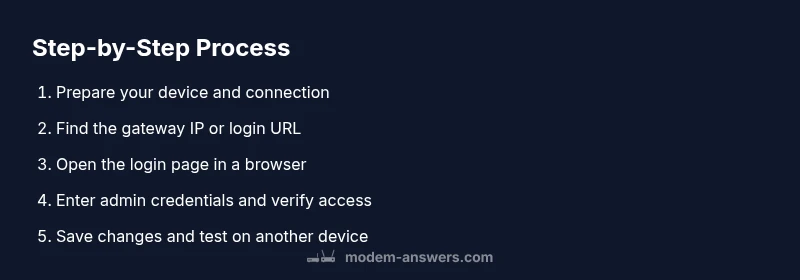
- Connect a device to the modem’s network via Wi‑Fi or Ethernet. Then open a web browser and enter the gateway address.
- When the login screen appears, enter the admin username and password from the label or your network documentation.
- If the system asks for a security question or PIN, use the credentials you created or reset if needed.
- After successful login, bookmark the page for quick access and check the status pages to verify your connection. Tip: For a smoother experience, use a wired connection during configuration to minimize dropouts and ensure the changes save correctly.
What to Do If Login Fails: Common Issues
If the login fails, verify you are on the correct URL and that caps lock isn’t active on the password field. Confirm you’re using the right username and password, especially if you changed them previously. If you suspect the password is forgotten, use the modem’s reset procedure only after exhausting other options; a factory reset returns to defaults but erases personalized settings. Finally, reboot the modem and client device, then retry the login.
Changing Your Admin Username and Password Safely
Most Arris modems allow you to edit the admin username and password from the Security or Administration section. Choose a new username if supported, and replace the password with a strong, unique value. After saving changes, log out and test the new credentials immediately on another device to confirm you can still access the page. Keep your credentials in a secure password manager and avoid sharing them.
Troubleshooting Common Connectivity Issues After Login
Sometimes updating settings can disrupt connectivity. If devices report no internet after changes, first restart the modem and router (if you have a separate router). Confirm Wi‑Fi is enabled and the correct network name (SSID) is used. Check for firmware updates and enable automatic updates if available. If issues persist, consult the status or event logs in the admin interface to identify recent changes.
Security Best Practices for Modem Admin Access
Treat access to the admin interface as a privileged activity. Always log out after making changes and clear browser data to prevent sessions from lingering on shared devices. Disable remote management unless you need it, and enforce a strong password policy. Regularly review connected devices, update firmware, and enable a firewall or built-in protection features provided by the modem. These steps help reduce risk from malware and unauthorized access.
When to Reset Your Arris Modem or Factory Settings
If you cannot recover the login credentials or the device behaves unpredictably, a factory reset may be necessary. Note that this erases all custom settings, reverts to defaults, and requires you to reconfigure the network from scratch. Before resetting, back up any essential information such as the Wi‑Fi name and password. After the reset, log in with the default credentials and reapply your security settings.
Accessing Advanced Features After Logging In
With access to the admin interface, you can adjust advanced features such as Guest Network, Port Forwarding, and Parental Controls. Start by locating the appropriate sections and reading the on-screen explanations. Make small, incremental changes and recheck connectivity to avoid widespread disruption. If you’re unsure, consult the model-specific manual or Modem Answers guidance before making major changes.
Tools & Materials
- Device with a web browser (computer, tablet, or smartphone)(Ensure you’re connected to the modem’s network (Wi‑Fi or Ethernet))
- Ethernet cable (optional)(Wired connection reduces login interruptions)
- Arris modem label or manual for credentials(Default username/password may be listed on the device label)
- Pin or paperclip (for reset)(Used only if you need to reset to factory defaults)
- Secure password plan (password manager)(Store credentials securely and do not reuse across devices)
Steps
Estimated time: 15-25 minutes
- 1
Prepare your device and connection
Power on your modem and ensure it’s operational. Connect a single device to the network using either Wi‑Fi or a wired Ethernet connection to minimize login interruptions. This establishes a reliable session for initial access.
Tip: Pro Tip: A wired connection reduces risk of session drops during login. - 2
Identify gateway IP or login URL
Check the modem label for the default gateway or use your device’s network settings to reveal the router address. If you know your model’s typical defaults, try 192.168.0.1 or 192.168.1.1 as a starting point.
Tip: Pro Tip: If unsure, use the ISP’s setup guide or the device’s manual to locate the address. - 3
Open the login page in a browser
Enter the gateway address into the browser’s address bar and press Enter. You should see a login prompt requesting credentials.
Tip: Pro Tip: Use a trusted browser and avoid private networks for initial login. - 4
Enter admin credentials
Input the admin username and password from the label or your documentation. If you’ve changed them before, use the updated values.
Tip: Pro Tip: If you don’t remember the password, skip to the reset procedure only after other options are exhausted. - 5
Handle login errors
If the page rejects credentials, check for caps lock, verify the correct username, and ensure you’re on the right page. Consider a temporary lockout timeout after repeated failures.
Tip: Pro Tip: Try clearing the browser cache or using a different device if you suspect a stale session. - 6
Access and bookmark the admin page
Once logged in, bookmark the admin page for quick future access and verify key status screens (connected devices, WAN status, and firmware version).
Tip: Pro Tip: Keep a backup of the login URL in a secure place. - 7
Change default credentials to strong values
In the Security or Administration section, replace the default username and password with strong, unique values. Save changes and log out.
Tip: Pro Tip: Use a password manager to store the new credentials securely. - 8
Enable essential security features
Disable remote management unless needed, enable firewall protections, and review connected devices for unfamiliar entries.
Tip: Pro Tip: Review firmware update settings to keep the device protected. - 9
Test access from another device
Log out, then attempt to log back in from another trusted device to ensure the credentials work universally.
Tip: Pro Tip: This confirms you didn’t accidentally lock yourself out on a single device. - 10
Document credentials securely
Record the new login details in a password manager and store the information in a safe location.
Tip: Pro Tip: Regularly review and update credentials as part of network maintenance.
FAQ
What is the default login for Arris modems?
Most Arris modems use a default username such as admin and a password shown on the device label. If you don’t see it, consult the manual or your ISP’s documentation.
Most Arris modems use admin credentials; check the label or manual for the exact default.
I can't reach the login page—what should I do?
Make sure your device is connected to the modem’s network, try a wired connection, and test the common gateway IPs. If it still won’t load, reboot the modem and retry.
Ensure connection is active, try a wired setup, and reboot if needed.
How do I reset the modem if I forget the password?
Use the reset button for a factory reset if you cannot recover the password. This erases custom settings, so you’ll need to reconfigure your network afterward.
Reset will erase settings—prepare to reconfigure afterward.
Can I access the login page from another device on the same network?
Yes. Any device on the same network can access the login page using the gateway IP or URL. Ensure the device is connected to the same modem.
Yes, use any device on the network to log in.
What if the login prompts for a PIN or extra security?
Some setups require additional authentication. Follow the prompts or contact your ISP if the prompt is unclear.
Follow the prompts or contact support if unsure.
Is it safe to log into the modem from public networks?
Avoid accessing the modem’s admin page over public Wi‑Fi. If needed, use a VPN or a trusted connection to protect credentials.
Don’t log in over public networks; use a secure connection.
Watch Video
Key Takeaways
- Secure the admin login with a strong password
- Identify the gateway IP before logging in
- Log out after changes to end sessions
- Document credentials securely for future access
- Reset only as a last resort after careful consideration