ARRIS Modem Troubleshooting: Quick Fixes & Diagnostics
Urgent, practical ARRIS modem troubleshooting guide with a clear diagnostic flow, step-by-step fixes, and when to contact your provider for reliable home internet.


ARRIS modem troubleshooting typically boils down to a few common culprits: signal problems, outdated firmware, faulty cables, or misconfigurations. Start with a power cycle, check coax and Ethernet cables, and verify service status with your provider. If issues persist, follow a structured diagnostic flow to isolate the fault and apply targeted fixes.
Understanding ARRIS Modem Troubleshooting
ARRIS modems are a common backbone for home internet and Wi‑Fi. When something goes wrong, the urge to replace hardware can be strong, but most issues stem from simple, correctable faults. ARRIS modem troubleshooting is a practical, methodical process that asks: Is the signal healthy? Are cables solid? Is the device firmware up to date? Is a misconfiguration limiting connectivity? This guide from Modem Answers focuses on actionable steps and a consistent diagnostic flow to map symptoms to likely causes. By sticking to a predictable sequence—check power, verify the coax path, validate connections, and test network settings—you can restore reliable service with minimal downtime while avoiding risky changes. This approach fits homeowners and renters alike, who need quick, reliable results without guessing at complex hardware problems.
Recognizing Symptoms and What They Mean
The first clues often come from the modem lights and your observed performance. Common ARRIS modem symptoms include no internet after boot, intermittent drops, unusually slow speeds, inconsistent Wi‑Fi, or devices failing to obtain an IP address. Each symptom narrows the field: a bad coax or loose connector often causes link instability; a firmware hang can produce firmware updates or reset loops; a misconfigured router or gateway mode can block traffic. The Modem Answers team emphasizes documenting the exact lights, uptime, and observed speeds. That data makes it easier to map symptoms to realistic causes and prioritize fixes. Remember: many issues are not dramatic hardware failures but a chain of small, solvable faults that accumulate into a poor experience.
Quick Fixes You Can Try Immediately
Start with the simplest steps that deliver the biggest impact. Power cycle the modem and any connected router, reseat or replace loose cables, and run a quick service check with your provider’s outage status page. If the problem persists, swap Ethernet cables for known-good ones and test both wired and wireless devices. Reduce interference by changing Wi‑Fi channels and positioning equipment away from dense walls and metal appliances. This section emphasizes safe, reversible fixes first, so you’re not editing important network settings or performing factory resets unless necessary. By confirming the basics—power, coax, cables, and coverage—you’ll often fix the majority of home‑network hiccups.
Diagnostic Flow: From Symptom to Solution
A structured diagnostic flow helps you stay organized and avoid guesswork. Start with the symptom (e.g., no internet or flaky Wi‑Fi), then list possible causes with high/medium/low likelihood. Prioritize fixes that are easy to verify and least risky: confirm power supply, reseat coax, check for outages, and test with a known-good cable. If the symptom remains, move to moderate fixes like updating firmware or adjusting network settings, then escalate to more involved steps such as factory resets only as a last resort. Throughout, log changes and outcomes so you can recognize patterns and provide precise information to support if you need it. This disciplined approach saves time and minimizes downtime for busy households.
Step-by-Step: Reboot, Reset, and Rebuild Connections
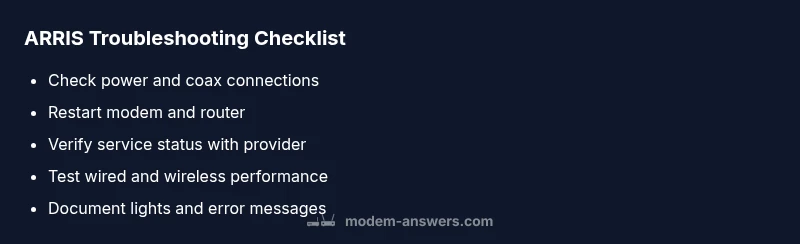
- Power cycle the ARRIS modem: unplug, wait 60 seconds, plug back in, and observe the lights for stability. 2) Inspect coax connections: ensure the cable is snug and undamaged, and avoid tight bends or kinks. 3) Test with a wired connection: connect a laptop directly to the modem there should be a clean Ethernet link. 4) Check for outages: use the provider’s status page or mobile app to confirm service in your area. 5) Adjust Wi‑Fi: change channels, test on a single device, and move the router away from obstructions. 6) Update firmware if available: trigger a manual check from the web interface or your provider’s app. 7) Reboot again and monitor: after changes, verify speeds with a speed test. 8) If needed, perform a factory reset on the modem and reconfigure from scratch. 9) Document findings and prepare to contact support if the issue persists.
Cable, Coax, and Power: Fixing the Physical Layer
The physical layer is the most fragile, yet often the most overlooked. Start by inspecting the coax connector where the line enters the home and at the modem. Look for any visible damage, corrosion, or loose fittings. Replace any damaged cables with a properly rated 75-ohm coax and use high-quality Ethernet cables (Cat5e or better) for wired devices. Ensure the modem has a stable power supply, ideally on a surge-protected outlet. Avoid running cables under rugs or across doorways where foot traffic can loosen connections. A solid physical foundation often resolves internet outages and reduces intermittent drops.
Device and Wi‑Fi: Isolating the Issue
If the problem appears to be Wi‑Fi related, isolate the issue by testing speeds on a wired device first. If wired performance is solid but wireless is weak, focus on access point placement, channel selection, and potential interference from other electronics. Update the Wi‑Fi password and reset the network name if there’s confusion among devices. Ensure your ARRIS modem/router is not in bridge mode unless required by your network topology. If a guest network or a mesh system is in use, temporarily disable it to see if speeds improve. Understanding whether a device or the entire network is at fault helps you choose the right fix without unnecessary changes.
When to Contact Your ISP or ARRIS Support
If you rule out basic fixes and still have connectivity issues, the problem may lie with the service itself or an internal modem fault. Contact your ISP first to confirm there’s no outage and to verify that your account and provisioning are in good standing. If the outage is confirmed or if the modem reports persistent faults not fixed by the steps above, reach out to ARRIS support for hardware diagnostics or RMA options. Keep records of your modem’s serial number, firmware version, and a log of the steps you’ve tried. Escalation often requires providing this data so technicians can reproduce and diagnose more efficiently.
Prevention Tips: Keep Your ARRIS Modem Healthy
Proactive maintenance reduces recurrence. Schedule regular reboots during low-traffic times to refresh the connection, keep firmware up to date, and monitor signal levels if your provider offers a status page. Use surge protection to protect against power spikes and replace fading coax connectors promptly. Place your modem in a well-ventilated area away from heat sources and large metal objects. Finally, document your home network layout and keep a simple troubleshooting notebook so you can reproduce fixes quickly in the future.
Steps
Estimated time: 45-60 minutes
- 1
Power cycle the modem
Unplug the modem, wait 60 seconds, and plug it back in. Watch the lights until they settle into a stable pattern.
Tip: Use a timer to ensure full 60 seconds of wait time. - 2
Inspect coax and Ethernet cables
Check all coax connectors for snug fit and inspect cables for visible wear. Substitute with known-good cables if you suspect damage.
Tip: Avoid bending cables too sharply near connectors. - 3
Check service status & outages
Visit your provider’s outage page or app to confirm service in your area. If outages are reported, wait for repairs.
Tip: Document outage times to compare with your experience. - 4
Test wired connection
Connect a laptop directly to the modem with a fresh Ethernet cable and run a speed test.
Tip: If wired speeds are fine but Wi‑Fi is slow, focus on wireless optimization. - 5
Tweak Wi‑Fi settings
Change the channel, adjust the band (2.4 GHz vs 5 GHz), and consider a different SSID to reduce interference.
Tip: Place the router away from microwaves, cordless phones, and metal appliances. - 6
Check firmware status
Log into the modem's admin page and verify firmware version; enable auto-update if available.
Tip: Do not disable essential security features during updates. - 7
Reboot again if needed
Power cycle after any significant change to ensure settings take effect.
Tip: Record the lights pattern post-change to verify progress. - 8
Factory reset (last resort)
If problems persist, perform a factory reset and reconfigure from scratch.
Tip: Preserve a backup of your configuration if available.
Diagnosis: No internet or intermittent connectivity after ARRIS modem restart
Possible Causes
- highCoaxial cable loose or damaged
- mediumOutdated firmware or pending update
- lowISP outage or service disruption
- lowPower supply or grounding issue
Fixes
- easyTighten and reseat coax connectors; inspect for damage
- easyPower cycle the modem and router; trigger firmware update if available
- easyCheck service status with your provider and run a speed test
- mediumIf issues persist, perform a factory reset and reconfigure (last resort)
FAQ
What is the first step I should take when my ARRIS modem won't connect?
Begin with a power cycle and check all cables. If the issue persists, use the diagnostic flow to isolate whether the problem is signal, hardware, or configuration related.
Start with a quick power cycle and checking the cables. If that doesn’t help, follow the diagnostic flow to pinpoint the issue.
Why are the ARRIS modem lights blinking red or amber?
Blinking colors often indicate a signaling or boot issue, misconfigurations, or a failed update. Check the user manual for the exact light sequence and perform a controlled reboot.
Blinking lights usually signal signaling or boot problems. Reboot and verify cables, then check for an outage.
Can I fix outages without contacting the provider?
Outages are typically on the provider’s side. You can run basic checks, but confirming service status with your ISP is essential before assuming hardware faults.
Outages are usually provider-side. Check status with your ISP before blaming hardware.
How do I check the modem's firmware version?
Log into the modem’s admin interface and locate the status or device information page to view the firmware version. Enable auto-update if supported.
Open the modem's admin page and look for firmware version under device info.
When should I replace an ARRIS modem?
If the modem repeatedly fails after all fixes, is past its expected life, or cannot handle your current plan’s speeds, replacement may be warranted.
If fixes don’t help and speeds don’t meet your plan, consider replacement.
Watch Video
Key Takeaways
- Start with simple checks—power, coax, and cables.
- Document lights and speeds to reveal patterns.
- Follow a structured diagnostic flow to isolate causes.
- Escalate to provider or ARRIS support if the issue persists.