How to Know If Arris Modem Is Working: Quick Troubleshooting
Urgent, actionable guide to confirm Arris modem health, diagnose LED signals, cables, and outages, with step-by-step fixes and a diagnostic flow.


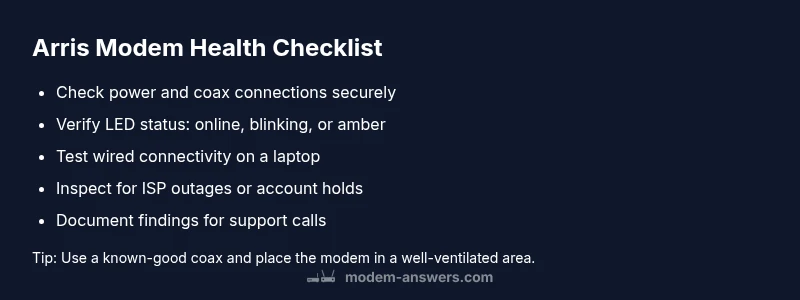
To know if your Arris modem is working, start with a quick health check: confirm power and coax connections, verify the online LED status, and run a basic connectivity test on a wired device. If you see any non-green LEDs, a connection issue, or no internet, move to the guided steps below for fast, safe troubleshooting.
Quick health check for Arris modems
If you’re asking how to know if arris modem is working, begin with a fast health check focused on power, cables, and indicators. This first pass helps you spot obvious faults before diving into deeper diagnostics. Look for a solid online LED, listen for a steady hum from the cooling fan (if present), and confirm the device has completed its startup sequence. By starting here, you separate hardware faults from service outages. Modem Answers emphasizes a methodical approach so you don’t replace a working modem unnecessarily. This block keeps you focused on the most common, solvable issues in real-world homes. The goal is clarity: is the modem online, and does it pass a basic connectivity test on a wired PC or laptop? If the answer is no, advance to the next checks.
According to Modem Answers, a simple power cycle resolves the majority of early-stage issues on Arris devices. If the power light won’t come on, replace the power adapter or test that outlet. If the light is green but traffic is missing, move to checking signals and ISP status. This frame sets the stage for fast wins and reduces call-back time for support.
Verify power, coax, and placement
A lot of Arris modem problems come from something as simple as a loose coax cable or a power adapter that isn’t plugged in fully. Start by unplugging the modem, then reseating all connections: the power brick, the coax from the wall, and any splitter in the line. Reconnect firmly and power the unit back on. While it boots, check the placement: keep the modem in a well-ventilated area, away from direct heat or metal objects. A hot or crowded environment can cause intermittent drops. You should also inspect the power indicator; if it does not illuminate after plugging in, there may be an outlet or power supply issue that needs attention. This block targets the most common, solvable causes and is where most readers will find quick wins.
Check for service outages and account status
If the modem lights and indicators look healthy, the issue might be outside your home network. Start by checking for an outage in your area via your internet service provider’s status page or outage map. You can also confirm your account status with your provider to rule out billing holds or line suspensions. Modem Answers notes that many ‘no internet’ cases stem from outages rather than faulty hardware. If an outage is active, your modem may still show an online signal, but you won’t have actual connectivity until the service is restored. If there’s no outage, move to the next steps to isolate device-level problems.
Understand LED indicators and model-specific signals
Arris modems use LED indicators to communicate status. A solid online light usually means the modem has synced with your provider. Blinking lights can indicate initialization, activity, or an error depending on color and pattern. Amber or red lights often signal a problem requiring action, such as wiring or signal strength. Since models vary, refer to your exact Arris model manual for LED meanings. If you’re unsure, a quick test is to restart the modem and observe whether the lights stabilize to green within a few minutes. This knowledge helps you distinguish between a hardware issue and a service-related outage.
Test connectivity from multiple devices and apps
Try accessing a web page on a wired computer and then on a connected Wi‑Fi device, such as a phone. If both fail, it’s likely a problem between the modem and the internet backbone. If wired devices work but Wi‑Fi devices fail, you may have a router or Wi-Fi configuration issue rather than a modem fault. Use a speed test tool to measure download and upload speeds; compare results to your plan’s expected range and to your provider’s published guidelines. Keep in mind that VPNs, firewalls, or parental controls can also affect connectivity. Recording outcomes helps you communicate issues clearly if you need to contact support.
Common culprits and how to validate them
Common culprits include loose coax connections, a malfunctioning power supply, outdated firmware, or a failing modem. Validate each by swapping one element at a time: try a different coax cable, test a known-good power adapter, and perform a firmware check when possible. If your Arris modem lights indicate initialization but never reach online, the problem often lies with signal levels from the provider or line attenuation. In corporate or dense residential areas, signal degradation is common after storms or construction. Document observations with timestamps so you can report them precisely to your provider.
When to reboot, reset, or replace hardware
If simple reboots don’t restore service, proceed with a controlled reset. A soft reset (power cycle) is safer than a factory reset; avoid factory resets unless you’re certain you understand how to reconfigure your network. If problems persist after a reset, it may be time to replace the modem or call your ISP for advanced diagnostics. Before buying a new device, verify compatibility with your provider and payment plan. If you rent a modem from your provider, check rental terms and exchange options.
Preventive maintenance to keep your Arris modem healthy
Set a routine to check LEDs, cables, and connections every few weeks. Keep firmware up to date and ensure your splitter network isn’t overloading the line. Use a power backup solution if you experience frequent outages to minimize power-related resets. Place the modem away from potential interference from other electronics and large metal appliances. Finally, maintain documentation of your network gear, including model numbers, serials, and service plans, to speed up future troubleshooting. Proactive habits reduce the odds of long outages and help you act fast when issues arise.
Steps
Estimated time: 15-25 minutes
- 1
Power cycle the modem
unplug the modem, wait 30 seconds, then plug it back in. Allow 2-3 minutes for the device to boot and establish a link with the provider. Check the online LED after boot to confirm status.
Tip: Label the power outlet near the modem so future resets are quick. - 2
Secure all cables
Ensure the coax cable is tight at both ends and that any splitters are snug or removed if possible. Verify the Ethernet cable to any router is firmly connected. A loose lead is a common cause of intermittent drops.
Tip: Use a known-good coax cable to rule out a faulty line. - 3
Check LED patterns
Read the LED indicators for your model. A steady green typically means online; blinking or amber signals may indicate initialization or errors. Compare to the user manual for exact color codes.
Tip: If you’re unsure of pattern meaning, try a simple reboot and recheck within 5 minutes. - 4
Test connectivity on wired devices
Connect a laptop directly to the modem with an Ethernet cable and run a basic web test. If wired devices work, the issue is likely Wi‑Fi related or router-involved.
Tip: Bypass the router to isolate modem vs. router issues. - 5
Check for outages and account flags
Visit the provider’s outage map and your account page for status or billing holds. Many outages reveal themselves on the provider’s end rather than inside your home.
Tip: Document dates and times of tests to share with support. - 6
Consider a controlled reset or replacement
If all else fails, perform a soft reset; avoid factory reset unless necessary. If problems persist after reset, arrange a device swap or technician visit.
Tip: Only perform factory reset if you can reconfigure your network afterward.
Diagnosis: No internet access despite modem showing online
Possible Causes
- highPower issue or coax misconnection
- highISP outage or account problem
- mediumOutdated firmware or hardware fault
- mediumSignal level problem from provider
- lowRouter/Wi-Fi misconfiguration
Fixes
- easyConfirm power and coax are seated; reseat and power cycle the modem
- easyCheck for ISP outages and verify account status with the provider
- easyPerform a controlled reboot; check for firmware updates or remote reset
- easyTest with a wired device and run a speed test to gauge baseline
- mediumIf issues persist, request technician support or hardware replacement
FAQ
What do the LED lights on an Arris modem mean?
LEDs indicate power, online status, activity, and errors. Refer to your model’s manual for exact color codes and patterns.
LEDs show power, online status, and activity. Check your model’s manual for exact colors and patterns.
Why won’t my Arris modem connect after a power cycle?
Give the device a few minutes to initialize after a reboot. If the connection remains down, check for outages and test cables.
Give it a few minutes to initialize after reboot and then test again.
Can I use my own router with an Arris modem?
Yes. Connect your router via Ethernet or enable bridge mode if your provider supports it. Follow the router’s setup steps after establishing the link.
Yes, you can use your own router by connecting with Ethernet or using bridge mode.
What’s safer: soft reset or factory reset?
A soft reset (power cycle) is safer and preserves your settings. A factory reset erases custom configurations and should be a last resort.
Soft reset first; factory reset should be avoided unless necessary.
How can I test my internet speed with Arris?
Run a wired speed test on a laptop connected to the modem and compare results with your plan. Repeat on Wi-Fi to gauge coverage.
Run a wired speed test and compare to your plan; also test Wi-Fi performance.
Watch Video
Key Takeaways
- Start with power, coax, and LED checks
- Differentiate outages from hardware faults
- Test on wired devices to isolate issues
- Follow a safe step-by-step path before escalation
- Call your provider when service persists or outages are suspected