How to remove devices from Telstra modem
A practical, home-friendly guide to remove devices from a Telstra modem. Learn to identify connected devices, block or forget them, and verify changes for a secure home network.


Goal: Remove devices from your Telstra modem by reviewing the connected devices list, blocking or forgetting unwanted devices, and applying a modem-level reset if needed. You’ll access the admin page, locate the device list, and perform the block/forget action, then restart to ensure changes take effect. This process helps protect your network from unknown clients.
What removing devices from Telstra modem means
Removing devices from your Telstra modem means revoking access to your home network for gadgets you don’t recognize or no longer own. In most Telstra modems, devices appear by hostname or MAC address, and you can block or forget them to prevent future connections. This practice is a foundational step in keeping your home Wi‑Fi private and limiting opportunities for unknown devices to piggyback on your connection. According to Modem Answers, a clean device list is a cornerstone of proactive network hygiene, helping you maintain predictable performance and reduce security risks. Regular audits of connected devices also make it easier to diagnose odd network behavior and confirm that changes stick after a reboot.
Before you start: prerequisites and safety checks
Before you begin, gather your login credentials for the modem’s admin page and ensure you are connected to the network you’re configuring. Have a recent list of devices you want to remove, including any unfamiliar names you’ve spotted on the client list. For security, update your admin password if you haven’t changed it from the default, and consider enabling automatic firmware updates where available. If you’re unsure about the exact device, you can compare the MAC address shown in the list with the one printed on devices you own. The question of how to remove devices from telstra modem becomes straightforward once you know you’re targeting the right client. Modem Answers analysis shows that a careful, deliberate approach reduces accidental loss of legitimate devices and preserves essential connectivity.
Step-by-step: remove devices from Telstra modem (overview)
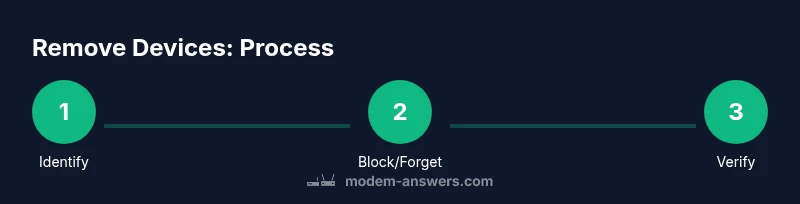
In practice, you’ll log into the modem’s admin interface, view the connected devices list, select the devices you want to remove, choose either Block or Forget, apply the changes, and restart the modem to ensure the settings take effect. After completing the sequence, verify that the removed devices no longer appear in the connected list and perform a quick speed test to confirm your network is functioning as expected. If a device reconnects, you can repeat the process or investigate potential MAC address spoofing or DHCP lease renewal that might allow reinclusion.
Post-removal checks and troubleshooting
If a removed device reconnects, recheck the connected devices list and review any DHCP or MAC filtering rules you have configured. Some Telstra modems offer a “MAC filtering” or “Access Control” feature; enabling it can provide a stronger gatekeeper than a simple block/forget action. If changes don’t seem to apply, try saving changes, then rebooting the modem again. In rare cases, you may need to reset the modem to factory defaults and reconfigure from scratch, but only after you’ve backed up important settings. Regularly auditing devices and reviewing admin logs can help you detect unauthorized access early.
Additional security measures to consider
Beyond removing devices, strengthen your home network by updating firmware, choosing WPA3 if available, and disabling features you don’t use (like WPS). Change your Wi‑Fi password periodically and create a separate guest network for visitors. If you share admin access, set up a limited account for household members and keep the primary admin credentials private. Practicing these steps makes it harder for intruders to rejoin your network and aligns with best practices for securing home networks.
Tools & Materials
- Computer or smartphone with a web browser(Use a recent browser; connected to the Telstra modem's network)
- Telstra modem admin password(Needed to log in and modify device access)
- Active internet connection to the modem(Ensures you can load the admin interface)
- Ethernet cable (optional)(Useful if the Wi‑Fi connection is unstable or you want a wired link for reliability)
Steps
Estimated time: 20-40 minutes
- 1
Log in to the modem admin page
Open a web browser and enter the modem’s local IP address (commonly 192.168.0.1 or 192.168.1.1). Enter your admin username and password to access the settings. This step establishes a secure session for device management.
Tip: Have your admin password handy before you start. - 2
Navigate to the connected devices list
Find the section that lists LAN clients or connected devices. It may be labeled as 'Attached devices', 'Device list', or 'LAN clients'.
Tip: Take a screenshot of the list for reference before making changes. - 3
Identify devices to remove
Cross-check device names and MAC addresses with devices you own. If in doubt, note the MAC address and confirm ownership with household members.
Tip: When in doubt, do not remove devices you recognize as yours. - 4
Block or forget the device
Choose the action labeled 'Block' or 'Forget' for the selected device. Blockings typically persist beyond reboots; Forget may require re-authentication if the device reconnects.
Tip: Block for long-term exclusion; Forget if you want a temporary removal. - 5
Apply changes and restart the modem
Save the changes and perform a modem restart to ensure the new rules take effect.
Tip: If there’s no explicit restart button, power cycle the modem after saving. - 6
Verify removal
Reload the connected devices list to confirm the targeted devices no longer appear.
Tip: Run a quick speed test to verify normal operation after changes. - 7
Troubleshoot if needed
If a removed device reconnects, re-check MAC filtering or consider enabling a stricter Access Control list.
Tip: Check for MAC spoofing or DHCP lease renewal that might circumvent blocks.
FAQ
Will removing a device require a modem restart?
Often yes; applying changes typically requires a restart to ensure the device is fully blocked. If there’s an optional apply button, use it and then reboot if the platform prompts you.
Yes, a restart is usually needed to finalize the removal.
Can a removed device reconnect on its own?
A removed device might reconnect if it renews its DHCP lease or uses MAC spoofing. If this happens, recheck the list and reapply the block. Consider tightening access controls.
It can reconnect if it renews its address or spoofs a MAC.
What’s the difference between Block and Forget?
Block prevents future access at the modem level. Forget removes the device from the current list, but it may reconnect unless blocked. Use Block for lasting control.
Block means permanent exclusion; Forget removes the entry but may reappear if not blocked.
What should I do if I forget my admin password?
Follow the Telstra modem’s password recovery or factory reset procedures, then reconfigure security settings. Always back up current settings first if possible.
Reset if you can’t recover the password, then reconfigure security.
Is MAC filtering more secure than simple blocking?
MAC filtering adds a layer of control but can be bypassed by spoofing. Use it alongside strong passwords and up-to-date firmware for best results.
MAC filtering helps, but isn’t foolproof; combine with other security measures.
Watch Video
Key Takeaways
- Identify and separate unknown devices from trusted ones.
- Block or forget devices to prevent future connections.
- Restart and verify to ensure changes take effect.
- Enhance security with strong passwords and up-to-date firmware.