How to Flush Modem: A Step-by-Step Guide
Learn how to flush a modem safely with a clear, step-by-step approach. This Modem Answers guide covers rebooting, soft resets, factory resets, and verification tips to keep your home network reliable in 2026.


Flush a modem by performing a safe reboot, then a soft reset if issues persist, and only use a factory reset as a last resort. Start with power cycling the device, wait 60 seconds, then reconnect and verify connectivity. If problems remain, access the modem’s admin page to apply a soft reset and reconfigure as needed.
Why flush modem matters
A clean, well-maintained modem helps ensure steady Internet performance and fewer interruptions. When you flush a modem, you’re intentionally clearing temporary memory and refreshing network state. This is a common first step for slow speeds, dropped connections, or unusual DNS issues. According to Modem Answers, a practical, user-friendly approach that emphasizes safety and documentation yields reliable results. The Modem Answers team found that a simple sequence of rebooting, optional resets, and careful reconfiguration resolves many routine faults without needing advanced troubleshooting. The goal is to restore normal operation with minimal risk to your home network. In this guide, you’ll learn why flushing matters, what it can and cannot fix, and how to execute the steps safely on different devices and setups.
When you should flush a modem
You should consider flushing when you notice inconsistent Internet performance, slow page loads, or devices that fail to obtain a stable IP address. If you’ve recently added a new device, changed a DNS setting, or switched service plans, a flush often helps reset the path between your devices and the Internet. Do not rush to factory reset unless you have tried simpler steps first. Flushing is a first-aid action, not a cure-all. Regular maintenance, like keeping firmware updated and reviewing network placement, can prevent many issues from arising in the first place.
What flushing accomplishes in a home network
Flushing a modem primarily clears temporary memory and cached routing information that can become stale. This helps ensure that the devices on your network receive up-to-date routes to the Internet and reduces chances of conflicts with old DNS entries. It does not guarantee a new IP address unless your service provider assigns a new one after a reset. In most cases, flushing restores normal operation and improves reliability without altering your SSID or Wi‑Fi password—unless you perform a factory reset.
Basic reboot and power-cycle
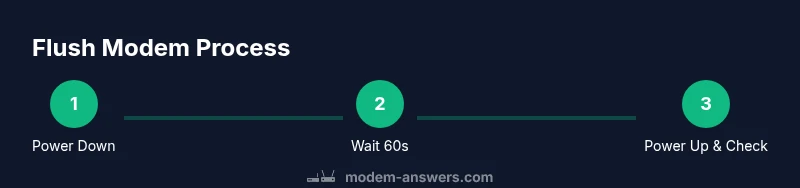
- Power off the modem by using the power button if available, or unplug the power adapter. This stops all processing and clears volatile memory. Why: a full power-down forces the device to discard temporary states that may be causing issues.
- Wait at least 60 seconds. This pause allows capacitors to discharge and the modem to reset its internal state. Why: a brief pause ensures a clean restart rather than a quick bounce back to busy states.
- Reconnect the power and let the modem boot fully, typically 2–3 minutes. Observe the status lights; a stable set of indicators usually implies a healthy restart. Why: boot sequencing reinitializes the modem’s firmware and cache cleanly.
Clearing DNS caches vs modem cache
Your devices (phones, laptops) keep their own DNS caches, which can also cause stale lookups. Flushing the modem clears its internal DNS cache and routing state, but you may still need to flush DNS on individual devices if websites fail to resolve. How to: on devices, flush DNS through settings or command prompts; on the modem, access the admin page and perform a reset or restart to clear its DNS table. This dual approach helps ensure that both sides of the connection are refreshed.
Soft reset vs factory reset
A soft reset refreshes the modem’s internal state without erasing user settings. It is done via the modem’s web interface or a recessed button, usually holding it for a brief interval. A factory reset restores the device to its original state, erasing all custom settings, Wi‑Fi SSIDs, and passwords. Use a factory reset only if you’ve exhaustively tried softer options and have backup copies of essential credentials. Why: this step can fix stubborn configuration issues but requires reconfiguration afterward.
Backing up essential settings before resets
Before any reset, write down or securely save the key settings you’ll need after; this includes the Wi‑Fi network name (SSID) and password, PPPoE credentials if used, and any custom port forwarding rules. Having these on hand makes reconfiguring faster and reduces downtime. If you have a provider-managed device, check whether you are allowed to remove custom edits or if you should request a new device instead. The goal is to preserve your network’s security and convenience after the flush.
Step-by-step checklist for common modem types
- Cable modem: power cycle, check lights, access admin panel if available, run soft reset if issues persist. If you have a separate router, you may need to reconfigure the Wi‑Fi name and password.
- Gateway (modem + router): perform a reboot, then a soft reset from the admin page. If Wi‑Fi settings were changed, re-enter SSID and password. Factory reset only as a last resort and with backup credentials.
- Provider-provisioned devices: some steps may be restricted; consult the provider’s support page before performing resets to avoid service interruptions. Always verify service status after any flush to confirm performance improvements.
Common issues after flushing and how to verify
Post-flush, test basic Internet connectivity by loading several websites and running a speed test. If pages load slowly or DNS errors persist, recheck cables and re-confirm the modem is in a good location with adequate ventilation. Use a wired connection to isolate Wi‑Fi issues, and compare speeds to your service plan. If results are inconsistent, contact your ISP for a line quality check or a replacement unit.
Best practices and common mistakes to avoid
Avoid frequent resets; excessive flushing can mask underlying problems. Do not perform a factory reset without backup copies of credentials and a plan to reconfigure. Keep firmware up to date and monitor lights for signs of hardware trouble such as blinking patterns indicating faults. By following a planned sequence, you reduce downtime and avoid unintended data loss.
Extra tips for renters and homeowners
Renters should check with the service provider before making changes to equipment owned by the provider, and homeowners should document the network layout, including device placements and cable runs, to simplify future flushes. Consider scheduling periodic resets during low-traffic hours and maintain a simple recovery plan in case a flush interrupts critical services like telework or IoT systems.
Tools & Materials
- Modem power adapter and cable(Use the original charger; mismatched power can damage hardware)
- Ethernet cable(Cat5e/Cat6 recommended for reliability during setup)
- Paperclip or pin(For recessed reset button access)
- Browser-enabled device(Computer or smartphone to access the modem admin page)
- Backup plan or notebook(Record current Wi‑Fi name/password and PPPoE credentials before resets)
Steps
Estimated time: 30-60 minutes
- 1
Power down the modem
Turn off the modem using the power button if present, or unplug the power supply. This stops all processing and clears volatile memory.
Tip: If you have a separate gateway, power down both the modem and router for a full reset cycle. - 2
Wait before restarting
Leave the device unplugged for at least 60 seconds to ensure capacitors discharge and the internal state resets.
Tip: Use this pause to confirm there are no flashing indicators that indicate a hardware fault. - 3
Power up and monitor boot
Plug the modem back in and allow 2–3 minutes for a full boot sequence. Watch the indicator lights for a stable pattern.
Tip: If lights stay abnormal after several minutes, power cycle again or consult support. - 4
Access the admin page (soft reset option)
From a connected device, open a browser and enter the modem’s gateway IP (printed on the device or in the manual). Navigate to the reset or maintenance section and perform a soft reset.
Tip: Record any changes you make to avoid confusion later. - 5
Save and re-check connectivity
After the soft reset, test Internet access on multiple devices and run a quick speed test.
Tip: Try a wired connection to isolate potential Wi‑Fi issues. - 6
Back up settings and prepare for a factory reset (if needed)
If issues persist, back up current configuration, SSID, and password before performing a factory reset.
Tip: Keep a written note of PPPoE or other login credentials from your ISP if applicable. - 7
Perform factory reset (last resort)
Use the recessed button with the paperclip, hold for 10–15 seconds until lights indicate a reset. This restores default settings.
Tip: Factory reset will erase all customizations; have backups ready. - 8
Re-configure and restore settings
Re-enter SSID, password, and any necessary credentials. Rebuild port-forwarding rules if you used them.
Tip: Keep a simple, memorable password and document any changes. - 9
Final verification
Run another speed test, verify connected devices, and confirm stability over at least 24 hours.
Tip: If instability returns, consider hardware replacement or ISP diagnostics.
FAQ
What does flushing a modem actually do?
Flushing clears temporary memory and cached routing information. It helps reestablish fresh network state and can resolve many common connectivity issues without altering your Wi‑Fi name or passwords.
Flushing a modem clears temporary data so things work with fresh settings, often fixing slow speeds or DNS problems without changing your Wi‑Fi name.
Is it safe to factory reset my modem?
A factory reset is safe if you have backups of important credentials and understand you will need to reconfigure Wi‑Fi and other settings. It should be a last resort after softer steps have failed.
Factory reset is safe but should be your last resort because you’ll need to reconfigure everything afterward.
How long does a typical reboot take?
A standard reboot takes about 2–3 minutes for the device to initialize. If lights indicate faults or it takes longer, power cycle again or seek support.
Most reboots finish in a few minutes; if it takes longer, try again or contact support.
Will flushing affect my Wi‑Fi name or password?
A soft reset usually preserves your Wi‑Fi name and password. A factory reset will erase them, requiring reconfiguration.
Soft resets typically keep your Wi‑Fi name and password; factory resets reset them to defaults.
Do I need to call my ISP after flushing?
Typically not, unless you notice ongoing issues after multiple flushes or suspect line problems. Most fixes are local to your equipment.
Usually you don’t need to call your ISP—try the local steps first, then reach out if problems persist.
Watch Video
Key Takeaways
- Flush modem with a safe reboot first
- Soft reset is preferred before factory reset
- Back up credentials before any reset
- Verify both wired and wireless connectivity after flush
- Keep firmware and placement in mind for ongoing reliability